
Moderation#
The Moderation screen is designed to manage sets of rules and individual Moderation rules that are applied to check or process messages in Sherpa AI Server.
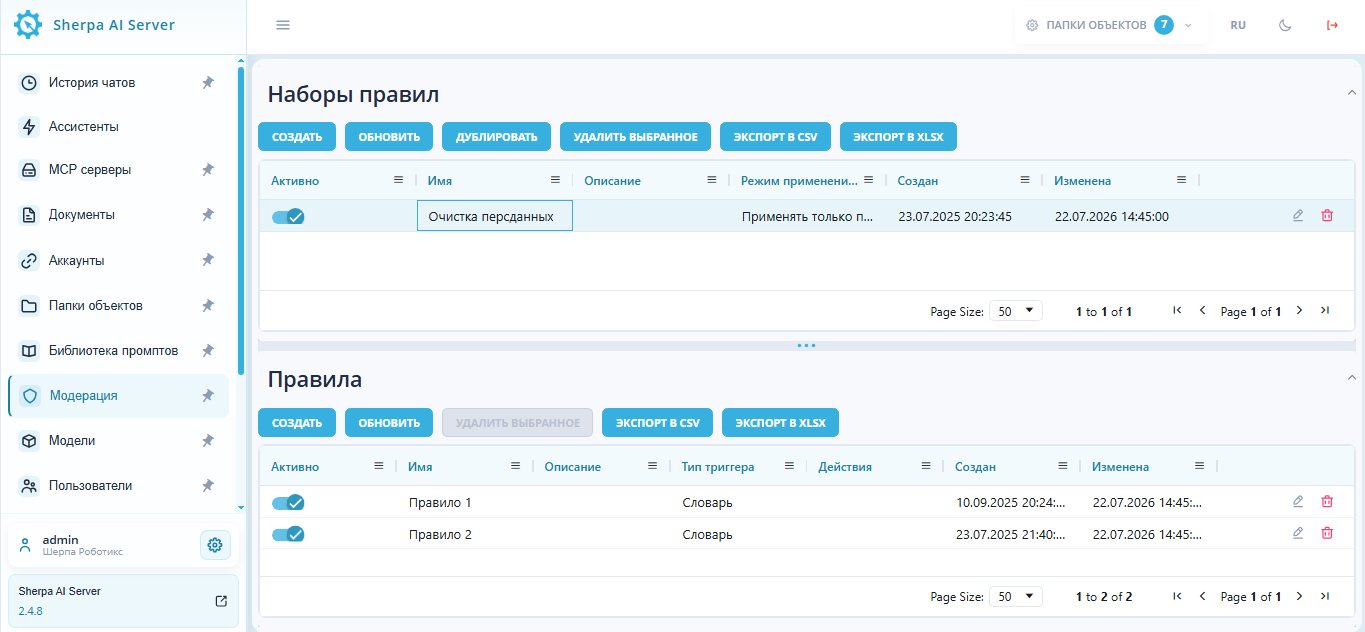
| No. | Interface Element | Description |
|---|---|---|
| 1. | “Rule Sets” block | Designed to manage Moderation rule sets. |
| 1.1. | “Create” button | Opens the form to create a new rule set. |
| 1.2. | “Refresh” button | Refreshes the list of rule sets. |
| 1.3. | “Duplicate” button | Allows creating a copy of the selected rule set. |
| 1.4. | “Delete Selected” button | Allows deleting selected rule sets. |
| 1.5. | “Export to CSV” button | Exports the list of rule sets to a CSV file. |
| 1.6. | “Export to XLSX” button | Exports the list of rule sets to an XLSX file. |
| 1.7. | “Active” column | Shows whether the rule set is enabled. |
| 1.8. | “Name” column | Displays the name of the rule set. |
| 1.9. | “Description” column | Displays the description of the rule set, if specified. |
| 1.10. | “Application Mode” column | Displays the application mode of the rule set. |
| 1.11. | “Created” column | Displays the date and time the rule set was created. |
| 1.12. | “Modified” column | Displays the date and time the rule set was last modified. |
| 1.13. | Edit button .png) | Allows opening the selected rule set for editing. |
| 1.14. | Delete button  | Allows deleting a specific rule set. |
| 2. | “Rules” block | The lower area of the screen designed to manage individual Moderation rules. |
| 2.1. | “Create” button | Opens the form to create a new rule. |
| 2.2. | “Refresh” button | Refreshes the list of rules. |
| 2.3. | “Delete Selected” button | Allows deleting selected rules. |
| 2.4. | “Export to CSV” button | Exports the list of rules to a CSV file. |
| 2.5. | “Export to XLSX” button | Exports the list of rules to an XLSX file. |
| 2.6. | “Active” column | Shows whether the rule is enabled. |
| 2.7. | “Name” column | Displays the name of the rule. |
| 2.8. | “Description” column | Displays the description of the rule, if specified. |
| 2.9. | “Trigger Type” column | Displays the type of condition that triggers the rule. |
| 2.10. | “Actions” column | Displays the action performed when the rule is triggered. |
| 2.11. | “Created” column | Displays the date and time the rule was created. |
| 2.12. | “Modified” column | Displays the date and time the rule was last modified. |
| 2.13. | Edit button  | Allows opening the selected rule for editing. |
| 2.14. | Delete button | Allows deleting a specific rule. |
| 2.15. | Row count selection .png) | Allows specifying how many records will be displayed in the table on one page. |
| 2.16. | Record counter .png) | Shows the range of records displayed on the current page and the total number of records in the table. |
| 2.17. | Page navigation .png) | Allows navigating between pages of the table: to the first page, to the previous page, to the next page, or to the last page. Also displays the current page number and the total number of pages, for example Page 1 of 1. |
Create Rule Set#
To create a new rule set, you need to click the “Create” button in the “Rule Sets” section and fill out the opened form.
.png)
- Name * — the name of the rule set.
- Description — the description of the rule set.
- Rule Application Mode * — a dropdown list that determines the order of processing multiple triggered rules for a single object. Value options:
- Apply only the first triggered rule: Processing stops after the first rule (priority by order in the list).
- Apply all triggered rules: All rules that meet the conditions are processed sequentially (cascading execution).
Create Rule#
To create a new rule, you need to click the “Create” button in the “Rules” section and fill out the opened form.
.png)
| No. | Interface Element | Description |
| 1. | field "Name" | Required field for entering the rule name. If the field is not filled, it is highlighted in red, and the "OK" button remains inactive. |
| 2. | field "Description" | Intended for entering a brief description of the Moderation rule. |
| 3. | block "Trigger" | Contains settings for the condition under which the rule should be triggered. |
| 3.1. | field "Trigger Type" | Required dropdown field where the method for checking the user message is selected.
|
| 3.2. | field "Word List" | Intended for entering words whose presence will be checked in the User's request. |
| 3.3. | hint for the word list | Explains that:
|
| 4. | block "Actions" | Contains actions that the system will perform when the rule is triggered. |
| 4.1. | field "Action Type" | Required dropdown field where the action performed by the system when the Moderation rule is triggered is selected.
|
| 4.2. | button to delete action .png) | Allows deleting the added action from the rule. |
| 4.3. | button .png) | Allows adding another action that will be performed when the rule is triggered. |
| 5. | field "Test Text" | Intended for entering text on which the rule can be tested before saving. |
| 6. | button "Run Test" | Starts the rule check on the entered test text. If the button is inactive, the necessary data for testing is not filled in. |
| 7. | button "Cancel" | Closes the window without creating a rule and without saving the entered data. |
| 8. | button "OK" | Creates a rule with the specified parameters. Active only if all required fields are completely filled. |
Edit Rule Set#
To view and edit the properties of a specific rule set, you need to select it from the list and click the button .png) . After that, a form with the rule set settings will open, where you can make the necessary changes. There are no new fields in the previously created rule set.
. After that, a form with the rule set settings will open, where you can make the necessary changes. There are no new fields in the previously created rule set.
.png)
Edit Rule#
To view and edit the properties of a specific rule, you need to select it from the list and click the button . After that, a form with the rule settings will open, where you can make the necessary changes. There are no new fields in the previously created rule.
.png)
Check Saved Set in Assistant#
The "Run Test" button checks only the current rule in the form. To verify that the rule set works in Chat, check it through a test Assistant.
For testing, create a separate test rule set:
- Select the "Apply only the first triggered rule" application mode.
- Create an active rule in the set with the "Dictionary" Trigger.
- In the word list, enter
secret. - In the action, select "Fixed Response" and set the response text to
Moderation Check. - Save the rule by clicking "OK".
- Open the test Assistant settings.
- In the "Moderator" field, select the created set and save the Assistant.
- Open Chat with this Assistant and send the message
secret.
If everything is configured correctly, the Assistant will reply: Moderation Check.
Reload the page and open the same dialog: the fixed response should remain in the history.
You can also check that the rule really turns on and off:
- send a regular message without the word
secret— the Assistant should reply as usual; - disable the rule and send
secretagain — the fixed response should not appear; - disable the entire rule set — the rules in it should also stop applying.
If the check fails:
- If the rule passes the "Run Test" check but Chat returns an error, report the system version, error time, and the test set ID to the administrator. The administrator will check the logs and whether a fix is available for your version.
- If the set contains multiple rules, check the trigger order (numeric priority). In "Apply only the first triggered rule" mode, the rule with the lower numeric priority runs first. Inactive and deleted rules, as well as rules from other sets, should not be applied. After testing, restore the test Assistant settings and delete the test set.
- If a rule with the "Local Model" trigger type hangs, test it separately. A successful connection check and the list of Models confirm only endpoint availability, not generation speed. Give the administrator the error time, model name, and a short anonymized request example. The administrator will check generation, the queue, and the LLM server logs. Do not disable moderation protection on the working Assistant just to bypass the error.
- If the test shows
blockedand a fixed response is set, but the response does not appear in Chat or is replaced by the Model response, provide the administrator with the system version and an anonymized request example. The "Block" action without fixed text stops message processing but does not add an empty response. The "Masking" action changes the input text and then passes it to the Assistant for normal processing. - Editing a blocked message in history does not reprocess it. To continue the conversation, send a new message that passes the Moderation rules.