
Assistant skills#
A skill stores instructions and files for a recurring task: Python scripts, Word templates, PDFs, spreadsheets and reference material. For example, an assistant uses the same report template and calculation script each month.
Access and prerequisites#
The Skills section is available after installing a version of Sherpa AI Server with the skill catalog and applying the migrations. The feature requires no additional server setting. Read access to Assistants lets users view accessible skills and download files. Editing permission is required to create skills, assign them to assistants, or edit skills you own. The "All agents" mode requires signing in as the account. You can attach a skill to assistants in accessible object folders.
Only Python scripts are supported. The system administrator installs libraries in the interpreter environment. Installed libraries are checked through the interpreter API. A skill with a missing requirement displays a warning and cannot run. If the check is unavailable or the imported package has no library list, the status is "Compatibility not checked". An explicitly empty list means that no external libraries are required.
Users with read-only access can open "Assistants" and click the "Skills" button  on the assistant card. In the "Skills" window, click "View" next to a skill. The instructions open as read-only. Click "Download" to save a resource file.
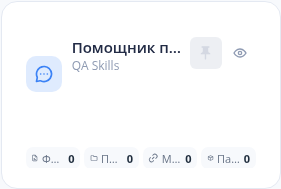
Assistant card: Skills button (Russian interface)
Example: to see which data the assistant uses for a sales report, open its skills, click "View" for the sales report skill and download data/sales.csv.
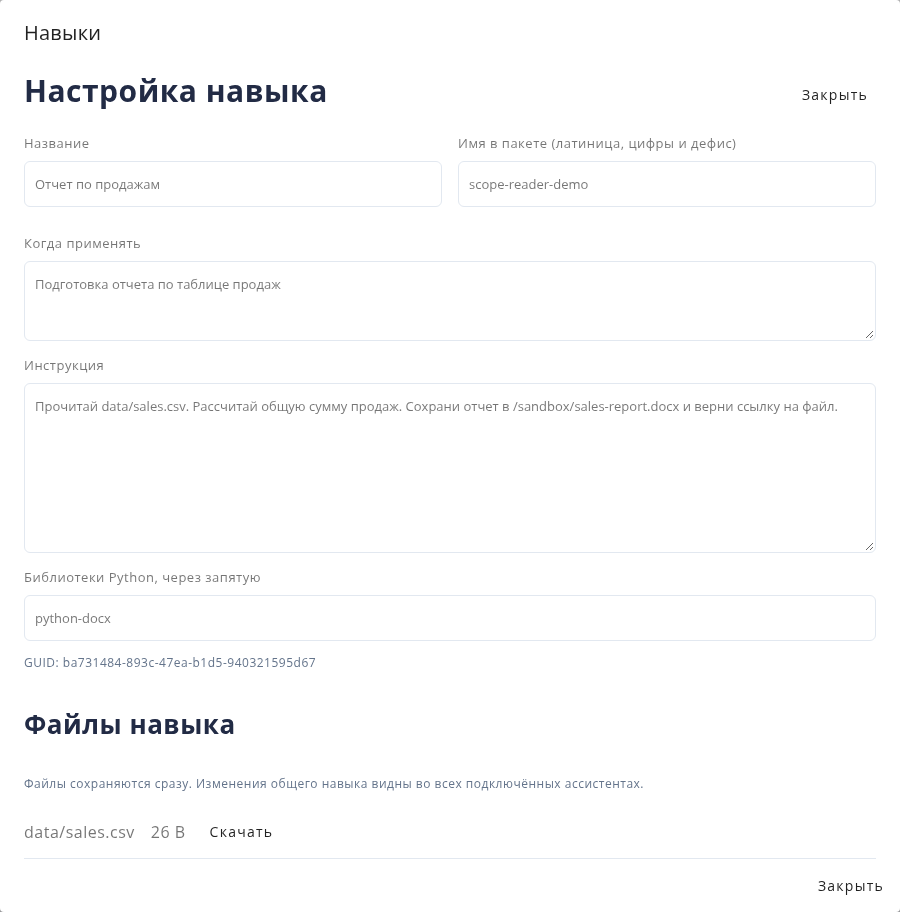
Skills window: viewing instructions and downloading a file (Russian interface)
Compatibility checks use the libraries selected in the assistant settings. If a required library is installed but not selected, a user with permission to edit the assistant must enable it through "Change interpreter libraries".
Creating a skill#
Create a skill in the catalog to save instructions and files for reuse.
Search the Skills catalog by title, package name or description. Column header menus also provide filters for title, package name, description and assignment.
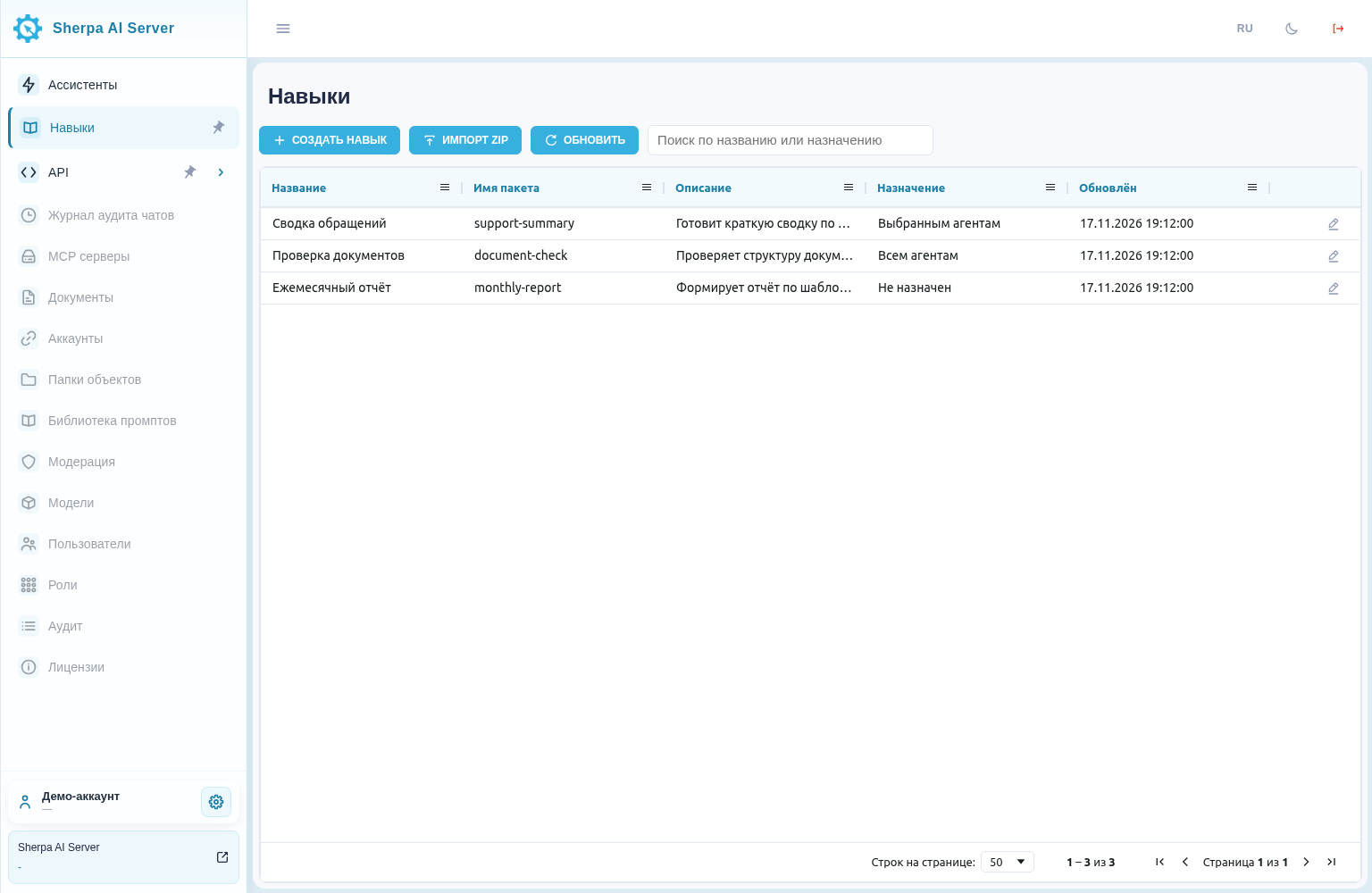
Skills catalog with Create skill and Import ZIP, Russian interface
- Open Skills in the navigation menu.
- Click "Create skill".
Required fields
- Enter a descriptive "Title", such as "Monthly report".
- Set "Package name (lowercase letters, digits and hyphens)" to
monthly-report. This name selects the skill in a message. - Describe a suitable request in "When to use": "Prepare a report from a Word template and a spreadsheet".
- In "Instructions", specify actions, file paths and the expected result. For example: "Use assets/template.docx, data.xlsx, scripts/process.py. Save the result to /sandbox/monthly-report.docx".
Optional fields
- In "Python packages, comma-separated", enter distribution names, such as
python-docx, openpyxl. Leave this field empty if the scripts require no external packages.
Click "Save skill".
Example: use the values above to create a monthly report skill. After saving, monthly-report appears in the catalog.
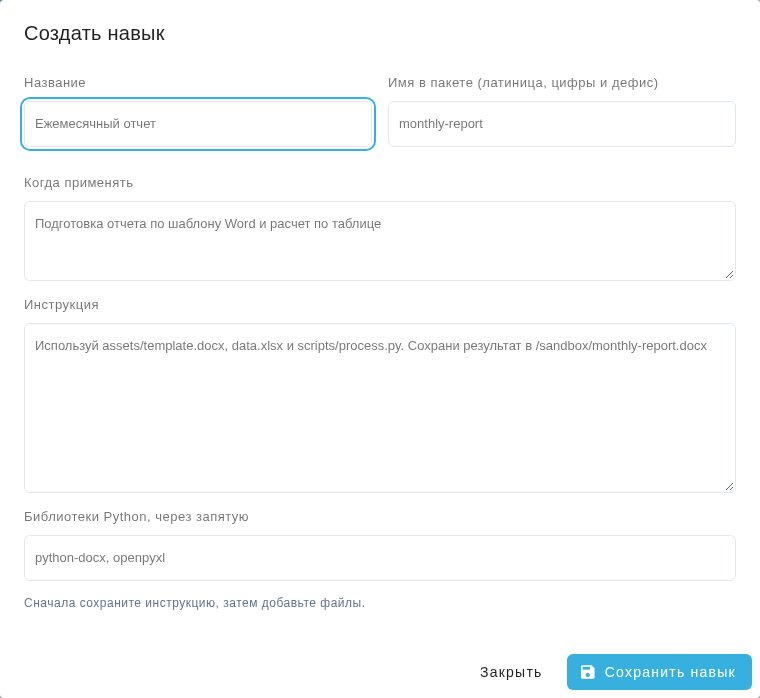
Create skill dialog with monthly report settings (Russian interface)
After saving, upload the template, spreadsheet and script in the skill editor using the paths referenced by the instructions. Folder uploads preserve nested paths. For a single file, use the optional resource path field. Files are saved immediately, separately from instruction text.
Importing a package#
Importing a ZIP file adds instructions and resources to the catalog in one step. In Skills, click "Import ZIP" and select an archive such as monthly-report.zip. It must contain exactly one SKILL.md at the root or in a single enclosing folder. Resource paths are relative to the folder containing SKILL.md. The example below shows the contents of SKILL.md.
---
name: monthly-report
description: Prepare a monthly report using a Word template and a spreadsheet.
metadata:
  title: Monthly report
  python_packages:
    - python-docx
    - openpyxl
---
Read assets/template.docx and data.xlsx. Run scripts/process.py.
Save the result to /sandbox/monthly-report.docx and print that path.
Scripts belong in scripts/ and use the .py extension. Archives are limited to 100 files and 20 MiB of uncompressed data. Directory entries do not count as files. Instructions are limited to 20,000 bytes. Symbolic links, directory traversal and file/directory path conflicts are rejected.
Example: put SKILL.md with the instructions, the assets/template.docx template, the data.xlsx source data and the scripts/process.py script in monthly-report.zip. After importing it, find monthly-report in the catalog.
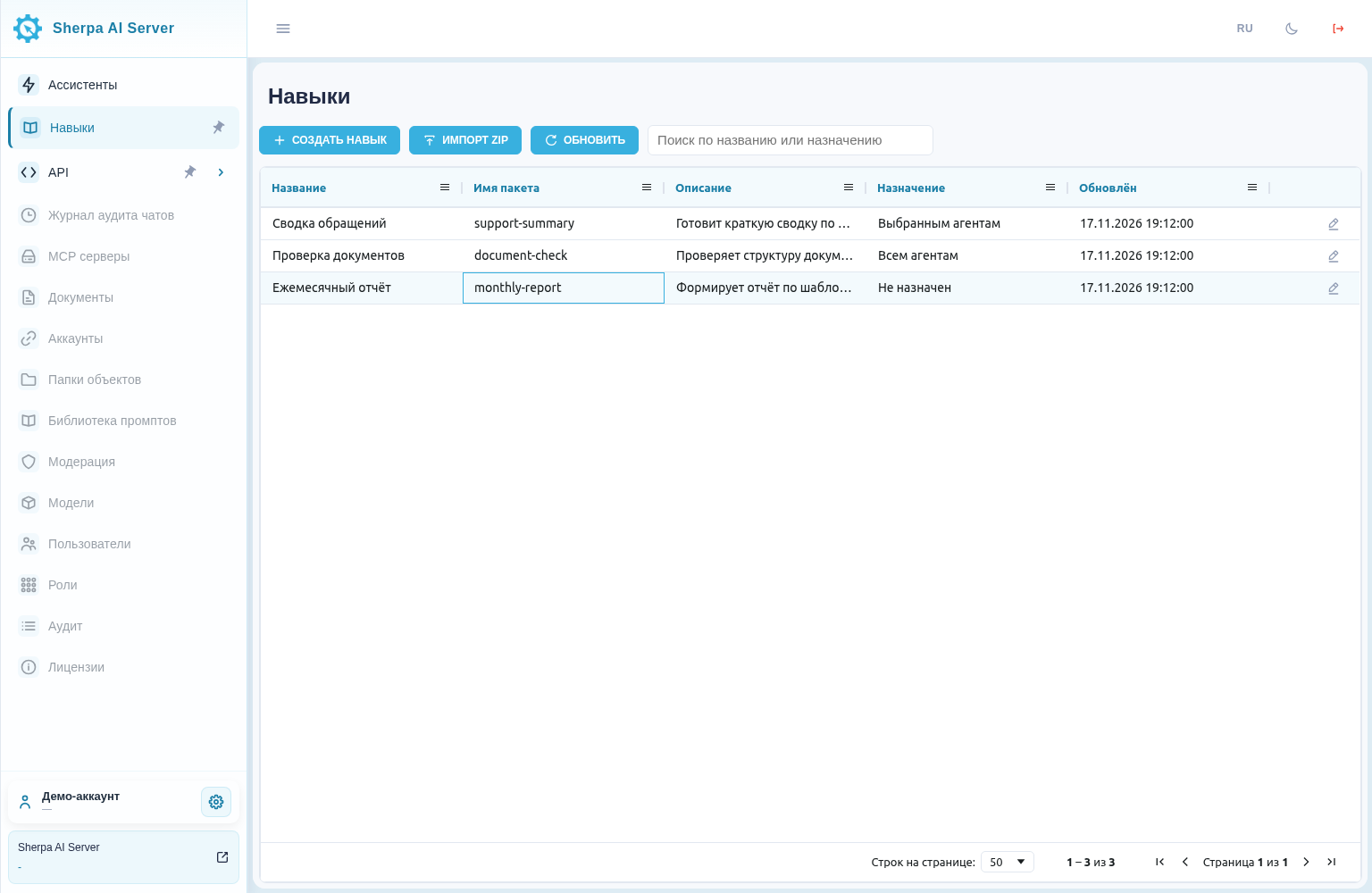
Skills catalog with the monthly-report package after import (Russian interface)
Connecting and editing#
Multiple assistants can use the same skill from the catalog. Changes to instructions and files apply to every assistant assigned that skill.
In Skills, click "Configure"  in the skill row. In "Selected agents" mode, changes to the assistant checkboxes take effect immediately. To assign the skill to every current and future assistant in the account, select "All agents" in "Assignment" and click "Save skill". Returning to "Selected agents" restores the previous assignments. You cannot disable or detach an account-wide skill from an individual assistant’s settings.
Example: to let the support assistant summarize customer requests, select the support assistant in the configuration dialog for the "Request summary" skill. The skill becomes available to that assistant.
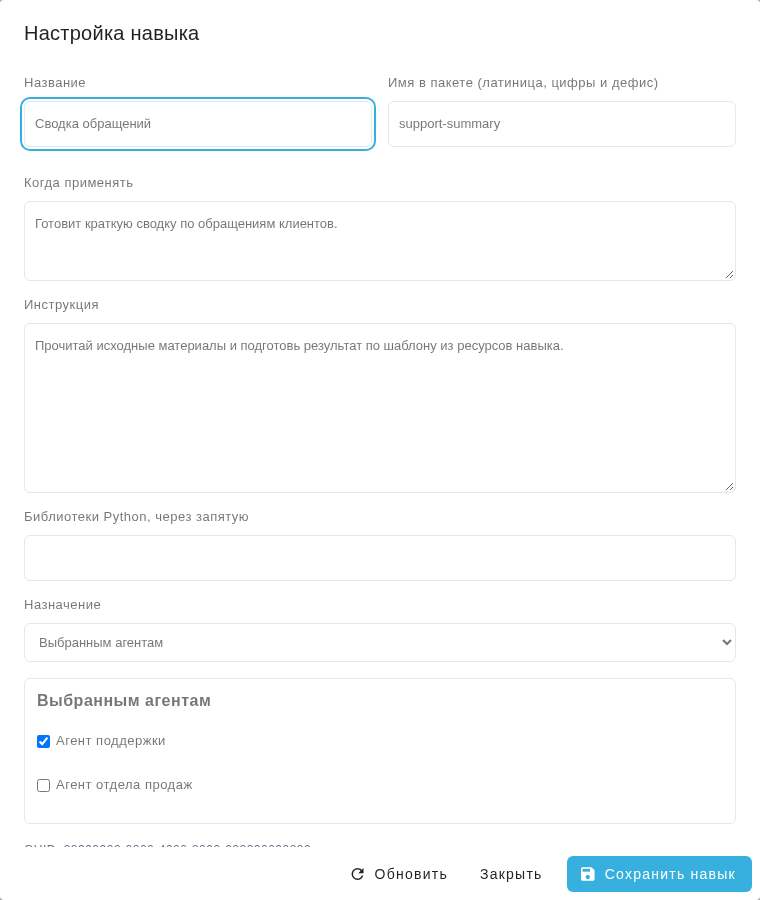
Skill configuration dialog showing Request summary assigned to the support assistant (Russian interface)
To connect a skill in assistant settings, open the "Skills" tab and click "Connect skill". Search by title or purpose, then click "Attach" beside the skill. The connected skill appears in the assistant's list immediately.
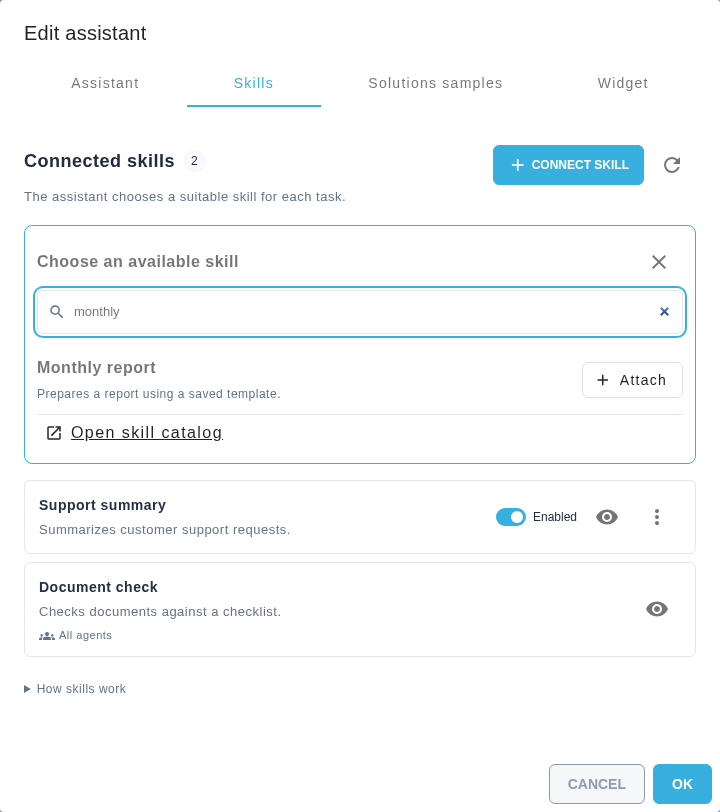
Assistant settings, Skills tab, connecting Monthly report
Each connected skill has the following controls:
- The "Enabled" switch
 changes availability for the selected assistant. Disabling a skill preserves its assignment.
- "View"
 opens the instructions and files in a separate dialog. Open the skills catalog to edit the content.
- "Actions"
 contains "Detach". This removes the assignment and keeps the skill in the catalog.
- "All agents" identifies an account-wide assignment. Change that assignment in the skills catalog.
Example: Support summary is enabled for the support assistant, while Document check is assigned to all agents.
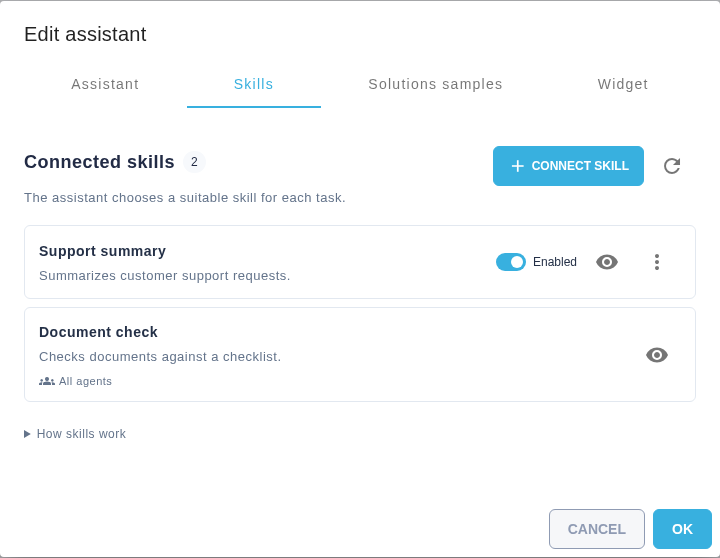
Assistant settings, Skills tab, connected skills
If another user changes the skill while you are editing it, a conflict message appears. Your text remains in the editor, and the "Save skill" button is unavailable. "Refresh" does not clear the conflict or discard your draft.
- Before reopening, copy any text you need from the editor to a separate document.
- Click "Reopen skill" in the conflict message. The editor loads the latest server version of the skill. Unsaved local changes are discarded.
- Compare the latest version with the text you copied, reapply the changes you need, and click "Save skill".
Reopening does not undo changes already saved on the server or delete skill files.
Using skills in chat#
Connected skills are available in chats with the assistant in "Agent" and "Code interpreter" modes. By default, the assistant chooses a suitable skill based on the task description.
- Open a chat with the assistant.
- Select "Agent" or "Code interpreter" mode.
- Enter and send a request, such as "Prepare a monthly report using the saved template".

Chat input, Agent mode, automatic skill selection
To select a skill manually, open "Chat tools"  at the bottom left of the input and choose "Skills". In "Choose an available skill", click the skill title. Its name appears as a compact label in the toolbar. "Clear skill selection"
 on the label restores automatic selection and keeps your draft. Selecting or clearing a skill does not change the chat mode.
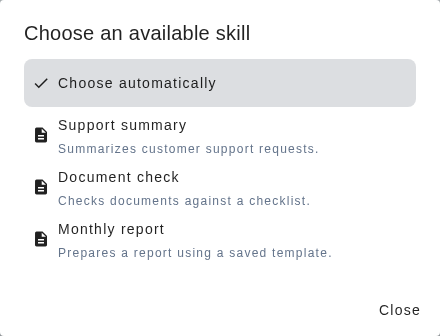
Chat, Choose an available skill dialog
Example: choose "Monthly report" in "Skills" and send the request from step 3. The assistant receives the instructions for preparing the report from the template.

Chat input, Agent mode, Monthly report selected
Manual selection prefixes the message with /monthly-report. For automatic selection, the model uses skill descriptions. Full instructions load when a skill is selected. Selection quality depends on the model and the "When to use" description.
Skill files are read-only in the interpreter for the current run. Save generated files under /sandbox/. The resulting document appears in the chat message for download. When the catalog is prepared, each skill name is bound to its GUID for the entire run. Renaming the skill or assigning its old name to another skill does not replace it in an existing catalog. Instructions, files and library requirements are pinned on the first successful load. Changes made before that load are included. Reloading within the same run uses the pinned version. Changes made after the first load are available in a new run. Disabled skills, detached links and revoked access are checked again. When the run finishes, fails or is cancelled, its copy of skill files is removed asynchronously. If the interpreter is temporarily unavailable, cleanup resumes after the connection is restored. If the attempts fail, the system administrator checks the service and retries cleanup. Clearing chat files preserves active run snapshots. Generated documents remain available for download in the chat.
If the catalog and instructions exceed the model context budget, shorten descriptions or instructions, detach unused skills, or select a model with a larger context. Ask the system administrator to install any missing libraries. Skills cannot install libraries automatically.
Correct invalid library names or version constraints in the "Python packages, comma-separated" field. A requirement cannot contain a line break. A format error does not mean that another library needs to be installed.