
Main Interface of Sherpa AI Server#
After the User is authorized, the main interface of Sherpa AI Server opens and consists of the following areas:
- User Parameters Panel (top panel).
- Workspace (central area of the screen).
- Left Panel.
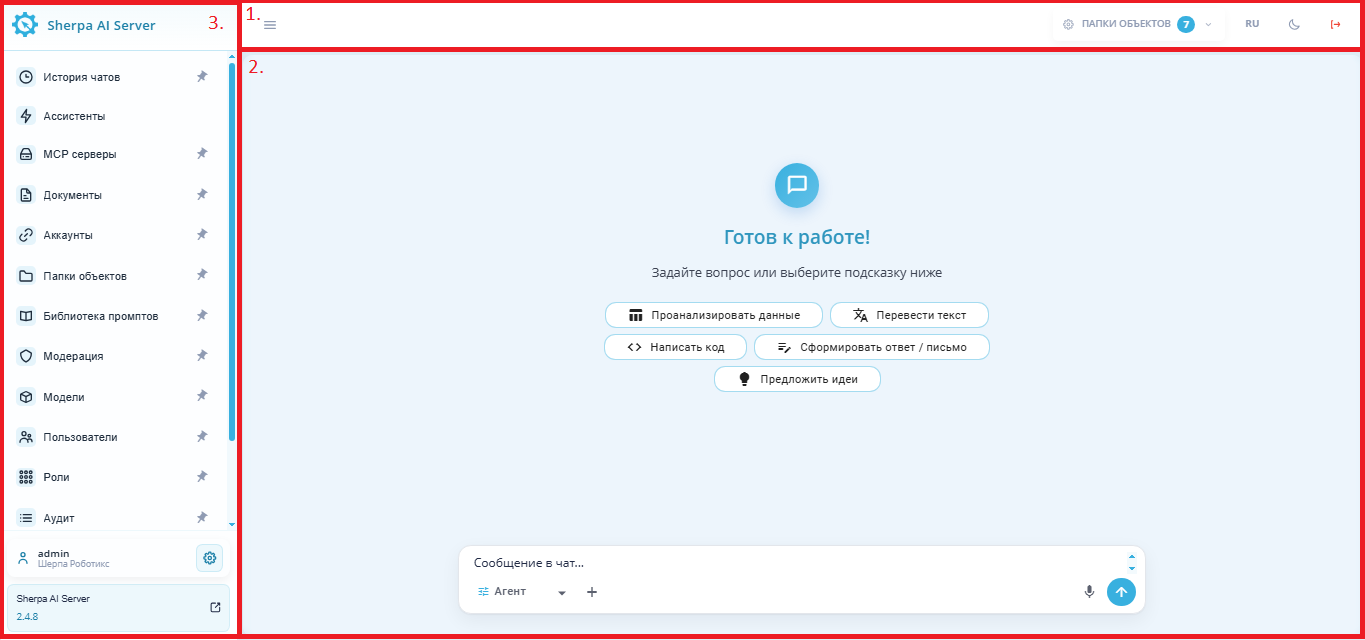
No. item | Interface Element | Description |
| 1. | User Parameters Panel | Contains information about the User's parameters and allows actions within this Account. |
| 1.1 | Button  | Allows collapsing/expanding the left panel. |
| 1.2. | Button
| Allows selecting the required object folders. |
| 1.3. | Language switcher
| Allows changing the interface language. |
| 1.4. | Theme switch button
| Allows switching the interface theme. |
| 1.5. | Logout button
| Allows logging out of the User account. |
| 2. | Workspace | Central area of the screen intended for the User's interaction with the chat and tools of Sherpa AI Server. |
| 2.1. | Chat start screen
| Displays the system's readiness state and a set of quick prompts to start a conversation. |
| 2.2. | Quick action "Analyze data" | Allows creating a request to analyze data. |
| 2.3. | Quick action "Translate text" | Allows creating a request to translate text. |
| 2.4. | Quick action "Write code" | Allows creating a request to write code. |
| 2.5. | Quick action "Draft reply / letter" | Allows creating a request to prepare a reply or letter. |
| 2.6. | Quick action "Suggest ideas" | Allows creating a request to generate ideas. |
| 2.7. | Message input field
| Intended for entering a text message into the chat. |
| 2.8. | Work mode selection
| Allows selecting the required mode for processing the request. |
| 2.9. | Button "Attach file"
| Allows adding a file or another object to the message. |
| 2.10. | Voice input button
| Allows using the microphone to enter a message by voice. |
| 2.11. | Send message button
| Allows sending the entered message to the chat. |
| 3. | Left Panel | Contains the Sherpa AI Server logo, the navigation menu, User information, and the system version. |
| 3.1. | Sherpa AI Server logo and name | Display the system name. |
| 3.2. | "Chat Audit Journal" section | Opens the chats of all Users in the Account when the role grants access. |
| 3.3. | "Assistants" section | Allows opening assistant management. |
| 3.4. | "MCP Servers" section | Allows opening MCP server management. |
| 3.5. | "Documents" section | Allows working with documents. |
| 3.6. | "Accounts" section | Allows opening account management. |
| 3.7. | "Object Folders" section | Allows opening object folder management. |
| 3.8. | "Prompt Library" section | Allows opening the prompt library. |
| 3.9. | "Moderation" section | Allows opening moderation settings and tools. |
| 3.10. | "Models" section | Allows opening model management. |
| 3.11. | "Users" section | Allows opening user management. |
| 3.12. | "Roles" section | Allows opening role management. |
| 3.13. | "Audit" section | Allows opening the audit log. |
| 3.14. | Current user block | Displays the current User's name and the associated organization/account. |
| 3.15. | User settings button
| Allows opening the current User settings. |
| 3.16. | System version block
| Displays the name and current version of Sherpa AI Server. |
.png)


.png)
.png)
.png)


.png)
"Open navigation menu" / "Close navigation menu" button#
The  button is in the left panel next to the current User block.
It switches the menu view:
- opens the administration menu with management sections;
- hides the workspace with the Chat and Assistants sections;
- returns the User to the main sections menu.
Availability of menu items#
Menu items are displayed according to the permissions assigned to the User through Roles.
If the User does not have permission for a section, the corresponding menu item may be unavailable or hidden. To use administration sections, the User must have the required access permissions.