
Licenses#
The "Licenses" tab contains a list of Licenses issued for this server and is intended for their management.
Licenses (license keys) are issued by vendors to client companies and consist of sequences of letters and numbers.
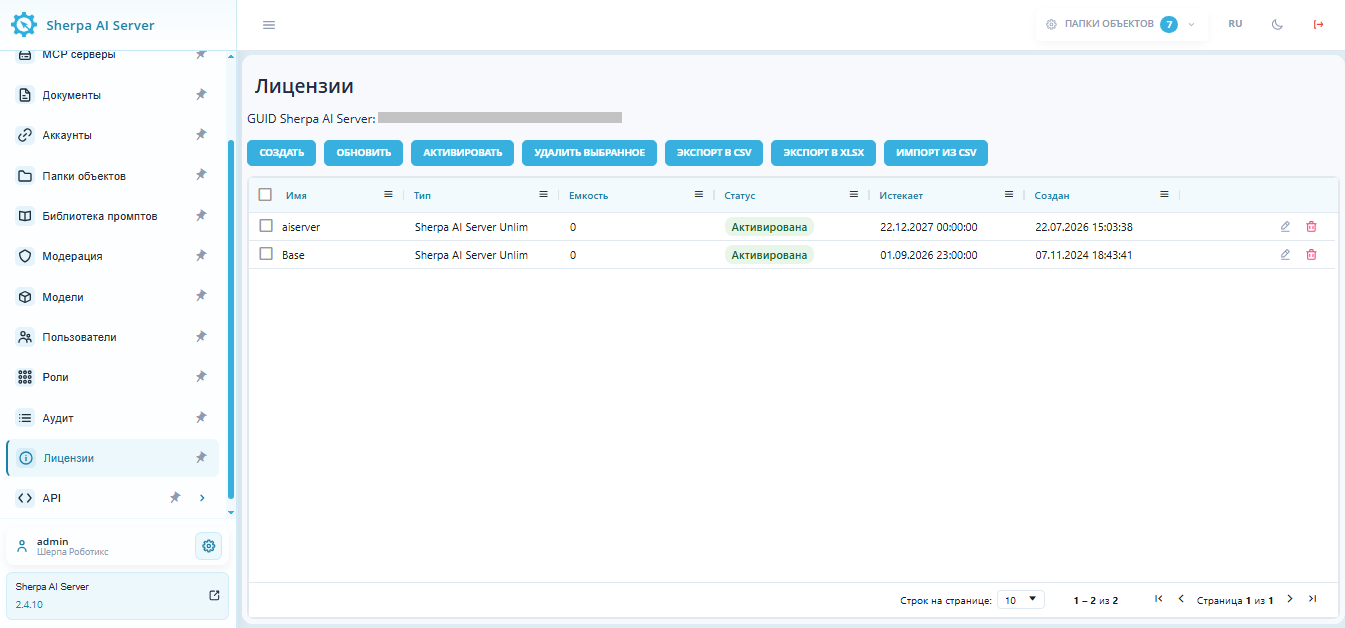
There are four types of Licenses available in Sherpa AI Server:
- Sherpa AI Server 500 t/s;
- Sherpa AI Server 1000 t/s;
- Sherpa AI Server 2000 t/s;
- Unlimited.
The table contains the following elements:
| Interface Elements | Description |
|---|---|
| "Create" button | Opens the form to add a new License. |
| "Refresh" button | Updates the list of Licenses and loads the current data. |
| "Activate" button | Initiates the activation of the selected License. |
| "Delete Selected" button | Deletes one or more Licenses marked with checkboxes in the table. |
| "Export to CSV" button | Exports the list of Licenses to a CSV file. |
| "Export to XLSX" button | Exports the list of Licenses to an XLSX file. |
| "Import from CSV" button | Loads License data from a CSV file. |
selection checkbox  |
Allows selecting one or more Licenses for bulk actions. |
| "Name" column | The name of the License. |
| "Type" column | The type of License. |
| "Capacity" column | The number of available units or the limit provided by the License. |
| "Status" column | The current state of the License, for example  . . |
| "Expires" column | The date and time when the License expires. |
| "Created" column | The date and time when the License record was created. |
edit  |
Opens the License form to view or change the parameters of the selected record. |
delete  |
Deletes the selected License from the system. |
Creating and Activating a License#
To create a new License, you need to click the "Create" button in the "Licenses" table and fill out the form that appears in the "License" popup window.
 (1) (1).png)
Fields and checkbox to fill in the "License" popup window:
- Name * – a mandatory field for entering the License name;
- Key * – a mandatory field for entering the key provided by the vendor;
- Prohibit launch from Sherpa Designer – a checkbox that needs to be checked if launching from Sherpa Designer should be prohibited.
To activate the created License, you need to click the "Activate" button and select one of two activation types in the opened window: automatic or manual.
When choosing automatic activation, you need to click the "OK" button. Automatic activation is only possible if the Sherpa AI Server has open internet access.
When choosing manual activation, a request code appears, which needs to be passed to the vendor for confirmation of manual activation. In response to the request code, you will receive a response code, which must be entered in the corresponding field, and then click the "OK" button. The License will be activated, and the date and time in the "Expires" column will change.
Editing a Previously Created License#
To view and edit a previously created License, you need to select it from the list and click the button . After that, a form with the settings of the selected License will open, where you can make the necessary changes.
In addition to the fields filled in when creating a new License, the editing form has additional fields:
- "GUID" (a unique identifier assigned to the License after its creation). This field cannot be edited;
- "Expires" (the date and time when the License expires);
- "Created" (the date and time when the License was created);
- "Updated" (the date and time when the License was updated).