
Prompt Library#
The Prompt Library screen is designed for storing, viewing, and managing ready-made prompts that the User can use when working with Sherpa AI Server Assistants and Chats.
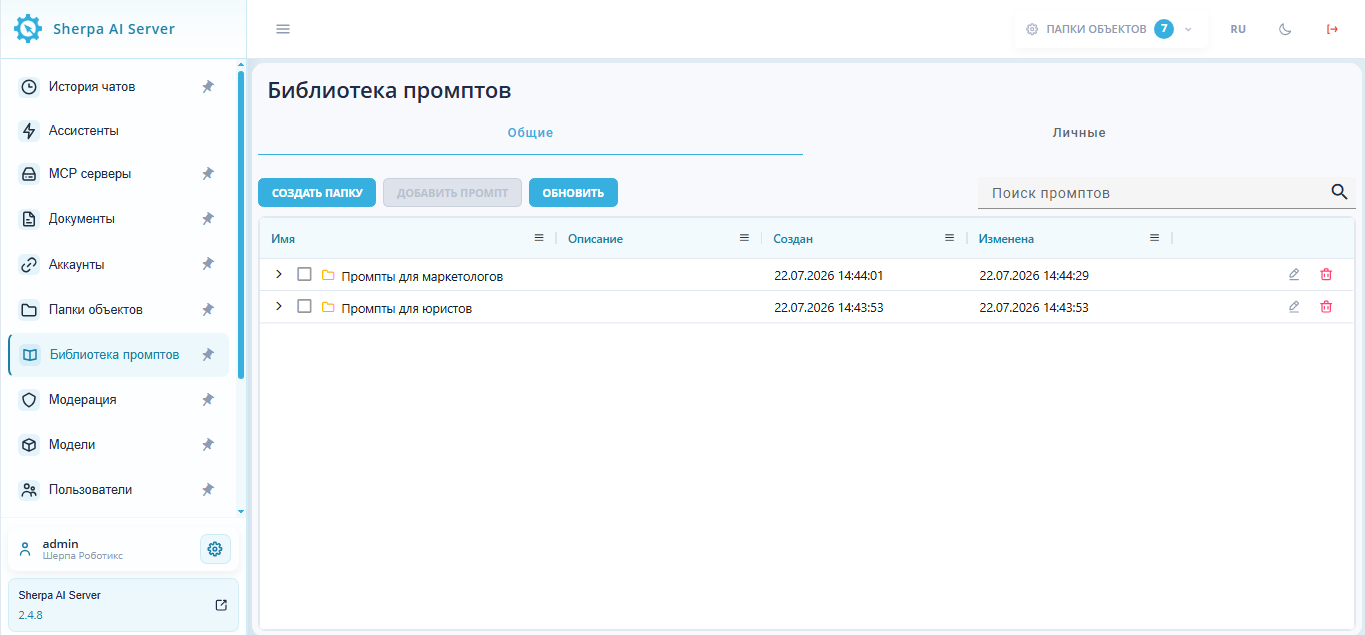
| No. | Interface Element | Description |
|---|---|---|
| 1. | "Create Folder" button | Allows you to create a new folder to group prompts. |
| 2. | "Add Prompt" button | Allows you to add a new prompt to the selected folder. |
| 3. | "Refresh" button | Refreshes the list of folders and prompts. |
| 4. | "Search Prompts" field | Allows you to find the desired prompt or folder by name. |
| 5. | "Shared" tab | Displays prompts and prompt folders available to multiple Users or the entire Account. |
| 5.1. | folder expand arrow  | Allows you to expand or collapse the folder to view nested prompts. |
| 5.2. | selection checkbox  | Allows you to select a folder or prompt to perform actions. |
| 5.3. | "Name" column | Displays the name of the folder or prompt. |
| 5.4. | "Description" column | Displays the description of the folder or prompt, if specified. |
| 5.5. | "Created" column | Displays the date and time the item was created. |
| 5.6. | "Modified" column | Displays the date and time the item was last modified. |
| 5.7. | edit button  | Allows you to open the selected folder or prompt to change its parameters. |
| 5.8. | delete button  | Allows you to delete the selected folder or prompt from the library. |
| 6. | "Personal" tab | Displays the User's personal prompts. |
| 6.1. | "Name" column | Displays the name of the personal prompt. |
| 6.2. | "Description" column | Displays the description of the personal prompt, if specified. |
| 6.3. | "User" column | Displays the User to whom the prompt belongs. |
| 6.4. | "Created" column | Displays the date and time the prompt was created. |
| 6.5. | "Modified" column | Displays the date and time the prompt was last modified. |
Create Folder#
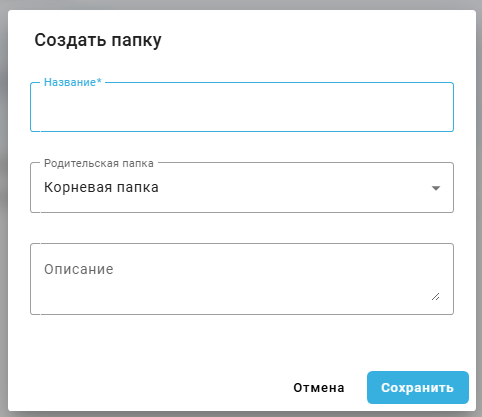
When the "Create Folder" button is clicked, a pop-up form opens, and after filling it out and saving, a new folder is created in the prompt library.
| No. | Interface Element | Description |
|---|---|---|
| 1. | "Name*" field | A required field for entering the name of the folder being created. |
| 2. | "Parent Folder" field | Allows you to select a folder within which the new folder will be created. |
| 3. | "Description" field | Intended for entering a brief description of the folder being created. |
| 4. | "Cancel" button | Closes the window without creating a folder and without saving the entered data. |
| 5. | "Save" button | Creates a folder with the specified parameters. |
Add Prompt#
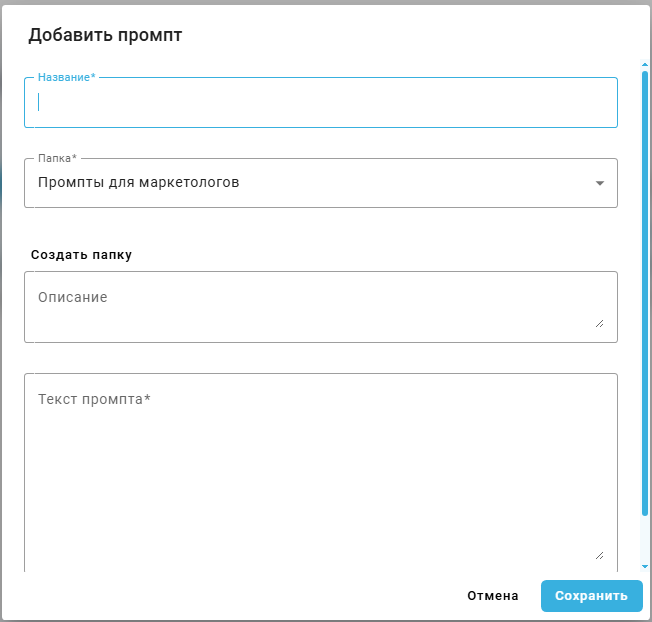
When the "Add Prompt" button is clicked, a form window opens, and after filling it out and saving, a new prompt is created in the selected folder of the prompt library.
| No. | Interface Element | Description |
|---|---|---|
| 1. | "Name*" field | A required field for entering the name of the prompt being created. |
| 2. | "Folder*" field | A required field for selecting the folder to which the prompt will be added. |
| 3. | "Create Folder" field | Intended for entering a brief description of the prompt. |
| 5. | "Prompt Text*" field | A required field for entering the full text of the prompt that will be saved in the library. |
| 6. | "Cancel" button | Closes the window without saving the entered data. |
| 7. | "Save" button | Saves the new prompt in the selected folder of the prompt library. |