
Working in Sherpa AI Server#
Sherpa AI Server lets you work with Assistants and conversations from a single portal.
Home screen#
The Home screen in Sherpa AI Server provides links to services, new Chats with Assistants, and recent conversations. This screen opens after signing in to Sherpa AI Server. If a link to another accessible page was opened before authentication, the application returns there. To open the Home screen, select the "Home" item in the left menu.
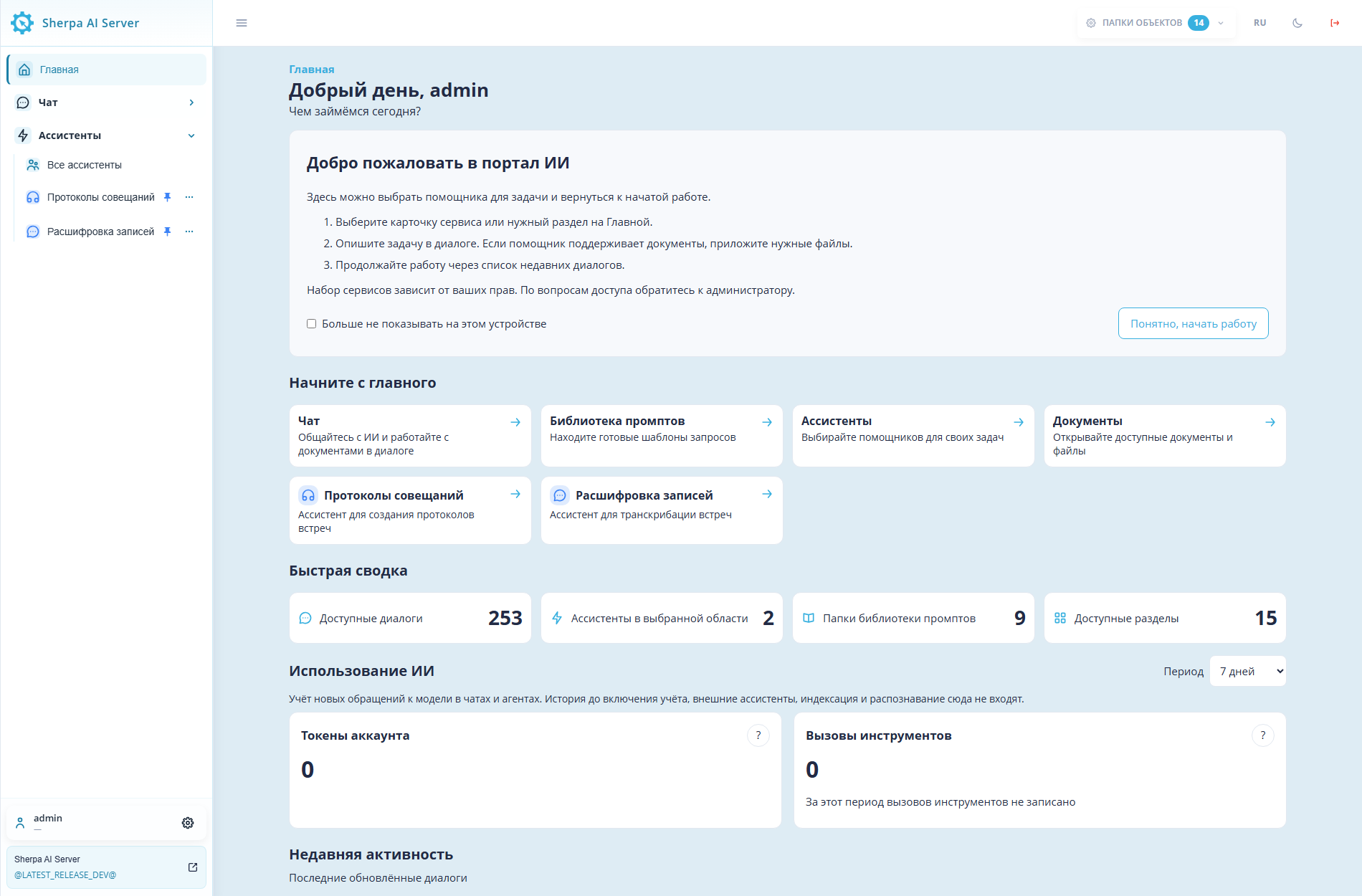
Home screen: initial view with navigation, guide, and cards. Russian interface.
Block "Get started"#
The "Get started" block at the top of the Home screen helps you choose a service or pinned Assistant for your task. Its cards open the corresponding screens or a new Chat with the selected Assistant. All accessible pinned Assistants appear after the main cards. Each card shows its name, description, icon, and color. The list updates when pinning or the selected Object Folders change.
Example: to prepare meeting minutes, find the "Протоколы совещаний" card after the main cards. Click it to open a new Chat with that Assistant.
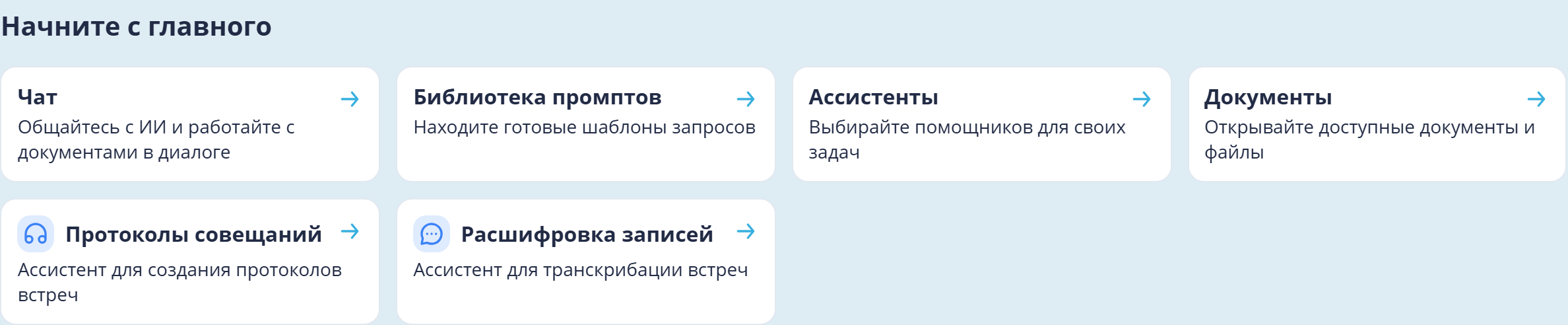
Home screen: service and pinned Assistant cards in the Get started block. Russian interface.
Block "Quick overview"#
The "Quick overview" block below the service cards helps you assess the amount of accessible data. Its cards show:
- the number of accessible conversations;
- the number of Assistants in the selected Folder scope;
- the number of prompt library Folders;
- the number of accessible sections.
Example: the screenshot shows 253 accessible conversations, 2 Assistants in the selected scope, 9 prompt library Folders, and 15 sections. Values depend on permissions and the selected Object Folders.

Home screen: four cards in the Quick overview block. Russian interface.
Block "Recent activity"#
The "Recent activity" block below the AI usage figures helps you resume a recently updated conversation. Click the required Chat title in the list. Other Users' personal conversations are not displayed.
Example: to continue a conversation, select the first "Привет" row in the "Recent activity" block.
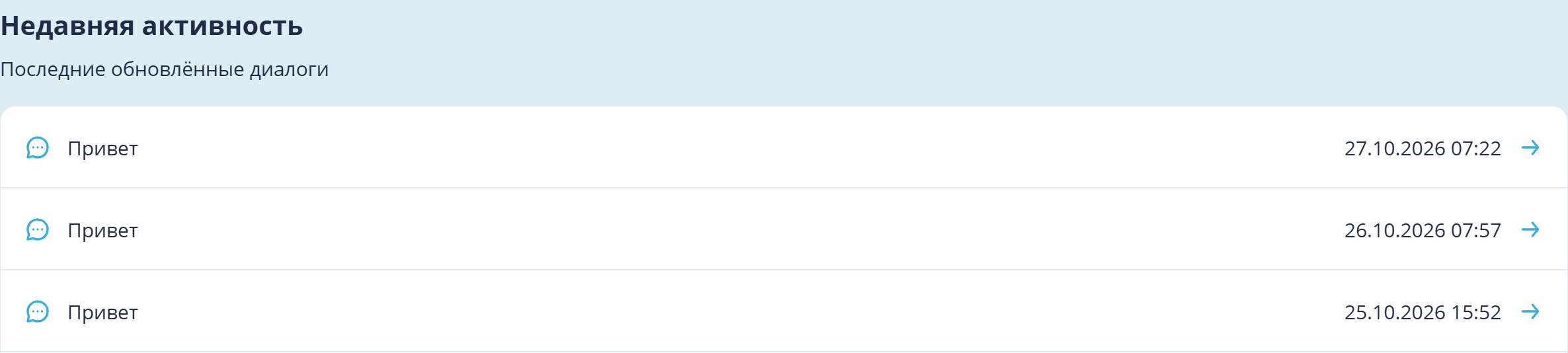
Home screen: Recent activity block with conversations. Russian interface.
An administrator configures the main cards in branding.json, as described in Company branding setup. Cards only show accessible sections and do not grant additional permissions.
Access to the Home screen and usage figures#
Permissions let you provide Users with the cards and metrics they need without access to unnecessary sections.
Cards on the Home screen depend on the User's Role permissions. Configure them on the Roles screen, in the "Role" dialog, on the "Access" tab. The "Read" checkbox in the "Chat" row permits viewing Chats and the "AI usage" block. This block is on the Home screen below "Quick overview" and shows token consumption and tool calls. Pinned Assistant cards also require the "Read" checkbox in the "Assistants" row.
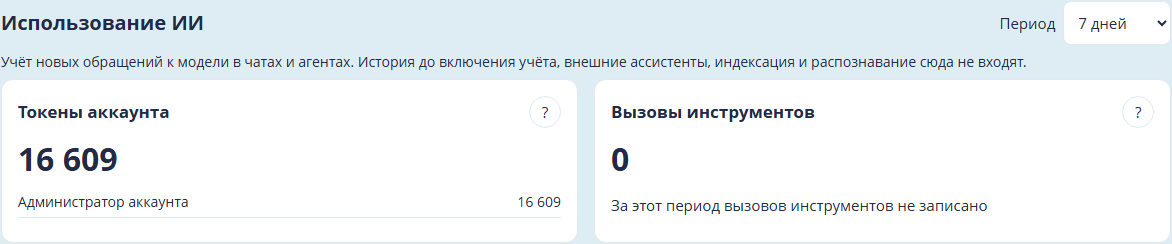
Home screen: AI usage block with token and tool-call cards. Russian interface.
Example: on the "Access" tab, select "Read" in the "Chat" row and in the "Assistants" row. This grants read access to both sections. Role creation and assignment are described in Roles.
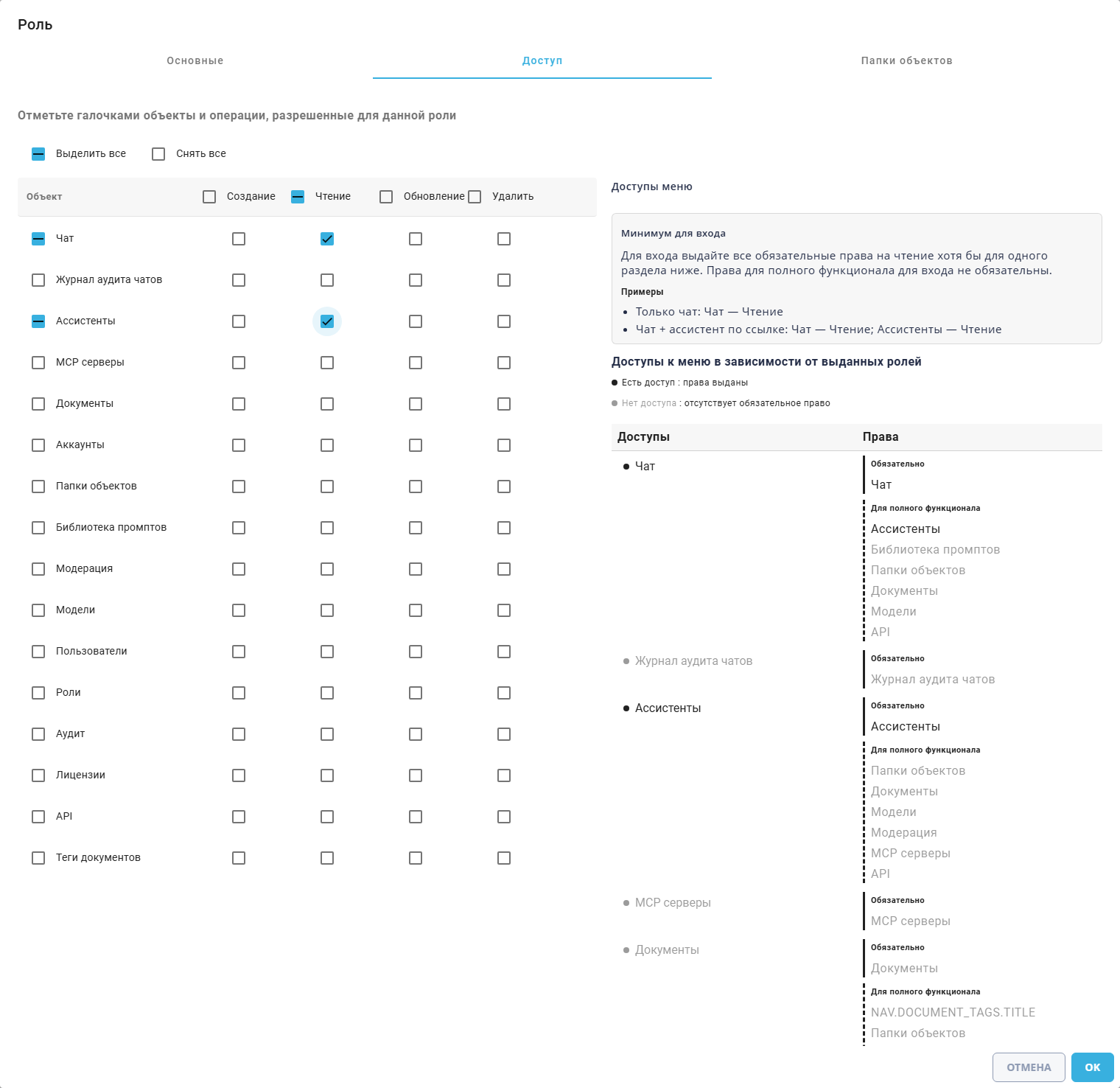
Role popup, Access tab: read permissions for Chats and Assistants. Russian interface.
Pinned Assistant card order#
The order of pinned Assistant cards in the "Get started" block on the Home screen lets you place frequently used Assistants near the start of the list.
Changing the order of these cards requires at least two pinned Assistants and the Role permission "Update" for Assistants.
Example: the Access tab has "Read" and "Update" selected for Assistants and "Read" for Chat.
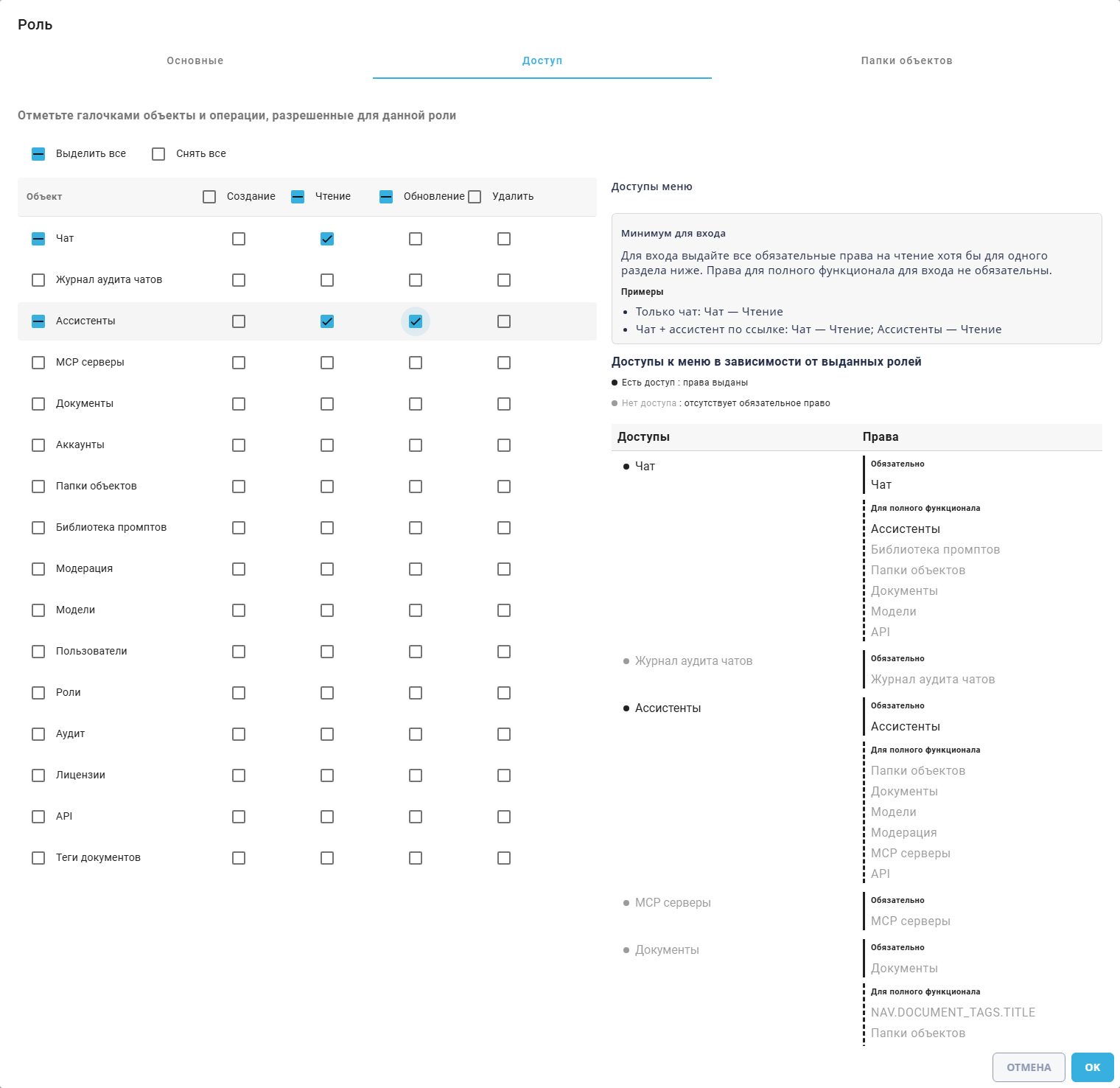
Role popup, Access tab: update permission for Assistants. Russian interface.
Assistant actions button#
The actions button next to a pinned Assistant in the left panel changes the position of its card in the "Get started" block on the Home screen.
- Expand Assistants in the left panel and open the actions button
 next to the pinned Assistant.
- Select "Move up" or "Move down" to move the card by one position. The first card can only move down and the last can only move up.
The order is shared across the Account and persists after Home is refreshed. A newly pinned Assistant is added at the end.
Example: open the actions menu for "Протоколы совещаний" in the left panel. "Move down" would place it after the next pinned Assistant. The screenshot shows the menu before the action is selected.
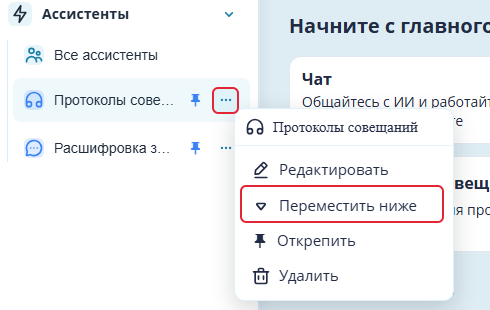
Home: pinned Assistant actions menu. Russian interface.
Button "How to get started"#
The "How to get started" button at the top right of the Home screen reopens the "Welcome to the AI portal" block with guidance on using Sherpa AI Server.

Home screen: How to get started button above the service cards on the right. Russian interface.
The "Welcome to the AI portal" block at the top of the Home screen helps you choose your first action: open a service, describe a task in Chat, or resume a conversation.
The first visit to the Home screen in Sherpa AI Server displays this guide. Click "Got it, get started" to close it.
Example: open help with "How to get started". Leave "Do not show again on this device" unchecked, as shown, and click "Got it, get started". Help closes and appears on the next visit to Home.
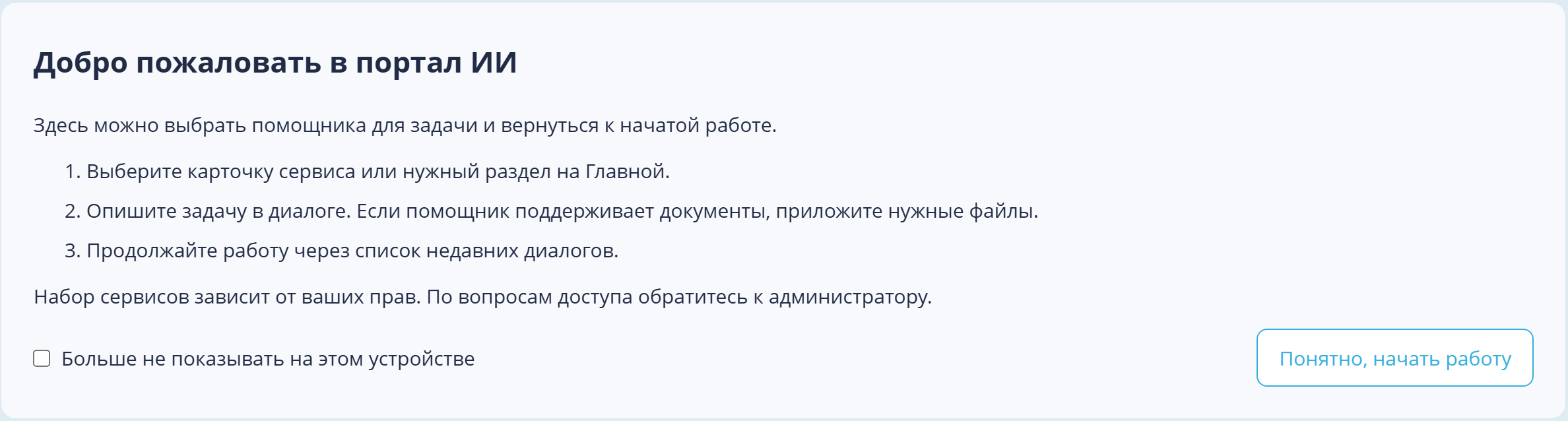
Home screen: open Welcome to the AI portal block. Russian interface.
The "Do not show again on this device" checkbox saves the choice in the browser used to open Sherpa AI Server, separately for each account. Clearing browser data removes the choice. The setting cannot be saved if the browser blocks storage.
Block "AI usage"#
The "AI usage" block on the Home screen below "Quick overview" helps assess token consumption and tool calls over a selected period.
Example: select "7 days" in "Period". The screenshot shows 0 on both the "Account tokens" and "Tool calls" cards. Values differ in other Accounts and for other periods.
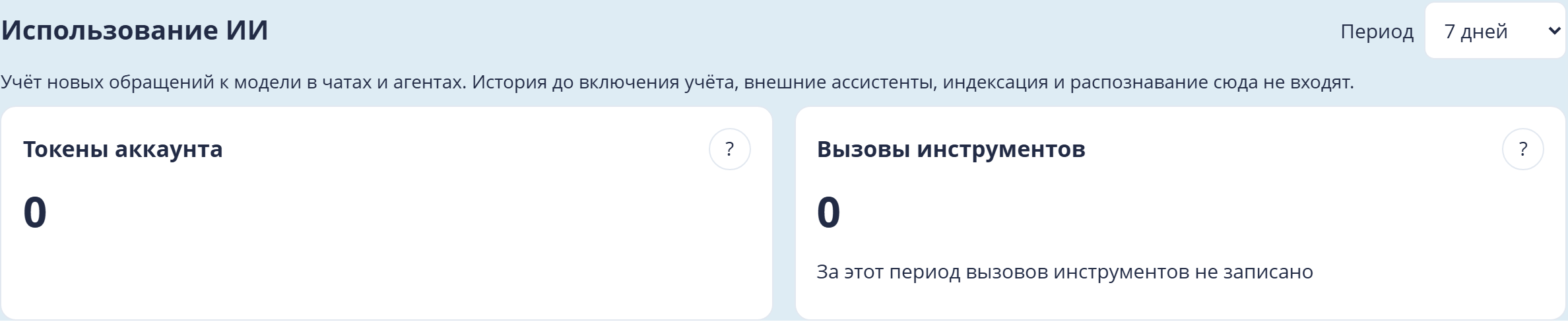
Home screen: AI usage block with token and tool-call cards. Russian interface.
Use the "Period" list in the "AI usage" block to select the time range:
- "7 days" — the last seven days;
- "Month" — the last month;
- "3 months" — the last three months;
- "6 months" — the last six months.
Both figures update using the Account time zone.
The "Account tokens" card in the "AI usage" block shows total consumption and usage by participants when signed in to Sherpa AI Server as an Account. This includes the Account administrator and API requests. When signed in as a User, the "My tokens" card appears instead and shows confirmed usage for requests started by that User. The screenshot below shows the Account variant.
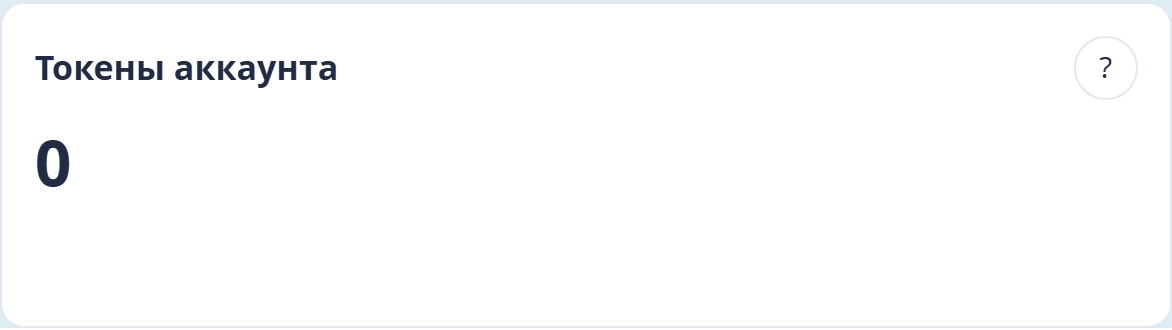
Home screen: Account tokens card in the AI usage block. Russian interface.
Up to 100 participants with the highest usage are listed. The total includes everyone.
The "Tool calls" card counts attempts to run tools, including failed attempts. "Top 5 tools" lists the five most frequently called tools. The total also includes other tools. A message appears if there are no calls.
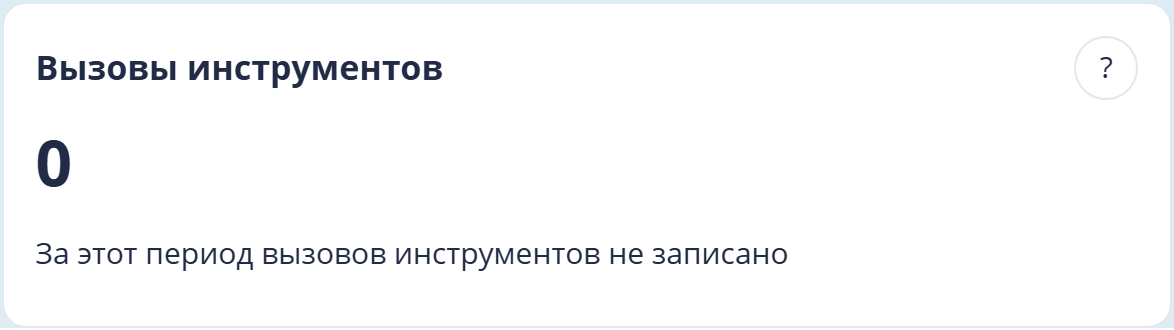
Home screen: Tool calls card in the AI usage block. Russian interface.
Built-in tool names and number formatting follow the interface language. Third-party tool names remain unchanged. Hover over a name to see its technical identifier.
The figures include new model requests in Chats and Agents, including conversation history compaction. History before tracking was enabled, external Assistants, indexing, and recognition are excluded. Token counts do not represent a monetary cost or the conversation context size.
Hover over the "?" button next to a card title for an explanation. The button can also be reached with Tab. If the model did not report usage or a request is still running, the tooltip reports incomplete tracking. An asterisk next to a participant also indicates incomplete data.
A loading error displays a message and a "Retry" button. It does not mean zero usage. Click "Retry" to load the figures again. If the block is unavailable, an administrator needs to check the Role permissions described in Access to Home and usage figures.