
Audit#
In the "Audit" section, you can review the system event log. This records user actions and system events, such as logging in and out, creating or modifying objects, updating files, and other operations.
.png)
| Interface Elements | Description |
|---|---|
| Refresh button | Refreshes the audit log and loads the current list of events. |
| Export to CSV button | Exports the audit log data to a CSV file. |
| Export to XLSX button | Exports the audit log data to an XLSX file. |
| Show history graph button | Opens a graphical representation of the event history, where you can view relationships and the sequence of changes. |
| Type column | Event category, such as Security, entity_update, or entity_create. |
| Time column | Date and time of the event. |
| Account column | The account under which the action was performed. |
| User column | The user associated with the event, if this information is provided. |
| Message column | Description of the event or action performed. |
| Agent column | Information about the client or user agent from which the action was performed. |
 (1) (1).png) | Button to view detailed information about the event. |
The button to view detailed information about the event .png) opens the following popup window:
opens the following popup window:
.png)
| Field | Description |
|---|---|
| Type | Event category, such as entity_update. |
| Time | Date and time of the event. |
| Account | The account under which the action was performed. |
| User | The user associated with the event, if the information is provided. |
| Message | Detailed description of the event or action performed. |
| Agent | Information about the client or user agent from which the action was performed. For example, the browser, operating system, or another source of the request. |
| Changes | Detailed description of the changes related to the event. May contain technical data in structured form, such as old and new values of modified parameters. |
Filtering the Log#
To work with the log, read access to the "Audit" section is required. Filters are applied to the entire log of the current account, including rows on other pages.
Click the menu button on the right in the header of the desired column, then select the tab with the filter icon. Conditions are set in this tab.
| Column | Condition |
|---|---|
| Type | Check one or more types of events. |
| Time | Set a period or one-sided limit with a date and time, then click "Apply". |
| User | Search for the login in the list search and check the desired Users. The "Account actions" option selects events without a User. |
| Message, Agent | Enter part of the text. |
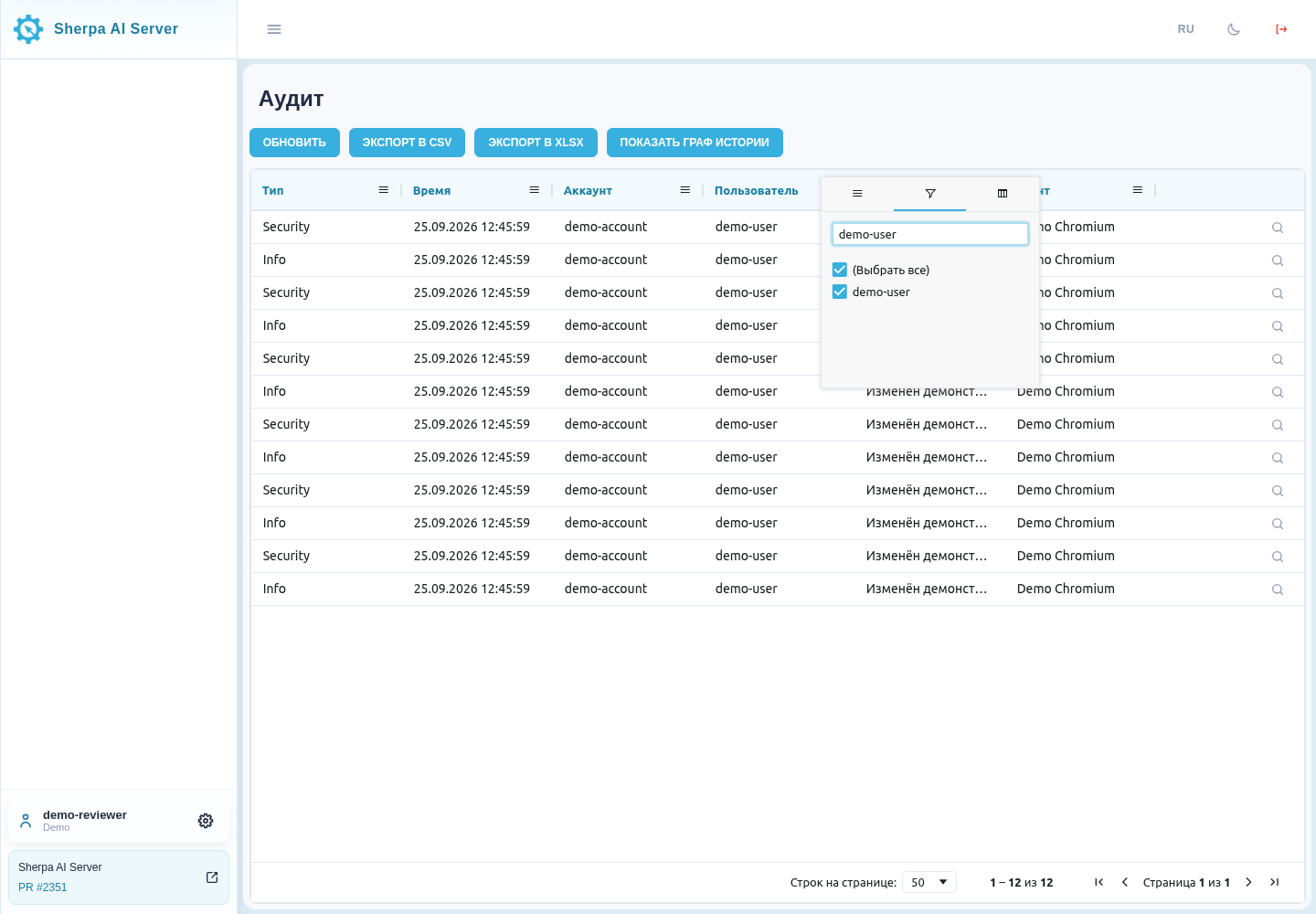
User search and selection
Time is entered in the account's time zone. You can specify hours, minutes, and seconds; both boundaries of the period are included in the result. For example, the period from 25.09.2026 10:30:45 to 25.09.2026 12:45:59 includes events between these values.
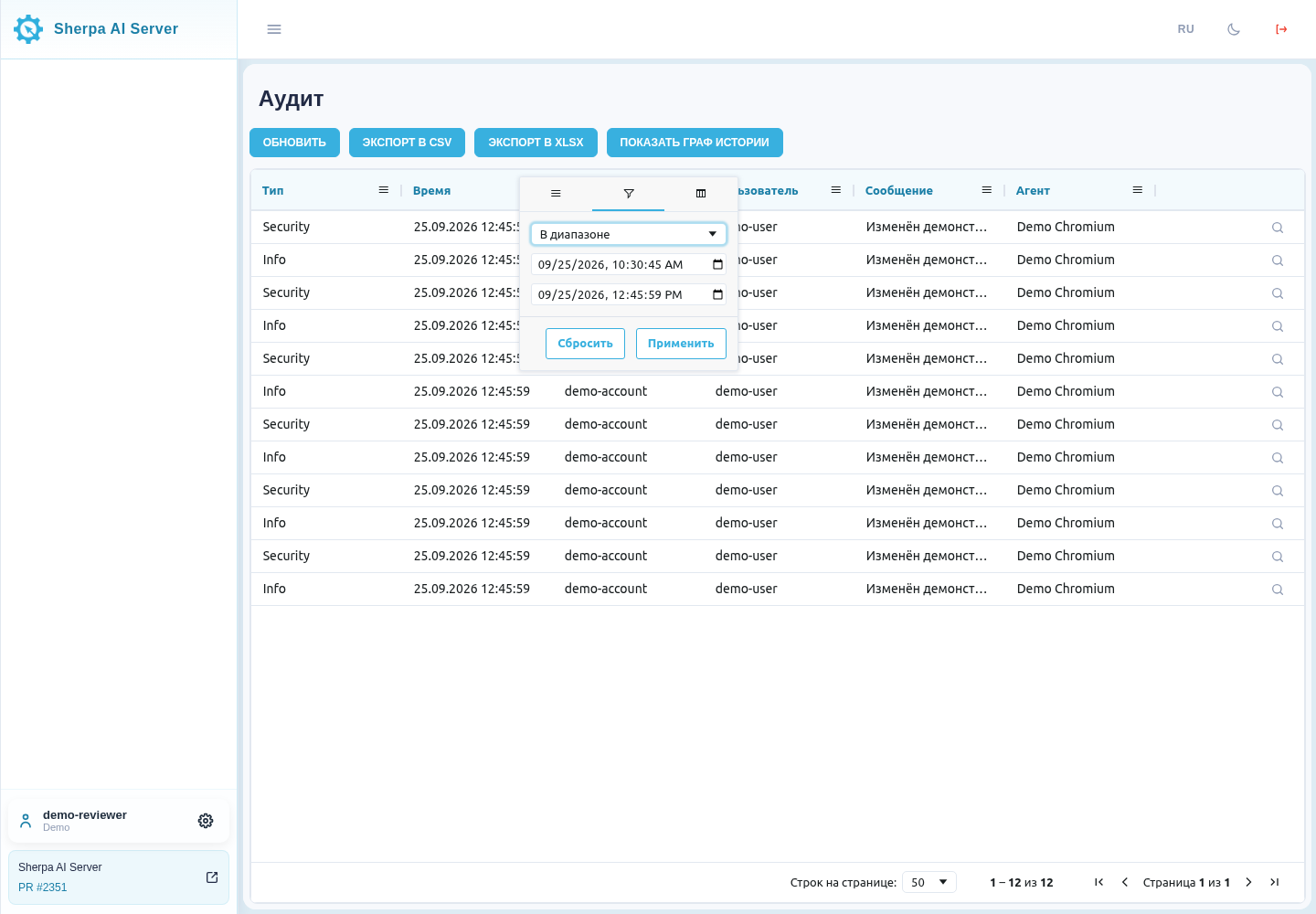
Period in the account's time zone
Conditions from different columns act simultaneously. The number of rows and pages takes into account all applied filters. After reloading the page, the conditions are restored.
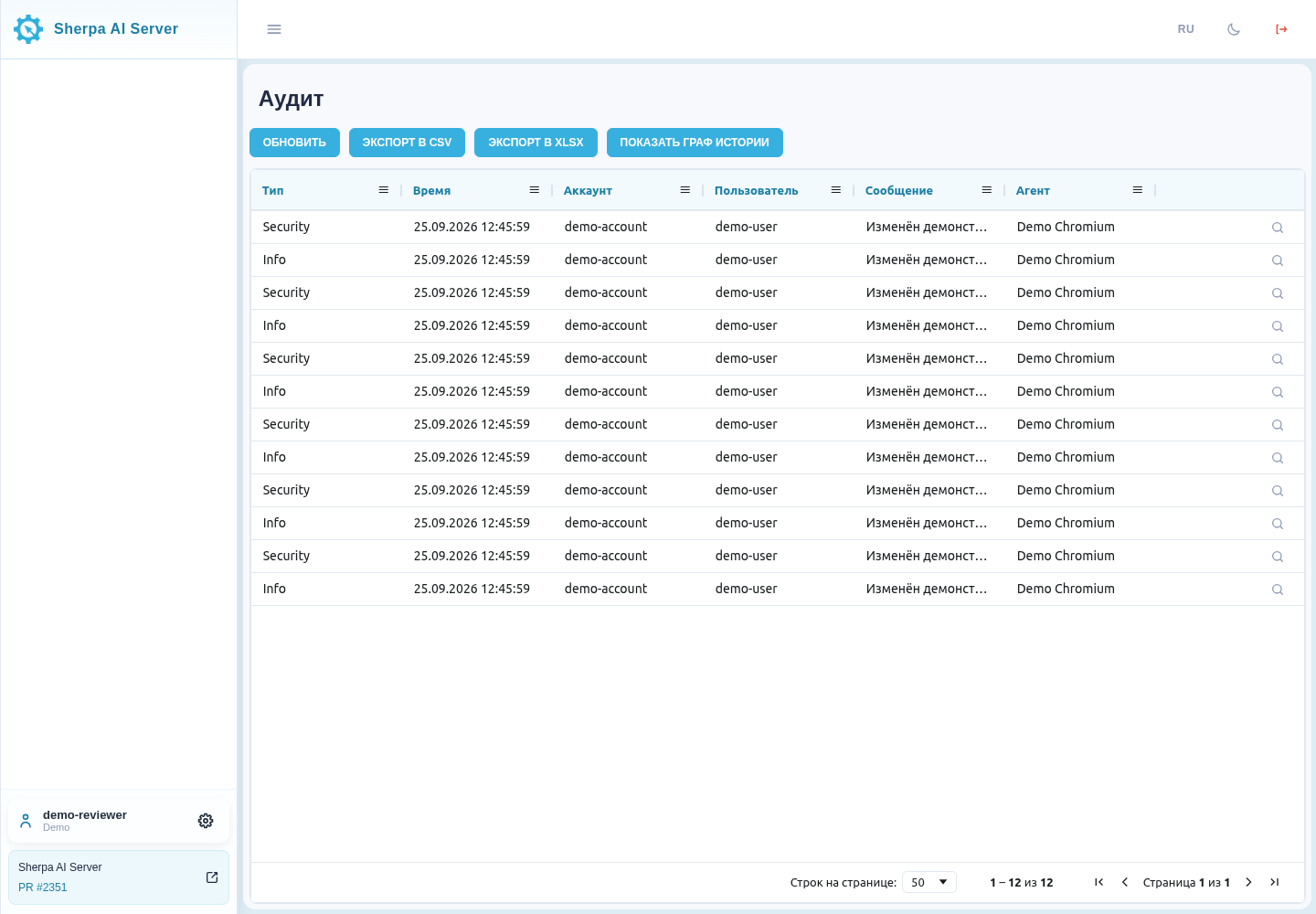
Filtered audit log
To remove the time filter, click "Reset" in its tab. For the text filter, clear the field. In the Type and User filters, clear the list search and check "Select all"; if all checks are removed, the log will be empty.
The "Export to CSV" and "Export to XLSX" buttons export all events that match the current filters, including other pages of the table.
Show History Graph#
After clicking the "Show history graph" button, the "Entity Change History" window opens. It displays the change history of the selected entity and details for each event.
At the top of the window, the entity ID and the number of related events are indicated. On the left, a list of events is displayed as a timeline: for each event, the message, account, date and time, as well as modified fields are shown. When an event is selected, its details open on the right side of the window.
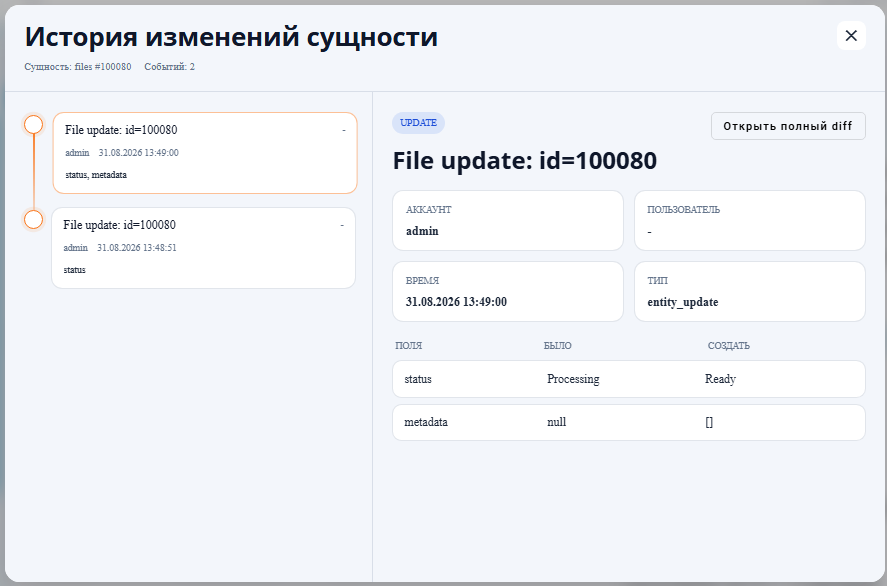
| Field | Description |
|---|---|
Event type field .png) |
Action label, such as "UPDATE". |
Event title field .png) |
Brief description of the event, such as File update: id=100080. |
Account field .png) |
The account under which the action was performed. |
User field .png) |
The user associated with the event, if the information is provided. |
Time field .png) |
Date and time of the event. |
field "Type" .png) |
Technical event type, for example entity_update. |
column "Fields" .png) |
Names of the modified fields. |
column "Was" .png) |
Field values before the change. |
column "Became" .png) |
Field values after the change. |