
MCP Servers#
The MCP Servers screen is designed to manage connections to MCP servers that extend the capabilities of the Sherpa AI Server with external tools and services.
.png)
At the top of the window, the status of the MCP Orchestrator is displayed. If the Orchestrator is unavailable, the system shows a warning with the time of the last check. In this case, working with MCP servers may be limited until the connection is restored.
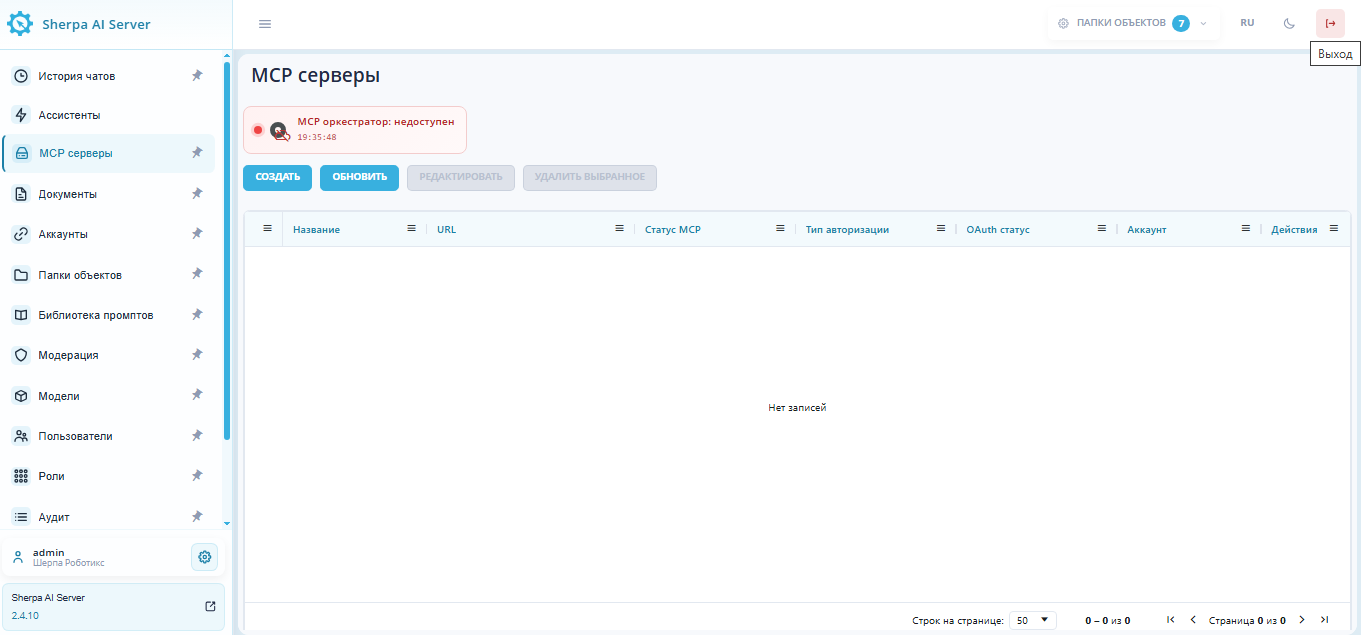
Below the status of the MCP Orchestrator are the control buttons:
| Button | Purpose |
| "Create" | Adds a new connection to the MCP server. |
| "Refresh" | Reloads the list of MCP servers and their current statuses. |
| "Edit" | Opens the settings of the selected MCP server. Available after selecting a record. |
| "Delete Selected" | Deletes the selected MCP servers. Available after selecting one or more records. |
The main part of the window contains a table of MCP servers. The table displays information about the created connections:
| Column | Description |
| "Name" | The name of the MCP server. |
| "URL" | The address of the MCP server. |
| "MCP Status" | The current availability status of the MCP server. |
| "Authorization Type" | The method of authorization used for the connection. |
| "OAuth Status" | The state of OAuth authorization, if it is used. |
| "Account" | Displays the account associated with the MCP server. If the linked account is absent or not required, a "-" is displayed in the column. |
| "Actions" | Available operations with the record: When the button is clicked, the system removes the binding to the external account or service that was performed via OAuth. After the binding is removed, the corresponding integration will no longer be able to use the previously issued OAuth access until the user re-authenticates. |
.png) is intended to remove the associated OAuth authorization from the selected record.
is intended to remove the associated OAuth authorization from the selected record..png) opens the editing form for the selected record. It allows changing the parameters available for this record and saving the updated data.
opens the editing form for the selected record. It allows changing the parameters available for this record and saving the updated data..png) removes the selected record from the list. It is usually used if the record is no longer needed or was created by mistake.
removes the selected record from the list. It is usually used if the record is no longer needed or was created by mistake.If MCP servers have not yet been added or the list is empty, the message "No records" is displayed in the table.
At the bottom of the table, there is a pagination panel .png) . It allows you to select the number of rows per page and navigate between pages of the list.
. It allows you to select the number of rows per page and navigate between pages of the list.
Create MCP Server#
After clicking "Create", the options "Select from Catalog" and "Manual Entry" are available. The catalog contains prepared remote MCP server templates. A template can be found by its name, description, or URL. It is important to review the filled settings before saving. If a template has no URL, the corresponding MCP server needs to be deployed first and its address entered. "Manual Entry" opens an empty form.
The "Create MCP Server" window opens after clicking the "Create" button and is used to add a new connection to the MCP server.
.png)
In the window, the connection parameters are filled in:
| Field | Description |
|---|---|
| "Name*" | The name of the MCP server under which the connection will be displayed in the list. This field is required. |
| "URL *" | The address of the MCP server. This field is required. |
| "Authorization Type" | The method of authorization for connecting to the server. By default, the "No Authorization" option is selected. |
Additionally, you can enable the "Use Proxy Server" option. It is applied if the connection to the MCP server needs to be made through a proxy.
At the bottom of the window, there are buttons:
| Button | Description |
| "Get Tools List" | Checks the connection to the MCP server and retrieves the list of available tools. |
| "Cancel" | Closes the window without saving changes. |
| "Save" | Creates the MCP server with the specified parameters. |
After retrieving the tools list, the form displays the available tools. The "Connect" and "Disconnect" buttons manage individual tools, while "Connect All" and "Disconnect All" apply to the entire list. It is important to save the selected set: it limits which tools the model can access and users can call through this connection. If all tools are disconnected, calls through this MCP server are unavailable. The selection can be changed later through "Edit".