
Projects#
Project is a structured set of data associated with a specific initiative aimed at collecting, analyzing, and processing information for business analytics.
A project contains the following parameters:
- Project Name — the name of the project, used to identify it in the system.
- Project Description — the goals, areas of application, and features of the project.
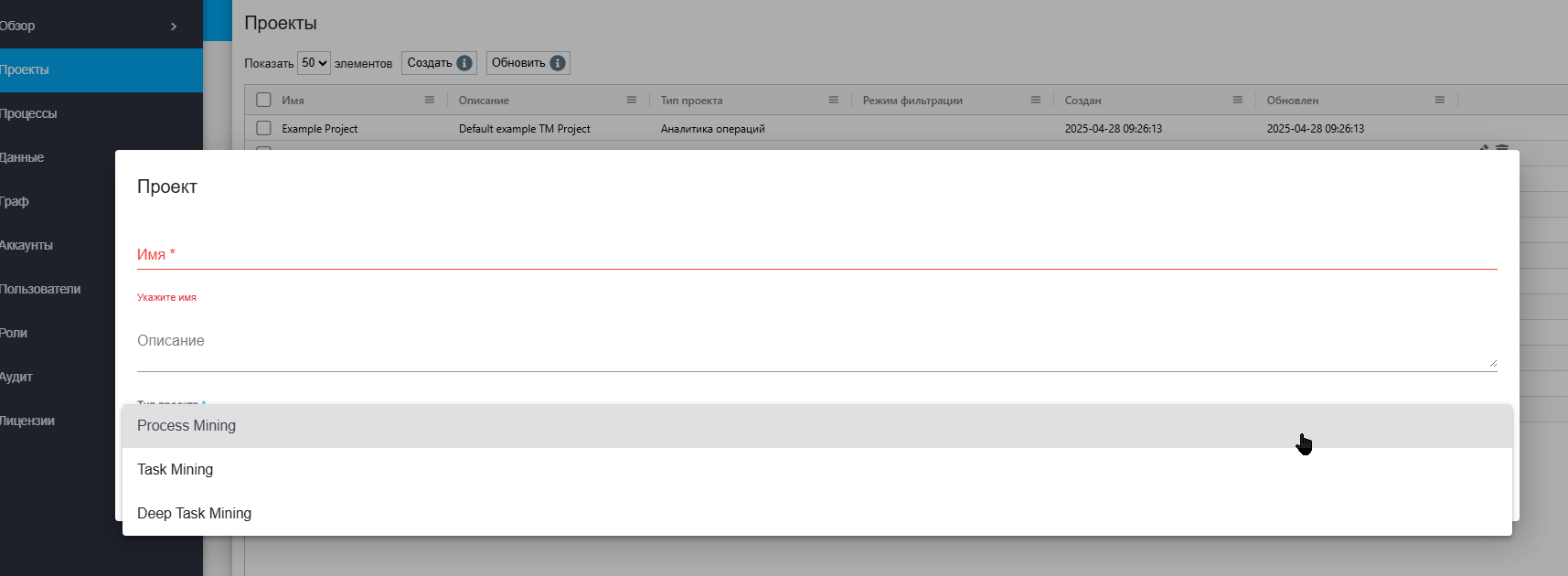
- Project Type — a category that defines the specifics of the data collected and the methods of analysis:
- Task Mining — collecting data on employee actions (mouse clicks, scrolls, drags, screen changes) aimed at identifying repetitive actions and modeling work scenarios.
- Deep Task Mining — includes all types of data from the previous category, as well as taking screenshots with each action for deeper analysis of visual interface elements.
- Process Mining — uploading pre-prepared data from external systems containing information about business processes for analysis and optimization.
- Creation Date — the day, month, and year the specific project was created.
- Update Date — the day, month, and year of the last changes made to the project.
To create a new Project in the “Projects” table, click the “Create” button and fill out the opened form:
To view and edit the properties of a specific Project, select it from the list and click the icon .png) . This will open a form with Project settings, where necessary changes can be made.
. This will open a form with Project settings, where necessary changes can be made.
In addition to the fields filled out when creating Projects, the editing form specifies the GUID (a unique identifier assigned to the Project after its creation). This field cannot be edited.
When editing a Project, there is an option to set the filtering mode and add to the list the sites and/or file paths that will be logged.
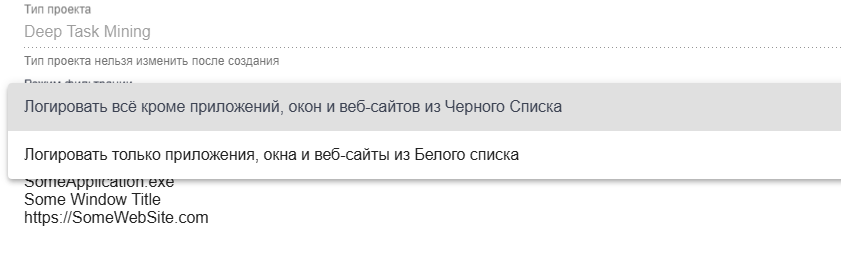
Filtering Mode when editing a project determines which data will be saved and which will be ignored. To configure it, one of two options must be selected:
- Log everything except applications, windows, and websites from the Blacklist — save all data except for those specified in the blacklist.
- Log only applications, windows, and websites from the Whitelist — save data only for the applications, windows, and websites specified in the whitelist.
Next, in the Blacklist/Whitelist field, you need to enter the URL or file path for further filtering.