
API#
The API section lets you view the documentation for connecting to the server through the API and create access tokens.
Open API in the left menu. If it is not visible, click the gear next to your user name, then pin API in the menu settings.
1. Swagger documentation#
The Swagger tab contains the API reference in Swagger format.
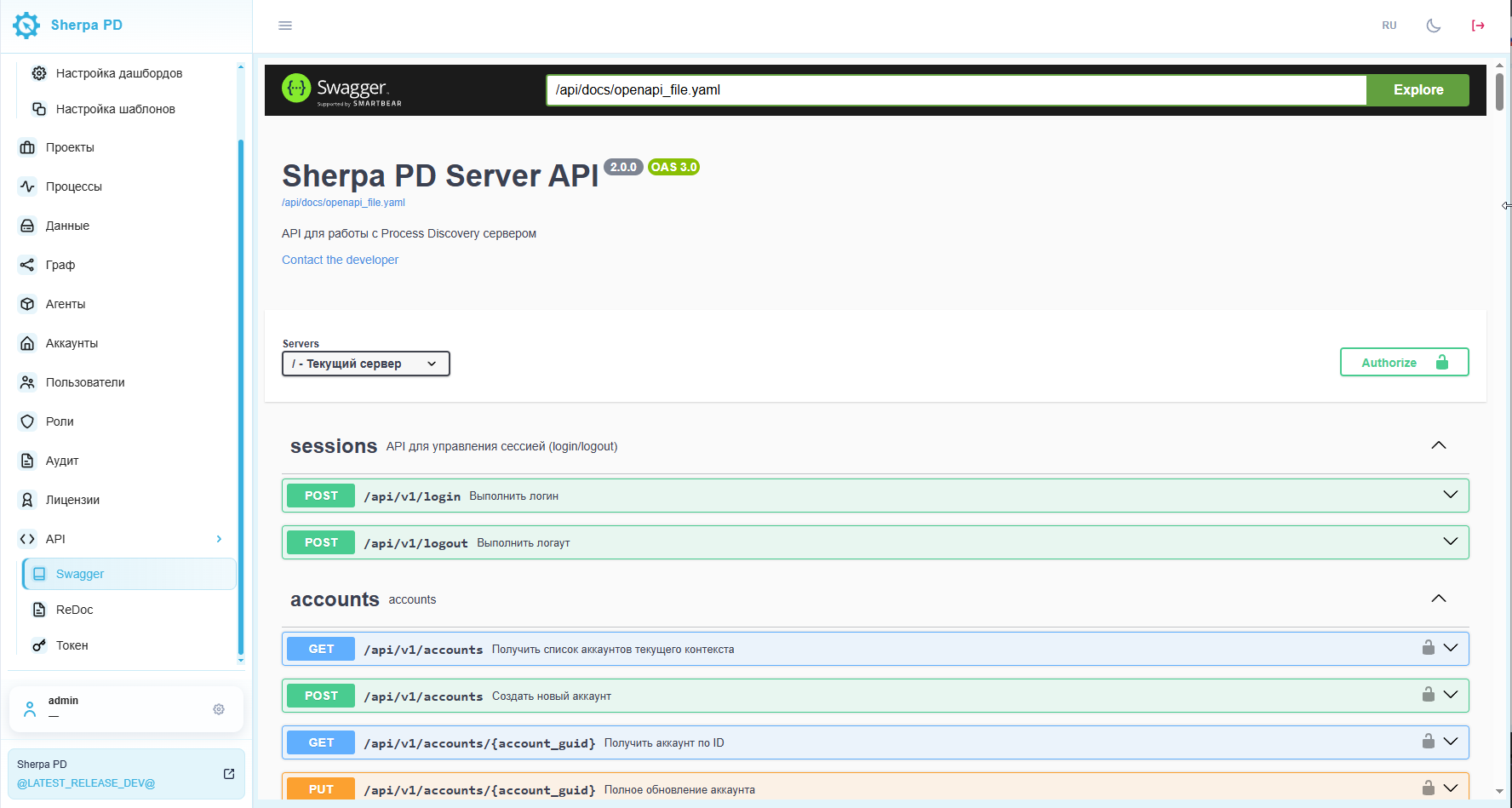
The information is grouped by Sherpa Process Discovery section.
2. ReDoc documentation#
The ReDoc tab contains the API reference in ReDoc format.
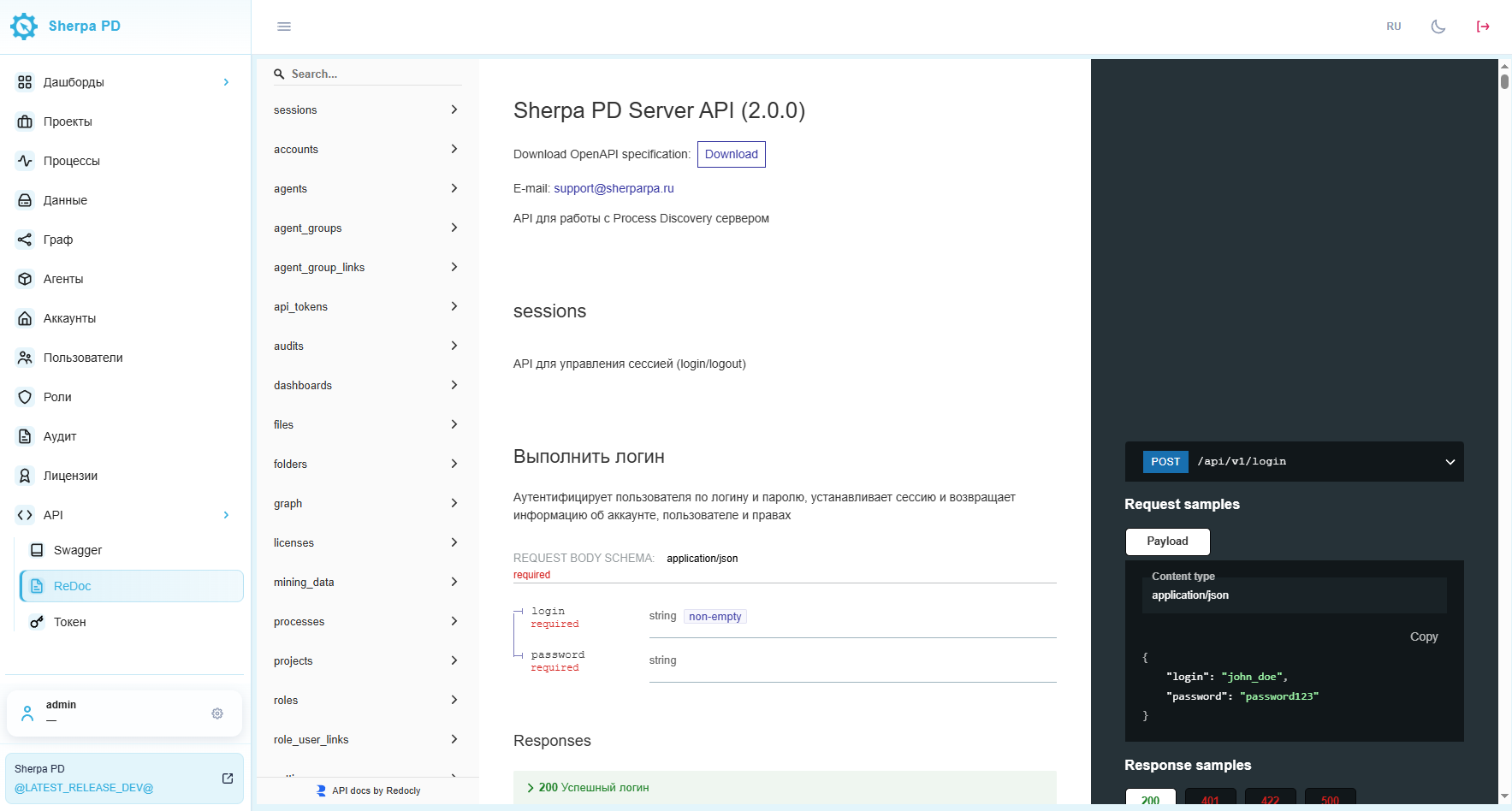
The information is also grouped by Sherpa Process Discovery section.
3. Tokens#
The Token tab lists the API tokens created in the system.
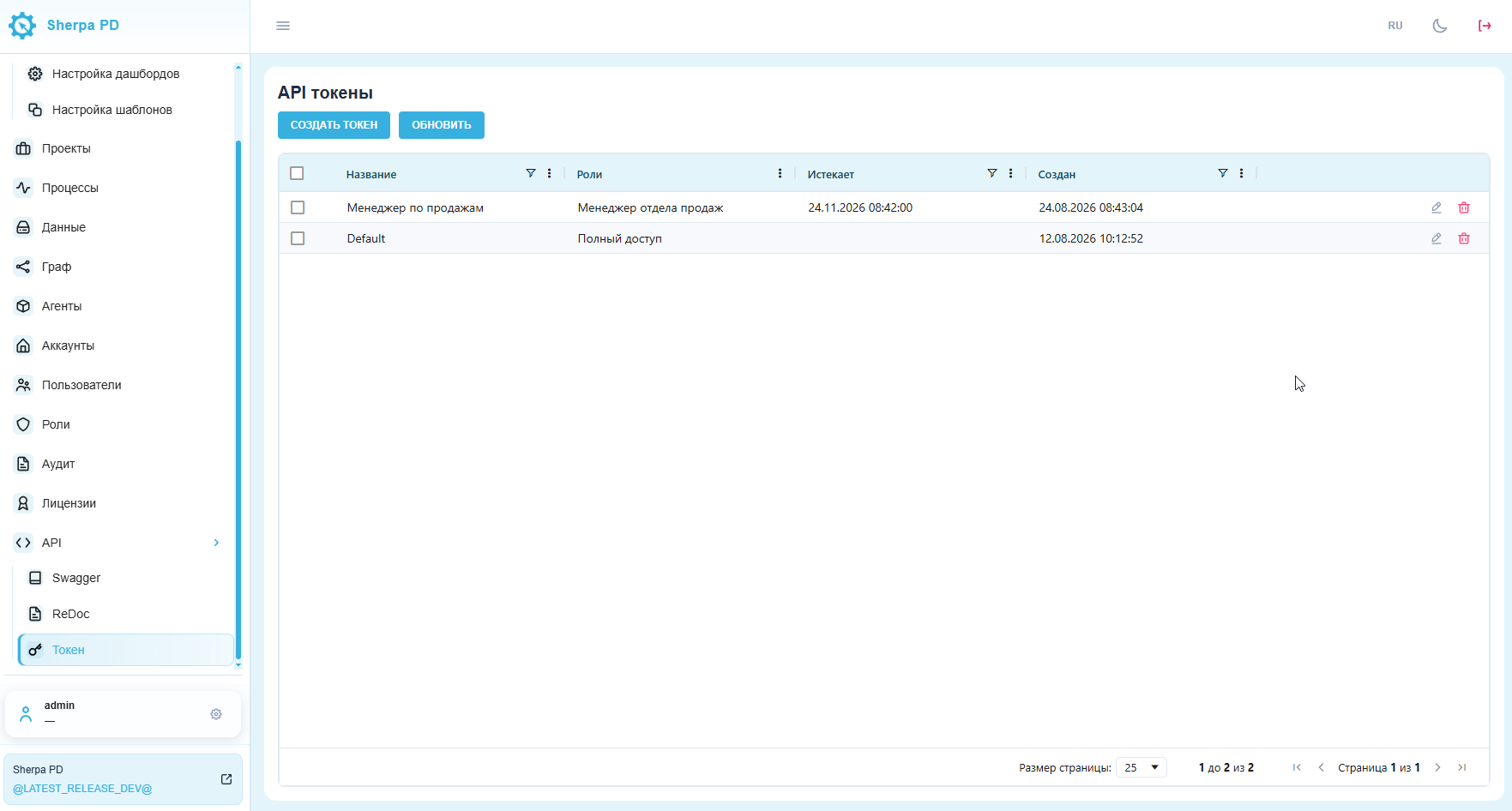
The table shows each token's name, assigned roles, expiration date and time, and creation date. You can create, filter, edit, and delete tokens.
Create a token#
Click Create token to open the creation dialog.
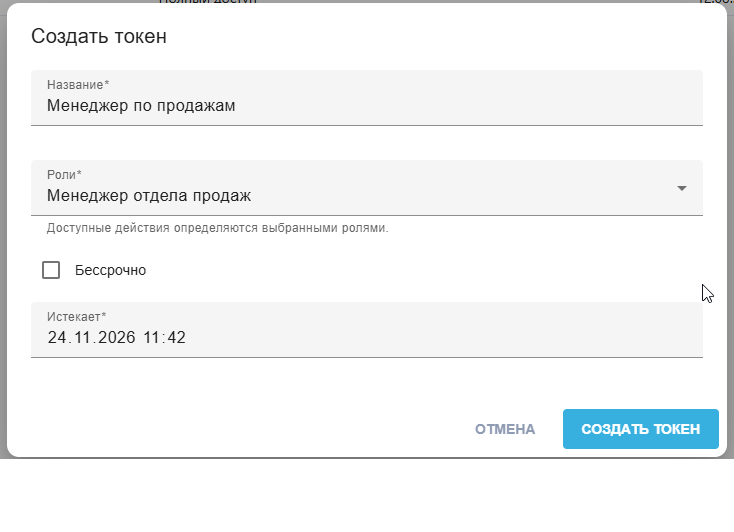
Enter a name, select the role that defines permitted actions, and set an expiration date. Select No expiration if needed. Click Create token to finish or Cancel to close without saving.
4. Using tokens and date-time values in the API#
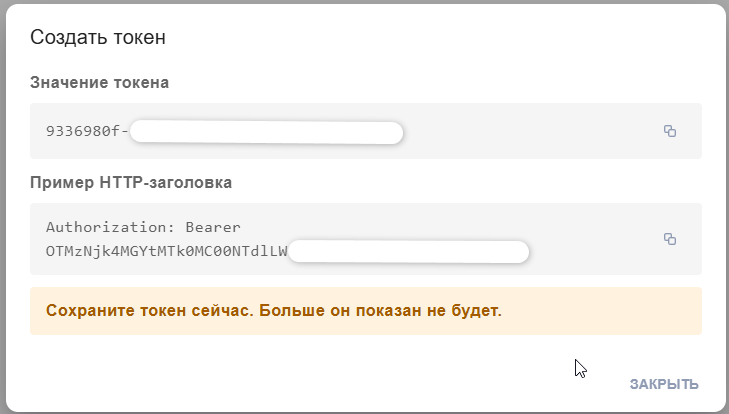
For a protected API method, send the created token in the Authorization: Basic <Base64(token)> header: Base64-encode the token value itself, without a username, colon, or password. For example, the header for example-token is Authorization: Basic ZXhhbXBsZS10b2tlbg==. The token permits only actions granted by its Roles. Contact an administrator if you need additional permissions. Send the header only over HTTPS and store the original token as a secret.
API v1 responses return date-time values in UTC with a Z suffix, for example 2026-05-15T10:00:00.123456Z. In request filters and date-time fields, use RFC 3339 with an explicit time zone: Z or an offset such as +03:00. Do not send a value without a time zone because it does not identify a unique moment.