
Licenses#
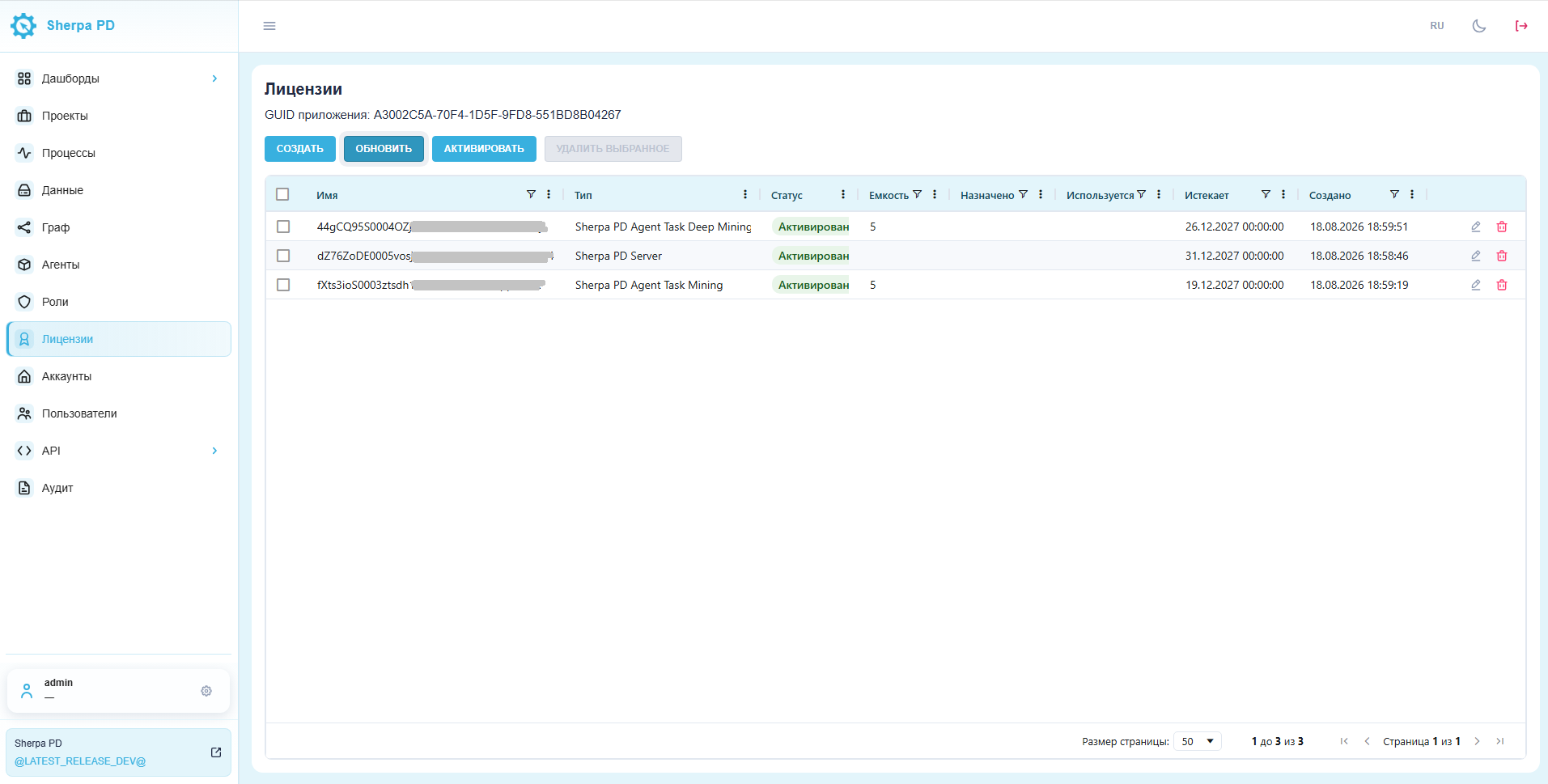
The Licenses section shows PD Server and Discovery Agent licenses, including their type, status, expiration, and usage. The ability to create, activate, or delete licenses depends on the user Role permissions.
1. License list#
Open Licenses from the left menu.
If the item is missing from the menu, click the button with the gear icon next to your username. In the window that opens, click the button next to the licenses item. The item will then appear in the main menu.
The license table shows the name, type, status, capacity, assigned and used seats, expiration date, and creation date. Available actions appear in the last column. An extended key displays its license type when entered. The type of an old-format key is determined after activation.
- Type — for example, Sherpa PD Server, Sherpa PD Agent Task Mining, or Sherpa PD Agent Task Deep Mining;
- Status and expiration — the activation result and whether the license is current;
- Capacity, Assigned, In use — available and occupied seats for agent licenses.
2. Creating a license#
Click Create, enter the license name and key, then save. User permissions are configured separately in Roles.
3. Activation#
Select a license and click Activate. If the license server is reachable, use automatic activation. For an isolated environment, choose manual activation: send the request code to the vendor and enter the response code. After activation, refresh the list and check the type, status, and expiration. If activation fails, check whether the key type matches PD Server or PD Agent and whether agent seats are available.