
Agents#
The Agents screen helps you check software Agent connections, their status, and License slot usage. Disconnected Agents remain listed for inspection.
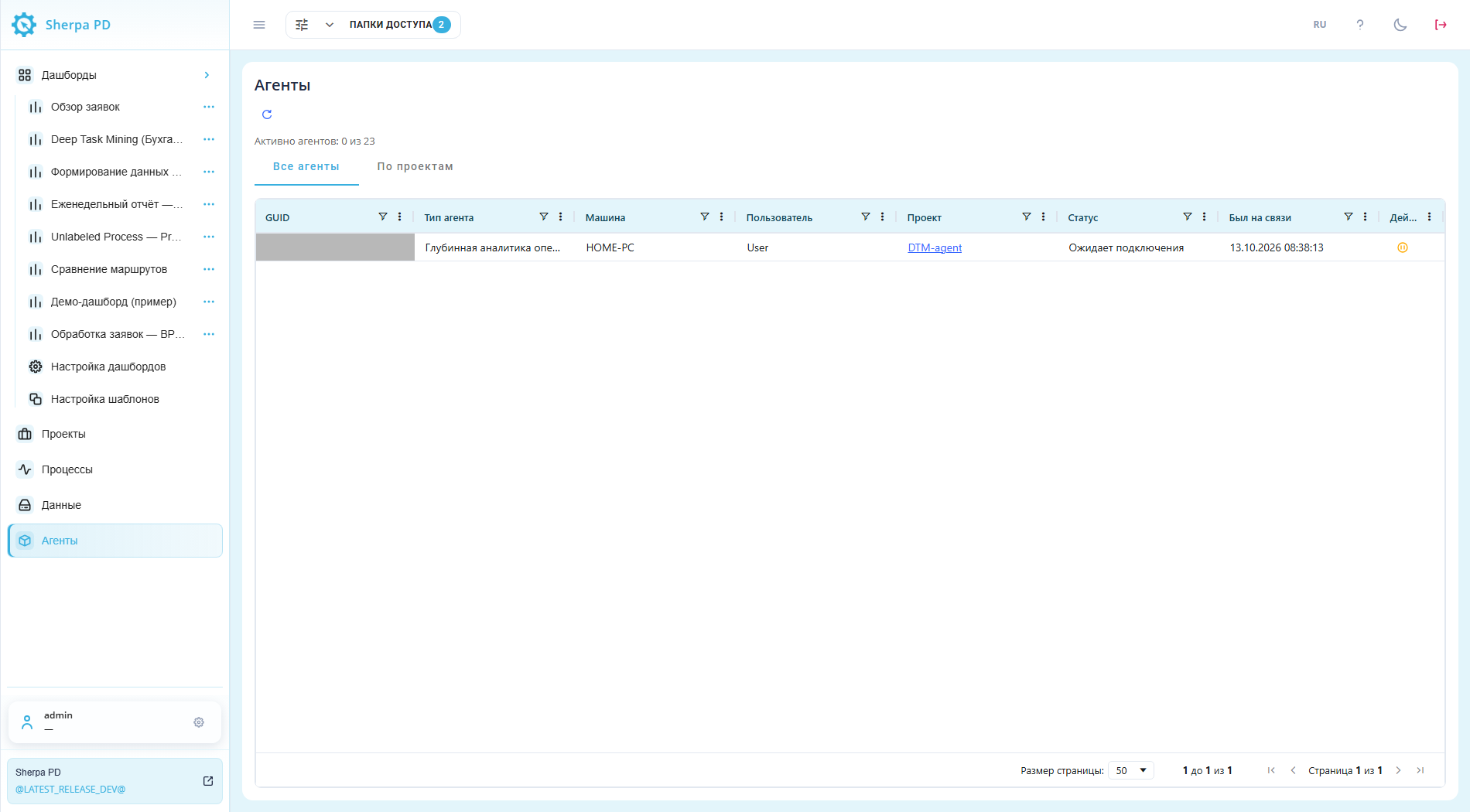
Agents screen: initial view of the All agents tab. Russian interface.
1. General Screen#
The general screen helps you find a connection and choose between all Agents and grouping by Project.
"All agents" tab#
The "All agents" tab helps you find a connection by computer, User, or Project and check its status.
The "All agents" tab lists Task Mining and Deep Task Mining connections in one table. The counter above it shows the number of active agents and the total license slot capacity. "Refresh"  above the tabs reloads connection status.
The table contains these columns:
- "GUID" — agent identifier;
- "Agent type" — "Task Mining" or "Deep Task Mining";
- "Machine" — computer running the agent;
- "User" — user name on that computer;
- "Project" — project receiving agent data. Clicking the name opens the corresponding project on the "Projects" screen;
- "Status" — connection status;
- "Last online" — time of the agent's last contact with the server;
- "Actions" — "Pause"
 or "Resume"
 for managing the connection.
Use column filters to find a connection. The table also supports sorting, column resizing, and pagination.
Example: find the connection for computer HOME-PC. Its row shows User User and Project DTM-agent. These values identify the required record.
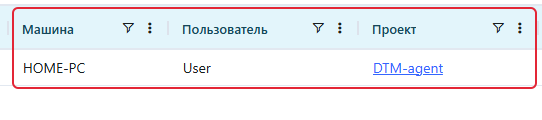
Agents screen, All agents tab: columns and the HOME-PC connection. Russian interface.
"By project" tab#
The "By project" tab helps you identify the connections registered with a particular Project.
The "By project" tab groups registered connections by project, including disconnected agents. "Project" shows the name, and "Agents" shows the number of connections for that project.
Click a project row to view its connections. A nested table opens with the same columns as "All agents", except "Project". Click the row again to collapse it. "Pause" and "Resume" act on the selected connection in the nested table.
Projects without registered connections are not displayed.
Example: Project DTM-agent has one connection in "Agents". Expanding its row shows computer HOME-PC, User User, and status Ожидает подключения (waiting for connection). The active Agent counter above the tabs is zero.
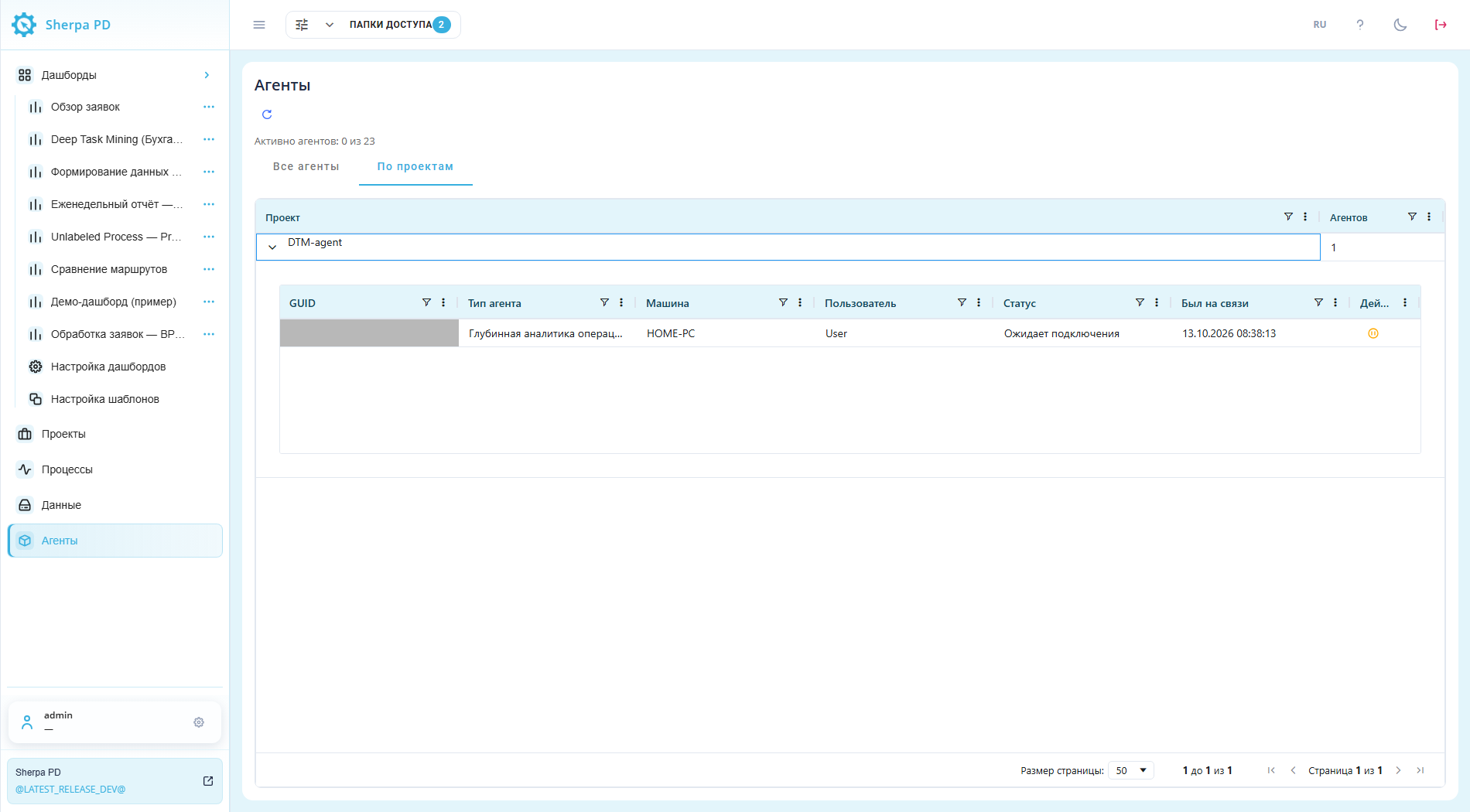
Agents screen, By project tab: connections for DTM-agent. Russian interface.
2. Statuses and Management#
Statuses help you distinguish working and waiting connections and choose an action for the required Agent.
Example: the connection for User User and Project DTM-agent has status Ожидает подключения (waiting for connection). "Last online" shows 13.10.2026 08:38:13. These values identify the record before an action.

Agents screen, All agents tab: connection status and identifying data. Russian interface.
"Status" displays one of the following states:
- "Active" — connected to the server and working;
- "Paused" — connection temporarily prohibited;
- "Waiting for connection" — there is no active connection at present. This state is used after resuming a previously active connection;
- "Disconnected" — no longer contacting the server. The record stays in the table and is excluded from the active agent counter. Reconnecting requires a free license slot.
"Pause" button#
The "Pause" button temporarily prevents an Agent from reconnecting to the server.
Check "Machine", "User", and "Project" in the required connection row, then click "Pause" in "Actions". The status changes to "Paused". Use "Resume" to remove the restriction. The connection ban lasts 300 seconds (5 minutes), then expires automatically.
Example: "Pause" was clicked for computer HOME-PC, User User, and Project DTM-agent. The row shows User User, Project DTM-agent, status На паузе (Paused), and the green Resume button on the right. The screenshot uses the Russian interface.

User / DTM-agent connection row: Paused status and Resume button on the right. Russian interface.
If the status changes but the button does not, reload the Agents page. The refreshed row with "Paused" status shows "Resume".
"Resume" button#
The "Resume" button removes the connection ban before the five minutes expire.
Check the computer, User, and Project in the row with "Paused" status, then click "Resume" in "Actions". After the ban is removed, the Agent waits for a new request to the server. "Waiting for connection" does not confirm an active connection. Reconnecting also requires a free License slot.
Example: "Resume" removed the ban for the same HOME-PC / User / DTM-agent connection. The row shows User User, Project DTM-agent, status Ожидает подключения (Waiting for connection), and the orange Pause button on the right. The screenshot uses the Russian interface.

User / DTM-agent connection row: Waiting for connection status and Pause button on the right. Russian interface.
If the button does not update with the status, reload the Agents page. "Pause" is available again after the ban is removed.
3. "Refresh" button#
Refreshing the list helps you check whether an expected connection has appeared and rule out filtering.
If the list is empty, click "Refresh" . If an expected agent does not appear, check its server connection, selected project, and available license slots.
Before checking the connection, make sure a filter is not restricting the list. If the "By project" tab has a project-name filter, clear it and check the list again.
Example: on the "By project" tab, set the "Project" column filter to "Contains" with the value TRAINING-NO-AGENT. No projects match, so the table shows zero rows while the counter still shows zero active agents out of 23 slots. Clear the filter value to return project DTM-agent to the list.
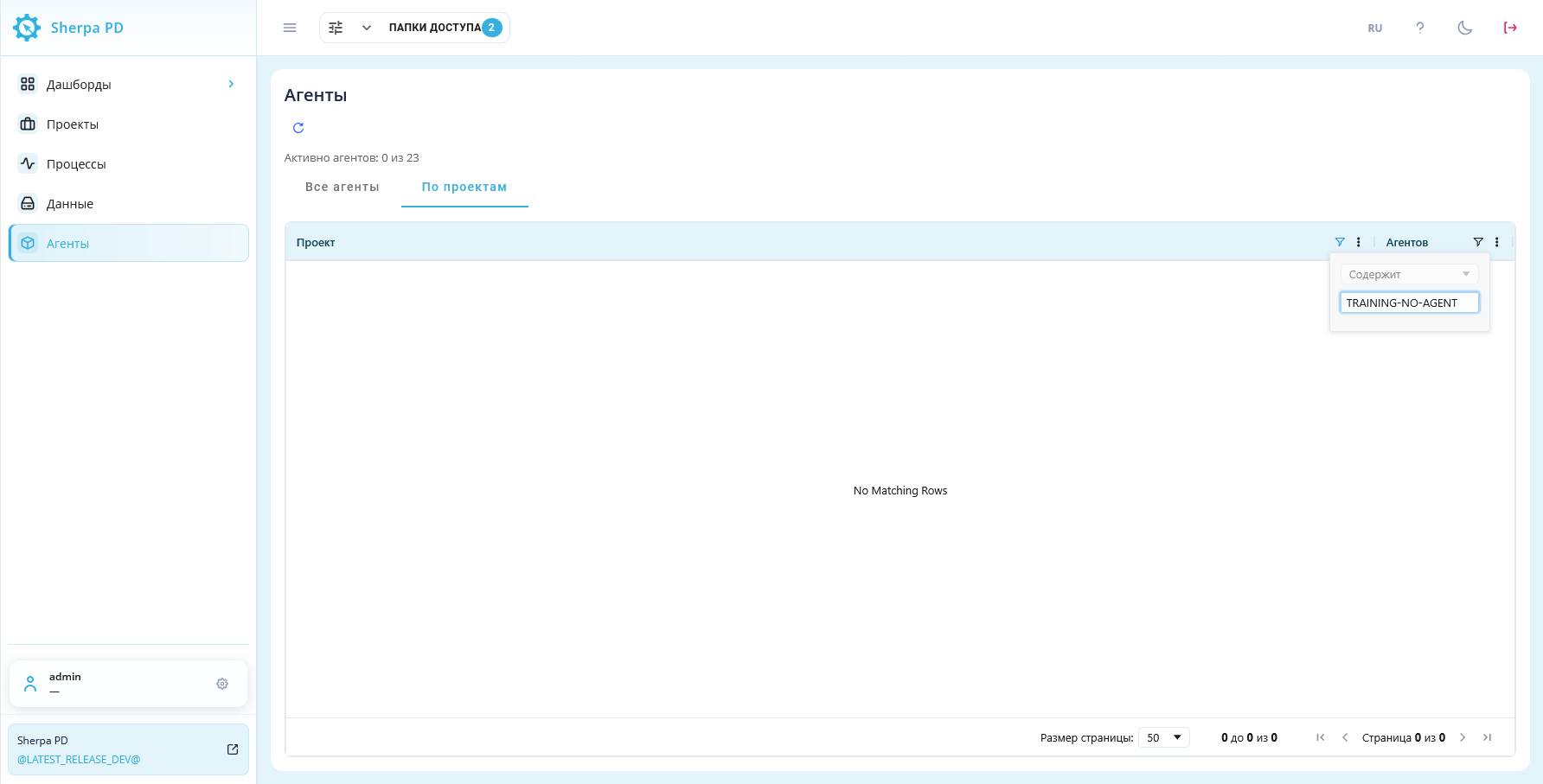
"Agents" screen, "By project" tab: empty project filter result (Russian interface).
4. Access Rights#
Role permissions determine whether a User can open the Agent list and view connections.
To open the "Agents" screen, the user's role needs "Read" in the "Agents" row. This permission is configured in the "Role" popup window, on the "Access" tab. If the section is missing from the menu, contact an administrator.
Example: only the "Read" checkbox is selected in the "Agents" row to allow viewing connections.
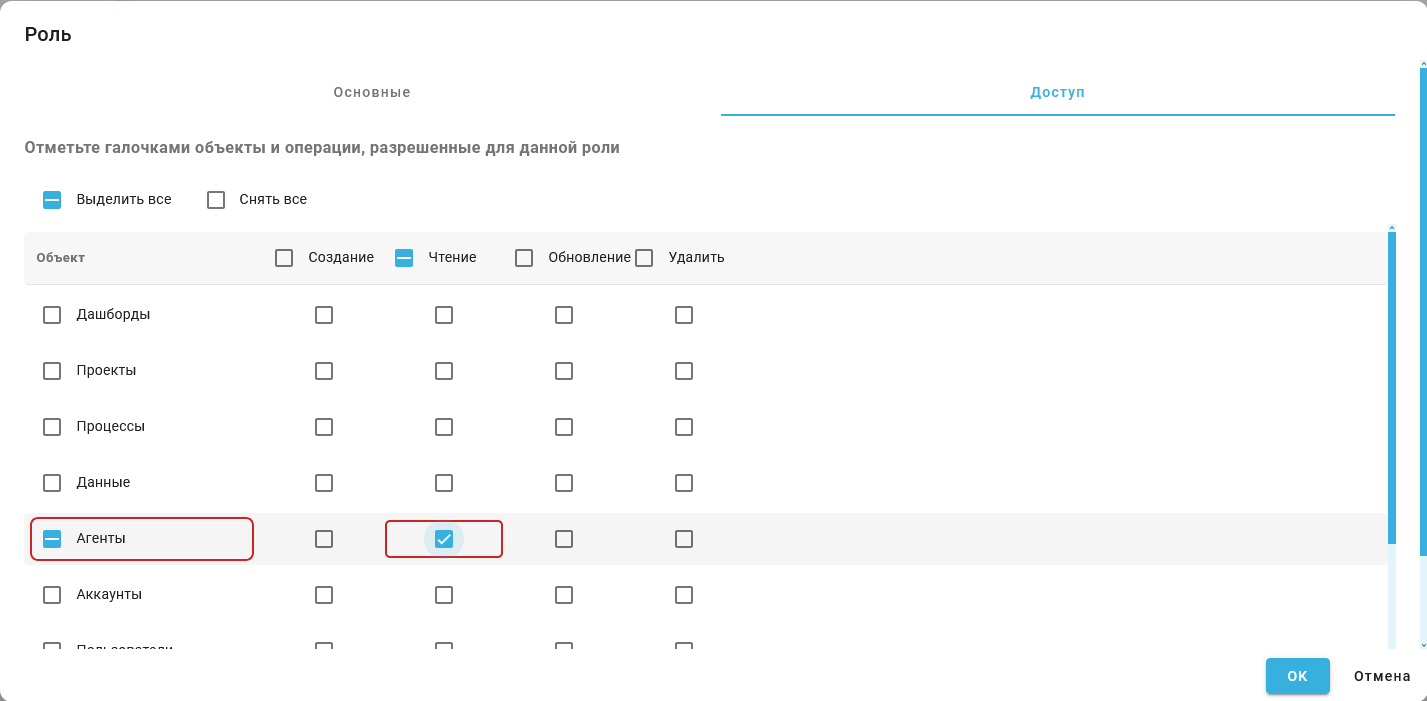
"Role" popup window, "Access" tab: "Read" permission for agents.