
Processes#
Processes are automation scenarios that are executed by Robots. For each Process, multiple versions can be saved. At any given time, only one version of the Process is current. This means that this version of the Process is used when assigning a new Job to a Robot (manually, via schedules, or through the API).
The "Processes" screen contains two tables: "Processes" and "Process Versions".
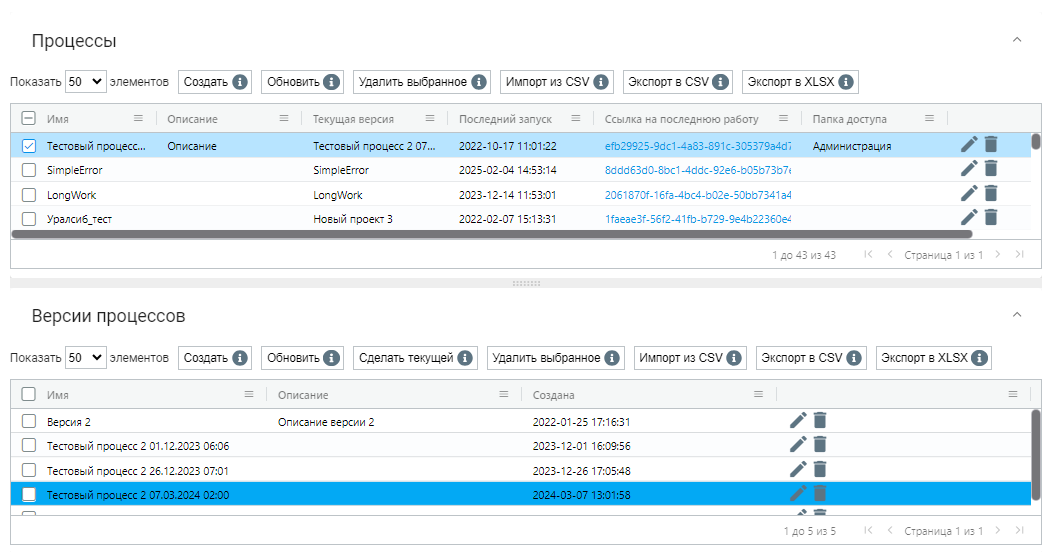
To display a list of versions of a Process in the "Process Versions" table, select the desired Process from the "Processes" list. By default, one of the versions is current. It is displayed in the "Current Version" column of the "Processes" table. In the "Process Versions" table, the current version is highlighted in blue when the Process is selected in the "Processes" table.
The "Processes" table includes the following information:
| Column Name | Description |
| Name | Contains the name of the Process. |
| Description | May include information about the Process that provides insight into its purpose and functionality. |
| Current Version | Indicates the current version of the Process installed in the system. |
| Last Run | Date and time of the last execution of the Process. |
| Link to Last Job | A hyperlink leading to the results or logs of the last execution of this Process. Allows Users to quickly access information about the last execution and results of the Process. |
| Access Folder | Indicates the Access Folder to which the Process belongs. The Access Folder serves as a means of access control, allowing only those Users whose Roles provide access to interact with the Processes. |
The "Process Versions" table includes the following information:
| Name | Description |
| Name | Contains the name of each version of the Process. |
| Description | Contains additional information about the version of the Process. |
| Created | Date and time of the creation of the Process. |
Each column can be pinned, resized, or filtered by clicking on the icon  .
.
You can also sort the rows of the table in ascending/descending order based on the values in the selected column by clicking on the empty area of the corresponding header. This allows for quick and convenient organization of data in the desired order.
Creating a New Process#
To create a new Process in the "Processes" table, you need to click the "Create" button and fill out the opened form:
.png)
| # | Interface Element | Description |
| 1. | Text field "Name" | Name of the Process. This field is mandatory. |
| 2. | Text field "Run on Sherpa RPA Runtime version no lower than" | Allows you to specify the version number of Sherpa RPA Runtime below which the Process will not run. |
| 3. | Text field "Description" | Description of the Process. |
| 4. | Text field "Access Folder" | Allows you to specify the Access Folder for the created Process. |
| 5. | Checkbox "Available through Sherpa Assistant" | Allows the created Process to be available in the list of scenarios in Sherpa Assistant. |
To save the created Process, after filling out the form, you need to click the "OK" button. The newly created item - Process will appear in the list. The newly created Process has no versions.
Creating a New Version of a Process#
To create a new version of a Process, you need to select the Process in the "Processes" table for which a new version will be created. If the Process is not selected, the Orchestrator will show a warning message:
.png)
In the "Process Versions" table, you need to click the "Create" button and fill in the fields in the opened form, also selecting the Process file:
Preview documentation for Web Designer in Sherpa Orchestrator 5.9.5. You can create an empty version of a new Process without uploading a file. See Creating and saving versions. Builds without this feature require an existing Process file.
.png)
| # | Interface Element | Description |
| 1. | Text field "Name" | Name of the Process. This field is mandatory. Note: By default, the "Name" field is filled with the name of the Process, the current date, and the time of the version creation. These can be changed to the relevant name. |
| 2. | Text field "Description" | Description of the version of the Process. In this field, you can specify, for example, changes in the new version. |
| 3. | Button "Select Process File" | Select the Process file (with the .robot extension). In builds supporting empty version creation, the file is optional. In other builds, the version will not be saved without a file. |
When you click the "Select Process File" button, a window will open on your computer to select the Process file. Multiple versions can be created for each Process.
Editing a Previously Created Process#
To view and edit the properties of a specific Process, you need to select it from the list and click the button  . After that, a form with the settings of the selected Process will open, where you can make the necessary changes. In addition to the fields filled out when creating the Process, the form will display the GUID (unique identifier assigned to the Process after its creation). This field cannot be edited.
.png)
Editing a Previously Created Version of a Process#
To view and edit the properties of a specific version of a Process, you need to select it from the list and click the icon ("Edit"). After that, a form with the settings of the selected version of the Process will open, where you can make the necessary changes. In addition to the fields filled out when creating the version of the Process, the form will display the GUID (unique identifier assigned to the version of the Process after its creation). This field cannot be edited.
.png)
Creating a new version of the Process can also be done from the Designer, as described here..
Web Designer context menus#
Preview documentation for Web Designer in Sherpa Orchestrator 5.9.5.
Open a diagram in Web Designer. Editing a server Process version requires permission to create Process versions. Commands that change data are unavailable during loading and saving; the reason appears at the bottom of the menu when you point to a locked action or focus it with the keyboard. Debug commands are grouped in the Debugging submenu, and keyboard shortcuts appear beside common actions.
Right-click a block, connection, empty canvas area, or Project tree node. The menu depends on the target object. Right-clicking a block within a multiple selection preserves the selection. Right-clicking another block selects that block.
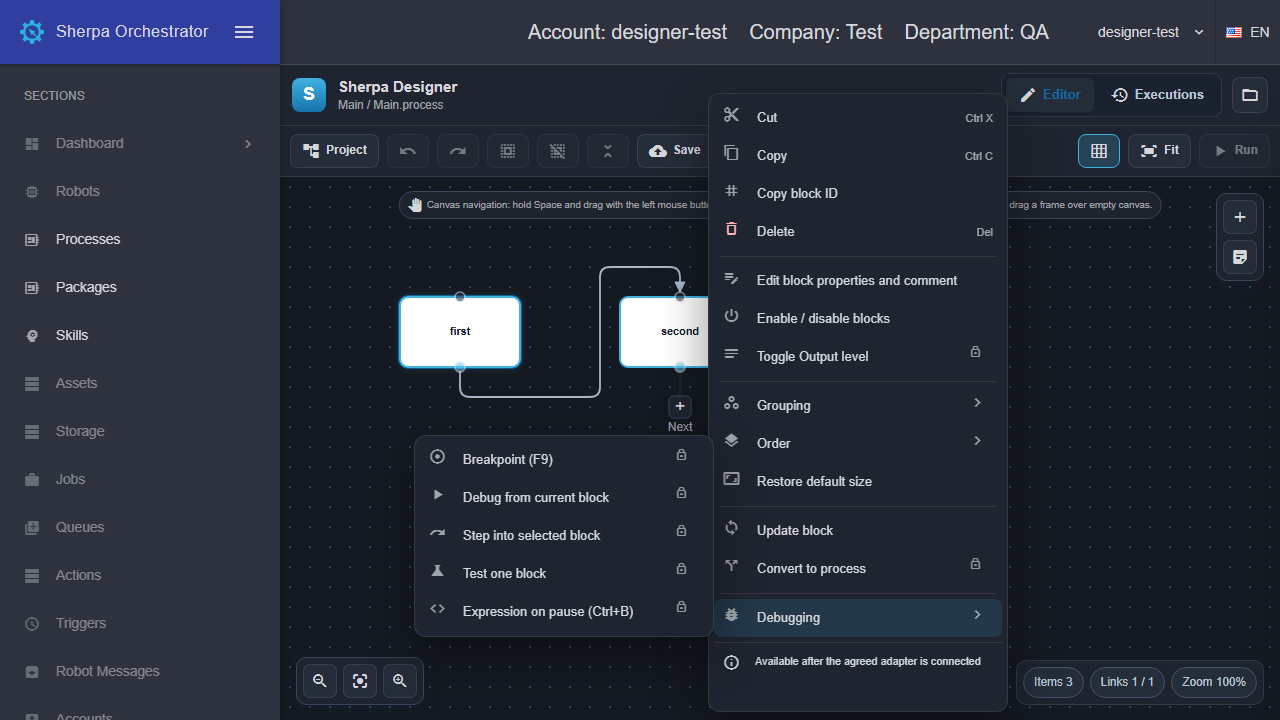
Block menu in the English interface with a test diagram.
Copying blocks#
- Select blocks with a selection rectangle on the canvas, or hold Ctrl to add blocks to the selection.
- Open a selected block's menu and choose “Copy”.
- Open the menu in an empty canvas area and choose “Paste here”.
Copies appear with new identifiers. Connections between copied blocks are preserved; connections to blocks outside the selection are not copied. The block clipboard works within the open Project and is cleared when another Project loads. “Cut” copies the selection before deleting it. Use “Undo” to reverse a change in the active diagram and “Redo” to repeat it.
“Copy block ID” places the identifier on the system clipboard. If the browser denies access, an error appears and the Project remains unchanged.
Object commands#
| Object | Actions |
|---|---|
| Blocks | Delete, edit the comment in advanced properties, enable or disable, toggle Output level, group or ungroup, change display order, and restore the catalog size. Commands unavailable for the selected blocks are disabled. |
| Connection | Delete, split using a PointConnector block, navigate to each endpoint in turn, and change display order. Splitting requires PointConnector in the catalog. |
| Canvas | Paste at the menu position, select all blocks, undo and redo changes. |
| Project or folder | Create a diagram or folder and open Project properties. Folders can also be deleted after confirmation. |
| Diagram | Open, set as the main diagram, or delete after confirmation. The main diagram and its containing folder cannot be deleted. Set another diagram as the main diagram first. |
History includes changing the main diagram and creating, deleting, renaming and copying tree entries. Switching diagrams does not reset history. Save a Project copy using “Download” before making bulk changes.
The block menu includes “Update block” and “Convert to process”. Updating preserves the identifier, position and compatible property values. If connected ports have been removed, confirmation is required before removing connections. To convert a selection, select multiple blocks with one external input and one output. Start, End and Process must be in the library. A separate diagram and its call are created; Undo restores the original blocks and removes the created diagram. Conversion is unavailable if the source diagram contains local variables or input/output parameters. The menu explains why. In this case, create the subprocess manually and explicitly configure its input and output values.
The enable command toggles each selected block individually. Selecting an enabled and a disabled block reverses their states. Comments for multiple blocks are edited in sequence; Comment blocks and groups are skipped.
The tree supports renaming, cutting, copying and pasting diagrams, folders and resources. Diagram names must be unique throughout the Project. Resources also have Download file and confirmed deletion commands. Copying or moving a folder preserves its files and metadata. Before resource paths change, a preview lists the changes: literal paths in block properties are updated, while computed paths, variables and references within file contents require manual checks.
The Add submenu imports diagrams and resource files, including files from a folder. A preview lists accepted and skipped files. Project metadata, invalid diagrams and conflicting names are skipped; the remaining files can be imported. Cancel leaves the Project unchanged. Resource import, rename, copy, move and deletion support undo and redo.
To add a diagram call, drag its file from the tree onto the canvas. One Process block appears with the selected diagram name and a populated reference. Click Open on the block to navigate to that diagram. The block library must contain the Process block. The reference is preserved in the .robot file and updated when the diagram is renamed or moved.
To change several blocks at once, choose Selection properties. Select the fields to apply; other values are preserved. Only common visible properties with compatible types that are writable on every selected block are available. Numbers, Boolean values and lists use matching input controls; invalid values cannot be applied. Groups and Comment blocks are skipped.
Correct reference paths previews recognized changes and problematic references before applying them. Find unused diagrams lists candidates; computed or unresolved references prevent deletion. In Project references, enter one assembly name per line; removing a line removes the dependency. This edits the list; it does not install or validate assemblies on the robot computer. Changes can be undone.
To edit a block comment, choose “Edit block properties and comment”, enter text in “Description”, and confirm the changes in the properties editor. Canceling in the editor restores the previous values. Save the Project after editing.
Keyboard navigation#
To open the menu with the keyboard, select the canvas or a tree node and press Shift+F10. Use the arrow keys to select commands and Enter to execute them. Escape closes the menu and returns keyboard control to the element from which it was opened. The menu also closes when clicking outside it or scrolling the page. Text fields retain the browser's standard menu.
Use Ctrl+C, Ctrl+X and Ctrl+V to copy, cut and paste. F2 opens a block comment or renames a tree entry; Insert toggles enablement and Ctrl+O toggles Output. Text input retains its normal behavior.
Opening a menu does not start the Process or read local files. Breakpoints, debugging from a block, stepping into a block, testing one block, expressions on pause, local and remote file links and File Explorer are visible but disabled until the adapter is agreed and connected. Commands for solutions with multiple projects are also disabled: Web Designer currently opens one Project.