
Jobs#
The Jobs row of the Role controls Create for adding, Read for viewing and export, Update for changes, stopping and aborting, and Delete for deletion. The screenshot enables all these actions.
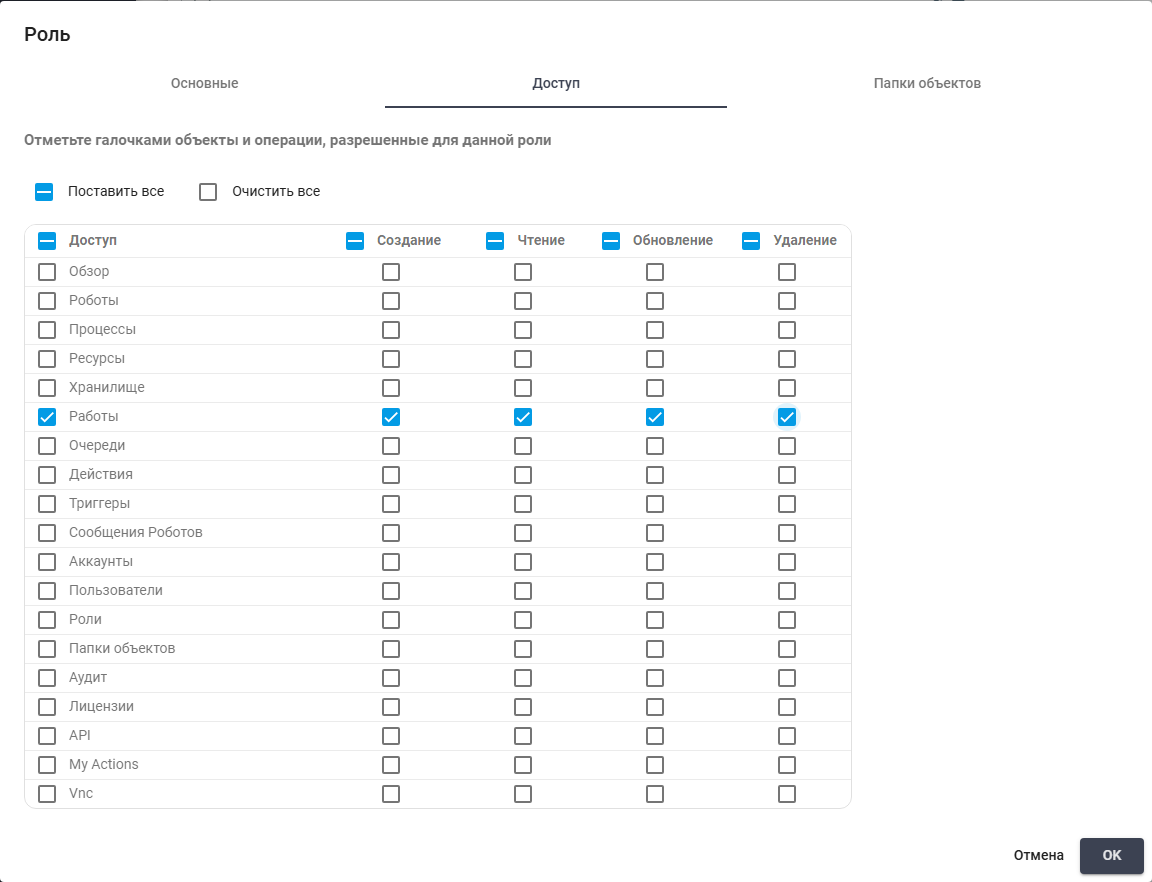
Job permissions. Russian interface.
Select one or more table rows and click "Export to CSV" or "Export to XLSX". The file contains the selected Jobs from the current page. Export buttons are disabled when no rows are selected.
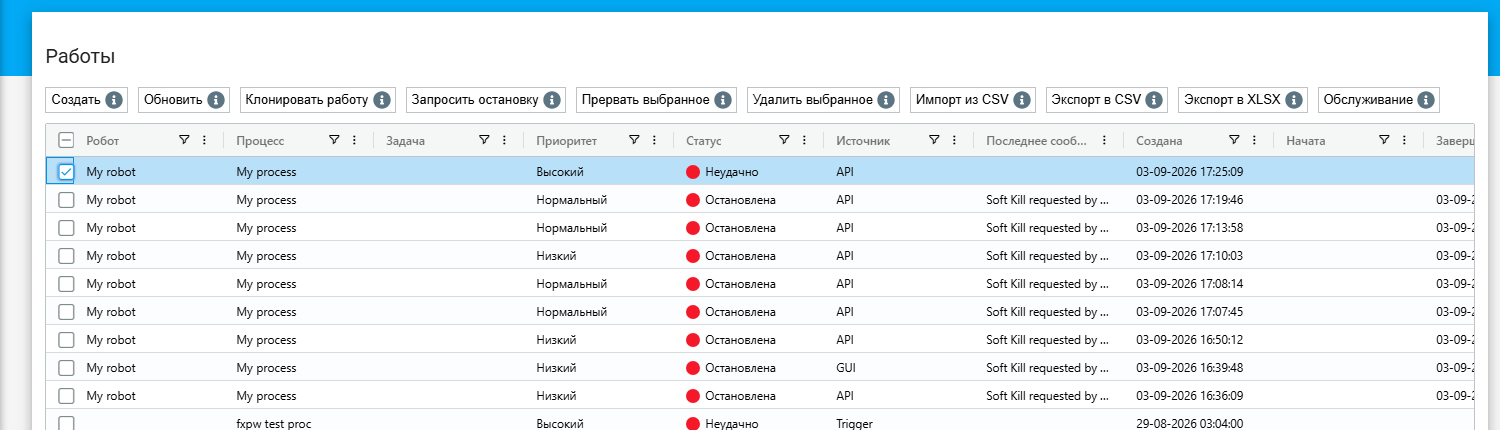
Selected Job and enabled export controls for the current page. Russian interface.
A Job is a combination of a Robot and a Process, or a Robot, Process, and Task. A Job can be created through the Orchestrator user interface (manually) or via the API. Additionally, a Job can be created by the Orchestrator according to a Trigger added by the User.
The "Jobs" screen contains a "Jobs" table.
The table contains the following columns:
.png)
Job table columns. Russian interface.
| No. | Name | Description |
| 1. | Robot | Contains the name of the Robot responsible for executing the Job. |
| 2. | Process | Indicates the Process within which the Job is executed. |
| 3. | Task | Contains information about the specific Task that the Robot must perform within the Process. |
| 4. | Status | Displays the current state of the Job. The status allows tracking the progress of the Job at different stages. |
| 5. | Source | Indicates the source of the Job creation. Possible source options: ‘GUI’/ ‘Trigger’/ ‘API’. This information is important for understanding how the Job was initiated and by whom. |
| 6. | Created | Records the date and time when the Job was created. This information helps track the history of Job creation. |
| 7. | Started | Records the time when the Job was started. This time may differ from the creation time. |
| 8. | Completed | Records the date and time when the Job finished. This information may be necessary for analyzing the total duration of the Job execution and for assessing the efficiency of Processes. |
| 9. | Updated | Records the date and time when the Job was updated. |
The interface of the "Jobs" screen also contains the following buttons:
.png)
Job controls. Russian interface.
| No. | Name | Description |
| 1. | New | Initiates the process of creating a new Job. When clicked, a form opens where the User can fill in the required fields. |
| 2. | Refresh | Used to update the list of Jobs on the screen. This can be useful for obtaining up-to-date information about the current statuses of Jobs and their changes. |
| 3. | Clone Job | Allows creating a new Job based on an existing one. When clicked, the User can select the Job they want to clone, and all its parameters will be copied. |
| 4. | Stop Selected | Sends a request to the Robot to stop the Job. When the button is clicked, a dialog box appears to confirm the action. |
| 5. | Abort Selected | Sends a command to abort the Job. When the button is clicked, a dialog box appears to confirm the action. |
| 6. | Delete Selected | Deletes the selected Jobs from the system. When the button is clicked, a dialog box appears to confirm the action. |
| 7. | Import from CSV | Allows the User to import Job data from a CSV file. |
| 8. | Export to CSV | Allows the User to export existing Job data to a CSV file. |
| 9. | Export to XLSX | Allows the User to export existing Job data to an XLSX file. |
| 10. | Maintenance | Allows specifying the date and time for stopping or interrupting selected Jobs. |
Creating a New Job#
To run a prepared Process, click "New" above Jobs. The Robot and Process must already exist. A Queue and Task are needed only when running with a Task. Screenshots show the Russian interface.
Required fields:
- "Robot" — the Job executor;
- "Process" — the scenario the Robot will run.
Additional fields:
- "Queue" — limits the Task list to the selected Queue;
- "Task" — passes a selected Task to the Job; leave it empty when no Task is needed;
- "Priority" — the Job execution order:
1Low,2Normal,3High. Higher-priority waiting Jobs for the same Robot are selected first; - "Stop After" — date and time to request a Job stop;
- "Abort After" — date and time to abort the Job.
Example: select Robot "QA Web Debug Robot 2026-10-14" and Process "QA Web Debug 2026-10-14" to check the prepared test scenario. Do not select a Queue: this run has no Task. Keep Low priority and leave both stop and abort times empty. Click "OK" to create the Job.
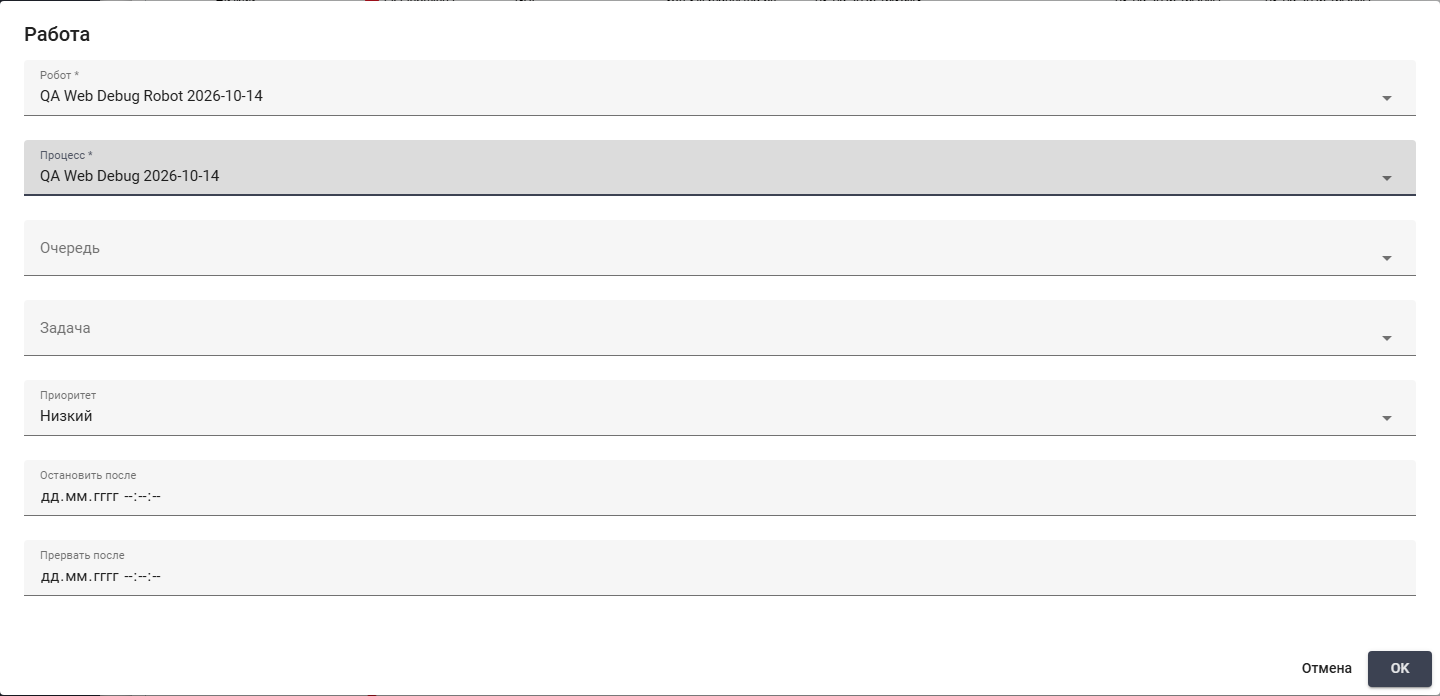
Job form with the test Robot and Process selected. Russian interface.
After creation, the Job appears in the table. A Robot available for execution receives it and runs the Process. The Status column shows progress.
Preparing the Robot and Process for a Job.
Connecting to a Robot from a Job#
The monitor button in a Job row opens the assigned Robot connection screen in a new tab. It is to the right of delete. Scroll the table right if the controls are not visible.
The Role needs Read for Robots and Update for Vnc. The Job must have an assigned Robot. Connection setup is described in VNC.
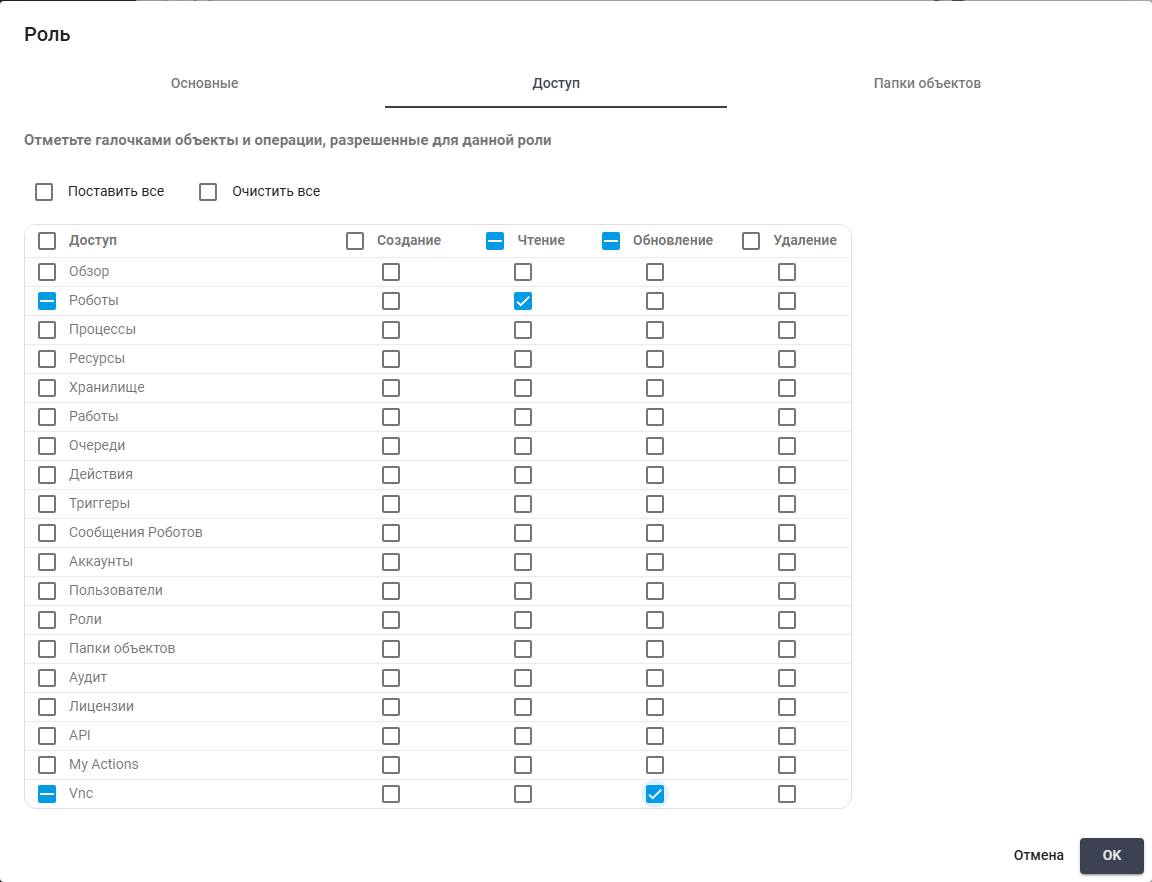
Read for Robots and Update for Vnc. Russian interface.
Example: scroll the table right and click the monitor in the existing Job row to open the Robot connection in another tab. The screenshot shows it to the right of the trash control.

Right edge of Jobs: Robot connection to the right of trash. Russian interface.