
Local password expiration#
Expiration checks apply to local passwords for users and accounts. LDAP/OpenID passwords, asset passwords, and API tokens are unchanged. Checks are disabled by default.
Configuring expiration#
The installation administrator must set these parameters in the .env file next to docker-compose.yml:
USER_PASSWORD_EXPIRATION_ENABLED=true
USER_PASSWORD_EXPIRATION_DAYS=120
USER_PASSWORD_EXPIRATION_ENABLED— enables checks when set totrue. The default isfalse.USER_PASSWORD_EXPIRATION_DAYS— a positive integer number of days. The default is120. Empty, fractional, zero, or negative values are invalid. Invalid configuration of an enabled policy blocks local password login until corrected.
After editing .env, apply the configuration by recreating the application container, for example with docker compose up -d --force-recreate orchestrator from the installation directory. Restarting an existing container does not update its environment variables.
The period starts when a password is successfully set or changed, in UTC. A day is 24 hours. Editing other record fields or a failed password change does not extend the period. During an upgrade, existing records with no known change date receive a full period from the migration time. Enabling checks later does not restart the period. Existing sessions remain valid until their normal termination. New logins, including Basic authentication requests, check password age.
Example: with 120 days, a password set on January 1 at 10:00 UTC in a non-leap year is valid until May 1 at 10:00 UTC. For a 30-day period, replace 120 with 30 and apply the configuration. Reducing the period can expire older passwords immediately.
Changing an expired password#
After the correct expired password is entered, the login screen displays password change fields. No access to Orchestrator data is granted before the change succeeds. An active local account and the current password are required. Permission to edit other users is not required.
Required fields:
- "Login" — your account login.
- "Password" — the current expired password.
- "New password" — a new password meeting the configured length and complexity requirements. Reusing the current or any previously used password is prohibited.
- "Confirm new password" — enter the new password again without changes.
Additional fields: none.
Fill in the fields, click "Change password", and log in again with the new password after the success message. "Cancel" returns to normal login without changing the password. On failure, the current password and its change date remain unchanged. After too many attempts, wait at least one minute.
Example: training.operator enters the current password and receives an expiration message. Enter the same new value in both new password fields and click "Change password". After success, log in with the new password. The screenshot shows the English interface before the new password is entered.
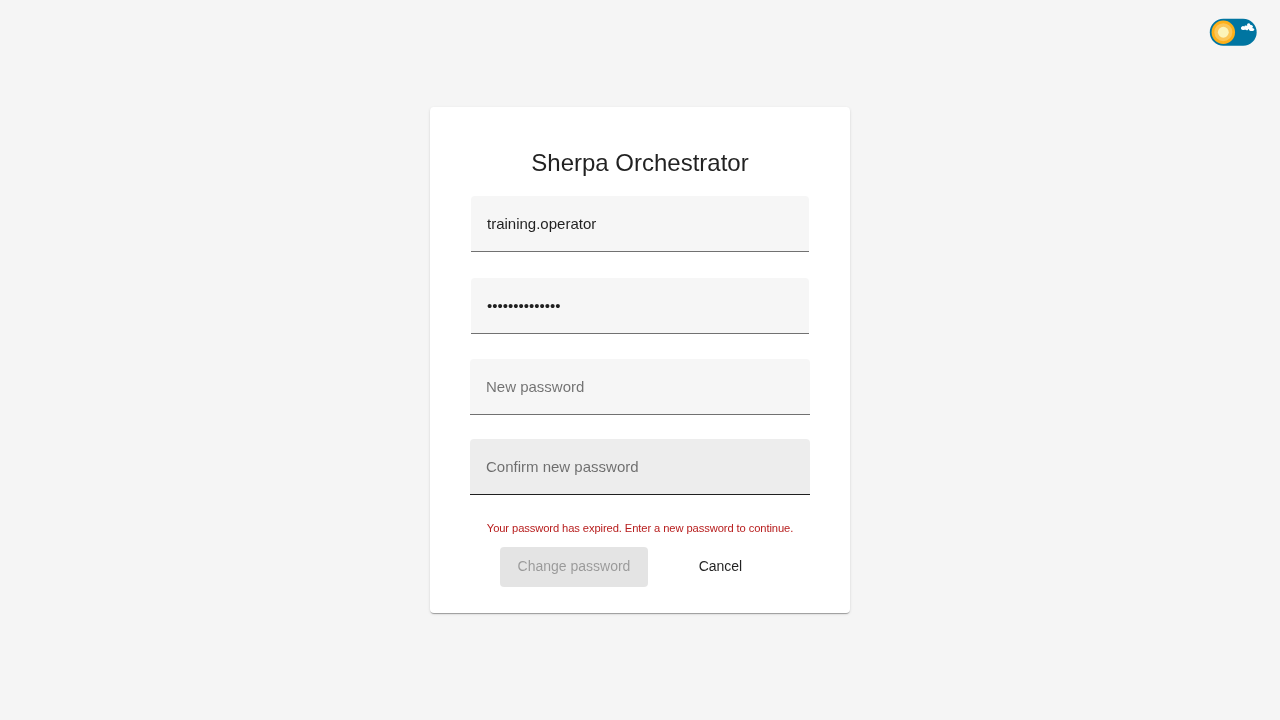
Login screen: changing an expired local password
Recovering access#
If the current password is unknown, an authorized account administrator must change it. The expired password form does not replace verification of current credentials.
If password expiration prevents emergency access, the installation administrator must temporarily set USER_PASSWORD_EXPIRATION_ENABLED=false, apply the configuration, change the password through the normal procedure, and enable checks again. Disabling expiration does not disable password complexity or history checks.
Example: an administrator corrects an invalid expiration value in .env and recreates the application container. If checks were temporarily disabled, restore true after changing the password and verify login. Database dates do not need to be edited.