
API#
When updating integrations to version 5.9.4, review the API v1 changes: some older routes were removed, request schemas became stricter, and tasks are now read through a queue. Check the method, path, and fields of each request against the Swagger documentation for the installed Sherpa Orchestrator version.
The API section contains three pages:
- Swagger — interactive documentation for requests, parameters, and responses. It is also available at
/api/docs/swaggeron your installation server. - ReDoc — another view of the same API, useful for reading schemas and required fields.
- Key — a table of API tokens. Each token has a name, assigned roles, and an expiration date. Multiple tokens can be used at the same time.
Creating an API token#
Creating a token requires Create in the API row. Viewing the list requires Read, changing settings requires Update, and deleting requires Delete in that row. The token receives the permissions of its selected Roles.
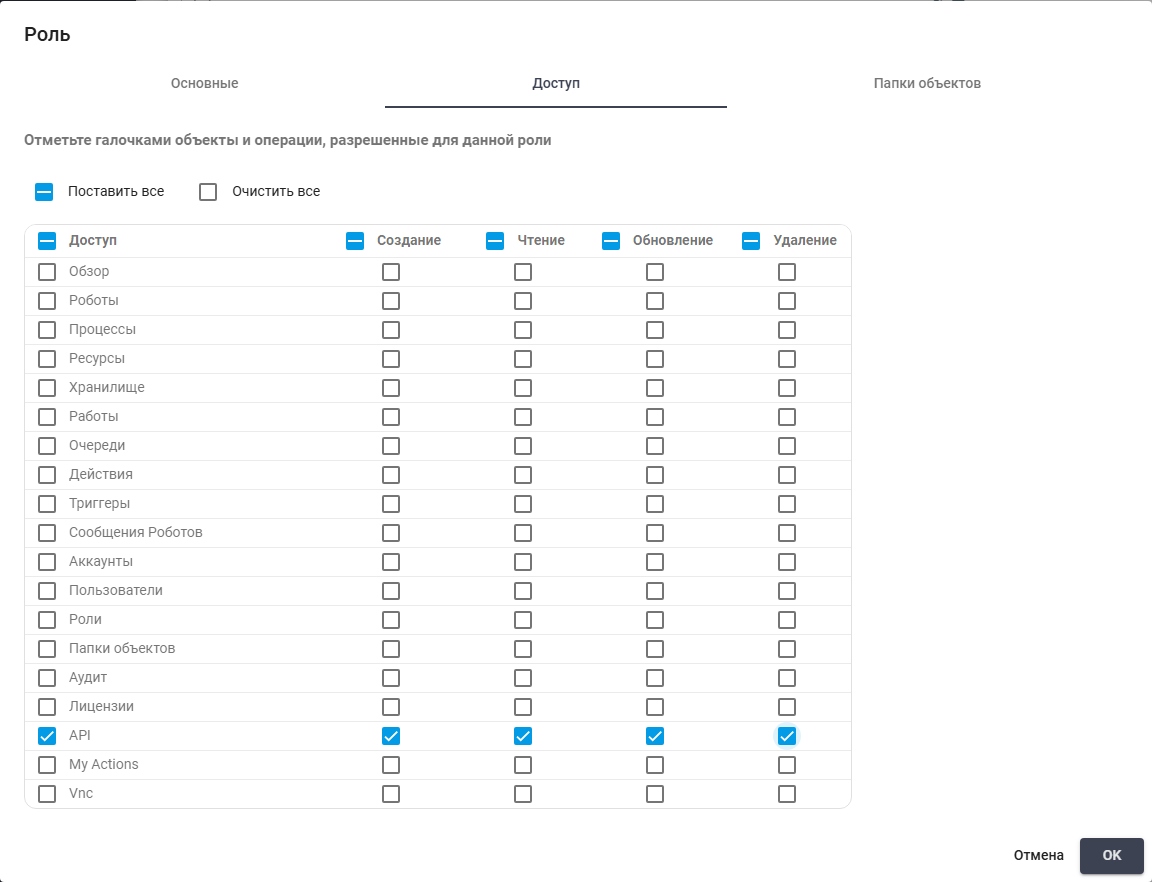
API token permissions. Russian interface.
To prepare an integration token, open Key in API and click "New".
Required fields:
- "Name" — describes the token purpose;
- "Roles" — determines permitted actions. Select at least one existing Role.
Expiration:
- "Unlimited" — removes the expiration limit;
- "Expiration date" — sets the expiration date and time when Unlimited is cleared.
Example: enter Работа с Действиями in "Name" for a test Actions integration and select Role my actions (read, write). Clear "Unlimited" and enter 21.10.2026 09:00 in "Expiration date". Click "Create" to issue the token with those permissions and expiration.
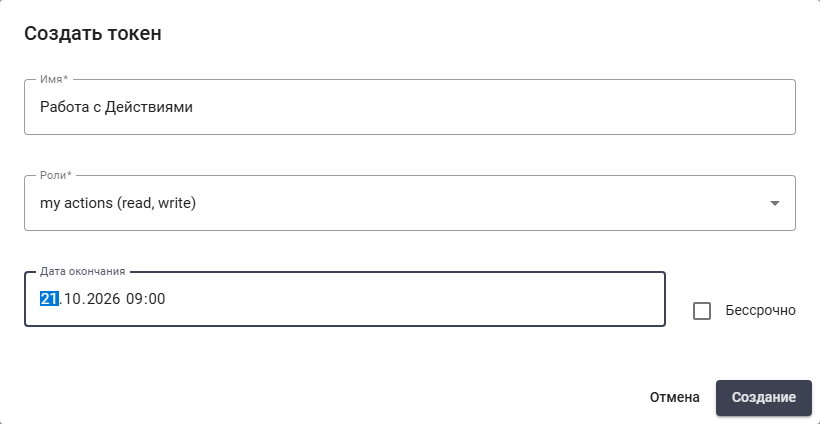
Prepared token form before creation. Russian interface.
After creation, copy the token value or the ready-made Authorization header from the dialog. The value is shown only once: store it in a secure secrets manager before closing the dialog. Use the header displayed by the Orchestrator when calling the API, and check each route's requirements in Swagger. Do not put the token in URLs, logs, or unprotected files.
The table lets you inspect expiration dates and roles, edit token settings, or delete an unneeded token if you have the required permissions. The secret value of an existing token cannot be retrieved from the table. Robot GUID authentication on the routes that support it is a separate mechanism. A GUID is not an API token.
Basic authentication for the legacy API#
Protected legacy /api/* routes that support this authentication method accept an Account login and password, or those of a User with local or LDAP authentication. LDAP requires a configured, reachable directory service. The identity must be active; password authentication does not replace OAuth for an identity of that type.
User permissions come from assigned Roles. Signing in as an Account uses Account permissions. Authentication does not create a new GUI session. Check the route and required permissions in the installed version's Swagger; do not assume this method applies to /api/v1/*.
Example of reading the Robot list over HTTPS:
curl --user 'integration_user' 'https://orchestrator.example.com/api/robot/read'
Replace the address and login with your values. curl prompts for the password interactively. Do not add the password to the command line or disable TLS verification.
Successful API key or Robot GUID authentication takes precedence over Basic. Avoid mixing authentication methods in one request.
If access is denied, check the login, password, identity type and active status, and route permissions. An unavailable LDAP service returns 503 with Directory service unavailable; check the directory and connection instead of changing the password.
Value validation when writing Tasks through the legacy API#
Creating and updating Tasks requires permission for the corresponding Task operation. Request formats must be checked against Swagger for the installed build.
The following constraints apply to POST /api/task/create, POST /api/task/createFromList, and PUT /api/task/update:
parent_task— UUID of the parent Task. An empty value is stored asNULL.priority— integer from 0 to 3.status— integer from 0 to 6.retries— nonnegative integer.
Legacy methods also use names such as ParentTask. An invalid value in an individual create or update request returns 400 with an errors field. In createFromList, an error is returned for the affected list item, so each item's result must be checked.
The incorrect value must be corrected in the Robot or integration before retrying. For example, ParentTask: "string" must be replaced with an existing parent Task UUID or an empty value.
During a database update, invalid parent_task values, including empty strings, are replaced with NULL. The migration does not restore previous values on rollback. Invalid priority, status, and retries values are not corrected automatically. An administrator determines the correct values.
Reading the Robot list#
Reading Robots requires the appropriate Role permissions. Use the authorization header specified in Swagger for the installed version.
The GET /api/v1/robots and GET /api/robot/read requests return a Robot list without the machine_password field. Its absence from the list does not mean that the Robot password has been deleted. If an integration needs connection settings for a specific Robot, use its guid to read that Robot: GET /api/v1/robots/{guid} or GET /api/robot/read/{guid}. Existing permission checks for these requests remain in effect.
Before upgrading, verify that the integration does not retrieve passwords from the list. Robot editing and the built-in VNC viewer read individual Robot records; saved passwords do not need to be entered again after the upgrade. Do not log responses containing credentials.
Reassigning an Autopilot License#
Reassignment preserves the existing User and uses the previous CInfo to activate the replacement key. It requires permission to update Licenses and access to the User in the same Account. The source Autopilot License must be active; the replacement key must have the same type, be imported into that Account, be available, and not yet activated.
The operation is available through API v1. Check the method, fields, and authentication schemes in the installed version's Swagger.
- Identify the Account, User, and current License GUIDs.
- Send
POST /api/v1/accounts/{account_guid}/users/{user_guid}/autopilot_licenses/{license_guid}/reassignmentswithreplacement_license_keyandmodeset toautomaticormanual. The key contains 38 letters and digits and must differ from the current key. - In
automaticmode, the server attempts to activate the replacement. Inmanualmode, use the regular XLSX activation request and response exchange. Creating the operation does not prove successful activation: checkstatusand, on failure,error_codeanderror_message. - After successful activation, manually reset the previous key on the licensing server, delete it from Orchestrator, and import it again before reuse.
Until the previous key has been released and cleaned up, the linked replacement License cannot be deleted, reset, or reassigned again. A warning to release the old key does not mean the replacement activation failed.
Cancellation is available when can_cancel=true: before dispatching the activation request or after a definitive activation failure. Use DELETE on the same path followed by /{reassignment_guid}. Cancellation is unavailable while awaiting a response (awaiting_response) and after completion. On 409, check the operation state; on 422, check the key and request body.
License filtering through the API#
For API access, use filters[license_key][equal] for an exact match and filters[license_key][not_contains] to exclude keys containing a value. After trimming leading and trailing spaces, the filter value must not exceed 128 characters. Unknown fields and unsupported operators return HTTP 422.