
Licenses#
The Licenses screen lets you view licenses in the current Account, add keys, activate licenses, and change their settings.
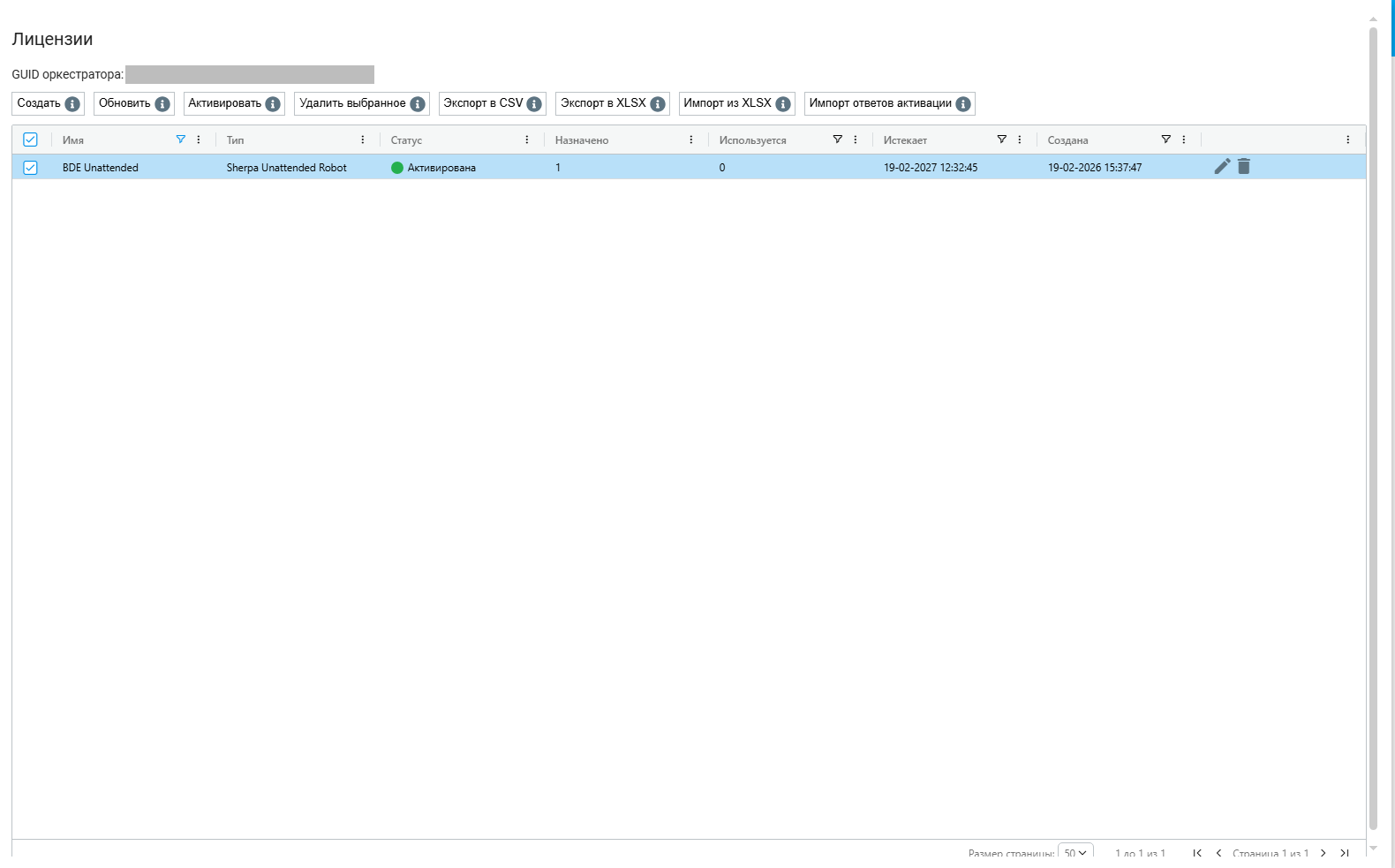
The Licenses screen in Sherpa Orchestrator 5.9.4. Interface in Russian.
The license type determines the product it supports.
The Role uses the Licenses row for these actions:
- view — Read;
- add Licenses and import keys — Create;
- edit, activate and import responses — Update;
- delete — Delete.
The screenshot enables all listed actions.
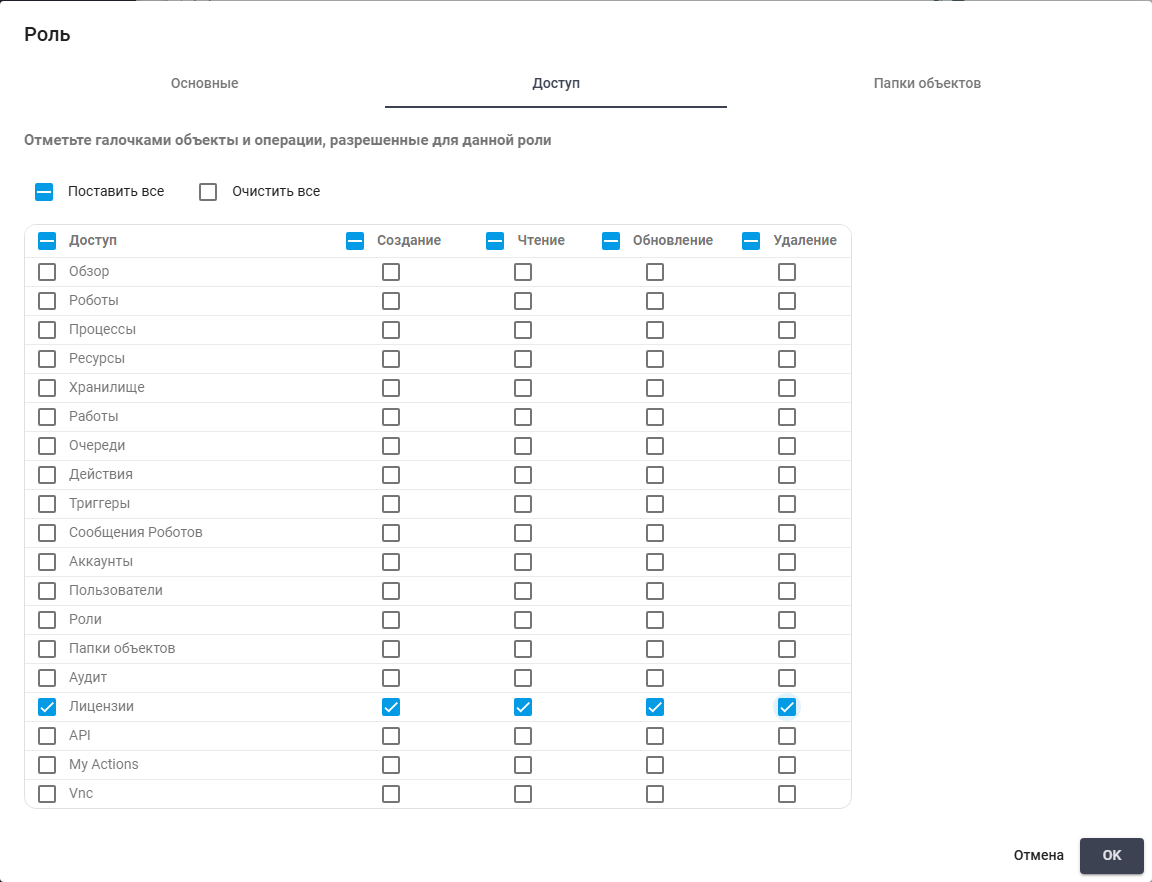
License permissions. Russian interface.
The table contains these columns:
| Column | Description |
|---|---|
| "Name" | The name used to identify the license in the list. |
| "License Key" | The full license key. The column filter supports searching by key. |
| "Type" | The purpose of the license. License types for Sherpa Orchestrator are listed below the table. |
| "Status" | The license activation and expiration state. |
| "Assigned" | The number of Robots assigned the license. |
| "Consumed" | The number of Robots currently using the license. |
| "Expires" | The license expiration date and time. The value is empty before activation. An unlimited license is marked as indefinite. |
| "Created" | The date and time the license was added to the Orchestrator. |
The following license types are intended for Sherpa Orchestrator:
- Sherpa Attended Robot;
- Sherpa Unattended Robot;
- Sherpa Orchestrator;
- Sherpa Attended Floating;
- Sherpa Autopilot.
For an Attended Floating License, "Consumed" counts all non-deleted Robots assigned to that License. Disconnecting a Robot or stopping its activity checks does not release an assigned seat. For Unattended, the count includes active Robots that have sent activity checks within the last 10 minutes. The scheduler updates these counts.
License Key#
To find a license, open the "License Key" column filter, select a condition, and enter the full key or part of it, such as ABCDEF12. Letter case and leading or trailing spaces do not affect the search. The table shows matching licenses from the current Account.
The filter supports two conditions:
- "Contains" — shows licenses whose keys contain the entered value.
- "Not contains" — excludes those licenses.
If there are no matches, the table is empty. To remove the key filter, clear its value. Filter settings are saved in the browser used to work with the Orchestrator and restored when the table is reopened. If the full key does not fit in a cell, hover over it to view the tooltip. To copy the key, select the text in the cell.
API search parameters are described in the API article.
Import from XLSX#
To add licenses in bulk, use a prepared XLSX file containing the keys. Import supports all license types for Sherpa Orchestrator listed in this article.
The file is generated by the licensing server, an external system for issuing and activating licenses, rather than a section of the Orchestrator. If the file has not been provided, check how to obtain it with the person responsible for licenses in your organization. The Orchestrator accepts the prepared file.
To import the file, follow these steps:
On the Licenses screen, click "Import from XLSX" and select the supplied file.
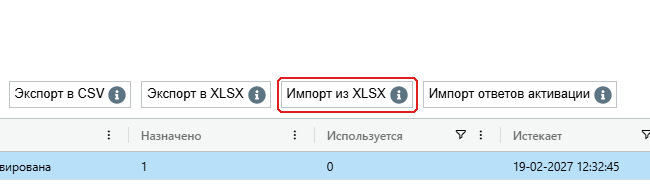
The "Import from XLSX" button on the action bar. Interface in Russian.
Check the result message for the numbers of successful rows and rows with errors.
Correct the affected rows in the source file and import it again. Previously added keys are not duplicated.
The file must contain a single licenses worksheet. When preparing it, follow these requirements:
- Preserve the column names and order:
schema_version,serial,serial_md5,license_type. For example, do not renameserialto "Key" or swap it withserial_md5. - Cells must contain values rather than formulas. Replace a calculated formula with its result before importing.
Empty rows do not prevent import: the Orchestrator skips them. If an error identifies row 7, check row 7 in the source XLSX file.
If an error indicates that the permitted size was exceeded, split the file into several XLSX files with the same worksheet and headers.
Activating licenses#
For automatic activation, select licenses in the table and click "Activate".
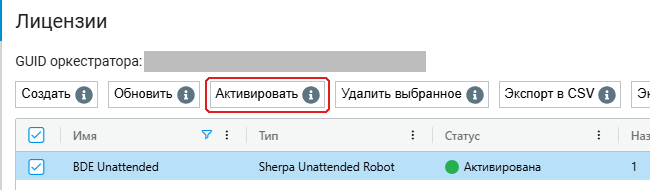
Action toolbar with the activation button. Interface in Russian.
The "License activation" dialog opens. Choose "Automatically". Up to 100 licenses can be activated at a time. When processing finishes, the Orchestrator reports the numbers of activated licenses, errors, and unprocessed records.
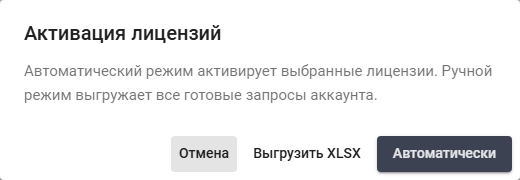
The license activation dialog. Interface in Russian.
For manual activation, choose "Export XLSX" in the "License activation" dialog. The Orchestrator exports all ready activation requests in the current Account, rather than only selected table rows. Send the file to the licensing server, then upload the response file using the "Import activation responses" button on the Licenses screen.
Key, request, and response files have different headers. Use them as supplied without adding or removing columns. Check the activation result in the "Status" and "Expires" columns.
Activation by code#
Activation requires permission to update licenses. For an Attended license, the Robot must be assigned and must have connected to the Orchestrator at least once to provide its machine information.
Activating one license by code requires the following steps:
One row must be selected on the Licenses screen, followed by clicking "Activate".
"Activate by code" must be clicked in the mode selection dialog.
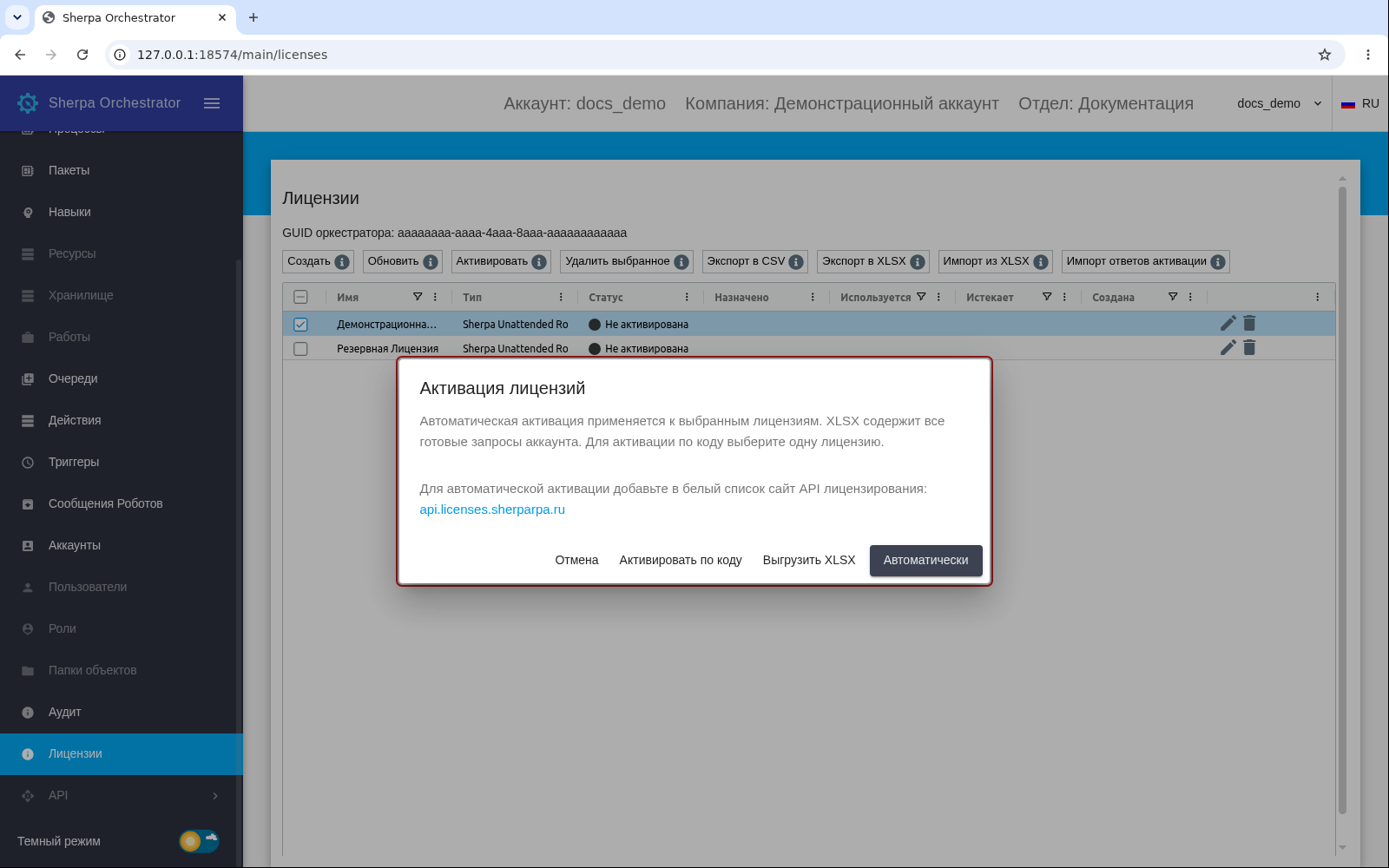
License activation mode selection. Russian interface.
"Copy request code" must be clicked in the "Activate by code" dialog.
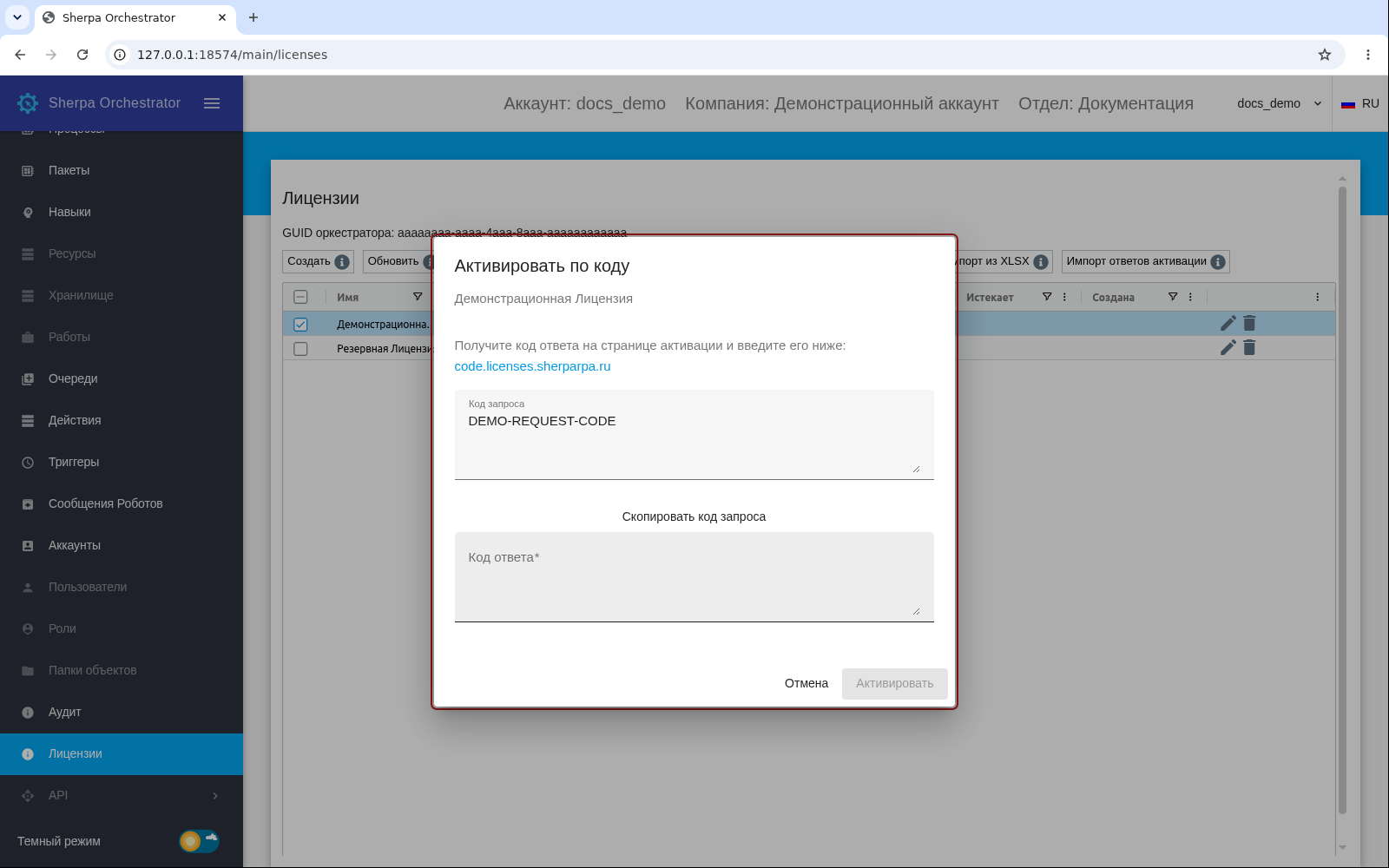
Single-license activation by code dialog. Russian interface.
A response code must be obtained on the activation page. In an isolated network, the request code must be transferred to a computer that can access this page.
The response must be pasted into "Response code", followed by clicking "Activate".
Successful activation closes the dialog. A notification appears on Licenses and the "Licenses" table refreshes.
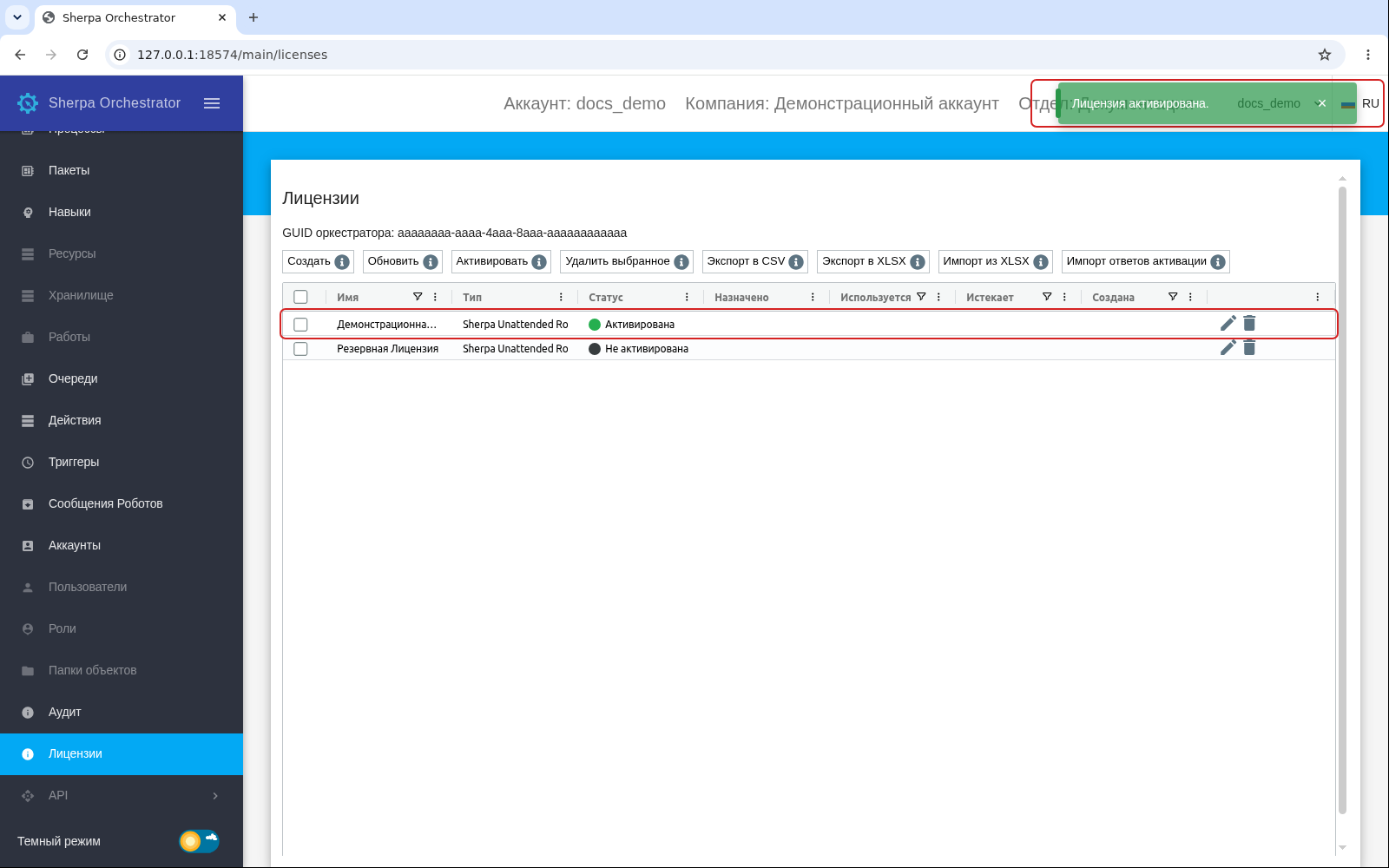
Successful activation on the Licenses screen. Russian interface.
On error, the dialog remains open and retains the entered code. The response must then be checked against the displayed request code.

Response code error in the activation dialog. Russian interface.
If no licenses or multiple licenses are selected, exactly one row must be selected. Repeated submission and closing the dialog are disabled during the request.
If reassignment of an Autopilot license produces a warning to release the previous key, the indicated action must be performed on the licensing server.
Other activation methods are available separately:
- "Export XLSX" — exports all ready requests for the Account regardless of selected rows. The file must be submitted to "Key exchange" on the licensing server. The returned response file is uploaded with "Import activation responses". Response codes must not be added to the request workbook.
- "Automatically" — activates the selected licenses. The Orchestrator must be able to reach the licensing server.
Automatic activation requires the licensing API website api.licenses.sherparpa.ru to be included in the Orchestrator network allowlist.
Sherpa Autopilot#
A Sherpa Autopilot license supports a user's work with Sherpa Autopilot in Attended Floating mode. Its key can be imported and activated through XLSX. After activation, the license type and status appear in the table on the Licenses screen.
Each active Sherpa Autopilot user session occupies one available license seat. The seat is released when the user signs out, the session is disconnected, or it times out. If no seats are available, check active sessions and the license expiration date.
Sherpa Attended Floating is used to run Robot scenarios through Sherpa Assistant. That license is assigned to a Robot in the Orchestrator. A Sherpa Autopilot license covers the user's work with Autopilot and active sessions, rather than running a Robot scenario through Assistant.
Creating a license#
To add a license, click "New" above the table.
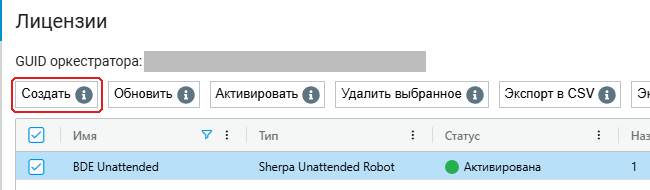
Action toolbar with the create button. Interface in Russian.
The "License" dialog opens for entering the new license data.
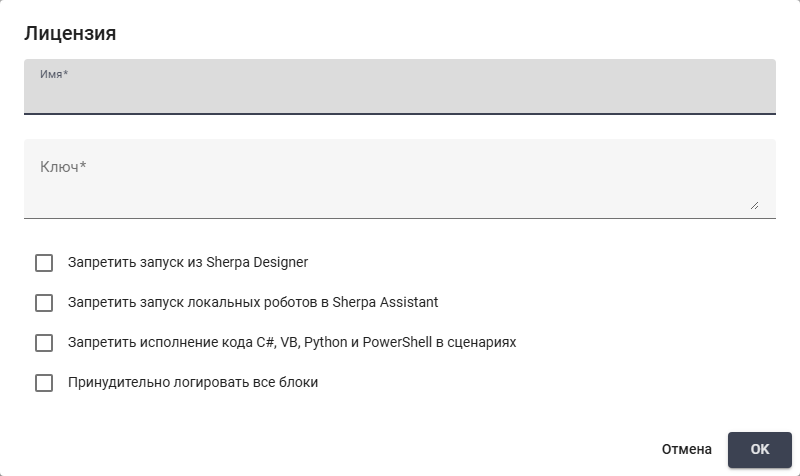
The license creation dialog. Interface in Russian.
The dialog contains these fields and settings:
Required fields:
- "Name" * — the license name displayed in the list. Required, up to 64 characters.
- "Key" * — the license key received from the supplier. Required. Keys contain 32 or 38 Latin letters and digits. Copy the entire key without changing its characters.
Additional elements:
- "Deny run from Sherpa Designer" — prevents starting the Robot from Sherpa Designer. Available for Sherpa Attended Floating.
- "Deny run of local robots from Sherpa Assistent" — prevents starting local Robots in Sherpa Assistant. Available for Sherpa Attended Floating.
- "Deny C#, VB, Python and PowerShell code execution within process" — prevents execution of code in these languages in a Robot scenario. Available for Sherpa Attended Floating and Sherpa Unattended Robot.
- "Force logging in all blocks" — enables logging of every block in the Robot scenario. Available for Sherpa Attended Floating and Sherpa Unattended Robot.
- "Logging level:" — controls log detail. Appears when "Force logging in all blocks" is enabled.
To save, click "OK". After a successful save, the license appears in the table. Activate it before use. If the form reports an error, check the required fields and the key format. To close without saving, click "Cancel".
Editing a license#
To change an existing license, click the edit button  on the right of the corresponding license row.
The "License" dialog opens with the previously saved data.

The license editing dialog with saved data. Interface in Russian.
The form allows changing the name and settings available for the license type, as described in the creation section. The read-only "GUID" field identifies the selected license.
Replacing an ordinary license key resets activation. The replacement key must be activated again. Sherpa Autopilot keys cannot be replaced through the form: the supported route is deleting the license and importing the new key. Deletion also removes associated Autopilot assignments and sessions. Before replacing the license this way, coordinate restoring assignments and activation with the administrator.
To save available changes, click "OK". The table refreshes after a successful save. To close without saving, click "Cancel".
Reassigning an Autopilot License#
Reassignment replaces an Autopilot License key while preserving the User. The source License must be active; the replacement key must have the same type, be imported into the same Account, be available and not yet activated. This is an API v1 operation. The procedure, result checks and cancellation conditions are in the API guide.