
Queues#
Screenshots show the Russian interface. Quoted form element names correspond to the English interface.
Queues are a way to group similar Tasks and create streams of Tasks.
Queues can be viewed as a way of "storing a list of data" that needs to be processed. Such groupings are used so that an external system (or Robots) can add Tasks to the Queue, while other Robots execute the items in the Task Queue, meaning they extract Tasks from a specific Queue and perform Works. Thus, a long and complex business process can be broken down into a set of simple processes, each of which will be executed by a specific Robot or Group of robots.
The following Role permissions in the Queues row apply to Queues and their Tasks:
- view and export — Read;
- create — Create;
- change settings or status — Update;
- delete — Delete.
The screenshot selects all four permissions for all listed actions. Assign the permissions required for the employee's actions. The Queue's access Folder also limits access.
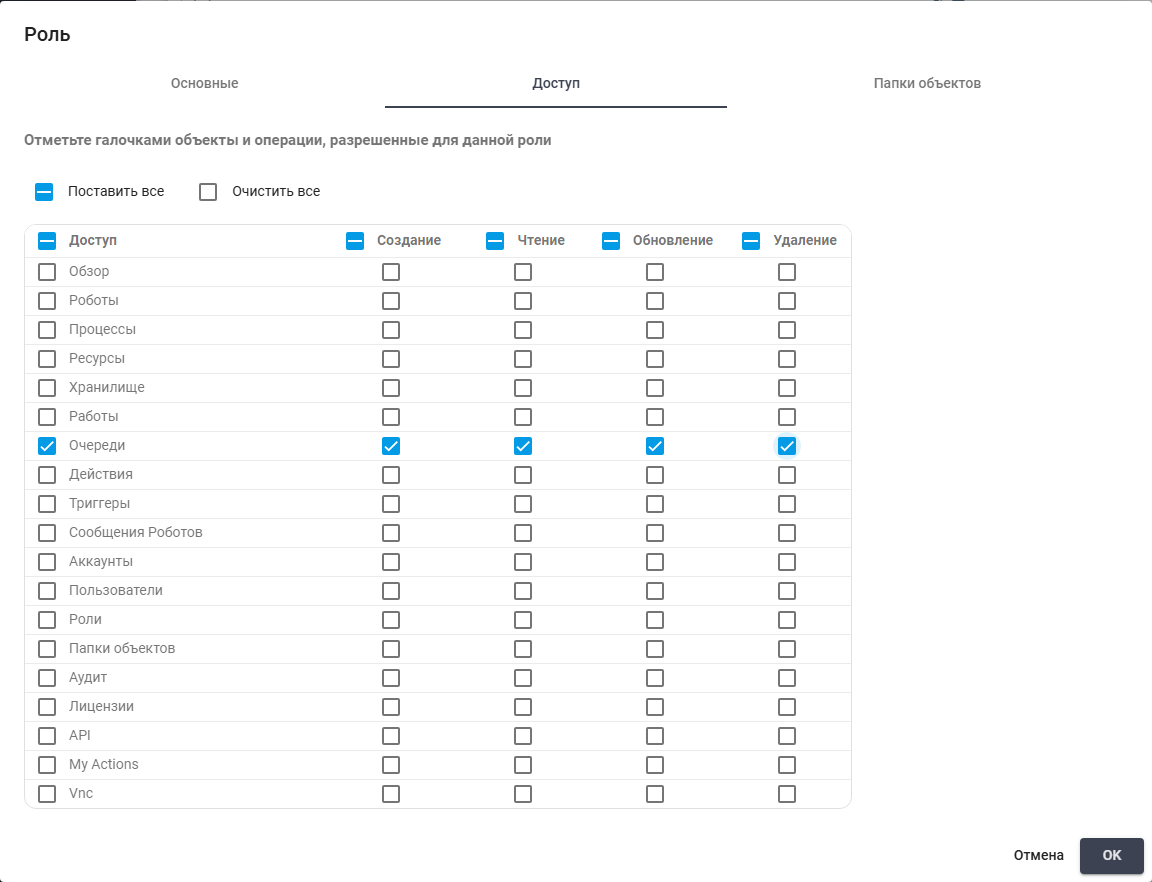
Create, Read, Update and Delete for Queues. Russian interface.
Tasks can be added to the Queue in three ways:
- manually by the User using the Orchestrator;
- by a Robot using the "Add Task to Queue" block;
- via API calls.
The "Queues" screen contains two tables: "Queues" and "Tasks".
.png)
Queues and Tasks tables. Russian interface.
To work with Queues, the following buttons are available on the screen:
.png)
Queue controls. Russian interface.
| Button Name | Description |
|---|---|
| New | Allows the User to create a new Queue. When clicked, a form opens for entering the necessary data and configuring the parameters of the new Queue. |
| Refresh | Allows updating information about the selected Queue. |
| Delete Selected | Allows deleting one or more selected Queues. |
| Import from CSV | Allows the User to upload Queue data from a CSV file. When this option is selected, a dialog box opens for uploading the file with the necessary data. |
| Export to CSV | Allows saving information about Queues to a CSV file. |
| Export to XLSX | Allows exporting Queue data to an XLSX file. |
To work with Tasks, the following buttons are available on the screen:
.png)
Task controls. Russian interface.
| Button Name | Description |
|---|---|
| New | Allows the User to create a new Task. When clicked, a form opens for entering the necessary data and configuring the parameters of the new Task. |
| Refresh | Allows updating information about the selected Task. |
| Change Status | Allows changing the status of one or more selected Tasks. Possible options:
|
| Clone task | Allows creating a copy of the selected Task with automatic transfer of all its properties and parameters. |
| Delete Selected | Allows deleting one or more selected Tasks. |
| Import from CSV | Allows the User to upload Task data from a CSV file. When this option is selected, a dialog box opens for uploading the file with the necessary data. |
| Export to CSV | Allows saving information about Tasks to a CSV file. |
| Export to XLSX | Allows exporting Task data to an XLSX file. |
| Show Chart | Allows visualizing Task data in the form of a chart for analyzing Task statuses. |
Creating a New Queue#
To create a new Queue, you need to click the "New" button in the "Queues" table and fill out the opened form:
**Required field:
**
- field "Name" — contains the record name.
**Additional elements:
**
- field "Description" — describes the Queue.
- field "Access Folder" — restricts Queue access to the selected access Folder.
- field "Set to “Abandoned” a task being in a status “Created” longer than a specified number of minutes" — sets the waiting period in minutes for Tasks in Created status. After this period they become Abandoned.
0disables this rule. - field "Set to “Abandoned” a task being in a status “In progress“ longer than a specified number of minutes" — sets the waiting period in minutes for Tasks in progress. After this period they become Abandoned.
0disables this rule. - checkbox "Autochange “In Progress” task status to “Failed (Application)” if connected Job changed status to “Failed/Stopped/Aborted”" — changes an in-progress Task to Failed (Application) when its linked Job fails, stops or is aborted.
- checkbox "Auto retry Failed (Application) tasks" — creates a new attempt after this status is reported. The maximum retry setting limits additional attempts.
- checkbox "Auto retry Failed (Business) tasks" — creates a new attempt after this status is reported. The maximum retry setting limits additional attempts.
- checkbox "Auto retry Abandoned tasks" — creates a new attempt after this status is reported. The maximum retry setting limits additional attempts.
- field "Max number of retries" — limits additional attempts after the original Task.
2permits two retries;0disables retries. Used when auto-retry is enabled. - checkbox "Deny adding tasks with duplicate Names" — prevents adding a Task with an existing name to the Queue.
Example: enter Отчеты as the Queue name and Обработка отчетов as its description. Leave the access Folder empty, both abandonment time limits at 0, and all checkboxes cleared. Click "OK" to save. Screenshots show the Russian interface.
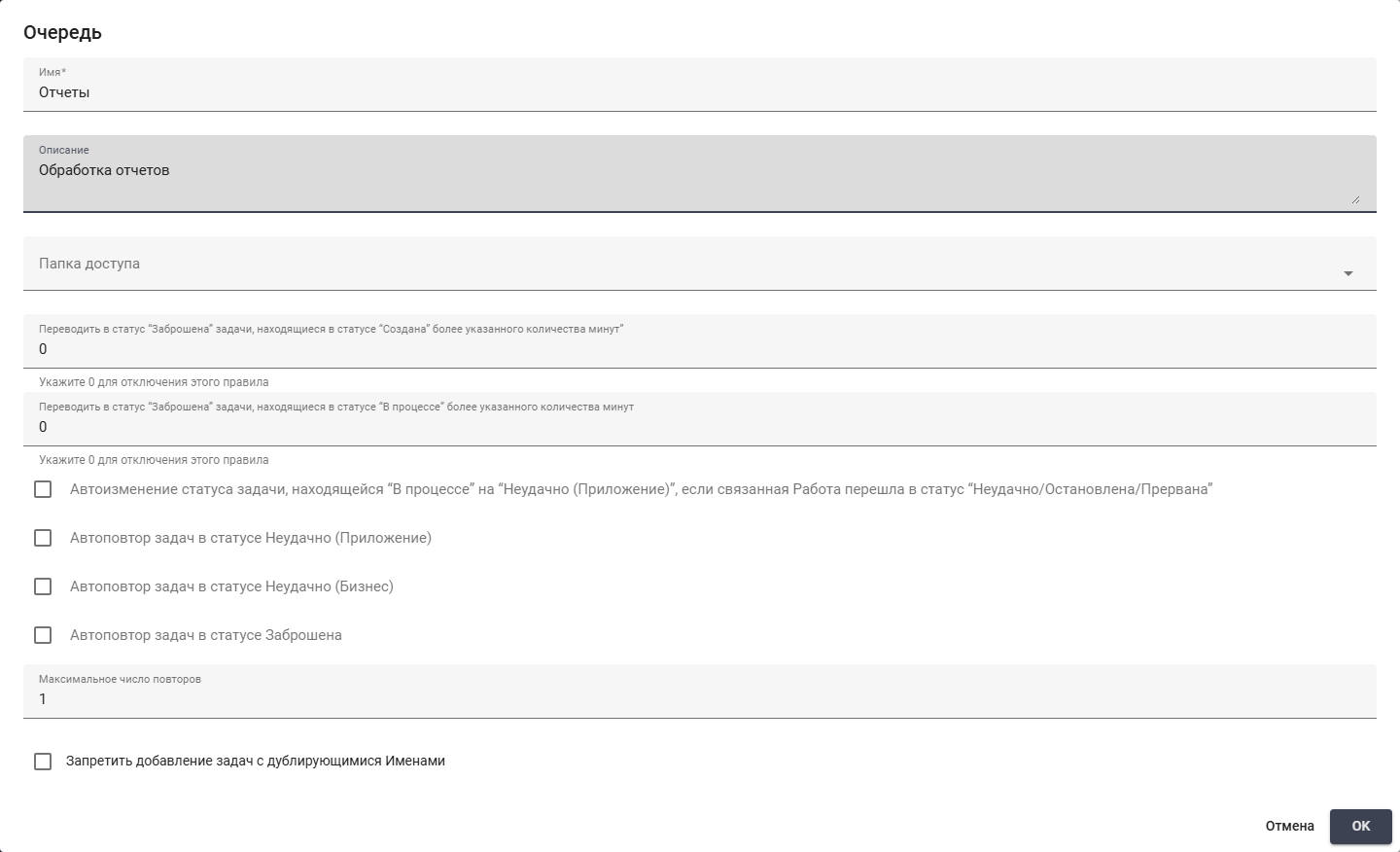
New example Queue without auto-retry. Russian interface.
Editing a Previously Created Queue#
To view and edit the properties of a specific Queue, you need to select it from the list and click the edit button  . After that, a form with the Queue settings will open, where you can make the necessary changes:
In addition to the fields filled in when creating the Queue, when editing, the form specifies the GUID (unique identifier assigned to the Queue after its creation) in the "GUID" field. This field cannot be edited.
Example: enter Отчеты as the Queue name and Обработка отчетов as its description. The screenshot has an empty access Folder, both abandonment limits set to 60, and status auto-change, application-error retry and duplicate-name prevention enabled. The retry limit is 1; business-error and abandoned retries are disabled. GUID is unchanged. Click "OK" to save.

Editing the example Queue. GUID hidden. Russian interface.
Auto-retry after an application error#
Auto-retry can be enabled for a Queue to process Tasks again after an application error. Access to the Queue and permission to change its settings are required. The Robot must report the Task status "Failed (Application)" to Orchestrator when the corresponding error occurs. An error entry in the Robot log alone is not sufficient.
To configure auto-retry:
- Open the settings of the required Queue on the Queues screen.
- Enable "Auto retry Failed (Application) tasks".
- Set "Max number of retries" to the number of additional attempts, for example 2, and save the settings.
- In the "Get Task from Queue" block, specify this Queue, select New in "Task Status", and enable "Take to Work". Other filters must allow the retry Tasks: they have their own GUIDs, names, and creation dates.
- On an application error, report Failed (Application) for the Task being processed, for example using the "Modify Task" block.
When handling this status, Orchestrator creates a copy of the Task with a new GUID, a name ending in Retry 1, and the "Created" status. The original Task retains the "Failed (Application)" status. The Robot retrieves the copy using the standard "Get Task from Queue" block.
When processing new copies sequentially with a limit of 2, the available attempts are the original attempt, Retry 1, and Retry 2. The next copy is created only if another error occurs. After successful processing or reaching the limit, no further attempts in this chain are created. The result can be checked in the "Tasks" table of the selected Queue.
Enabling auto-retry does not by itself create copies of all previously failed Tasks. Auto-retry is triggered when the corresponding Task status is handled. For this scenario, the retrieval block needs the New filter, not Failed (Application).
Example: for two additional attempts in Queue Отчеты, enter description Обработка отчетов, leave the access Folder empty and both abandonment limits at 0. Enable only application-error auto-retry and set the maximum retries to 2. Leave all other checkboxes cleared. Click "OK". The screenshot shows configuration; copies are created later when the Robot reports an error status.
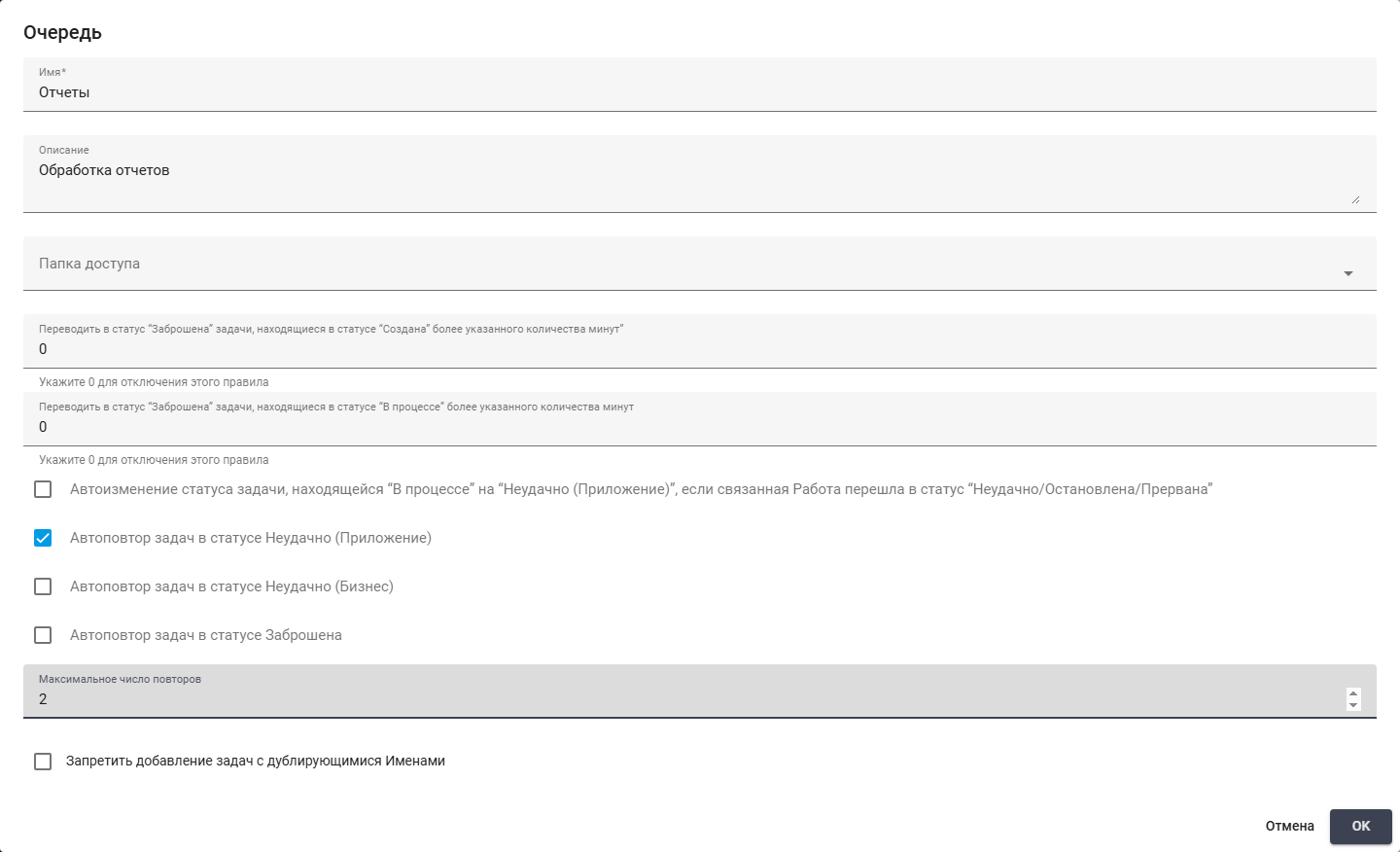
Application-error auto-retry: at most two additional attempts. Russian interface.
Creating a New Task#
To create a new Task, you need to click the "New" button in the "Tasks" table and fill out the opened form:
In order for the list of Tasks to appear in the "Tasks" table, you need to set the flag for one of the Queues.
The form contains the following elements:
**Required field:
**
- field "Name" — contains the record name.
**Additional elements:
**
- field "Description" — describes the Task.
- field "Comment" — contains a comment on the Task.
- field "Priority" — sets the order in which the Robot selects Tasks: Low, Normal, High or Deadline.
- field "Tags" — contains the Task tags.
- field "Retries" — contains the number of retries already made for this Task. Use
0when manually creating the original Task.
Example: enter Отчет за октябрь as the Task name, Проверка итогов месяца as its description and Проверить суммы as its comment. Keep normal priority, empty tags and retries at 0. Click "OK" to save in the selected Queue.
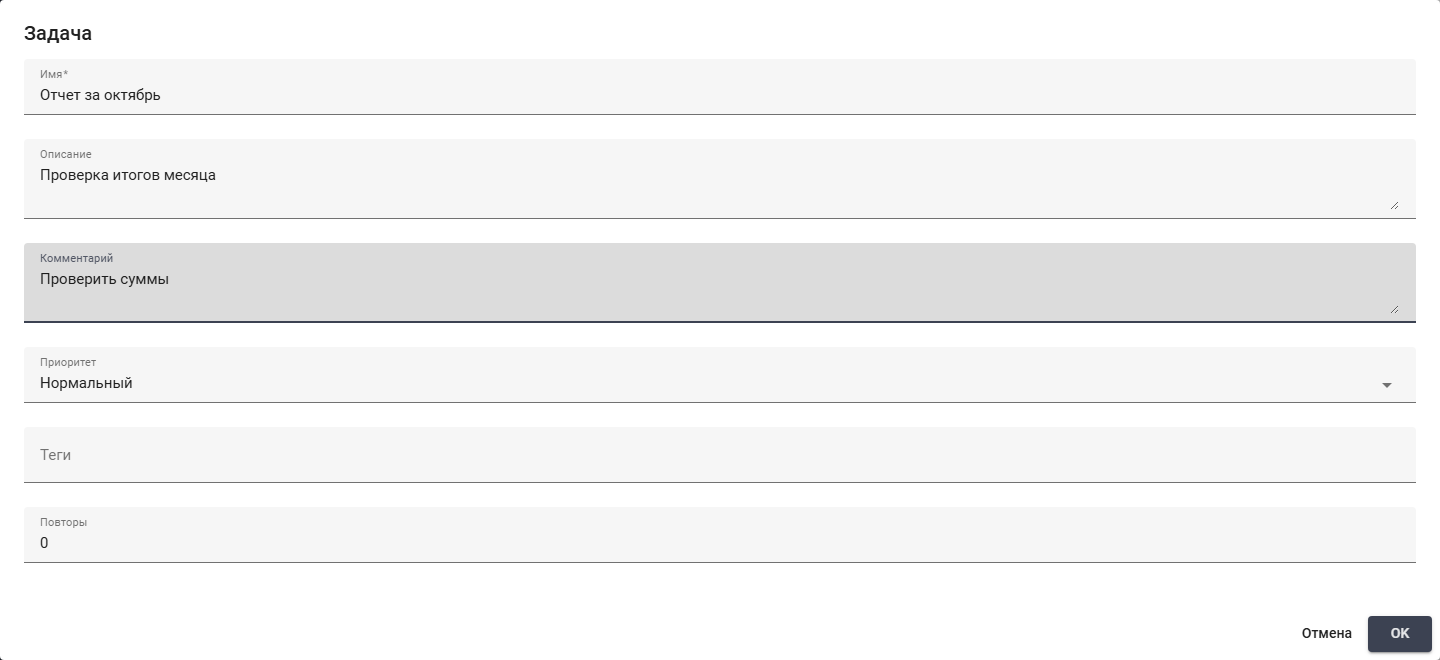
New example Task. Russian interface.
Editing a Previously Created Task#
To view and edit the properties of a specific Task, you need to select it from the list and click the edit button . After that, a form with the Task settings will open, where you can make the necessary changes:
- field "GUID" — unique identifier assigned to the Task after its creation. This field cannot be edited.
- field "Status" — status of the Task. Possible options: Created; In Progress; Successful; Failed (Application); Failed (Business); Deferred until; Abandoned.
- field "Started" — shows the Task processing start time. Read-only.
- field "Postponed" — date and time until which the Task is deferred in the format: DD.MM.YYYY hours:minutes. Upon reaching the "Deferred until" date and time, the Task is considered according to its priority and executed in the order of the Queue.
- field "Deadline" — date and time of the deadline for completing this Task.
- field "Created" — date and time when the Task was created. This field cannot be edited.
- field "Updated" — date and time when the Task was updated. This field cannot be edited.
Example: set an existing Task name to Отчет за октябрь, description to Проверка итогов месяца and comment to Проверить суммы. The screenshot retains Abandoned status, normal priority and 0 retries. Tags, start time, postponement and deadline are unset. GUID and creation/update dates are read-only. Click "OK" to save.
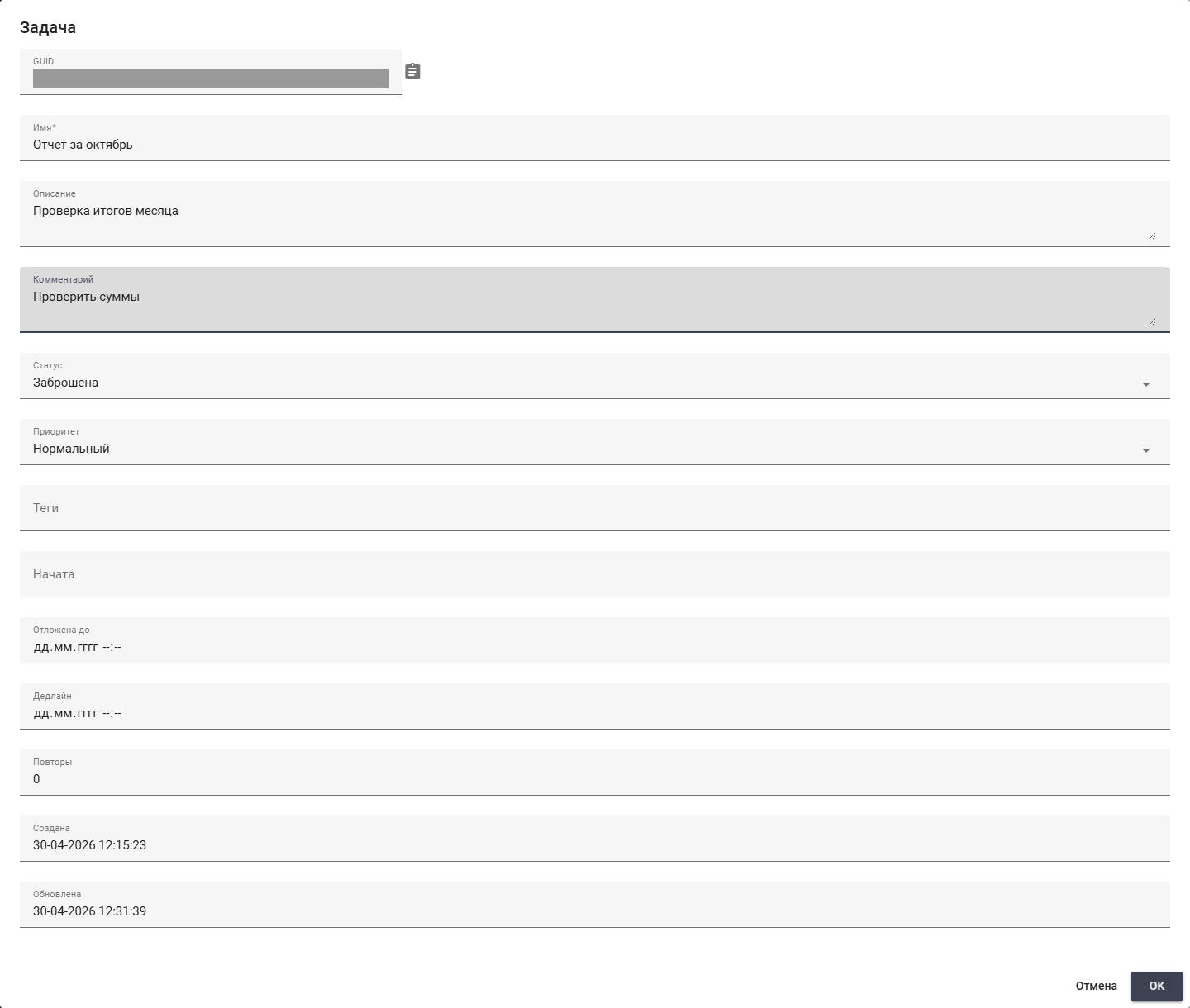
Editing the example Task. GUID hidden. Russian interface.
Task Parameters#
For already created Tasks, "Task Parameters" are available. To open the parameters form, you need to click the parameters button  . Three data types are available for specifying Task parameters:
- Text;
- Table;
- Hash Table.
Text#
Text passes a string or text document to the Robot through Task parameters.
Example: open parameters for Task заказ 1, select Text as the data type and enter report_october.xlsx in the text area. Click "OK" to save.
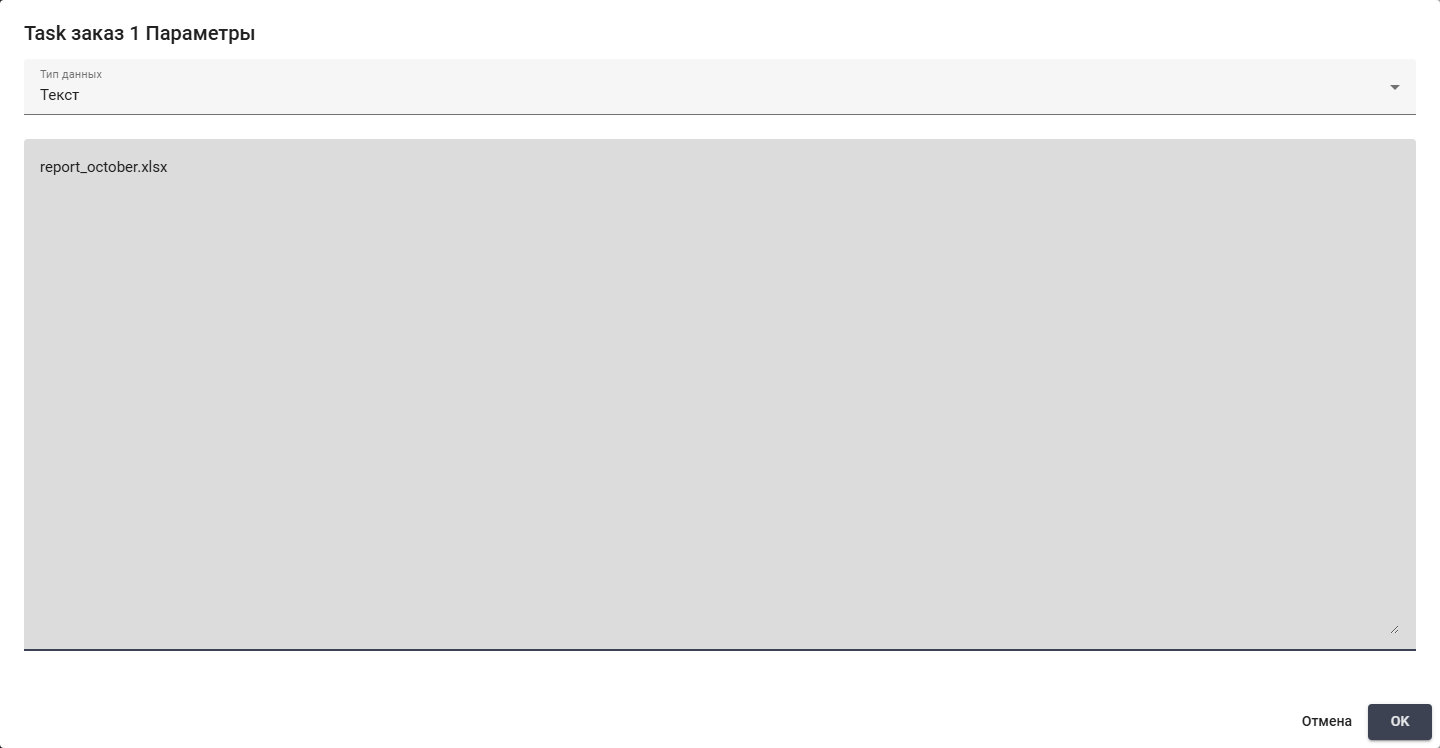
Task parameters: filename as Text. Russian interface.
Table#
Table passes records with the same columns. Column names and cell values are edited in the table. The add-row button adds a record; each column menu controls the columns.
Example: select Table as the data type. Set the columns to Файл, Месяц, Строк, Сумма and Валюта. Enter one row with report_october.xlsx, 2026-10, 12, 15000 and RUB, respectively. Click "OK".
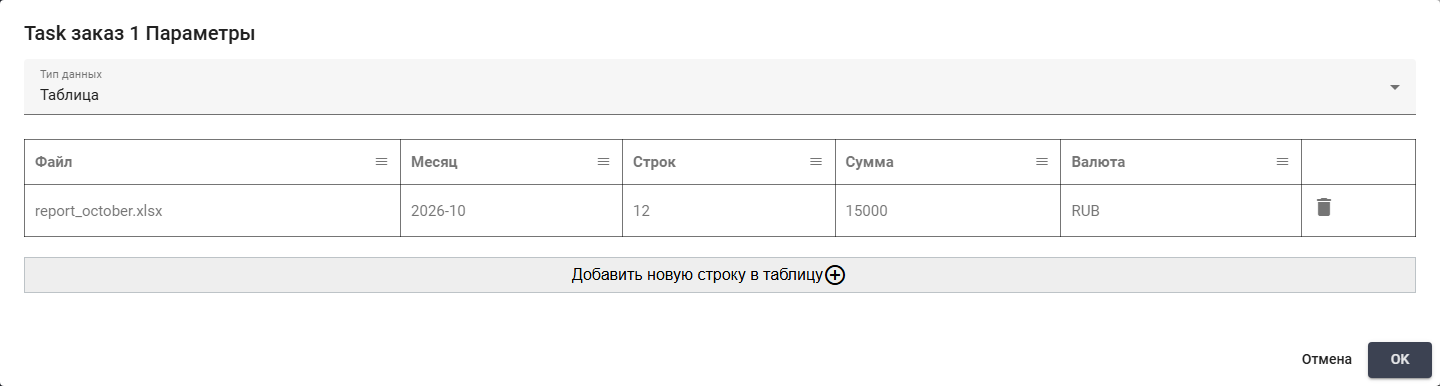
Task parameters: one completed report row. Russian interface.
Hash table#
Hash table passes named values. Each pair consists of a parameter key and its value. Clear both fields to remove a pair. The empty row is available for another pair.
Example: select Hash table. Enter file and report_october.xlsx in the first pair, and period and 2026-10 in the second. Leave the next row empty and click "OK".

Task parameters: file and period pairs. Russian interface.
Task list loading error#
If the Task list on the Queues screen fails to load, the Orchestrator stops the loading indicator and displays a notification with the error message. This message should be provided to an administrator.
Example: opening the demonstration Queue reports an invalid Task priority. Send the message to an administrator. After the data is corrected, click "Refresh" in the Tasks table.
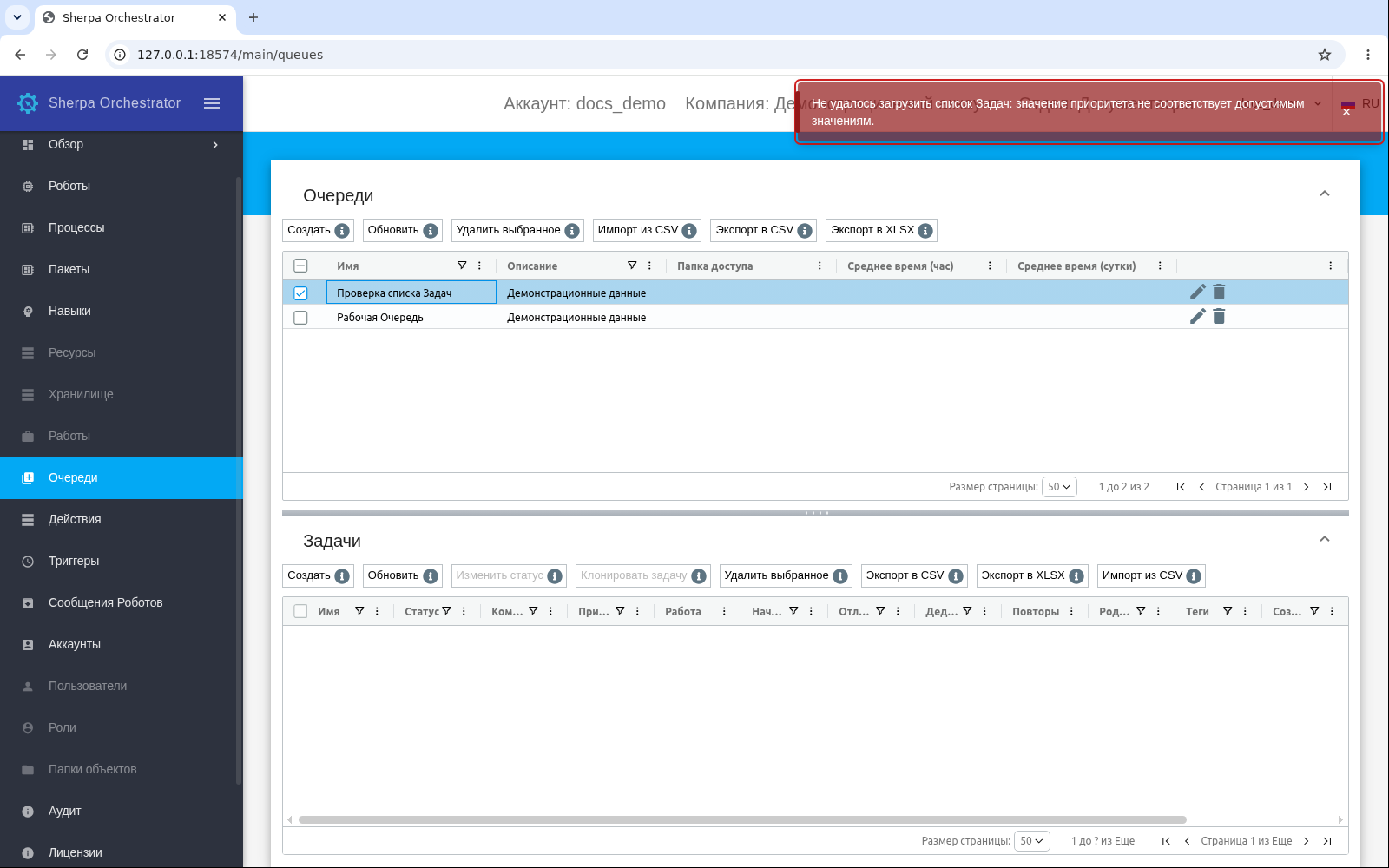
The invalid Task priority message is outlined in red. Russian interface.
After the cause is resolved, the "Refresh" button in the "Tasks" table can be clicked. Another Queue can also be selected to continue working.
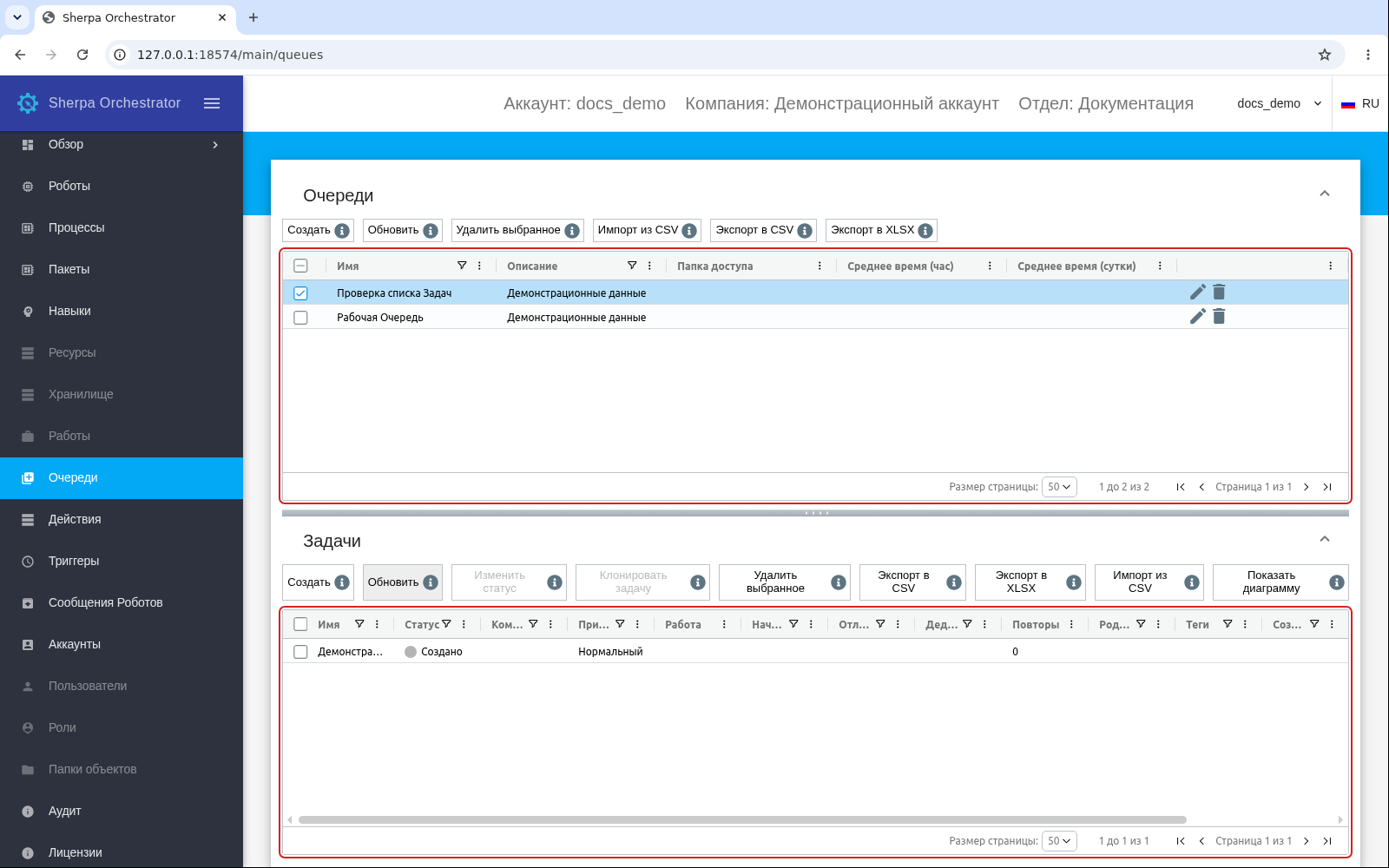
The selected Queue and loaded Tasks table are outlined in red. Russian interface.
Previously stored invalid priority, status, or retry values may still cause a list error. The migration only corrects invalid parent Task identifiers. An administrator determines the correct values for the other fields.