
Roles#
A Role defines access rights to Orchestrator screens and to functions within those screens.
Minimum rights required for a User Role:
- Read Dashboards;
- Read Object Folders.
If a User needs to edit Robots, grant the following rights:
- Read Dashboards;
- Read Object Folders;
- Read Resources;
- Read Licenses.
The Robot editing screen retrieves this data to populate the corresponding input fields.
The Roles screen has the following buttons:
| Button | Description |
| Create | Opens the form for creating a new Role. |
| Refresh | Refreshes the list of Roles in the table. |
| Delete selected | Deletes Roles selected with checkboxes in the table. |
| Export to CSV | Exports the list of Roles to a CSV file. |
| Export to XLSX | Exports the list of Roles to an XLSX file. |
The Roles screen contains the "Roles" table:
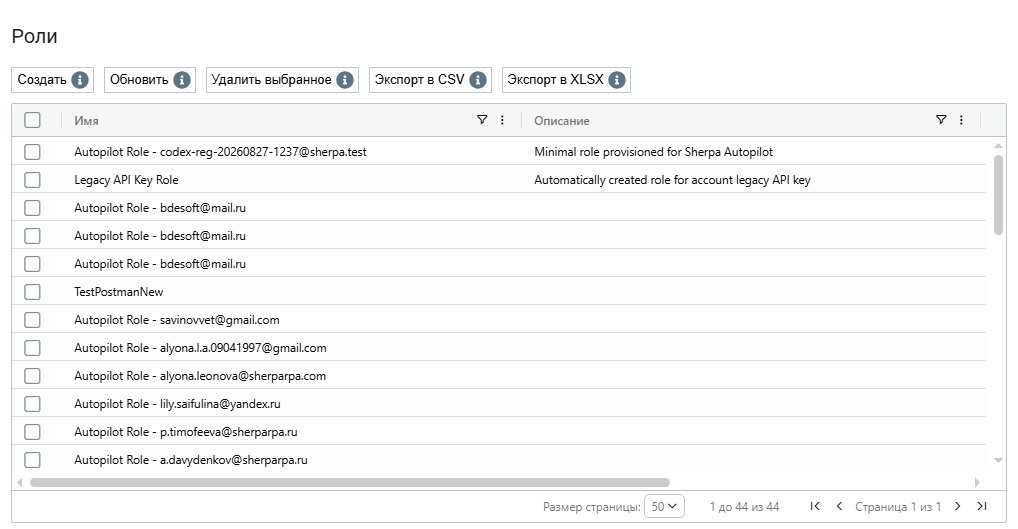
The Roles table has the following columns:
| Column | Description |
.png) |
Selects one or more Roles for bulk actions. |
| Name | Name of the Role. |
| Description | Description or purpose of the Role. |
Creating a New Role#
To create a Role, click "Create" above the Roles table and complete the form:
.png)
The new Role form contains the following tabs:
- General;
- Access;
- Object Folders.
General Tab#
The General tab has two text fields:
- Name* — the Role name; this field is required.
- Description — the Role description. You can specify the Role's functions, rights to screens, or actions available to Users assigned this Role.
Access Tab#
Use the Access tab in the Role form to set rights to Sherpa Orchestrator sections and operations.
The tab shows a permissions matrix:
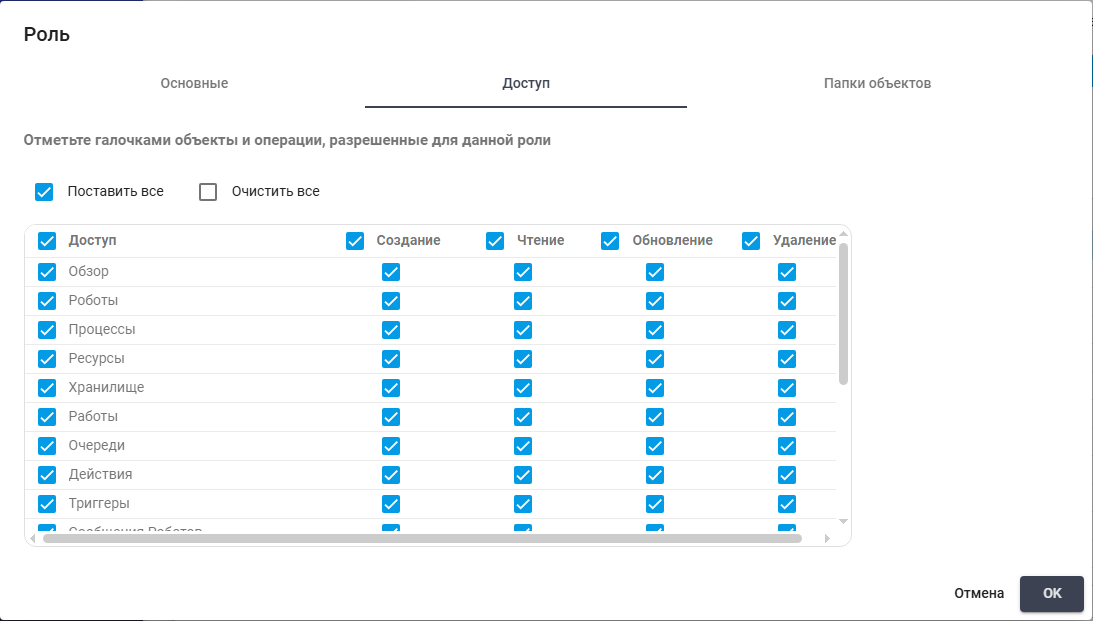
- System sections such as "Overview", "Robots", "Processes", "Resources", "Storage", "Jobs", "Queues", "Actions", and "Triggers" are listed on the left.
- Operation types — "Create", "Read", "Update", and "Delete" — appear across the top.
- Checkboxes in the cells show which actions are allowed for the Role.
Quick actions are available at the top:
- Select all — selects all available rights.
- Clear all — clears all rights.
You can scroll the matrix vertically and horizontally if some sections or rights do not fit in the window.
Click "OK" to save changes or "Cancel" to leave without saving.
Object Folders Tab#
On the Object Folders tab, select the Object Folders that Users with this Role can access.
.png)
Object Folders are created separately on the corresponding Orchestrator screen.
Editing an Existing Role#
To view or edit a Role, select it in the list and click  . The Role editing form opens. In addition to the fields used when creating a Role, it shows the GUID (the unique identifier assigned to the Role when it was created). This field cannot be edited.