
Object Folders#
The Object Folders screen lets you create and edit folders to control access to Orchestrator objects more precisely for different User Roles.
.png)
The "Object Folders" filter in the Orchestrator top bar shows only objects in the selected folder and objects that have not been assigned to any folder:
.png)
On the Roles screen, you can grant a Role access to specific Object Folders. You can then assign an Object Folder when creating or editing Orchestrator objects on the corresponding screens: Robots, Processes, Packages, Resources, Storage, Queues, Actions, and Triggers.
The Object Folders screen contains an "Object Folders" table.
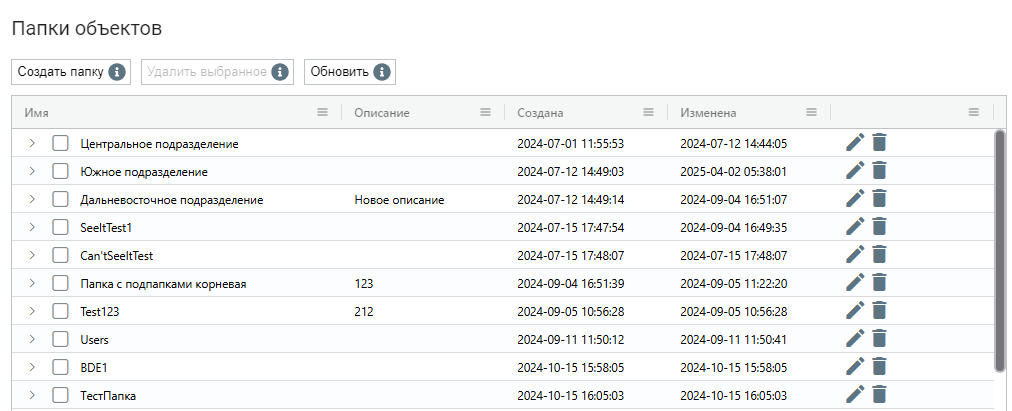
Creating a new Object Folder#
To create an Object Folder, click "Create" in the "Object Folders" table and complete the form that opens.
.png)
Editing an existing Object Folder#
To view or edit an Object Folder, select it in the list and click  . The folder settings form opens, where you can make changes. In addition to the fields available during creation, the edit form shows the GUID (the unique identifier assigned after the folder was created). This field cannot be edited.
.png)
Access to Tasks and Robots through Object Folders#
Access to Queue Tasks and Robots in groups respects the Object Folders assigned to the User. The User can see and use only data belonging to folders available to them.
On the Queues screen, this applies to the "Tasks" table: after selecting a Queue, only Tasks available to the User are shown. If the Queue or its related Tasks belong to an inaccessible Object Folder, they are hidden and cannot be used.
On the Robots screen, the restriction applies to Robot Groups. After selecting a group, only Robots in Object Folders available to the User are shown. Robots in inaccessible folders are excluded from the group list.
Assigning Object Folders provides an additional way to separate data within an Account. It limits User access to Queues, Tasks, and Robots without creating separate Accounts.