
Storage#
One of the important components in the automation ecosystem is the Storage, which can be considered analogous to popular cloud services: File Bucket or Google Drive. The Storage provides Users and Robots the ability to securely and conveniently save arbitrary files of various sizes and access them.
The "Storage" screen consists of two tables: "Folders" and "Files".
Storage actions are controlled by Create, Read, Update and Delete in the Storage row of the Role. The screenshot selects all four for all described actions. The access Folder additionally limits access to each Storage folder.
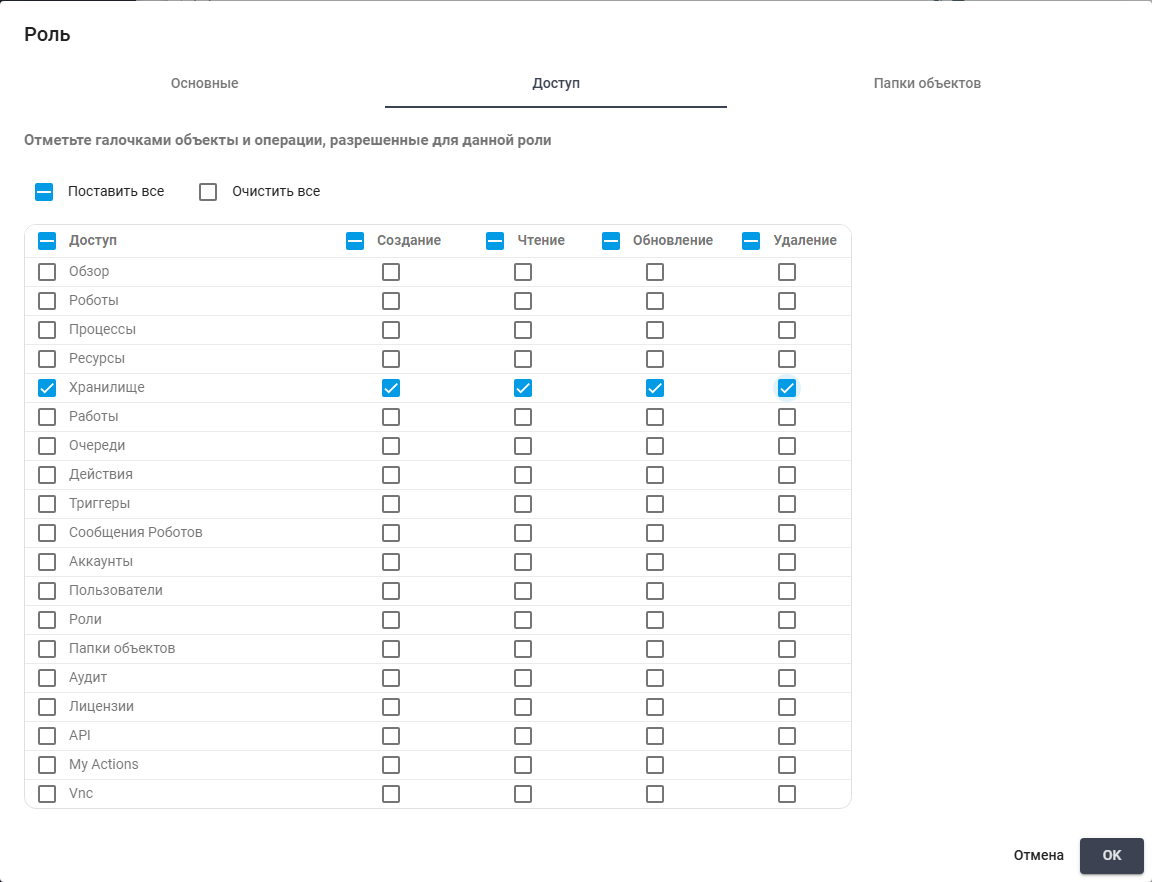
Storage permissions. Russian interface.
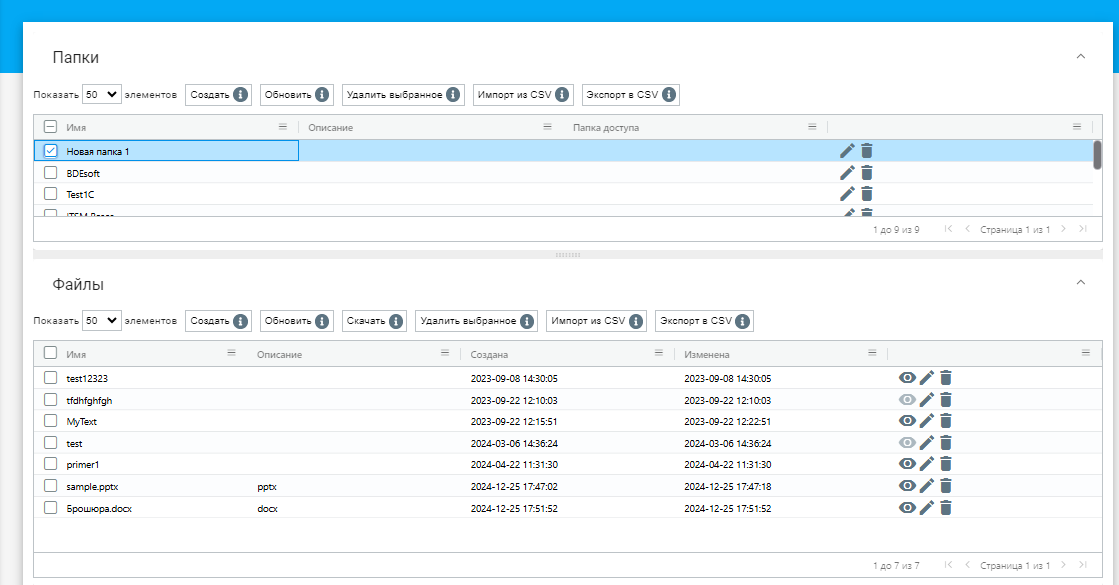
Storage folder and file tables. Russian interface.
The Storage does not support a multi-level folder structure. The entire structure is two-level: a group of files and files.
"Folders" Table#
The "Folders" table includes the following information:
| Column Name | Description |
| Name | Contains the name for the folder. |
| Description | May include information about the contents of the folder. |
| Access Folder | Limits access to the Storage folder. The User needs Role permissions and access to the selected access Folder. |
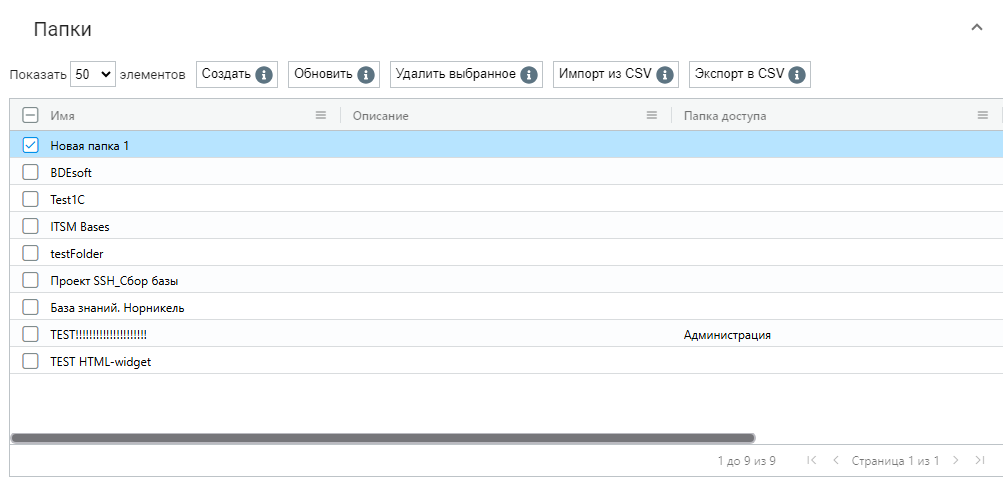
Storage folders. Russian interface.
Data about each folder in this table can be edited by clicking the checkbox on the left in the desired row, clicking the edit button  and modifying the fields in the popup form.
Each folder can also be deleted from the Storage by clicking the checkbox on the left in the desired row and then clicking the delete button, if deletion is confirmed in the popup window:
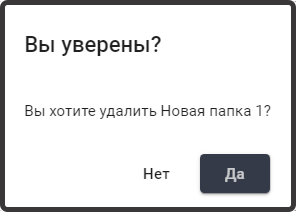
Confirming deletion of folder Новая папка 1. Russian interface.
Above the "Folders" table are buttons described in the following table:
| Button Name | Description |
| Create | Initiates the process of creating a new folder. When clicked, a form opens where the User can fill in the required fields. |
| Refresh | Used to refresh the list of folders on the screen. |
| Delete Selected | Deletes the selected folders from the system. When the button is clicked, a confirmation dialog appears. |
| Import from CSV | Allows the User to import folder data from a CSV file. |
| Export to CSV | Allows the User to export data about existing folders to a CSV file. |
"Files" Table#
The "Files" table includes the following information:
| Column Name | Description |
| Name | Contains the name for the file. |
| Description | May include information about the contents of the file. |
| Created | Date and time the file was created. This field cannot be edited. |
| Modified | Date and time the file was last modified. This field cannot be edited. |
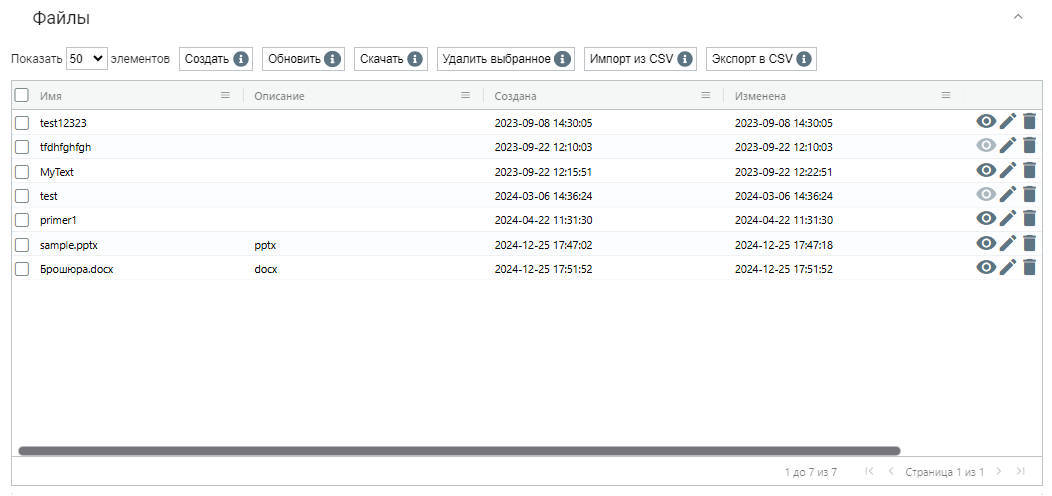
Files in the selected folder. Russian interface.
Data about each file in this table can be edited by clicking the checkbox on the left in the desired row, clicking the edit button and modifying the fields in the popup form.
Each file can also be deleted from the Storage by clicking the checkbox on the left in the desired row and then clicking the delete button, if deletion is confirmed in the popup window:
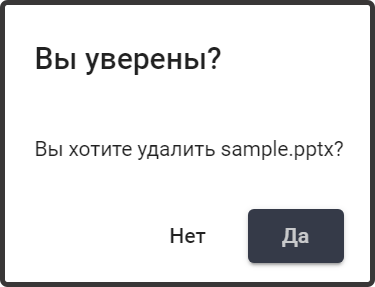
Confirming deletion of sample.pptx. Russian interface.
To preview a file, click the eye-shaped "View" button in its row. Supported documents include PDF, TXT, DOCX, XLSX and PPTX, as well as images. Example: opening sample.pptx displays the first slide of the demonstration presentation.
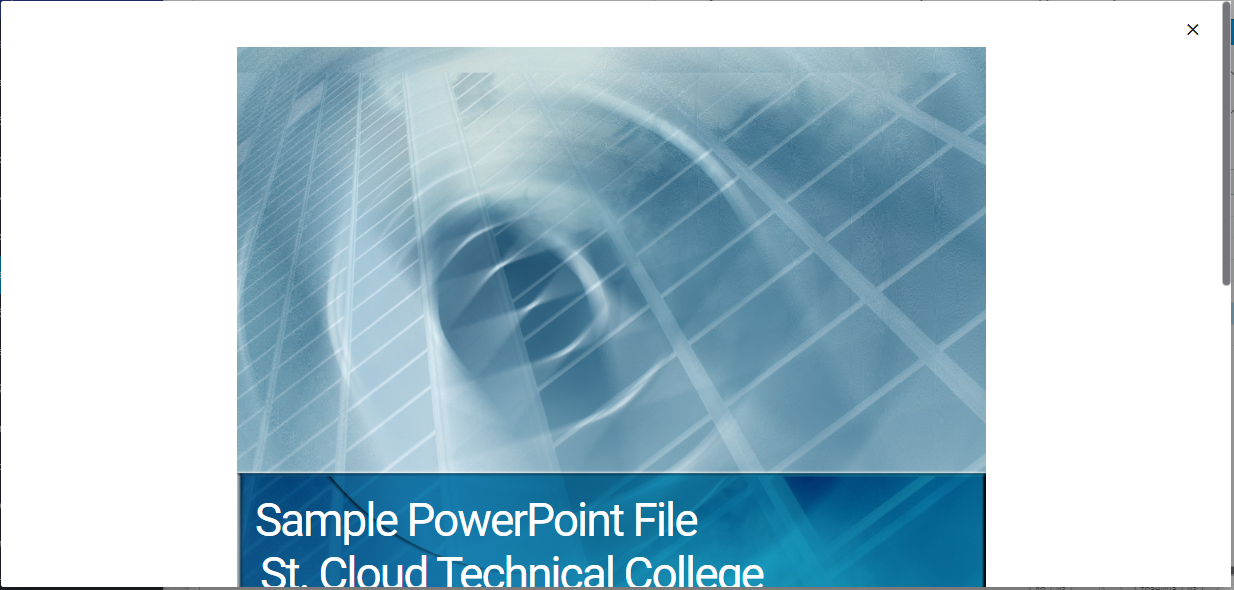
Preview of the sample.pptx demonstration presentation. Russian interface.
If the “View” icon is light gray , the file cannot be opened for online viewing.
Above the "Files" table are buttons described in the following table:
| Button Name | Description |
| Create | Initiates the process of creating a new file. When clicked, a form opens where the User can fill in the required fields. |
| Refresh | Used to refresh the list of files on the screen. |
| Download | Used to download the selected files from the list. When clicked, a popup notification appears and the file is downloaded to the User's personal computer. |
| Delete Selected | Deletes the selected files from the system. When the button is clicked, a confirmation dialog appears. |
| Import from CSV | Allows the User to import file data from a CSV file. |
| Export to CSV | Allows the User to export data about existing files to a CSV file. |
Creating a New Folder#
To create a new folder, you need to click the "Create" button in the "Folders" table and fill out the opened form:
The form contains the following fields:
Required field:
- field "Name" — the name of the folder (required).
Additional fields:
- field "Description" — a description of the contents of this folder.
- field "Access Folder" — the access folder to which the folder belongs.
Example: enter Отчеты in "Name" and Отчеты подразделения in "Description" to store department reports. Leave "Access Folder" empty and click "OK".
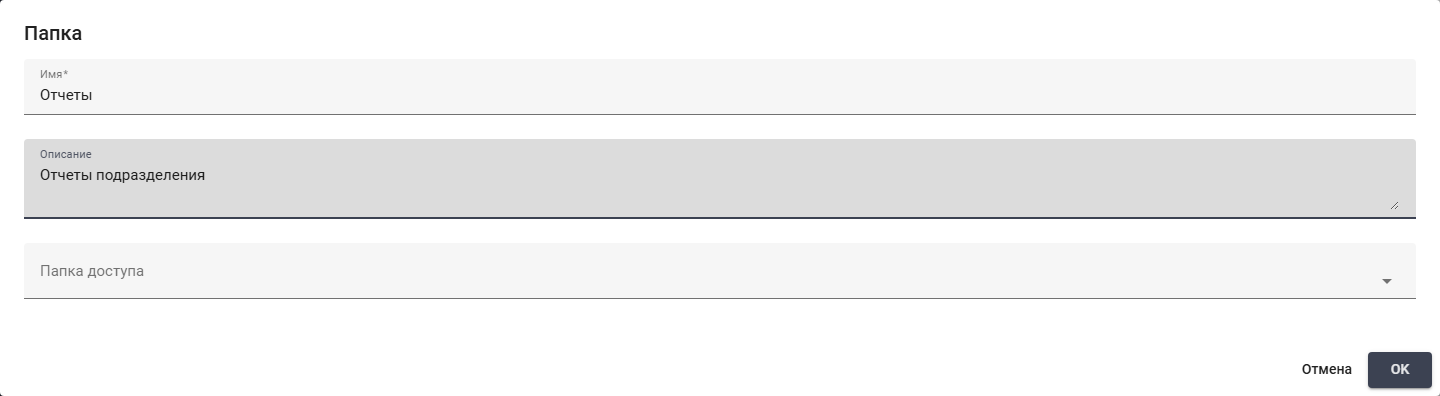
Completed new folder fields. Russian interface.
Creating a New File#
To create a new file, you need to select the folder in the "Folders" table where the new file will be located. If no folder is selected, the Orchestrator will display a warning message:
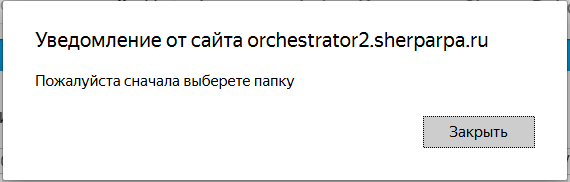
Select a folder before creating a file. Russian interface.
Next, in the "Files" table, you need to click the "Create" button and fill in the fields in the opened form:
The form contains two tabs: "General" and "File URL".
The "General" tab contains the following fields:
Required field:
- field "Name" — the name of the file (required).
Additional fields:
- field "Description" — a description of the contents of this file.
Below is the "Choose File" button, which allows you to add a file from the selected directory in the Storage via the popup window.
Without a selected file, the entry in the "Files" table will not be saved.
Uploading to Storage starts automatically after selecting a file. Progress is displayed during upload; closing the dialog and selecting another file are disabled. On success, the dialog closes and the list refreshes. On failure, the dialog stays open: check the message and select the file again. Use "OK" when changing only the name or description. The link to the uploaded file is available on the "File URL" tab when the file card is reopened. The "File URL" field is read-only.
Example: before upload, enter Отчет за октябрь in "Name" and Итоги обработки отчетов in "Description". The screenshot shows metadata before a file is selected. Upload has not started and "OK" is disabled. Next, click the file selection button and choose the prepared local file. Selecting it starts upload automatically.
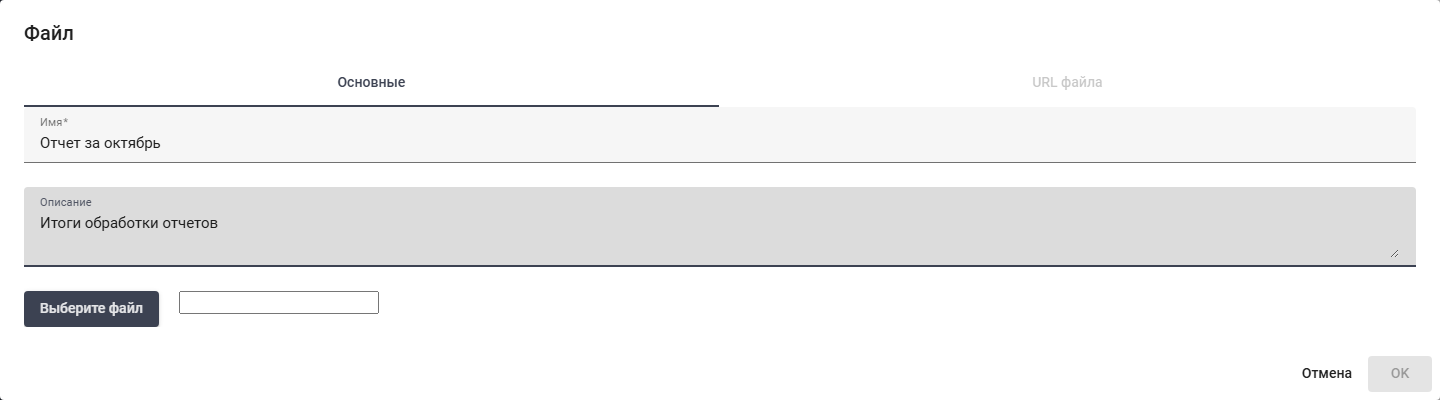
New file metadata before choosing contents. Russian interface.
Editing a Folder#
To view and edit the properties of a specific folder, you need to select it from the list and click the edit button . After that, a form with folder settings will open, where you can make the necessary changes:
In addition to the fields filled out when creating the folder, the form also displays the GUID (unique identifier assigned to the folder after its creation) in the "GUID" field. This field cannot be edited.
Example: change an existing folder name to Отчеты and description to Отчеты подразделения. "Access Folder" is empty in this example; GUID remains unchanged. Click "OK".
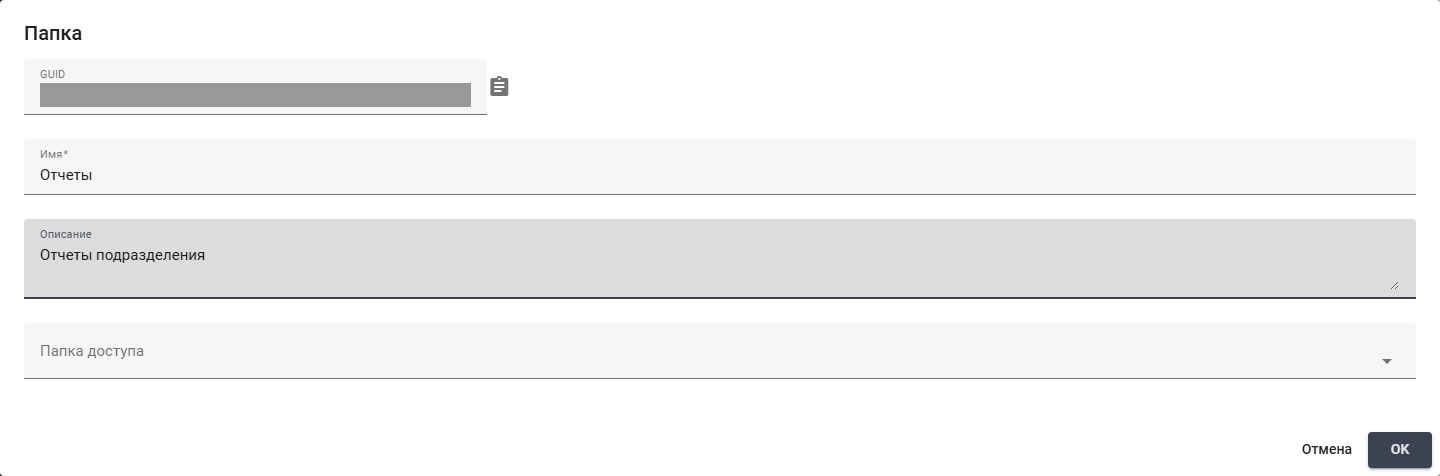
Editing a folder. GUID hidden. Russian interface.
Editing a File#
To view and edit the properties of a specific file, you need to select it from the list and click the edit button . After that, a form with "General" and "File URL" tabs will open. You can make the necessary changes in the "General" tab:
In addition to the fields filled out when creating the file, the form also displays the GUID (unique identifier assigned to the file after its creation) in the "GUID" field. This field cannot be edited.
Example: change the uploaded file name to Отчет за октябрь and description to Итоги обработки отчетов. Do not select another file: its contents remain unchanged. GUID and size are read-only. Click "OK" to save the name and description.
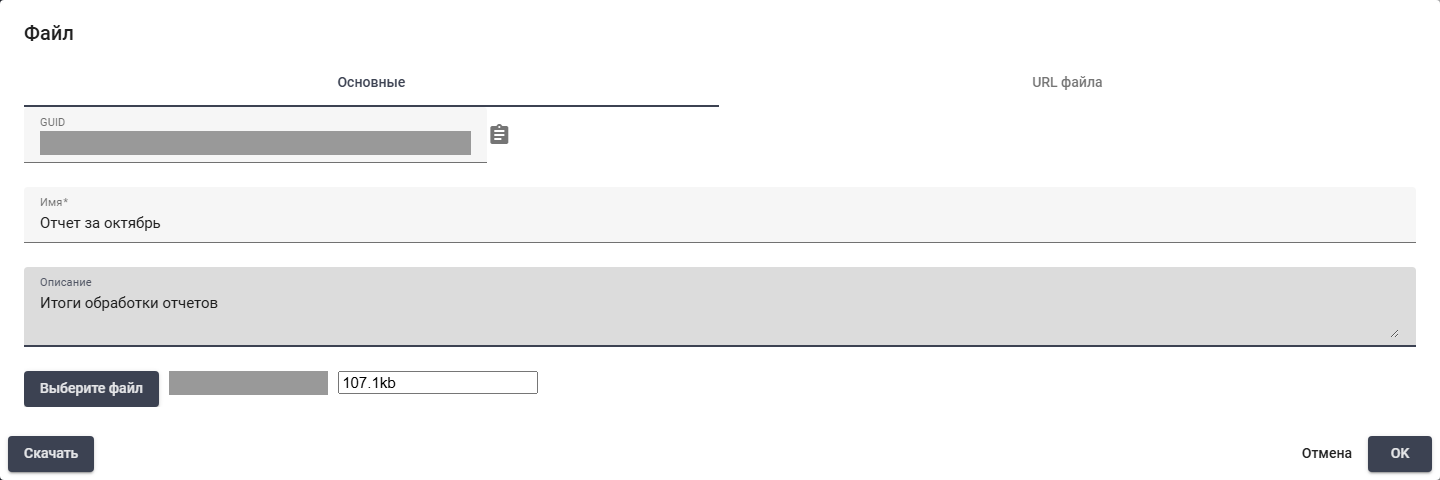
Editing file metadata. GUID and original filename hidden. Russian interface.
In the "File URL" tab, the link to the file in the Orchestrator's Storage is displayed:

File URL tab and copy control. Address hidden. Russian interface.
When editing the file card, the function to obtain the URL link for downloading the previously uploaded file is also available. To do this, you need to go to the "File URL" tab, copy the file URL, and paste it into the browser's search bar.