
User Authorization#
In the user card, select the login method: Local, LDAP, or OpenID. For LDAP and OpenID, first configure the connection to the provider on the Orchestrator server.
The screenshots show the Russian interface. The UI labels in this text refer to the English interface. Only the login method is shown. Other User settings are described in the Users screen article.
The server administrator configures LDAP and OpenID connections. These settings let the Orchestrator verify accounts in an external system during sign-in. They are needed when the organization uses LDAP or OpenID. Local sign-in with a login and password does not require these connections.
Applying authentication settings#
For a Docker installation, the administrator changes parameters in .env in the Orchestrator installation directory. For a local installation, set the corresponding configuration parameters in backend/config/config.ini. Restart the application after changing that file.
To apply .env changes in Docker, recreate the application container from the installation directory. The command below temporarily interrupts the application but does not recreate the database:
docker compose up -d --no-deps --force-recreate orchestrator
Local Authorization#
Select the "Local" radio button to sign in with a login and password.
Example: "Login" contains docs.user, and "Password" contains the password for that account. The password is displayed as dots. The "Local" radio button is selected.
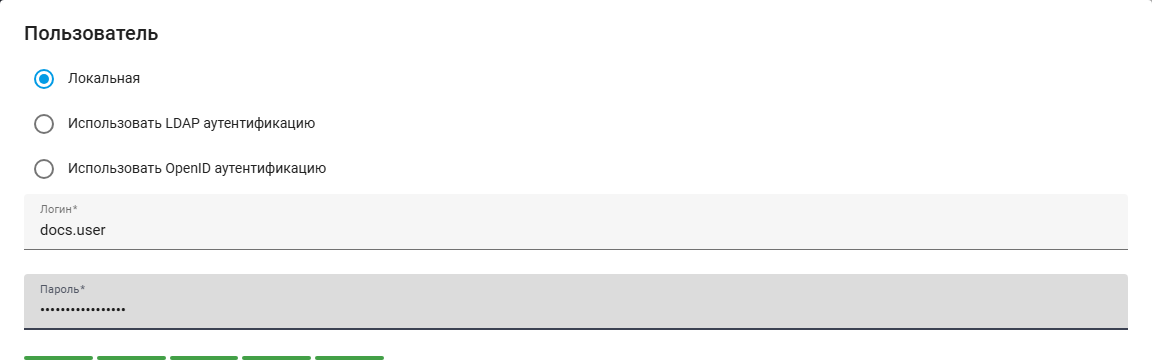
The Local option, docs.user login, and populated password field in the Russian interface.
LDAP Authentication#
To sign in with a directory account, select "Use LDAP authentication", then choose a User in "LDAP users". The screenshot shows the selected login method. No directory account has been selected yet.
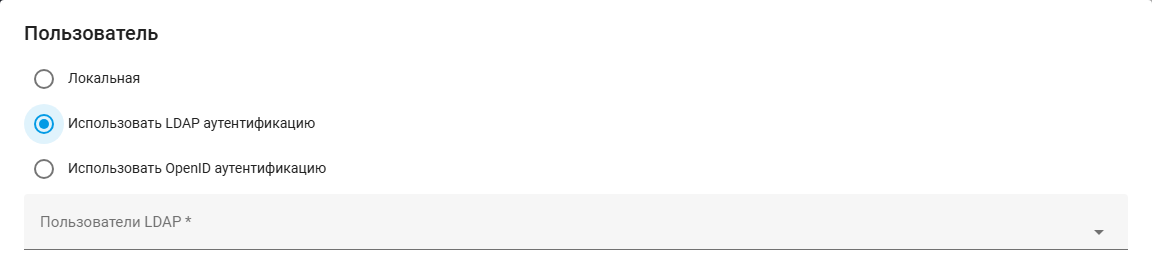
LDAP authentication and the LDAP user field in the Russian interface.
To connect to the LDAP directory, the administrator sets these parameters in .env:
LDAP_SERVER— address of the directory server that stores accounts.LDAP_PORT— connection port. Its value depends on the connection protection method described below.LDAP_BASE_DN— directory section where the Orchestrator searches for accounts.LDAP_GROUP— organizational unit withinLDAP_BASE_DNwhere the search is performed.LDAP_FILTER— account selection condition. Restricts search results and is applied during sign-in.LDAP_UID_KEY— directory attribute identifying the User, for exampleuid.
If the directory requires a separate account for user searches, the administrator must configure its credentials.
Encryption protects the connection to the directory. The administrator must match the connection method and port to the LDAP server settings:
- StartTLS — enables encryption after connecting to the server. Set
LDAP_ENCRYPTION=tls, usually with port389. - LDAPS — establishes an encrypted connection immediately. Set
LDAP_ENCRYPTION=ssl, usually with port636.
The LDAP server certificate must be trusted on the Orchestrator server. Additional parameters control certificate verification and waiting times:
LDAP_TLS_CACERT— path to the trusted certificate file or directory used to verify the LDAP server.LDAP_NETWORK_TIMEOUT— time to wait for a network connection to the LDAP server.LDAP_OPERATION_TIMEOUT— time to wait for a directory operation to complete.
The administrator must choose values based on the organization’s certificates and server response times. After changing .env, apply the authentication settings. Then test sign-in with an LDAP account.
OpenID Authentication#
To sign in through an OpenID provider, select "Use OpenID authentication" and enter the value that identifies the User at the provider in "oAuth id".
Example: the provider’s sub value is docs.user. "Use OpenID authentication" is selected and "oAuth id" contains docs.user.
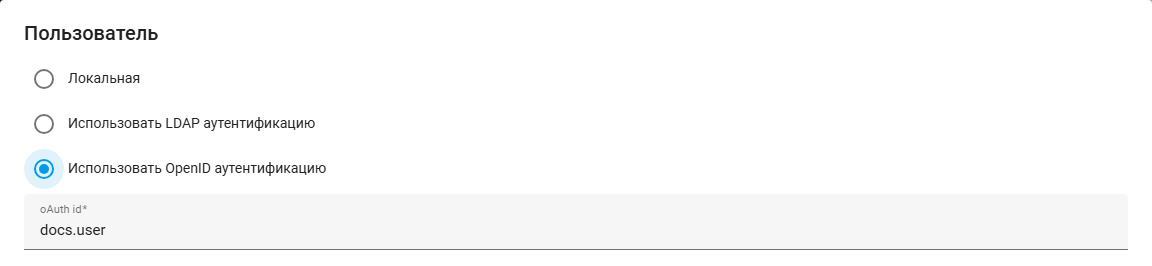
OpenID authentication and oAuth id set to docs.user in the Russian interface.
An OpenID provider is an external system that verifies an account during sign-in. To connect it, the administrator sets these parameters in .env:
O_AUTH_CLIENT_ID— identifier of the Orchestrator application registered with the provider.O_AUTH_CLIENT_SECRET— secret used to authenticate the Orchestrator to the provider. Obtain the actual value from the provider administrator and do not publish it.O_AUTH_AUTH_URI— address of the provider page where the User signs in.O_AUTH_TOKEN_URI— address where the Orchestrator obtains a token confirming sign-in.O_AUTH_USER_INFO_URI— address for obtaining User data from the provider.O_AUTH_SCOPE— requested access permissions for provider data. Set according to the provider configuration.
Obtain the addresses and values from the application configuration registered with the provider.
Register a single fixed HTTPS callback with the provider: https://<orchestrator-domain>/api/v1/system/oauth_hook. Set this in O_AUTH_REDIRECT_URI or leave this variable empty: then the address will be formed from NGINX_DOMAIN_NAME. The domain and address registered with the provider must match.
By default, the immutable field sub is used to link the user with the provider (O_AUTH_USER_LINK_FIELD=sub). If a different linking scheme is already set up or the provider is changing, first coordinate the transfer of existing OpenID logins: simply changing the variable may deny users access. The installation supports one configured provider.
After configuring the provider, apply the authentication settings and test sign-in with an OpenID account.
Troubleshooting OpenID sign-in failures#
If sign-in fails after returning from the provider, an administrator should open "System errors".
Viewing it requires "Read" permission for "Robot Messages" on the Role’s "Access" tab. This permission is shown in the screenshot. Configure other Role permissions separately.
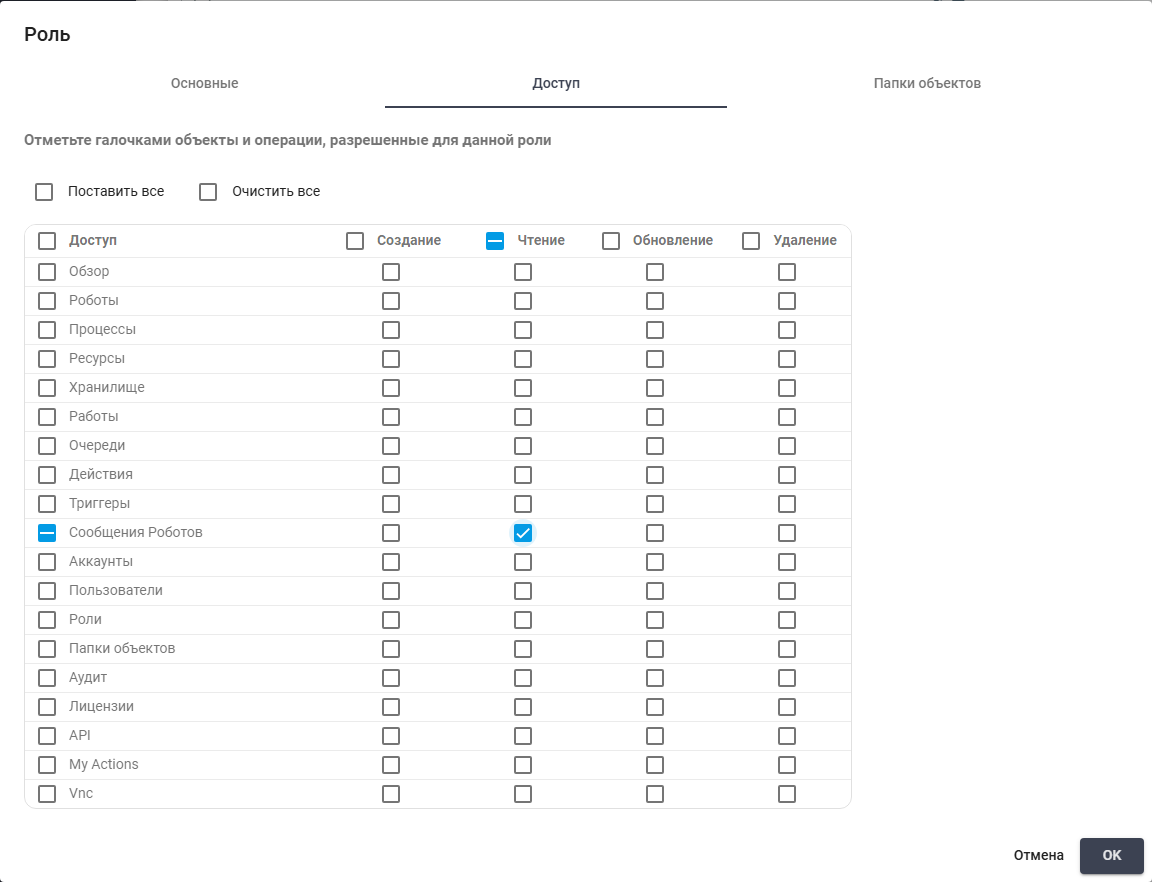
Read permission for Robot Messages on the Role Access tab in the Russian interface.
Find a failure entry with the oauth channel and WARNING level. Its timestamp must correspond to the sign-in attempt.
The OAuth callback failed message means sign-in stopped while returning from the provider. The stage value identifies the failed step:
callback— checking the request and settings;token— obtaining a token from the provider;userinfo— obtaining User data;identity— validating the value used to identify the User;session— storing verified data to complete sign-in.
The reason code is in reason. A provider communication failure may also include the available diagnostic values http_status, curl_errno, or provider_error.
Example of a configuration error after sign-in has started:
OAuth callback failed: stage=callback, reason=not_configured
To restore sign-in, follow these steps:
- Check that the client ID, HTTPS token and user information endpoints, linking field, and callback are configured correctly. Check
O_AUTH_CLIENT_ID,O_AUTH_TOKEN_URI,O_AUTH_USER_INFO_URI,O_AUTH_USER_LINK_FIELD, andO_AUTH_REDIRECT_URI. - If settings changed during sign-in, restore a consistent configuration and apply it by following Applying authentication settings.
- Start sign-in again from the login page. Do not reopen the previous callback: its state has already been consumed.
The pending_missing reason means there is no pending sign-in attempt in the current session. For state_invalid or pending_expired, also start sign-in again. If the error persists, the administrator should check browser session persistence and the provider settings.
The OAuth login failed message refers to completing sign-in after the callback and contains only the stage. The verified_identity value means verified data is missing or expired, user_match indicates a failure to match the user, and session indicates a session creation failure.
Diagnostic messages do not include tokens, the authorization code, the client secret, the session ID, or the user's linking field value. When contacting support, provide the error timestamp and diagnostic entry without adding those values. A successful callback does not create an error entry. For an unexpected error, only the exception class name may appear instead of the stage and reason.