
Creating and saving versions#
For Sherpa Orchestrator version 5.10.0.
Creating an empty project#
Creating requires permission to create Processes and access to the selected object folder. Follow these steps:
- On the Processes screen, click "New", enter a name and select an access folder if needed.
- Save and select the Process in the "Processes" table.
- Click "New" in the "Process Versions" table and enter the version name.
- A new project does not require a file. Clicking "OK" creates a version with an empty project. To upload an existing workflow, use "Select process file".

Creating a version without uploading a file
Saving changes#
"Apply" in the "Block editor" popup applies changes to the current diagram. Click "Save" on the top toolbar to save to the server. A new version of the same Process is created and becomes the active version in the designer. The source version remains in the list.
"Unsaved changes" means changes have not yet been saved to the server. "Saved" appears after a successful save. Property or variable errors must be corrected before saving.
Edits made while saving remain unsaved. Check the project status when the request finishes and save another version if needed.
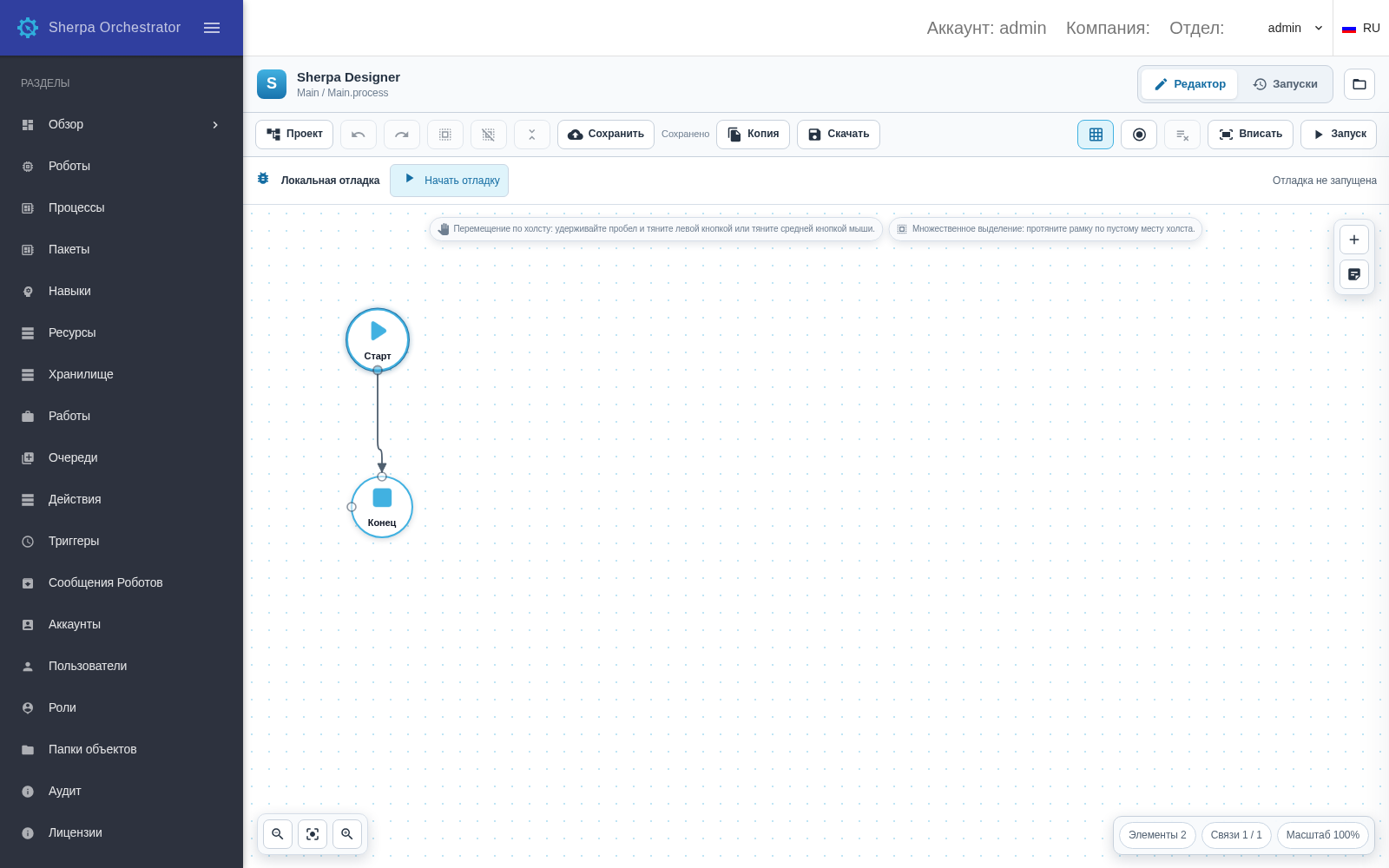
Diagram and toolbar for saving a new version
Copying and downloading#
"Copy version" creates a separate version for further editing. "Download" exports the current project as a .robot file. If leaving prompts an unsaved changes warning, return to the editor and save the project.
Use "Make current" on the Processes screen to manage the version assigned to new Jobs. A Process version covers the entire workflow.