
Breakpoints and local debugging#
For Sherpa Orchestrator version 5.10.0.
Breakpoints#
A breakpoint marks a block where the Robot should pause during debugging. Select a block and press F9 to set a breakpoint. Hovering over the block also reveals a breakpoint button. Repeat the action to remove it. This switch is not in the block properties popup.
For multiple selected blocks, use F9 or "Toggle breakpoints on selected blocks (F9)" on the toolbar. "Remove all breakpoints in the current diagram" clears only the open diagram. The changes are saved in the project and support undo and redo. Save a new version to write them to the server.
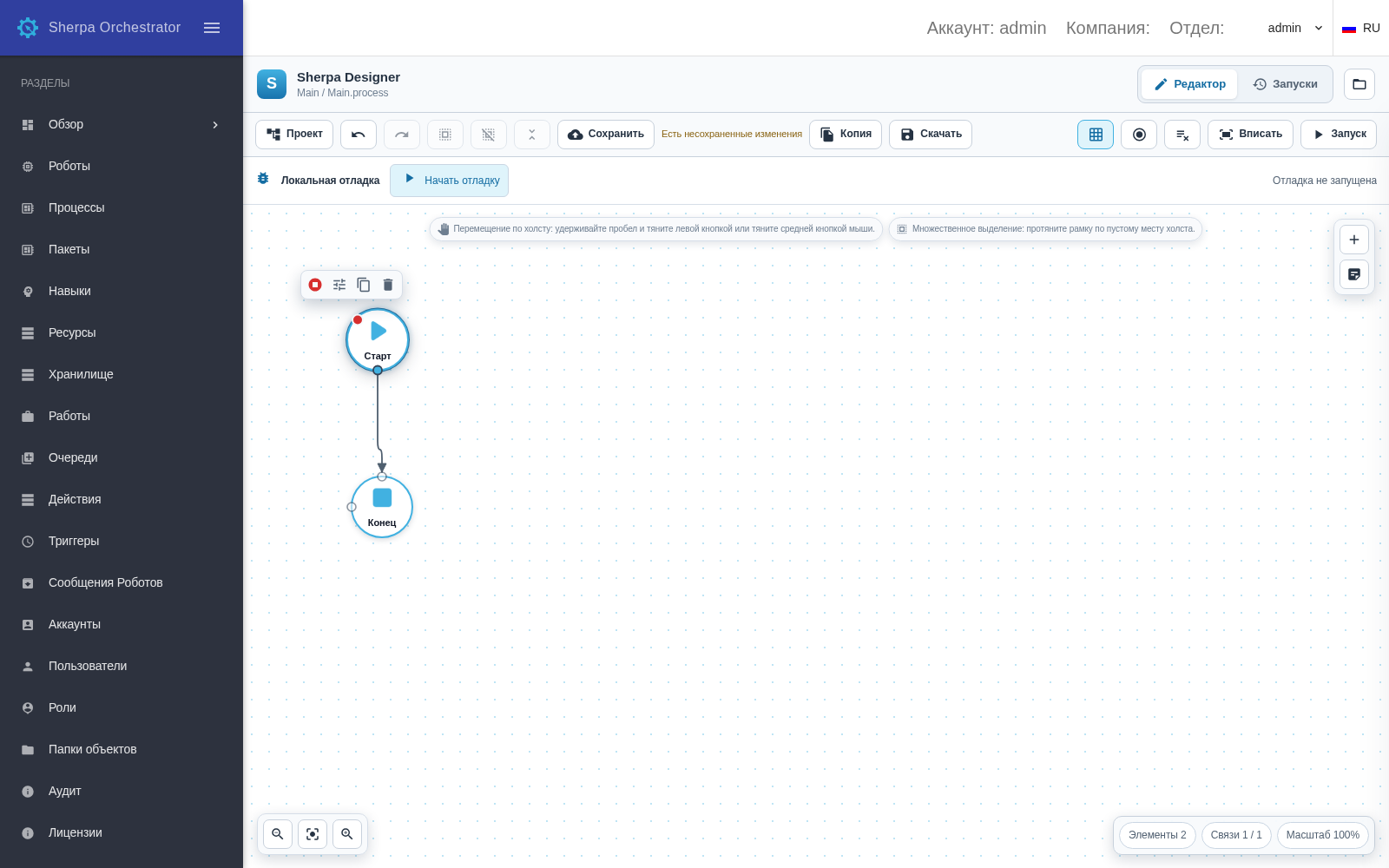
Breakpoint and local debugging toolbar before connecting Robot
Preparing local debugging#
The browser provides a "Local debugging" toolbar. Execution on the workstation requires Windows, a licensed Sherpa Robot installation, Python 3.10 or later and the local adapter. The desktop Sherpa Designer is not required for local debugging. Installing Orchestrator alone does not install the adapter automatically.
The administrator must provide the adapter file bridge.py. From its folder, run the following command with the exact Orchestrator website origin:
python bridge.py --origin https://orchestrator.example.com
A local site can use its exact address, for example http://localhost:14244. Protocol, hostname and port must match the browser address. The adapter runs on the same workstation as the browser and Robot, and listens only on 127.0.0.1:18940.
Connection follows these steps:
- Open a trusted project in the designer and click "Start debugging".
- The browser may request access to the local computer. Windows displays "Sherpa — подключение Robot" with the website origin. Approve the intended site.
- Once approved, the adapter receives the current project and launches it using the installed Robot. No manual token entry is required.
- After a confirmed pause, "Continue", "Step into" and "Step over" become available. "Pause" requests a pause in a running project. "Stop" ends the session.
Approval lasts for that website for one hour or until the adapter restarts. The project runs on the workstation with the current User’s permissions. Ctrl+C in the adapter console stops the adapter itself.
Debug log#
The bottom "Debug log" panel opens when debugging is attempted. It displays messages and connection errors. "Robot variables" displays values reported by Robot. No real messages or variables exist when debugging has not started.
Local debugging supports projects up to 16 MB. Block changes apply on the next run. Breakpoints are sent when continuing and stepping.
The server "Remote debugging" mode in the Job launch form is configured separately and does not replace the local adapter.