
Properties and variables#
Preview documentation for Web Designer in Sherpa Orchestrator 5.9.5.
Configuring a block#
Double-click a block on the canvas to open its properties. The properties dialog shows the selected block’s name as its heading. Its type appears separately below the custom name, for example "Type: Process". Renaming does not change the block type. An unknown type displays its technical name.
"Search properties" finds a property by name. Fields depend on the property type: text, number, switch, list or expression.
The "Output" panel shows the selected block’s property structure using "Schema", "Table" and "JSON". These are not Robot execution results.
To change the name, click the "Rename block" pencil button  next to the title. Alternatively, use "Rename block"
  in the toolbar above the selected block. Both options open the name field in the properties dialog. With a keyboard, use Tab to reach the button and press Enter.
You can also click the name in the heading. Hovering highlights the name. Clicking replaces it with an inline input, with no separate field below. With a keyboard, use Tab to reach the name and press Enter.
Optional field:
- "Display name" — sets the custom block name. It does not have to be unique. If left empty, the block's technical name is used when saving to a file. The initial value is the current block name.
After entering the name, click "Apply to canvas". Enter in the name field also applies changes. The name and other edited properties are applied together to the current diagram. To save the project, save a new version.
"Cancel", the close button and Escape close the dialog. If there are changes, a confirmation appears: "Keep editing" leaves the dialog open, while "Discard and close" discards the name and all other edits made in this dialog. "Comment" and "To do" blocks retain their "Block text" field. The "Advanced" tab contains technical information, descriptions and block appearance settings. "Display name" is available only in the header and can be edited from either tab.
Example: a "Process" block is named Main. Click the "Rename block" pencil button in the header, enter Подготовка отчета in "Display name", and click "Apply to canvas". The canvas name changes, while the type remains "Type: Process".
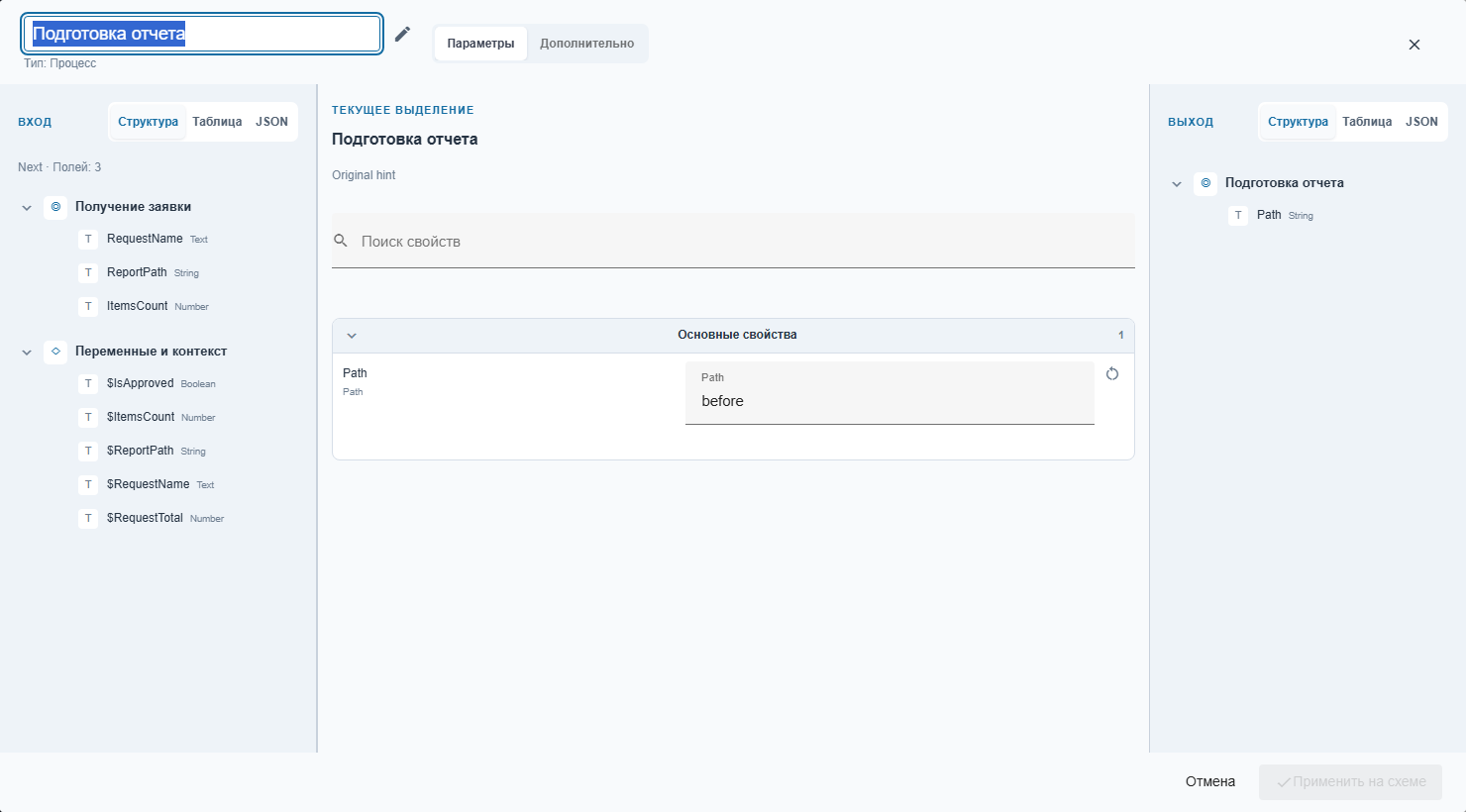
"Block editor" popup: renaming a block (Russian interface)
Variables from previous blocks#
The "Input" panel on the left contains "Schema", "Table" and "JSON" views, a field count and the previous block's property tree. The "Variables and context" group contains variable references found in the properties of previous connected blocks. Each row shows the name and type. Hover over it to see the source and scope in a tooltip. References found only in the current block or unrelated branches are excluded.
The list is built from the diagram and expressions. It does not show runtime values or guarantee that a variable has a value on every execution path. The type comes from its declaration, or from the property containing the reference when no declaration exists. Variables from a nested diagram are not mixed into the current diagram.
When no references match, the panel shows "No variables available from previous blocks". There is no declaration form or add button in this panel. Existing project declarations are preserved when opening and saving the file.
Example: previous blocks use $RequestName, $ReportPath, $ItemsCount, $RequestTotal and $IsApproved. Open the properties of Подготовка отчета. The "Variables and context" group shows five references with their types. "Path" still contains before.
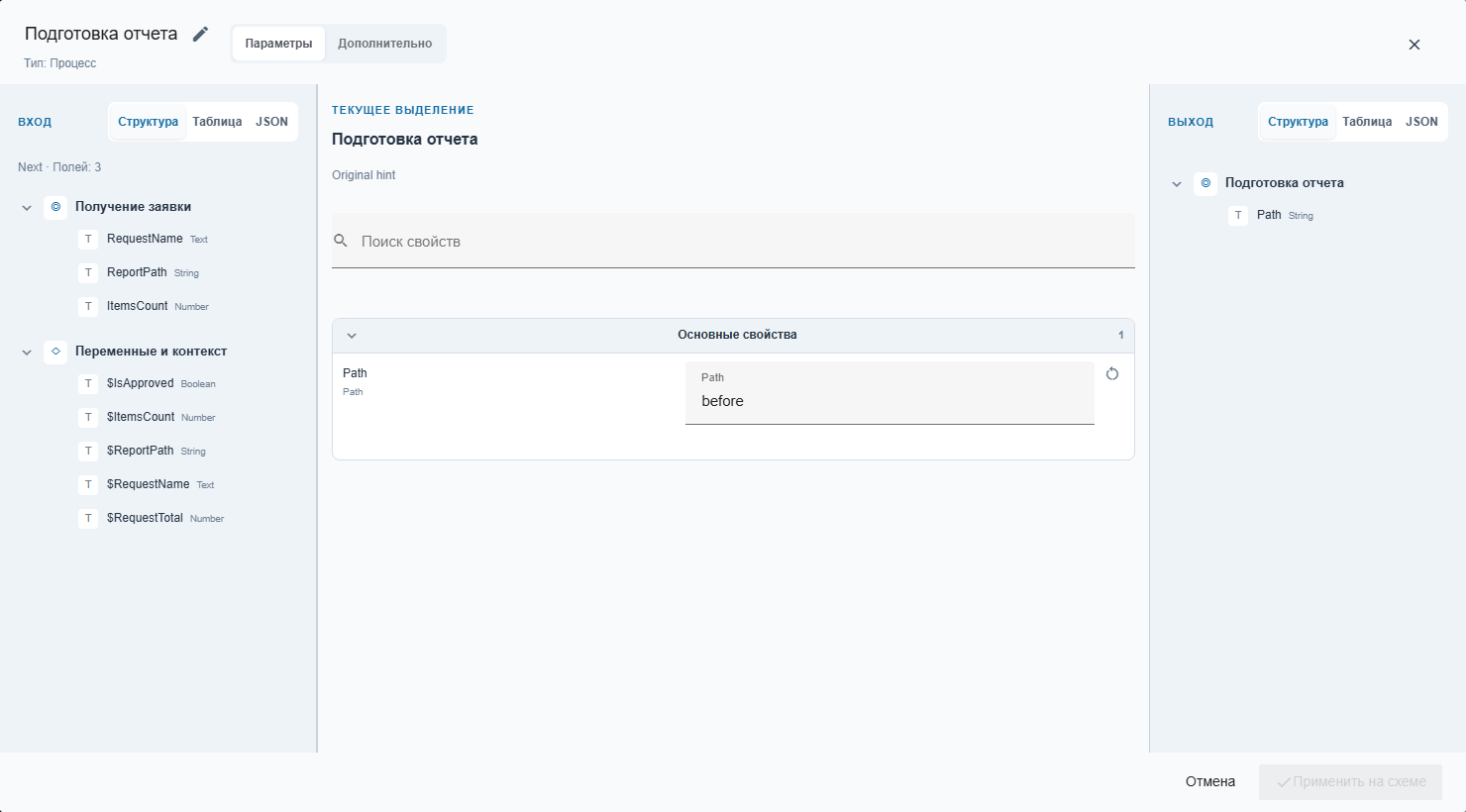
Properties of Подготовка отчета, "Parameters" tab: "Input" panel (Russian interface)
To insert a reference, drag the variable name into a property field. The reference, such as $RequestName, is inserted at the cursor. After editing a property, click "Apply to canvas", then save a new version. Cancel restores the properties to their state before opening the dialog.
Catalog and property language#
Select Russian or English from the language menu in the top Orchestrator toolbar. Switching language in the designer does not reload the page. Category, block and property names, tooltips and output labels are translated. Search uses labels in the selected language and technical block names. Custom names and property values remain part of the project.
Example: to find the delay block, select English and enter Delay in the catalog search. The list shows "Delay". The custom block name on the canvas stays unchanged.
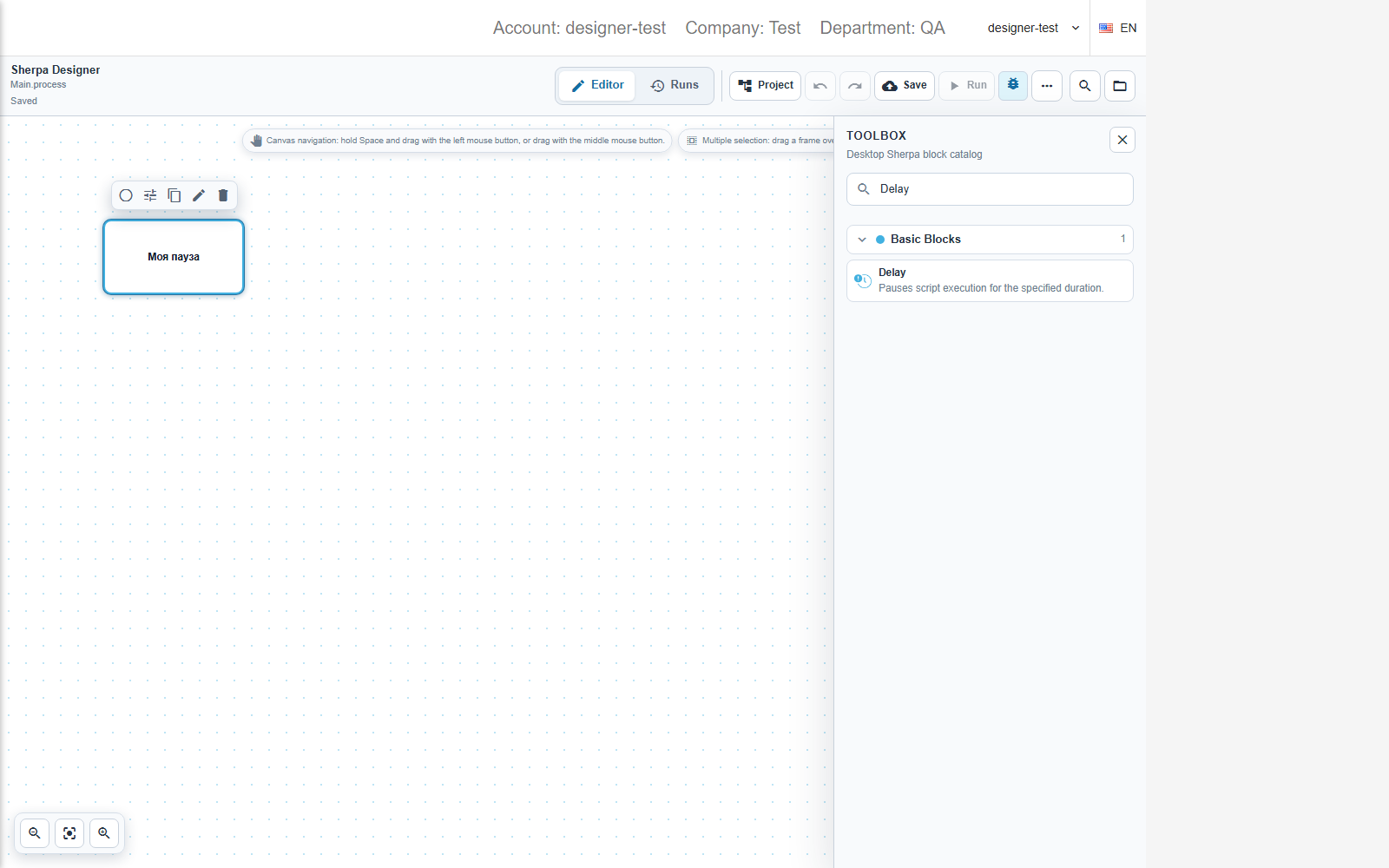
English block labels in the catalog