
Diagrams and blocks#
Preview documentation for Web Designer in Sherpa Orchestrator 5.9.5.
Adding a block#
A diagram contains blocks and connections. To add a block:
- Click the plus button on the right of the canvas in the "Editor" tab.
- In the "Toolbox" panel, select a category or enter a name in "Search blocks".
- Click the required block. It appears on the canvas and its properties open in the "Block editor" popup.
- Complete the properties and click "Apply".

Searching for a block in the catalog
Connections and placement#
The "Convert to process" context menu action extracts a chain of blocks into a separate diagram. If the source diagram contains local variables or input/output parameters, the action is unavailable and the menu explains why. Automatic transfer of these values to the subprocess is not yet supported, so the source diagram remains unchanged.
For such a diagram, create the subprocess manually and explicitly configure its input and output values. Do not remove variable declarations just to enable the action.
Block outputs appear beside each block on the canvas. The plus button at an output adds a new block connected to that output. Hovering over a connection provides actions to insert a block or remove the connection.
Blocks can be moved around the canvas. Drag a rectangle over empty space to select multiple blocks. "Fit" adjusts the diagram zoom. Hold Space and drag with the left mouse button, or drag with the middle button, to pan.
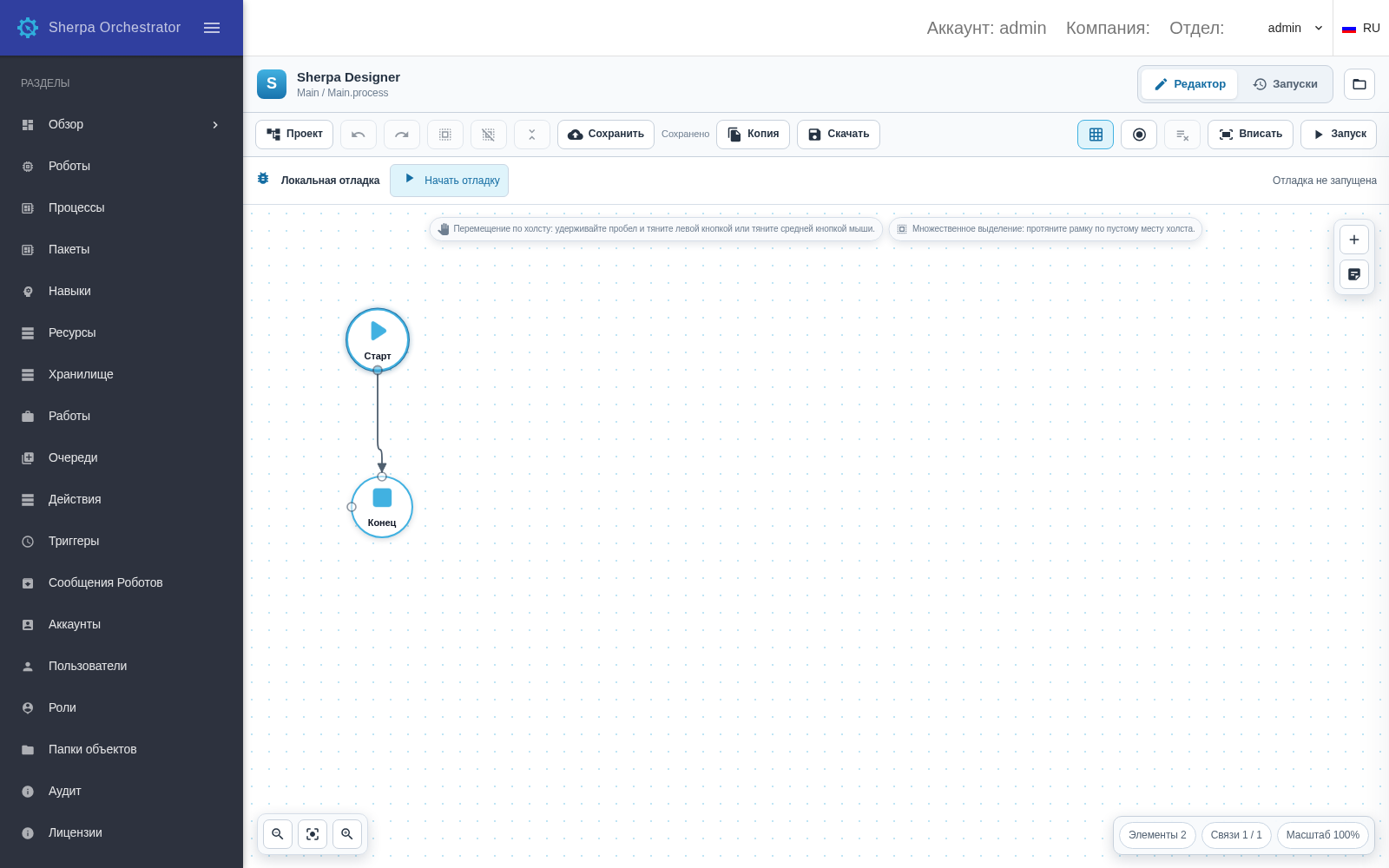
Blocks on the canvas and toolbar
The catalog contains predefined blocks. See their purposes and properties in the block reference. After editing, save a new version.
Finding usages in a project#
The "Search project" panel finds blocks that use a variable, selector, application or file. Open the project in Web Designer before searching. A server project requires access to the corresponding Process.
To find usages in the project:
- Click the "Search project" button with the magnifying glass in the top toolbar.
- Enter text such as
$customerorinput.csv. The search covers block names, property names and values, code and stored selectors in all diagrams of the open project, including subprocesses. If a property value is empty, its default value is used. - Results show the block name, diagram path and matching field names. Click a result to open the diagram and select the block on the canvas. A collapsed container hiding the block expands for viewing.
- Results update after applying property changes, undoing or redoing an action. Use "Show more" for a long list. The cross button closes the search panel.
Search is case-insensitive and treats the entered text literally. For example, $customer and $CUSTOMER produce the same results. An empty query does not list blocks. When nothing matches, the counter shows zero.
Searching and navigating to a result do not change values, references or the saved state of containers. Property values are not displayed in the results. Expressions are not evaluated and the Robot is not started. Dynamically calculated paths and references can only be found by text stored in the project.
If a diagram cannot be read, the panel lists its path in an error message. Results from other diagrams remain available. Check the indicated file: its contents are not included in the matches.
The top toolbar combines the main commands. Additional actions, including downloading the project and "Fit", are available in "More actions". Search opens on the left in place of the project tree and keeps the canvas height unchanged. Escape closes search and returns keyboard control to the magnifying glass button.
Search includes translated block names and property captions. For example, the complete query message finds the "Message box" block. A name match is marked "Block name" in the result.