
Project structure and files#
For Sherpa Orchestrator version 5.10.0.
Project tree#
"Project" opens the current project’s folders and diagrams. To create its structure:
- Select the project root or a folder.
- Click "Add folder", enter a name and confirm.
- Use "Add diagram" to create a diagram in the selected folder.
- Click a diagram in the tree to open it on the canvas.
A home icon marks the main diagram. It cannot be deleted. Deleting a folder removes its contents, so check the selected folder before deletion.
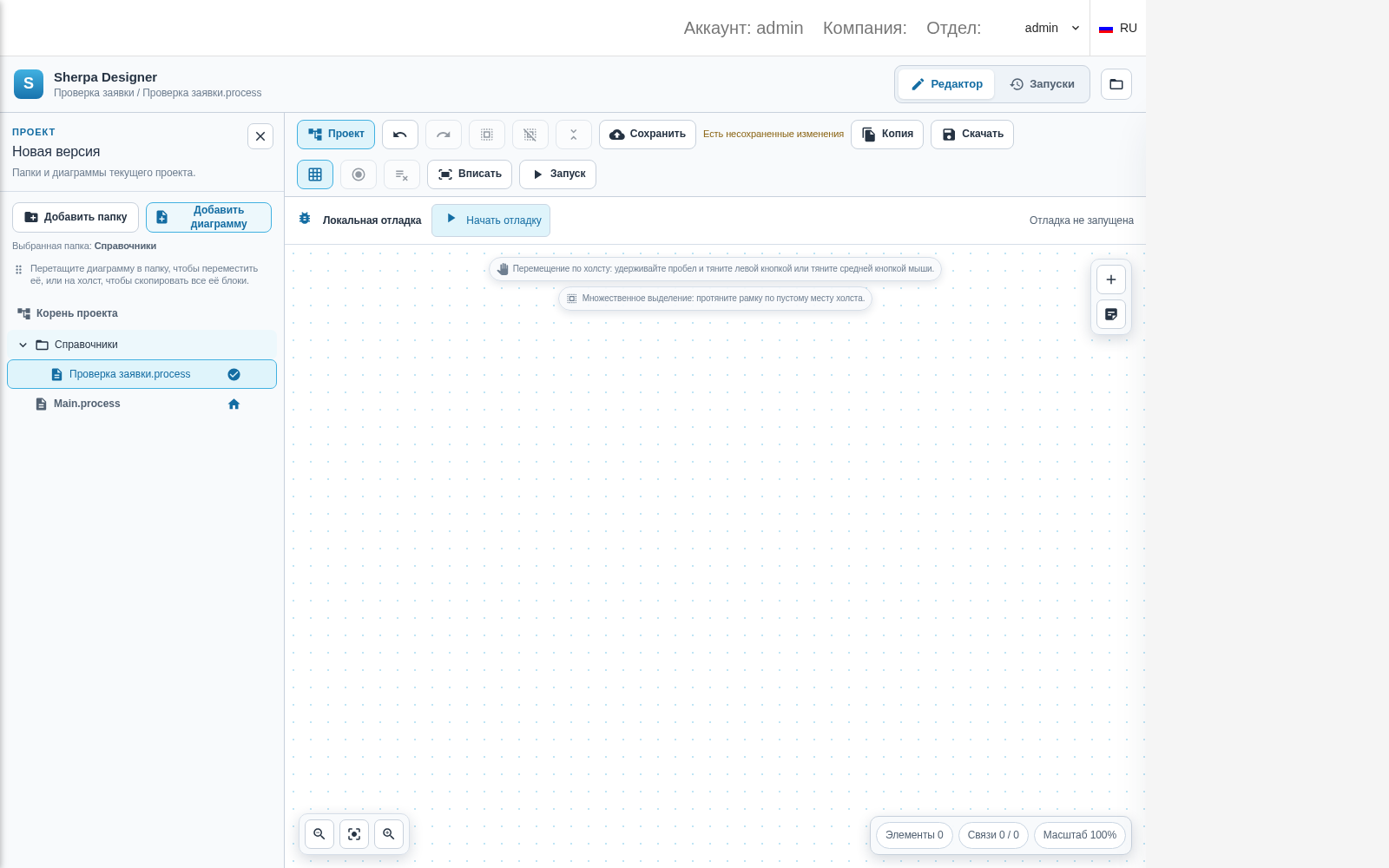
Folder and additional diagram in the project tree
Project files and settings#
The folder icon at the top right opens file selection. Open a .robot archive or separate .process diagrams. Open one archive at a time. Several separate diagrams can be opened together.
Opening a local file with the folder icon replaces the editor’s project and detaches it from the server Process version. Save the current server project’s changes first. "Save" and "Run" are unavailable for a locally opened project.
To transfer a locally opened project to Orchestrator:
- Click "Download" to save the current project as a
.robotfile. - Select a Process on the Processes screen and create a new version in "Process Versions".
- In the version form, click "Select process file", choose the downloaded
.robotand save the version. - Open that server version using the view icon. Saving new versions and running are then available according to the Role permissions.
Right-click the root in the project tree and select "Project properties" to configure: Robot name and version, description, permission to run without confirmation and the total block execution delay. Diagram settings specify comma-separated input and output argument names.
"Project readiness" checks the project structure and diagram XML. A successful structure check does not confirm external applications work on the Robot. After changing files or settings, save a new version.
Extended project properties#
Open the tree with "Project", right-click its root and select "Project properties". On the "Settings" tab, click "Edit project properties" in the project settings section. The "Project properties" popup opens.
The popup contains these tabs:
- "General" — Robot name and version, description, block execution delay and permission to run without confirmation.
- "Inputs" — variables supplied to the project and their input fields.
- "Outputs" — variables returned by the project.
- "Settings" — named settings of the "Text" and "Credentials" types.
- "Models and Python" — project model, Sherpa AI Server model and Python modules.

General project properties
Input and output parameters#
Parameter lists use global variables from the project diagrams. Enable "Available to called processes" in a variable card to prepare them.
An input parameter can be added as follows:
- Click "Add" on the "Inputs" tab.
- Select a global variable in "Name". Its type is filled automatically.
- Select an "Input field": short text, long text, multiple lines, file, date and time, or checkbox.
- Fill "Field label" and "Description" as needed.
Add an output parameter on "Outputs" and bind it to a global variable. Entries on "Settings" have their own name, type and description. Names must be filled and unique within each list. Invalid names or empty types in an edited list prevent applying changes.
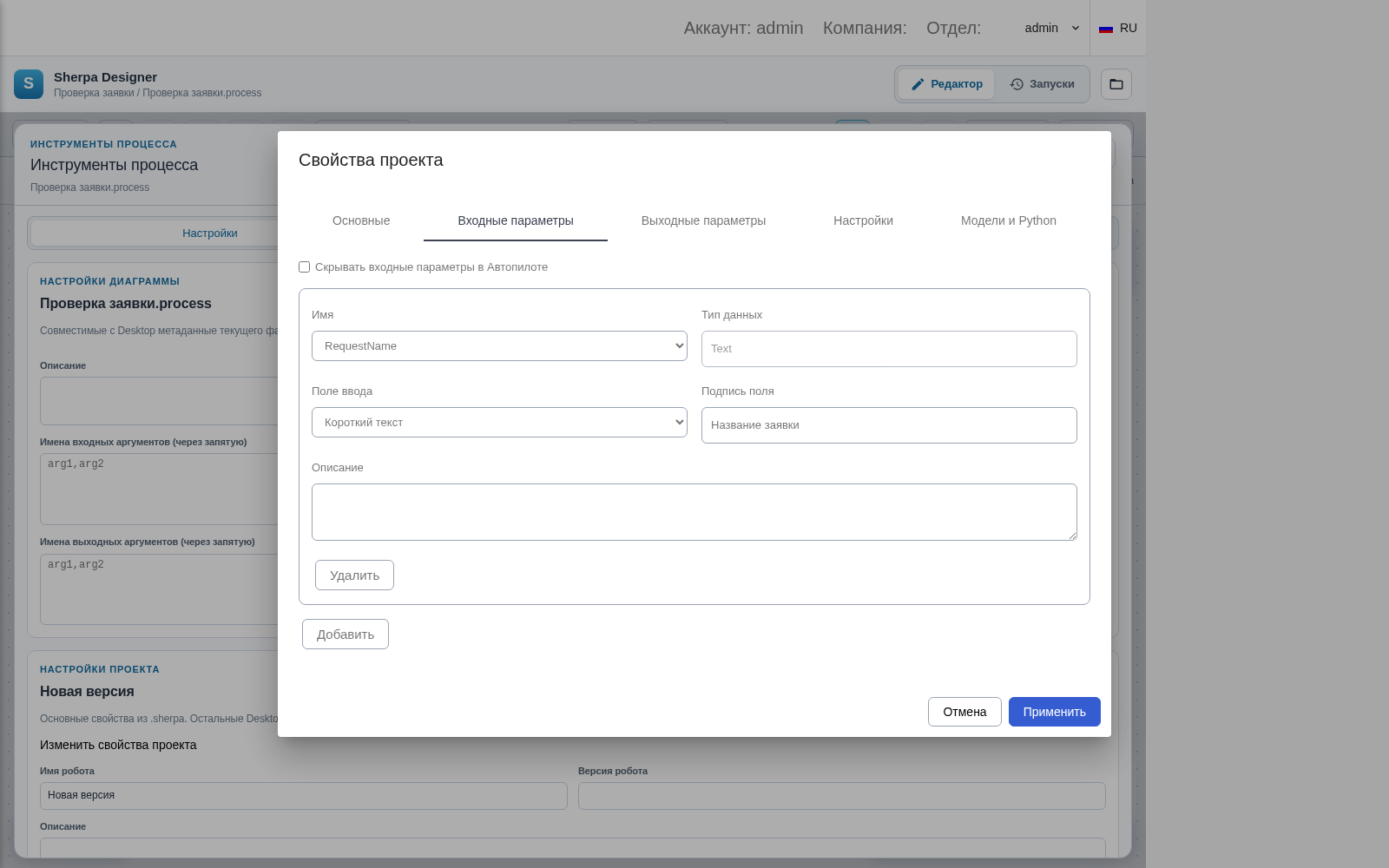
Input parameter bound to a global variable
Models and saving#
On "Models and Python", "Project model" offers the default settings, gpt-4o-mini and Sherpa AI Server. Selecting Sherpa AI Server displays "Sherpa AI Server model". "Python modules" stores a project setting. Specifying a model or module does not install it or check server availability: these are checked during project execution.
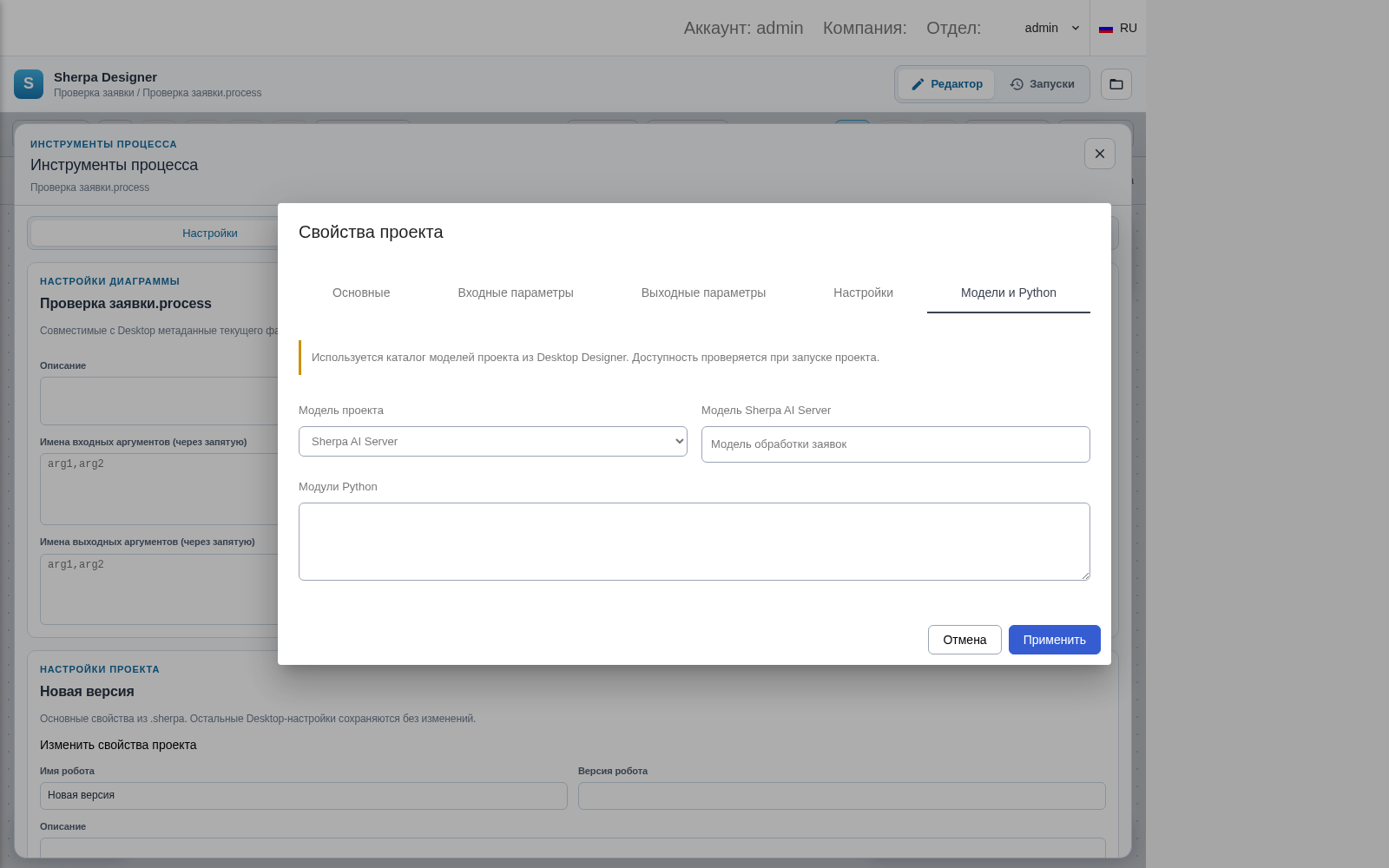
Selecting a project model
"Apply" updates the current project. Save a new version to write it to the server. If the project changed while the popup was open, reopen the properties.
Imported projects may show warnings about an unknown type, variable or field format. Fields that cannot be safely edited are disabled and preserved in their original form. Check compatibility with the Runtime used.