
Running and messages#
Preview documentation for Web Designer in Sherpa Orchestrator 5.9.5.
Preparing to run#
Running requires permission to create Jobs. Selecting a Robot requires permission to read Robots. Save a new version after changing the workflow. Without permission to create Processes, unsaved changes cannot be run.
The Robot must be configured in Orchestrator and have a suitable Runtime, license and access to the workflow’s applications and files. Workstation requirements depend on the blocks used.
"Remote debugging" additionally requires permission to update Robots and access to the selected Robot’s object folder. It changes that Robot’s remote debugging settings before creating the Job. "Local robot test" also requires permission to update Robots: it enables Job creation when the selected Robot is run locally before creating the Job.
Creating a Job#
"Run" opens the "Run current process version" popup. Select a mode and priority, and a specific Robot for modes that require one. "Queue without robot" creates a Job without assigning a specific Robot.
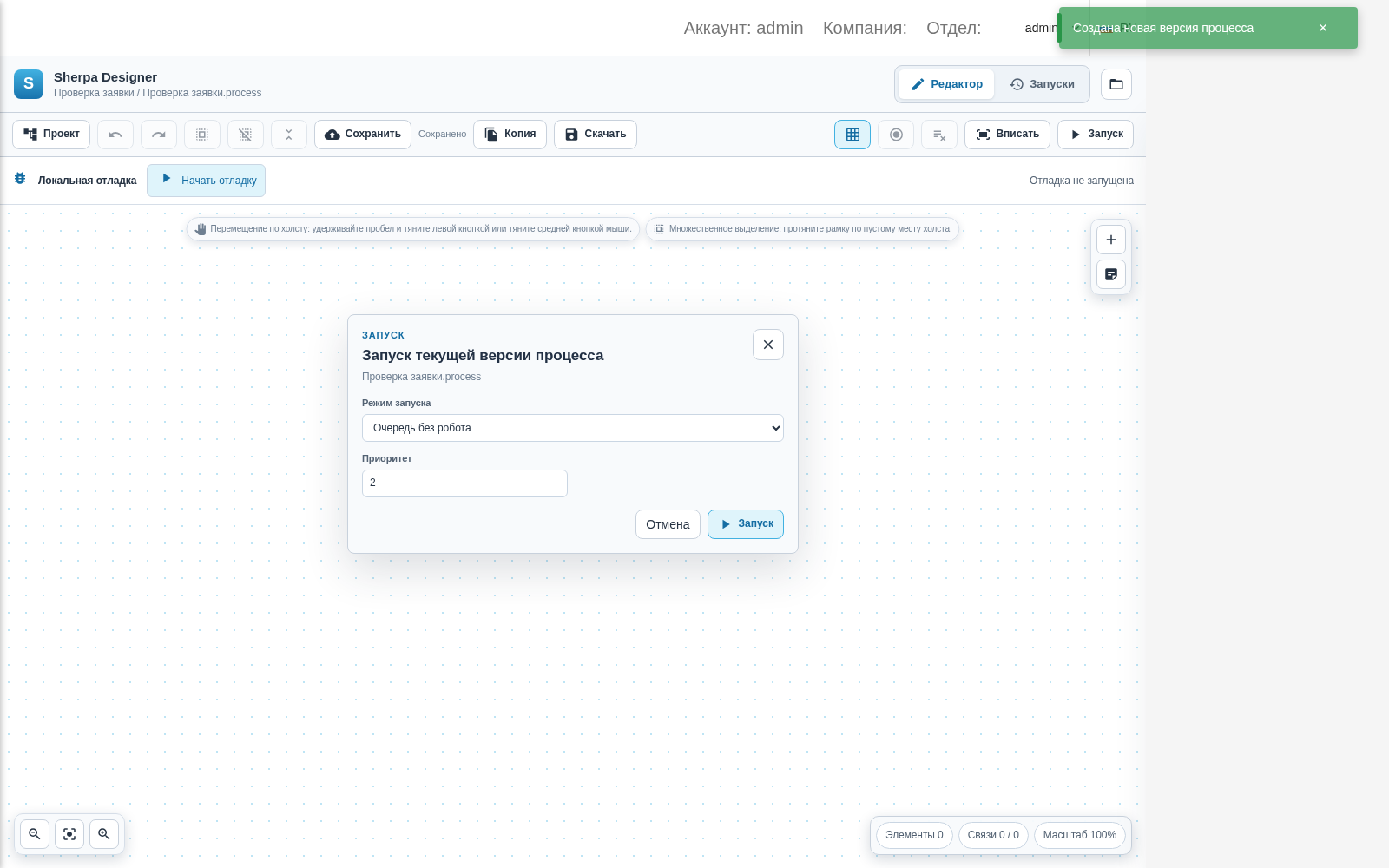
Creating a Job for the current Process version
Clicking "Run" in the form creates a Job. Creation does not mean the Robot has completed the workflow. Check the status on the Jobs screen.
"Remote debugging" configures a connection to an external debugger through a TCP address and creates a Job. It requires a suitable Unattended Robot and remote debugging settings. This mode does not provide browser step debugging.
Viewing executions#
The "Runs" tab lists Jobs for the selected Process version. Viewing requires permission to read Jobs and, for messages, Robot logs. Select a Job to view its messages. Logs for the current version are available separately from the selected Job’s messages.
To view the log:
Log pagination, the level filter, export and navigation between diagrams require a 5.9.5 build that includes these changes.
- Select a Job or the "Process logs" tab for the current version.
- Enter text in "Search logs" and optionally select a level from "All levels". Search includes the message, level and additional fields.
- If "Load more logs" is shown, click it to load the next page. Entries follow the order in which they were added to the log. Search and the level filter apply only to loaded entries; their count appears below the list.
- Click the copy icon to copy displayed entries. The downward arrow button, "Export displayed logs", saves the same entries with dates, levels and additional fields to
designer-logs.txtin UTF-8. The server log is unchanged.
If the Robot supplied a block identifier and the message version matches the open Process version, click the entry or focus it with Tab and press Enter or Space. The Designer finds the block across all project diagrams, opens the corresponding diagram and the block settings dialog.
Navigation is unavailable if the identifier is missing, the block was deleted or appears more than once, or the version differs or is unknown. The reason appears below the entry. If an error in the current diagram prevents saving its changes within the project, correct it before trying again.
Switching Jobs immediately clears the previous messages. A late response from an earlier request cannot replace the selected log. After a loading error, use the Job list refresh button to retry. Lists remain empty when no Jobs or messages exist.

Log with test data: level filter and export, Russian interface
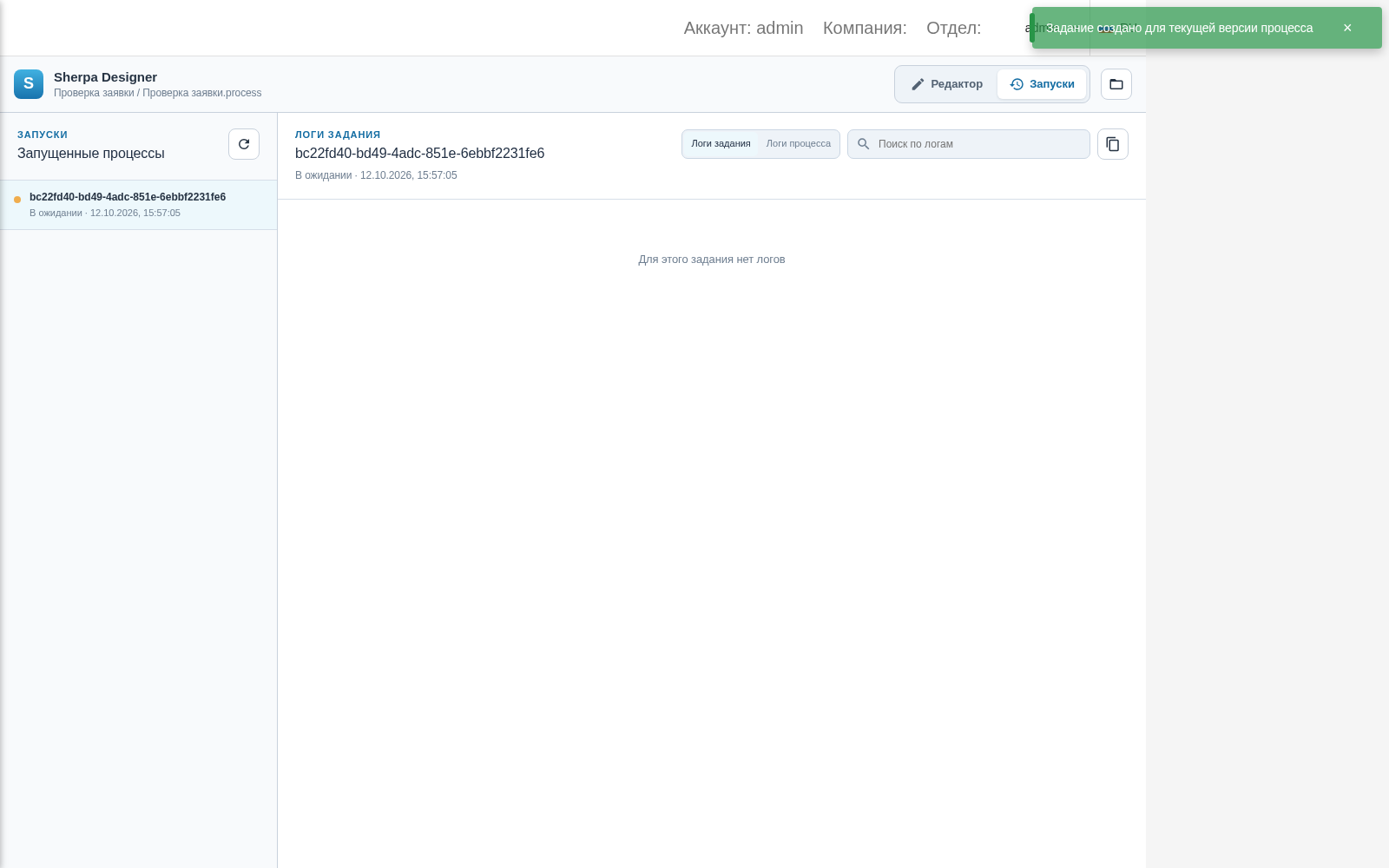
Job for the selected version on the Runs tab
Local debugging of an installed Robot through the adapter is described separately.
Server debugging log#
The structured server debugging log requires a 5.9.5 build that includes these changes and matching updates to Robot, the server debugging gateway and Web Designer.
In the bottom panel, open the "Debug log" tab. The tabs, connection status and icon controls share one row. Hover over a control to see its command name. The table shows the time, level, message and block navigation. Use "Expand" to view a long message. Runtime variables are available on the separate "Variables" tab. "Search logs" searches message text and block IDs. "All levels" filters by severity. "Load more logs" shows the next 100 matching records. Copy and export preserve displayed records, including the full text of long messages. Export produces a UTF-8 file named debug-logs.txt.
Each message's "Show block" button opens the original diagram and selects the block that produced that message. The currently executing block may be different. Diagrams with identical names in different folders are distinguished by their full paths. Navigation is unavailable for missing IDs, deleted or ambiguous blocks, and version mismatches; the button tooltip explains why.
A connection loss stops the debug session. Received messages remain available for viewing and export. After connectivity is restored, a new session starts with a fresh log; the previous workflow is never replayed automatically. Export the previous log before starting again if it is needed.
Reaching 10,000 records or the total log size limit stops the session with a limit message. Records are not silently discarded. The native Robot XML message limit is 4 MiB.
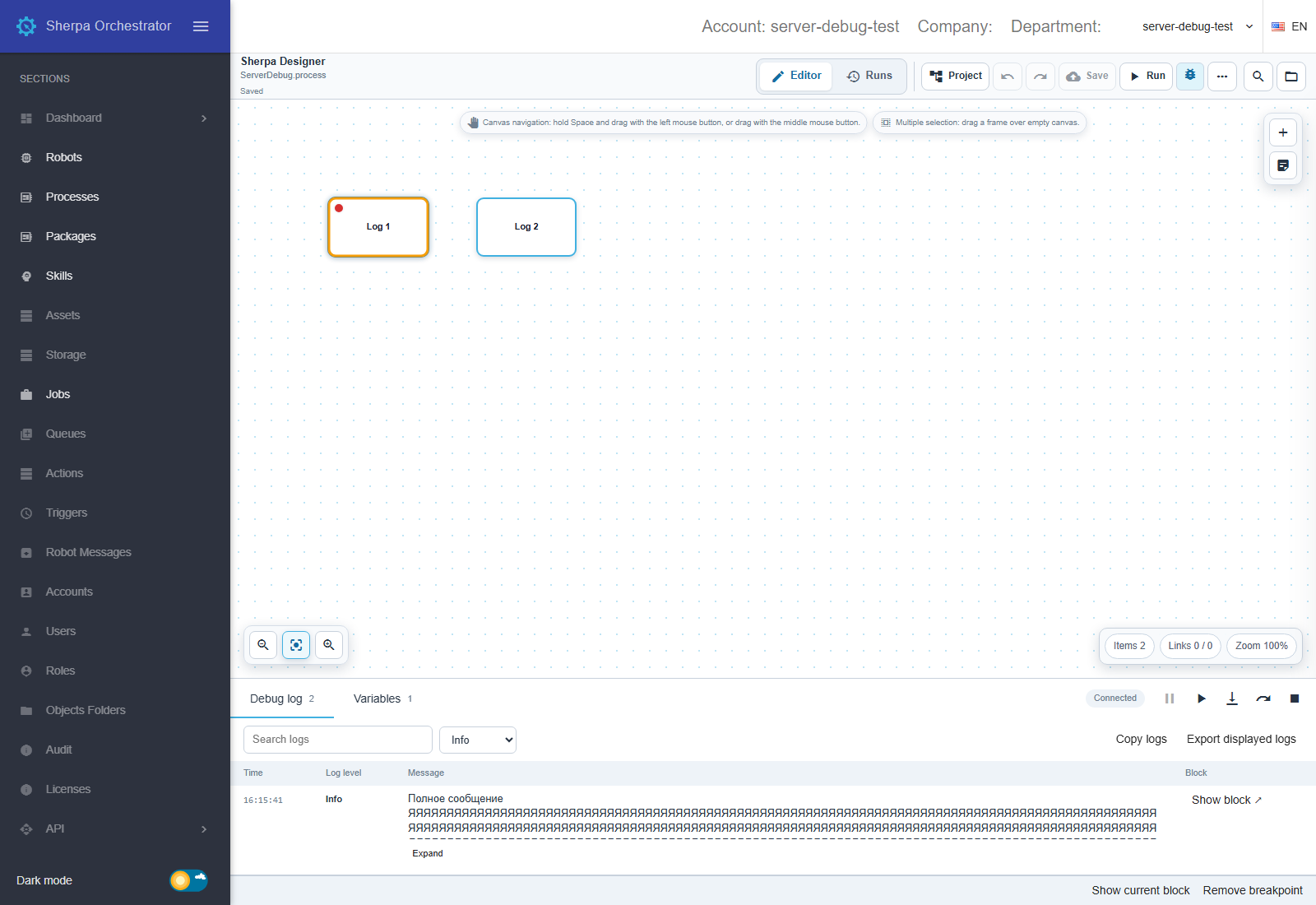
Server debugging panel with test data, English interface