
Send login#
The "Send login" control adds the login of the user who runs an Action to the login parameter of the created or cloned Task. Use it when the Robot workflow needs to identify who initiated the action. The password is not sent.
The example uses the Account administrator's credentials. User access to the Action is configured through Roles. The Action must have a button that creates or clones a Task. Task parameters must use the "Hash table" type.
The control applies when an Action is run after signing in to the web interface. It does not add a login to the selected Task if the button only updates that Task without creating a new one.
Adding the control#
Add the control to the Action’s Form to enable sending the login:
- Open the Form Designer for the required Action.
- Click "Add" and select "Send login".
- Click "Save" to save the Form.
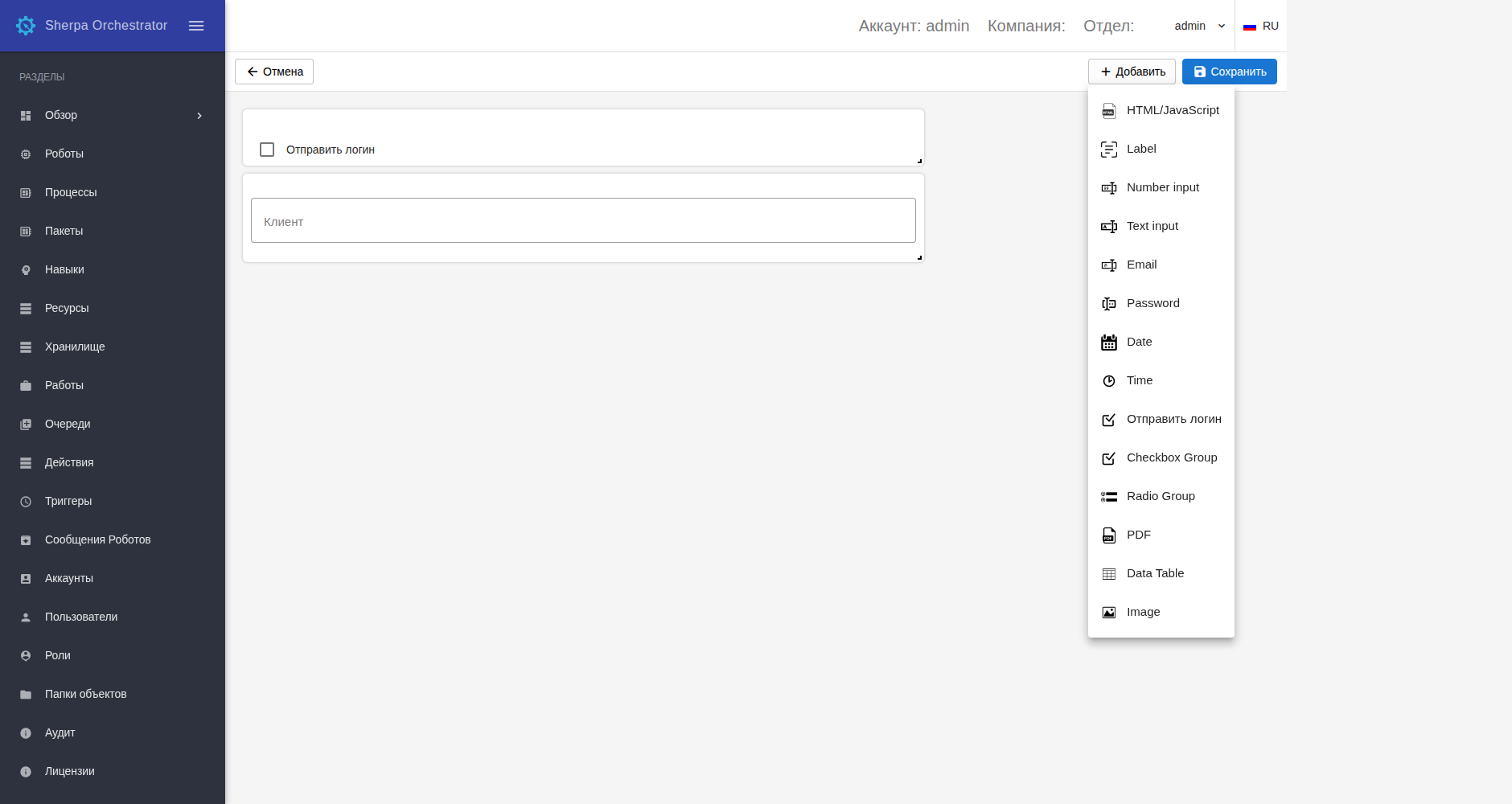
Adding the "Send login" control. Russian interface.
Control settings#
To change the label, hover over the control and click the edit button  in its upper-right corner. The "Item settings" dialog opens.
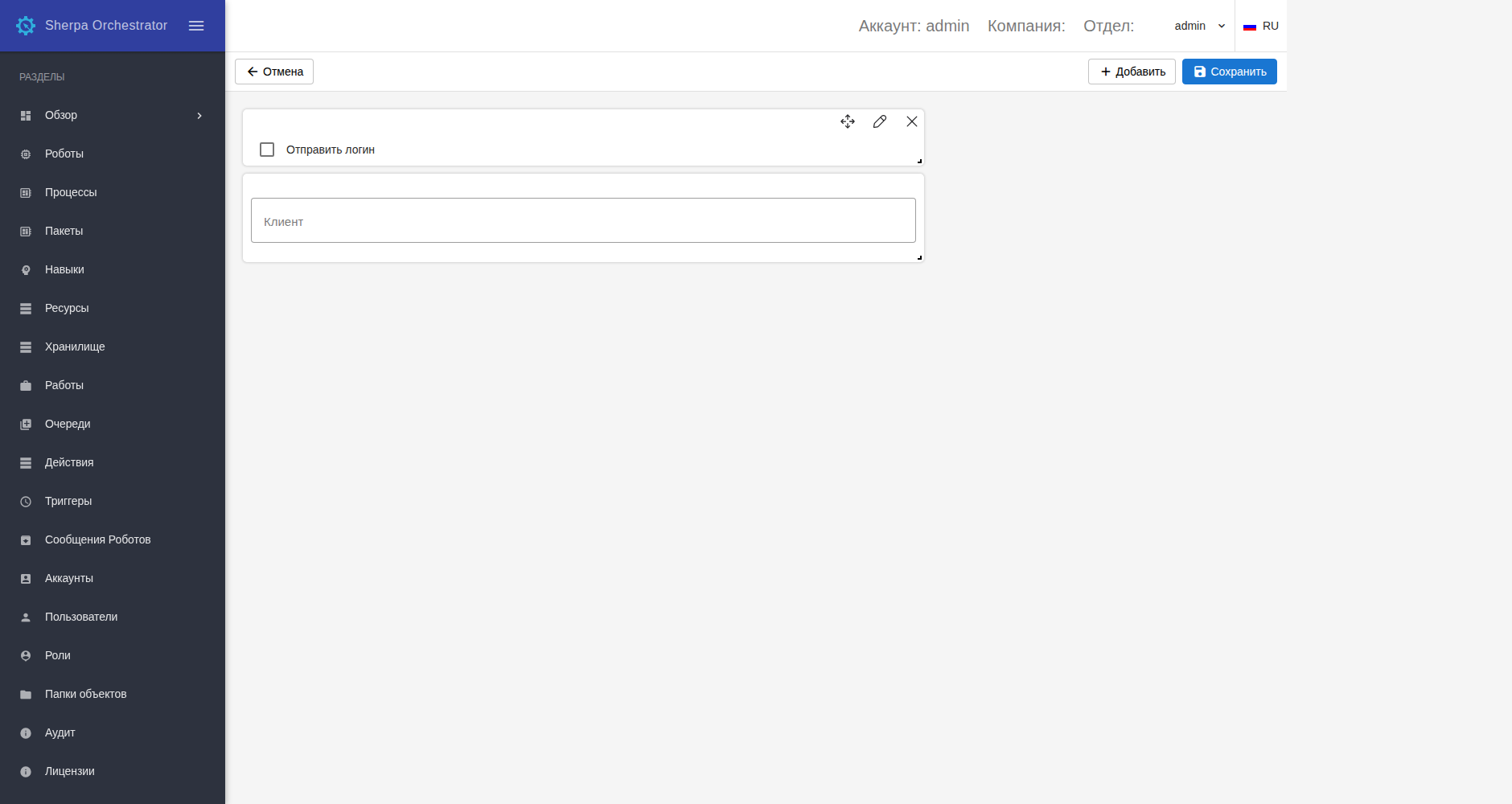
The Send login control in the Form Designer. Russian interface.
Required fields: none.
Additional fields:
- "Visible title" — sets the checkbox label in the Form. The Form displays "Send login" by default.
- "Class" — sets the CSS class used to style the control. New controls use
my-class. Remove the value if no additional styling is required.
The Task parameter name is not configurable for this control: it uses login. Click "OK", then "Save" in the Form Designer to save the settings.
Example: enter "Отправить логин" in "Visible title", leave "Class" empty, and save the control settings.
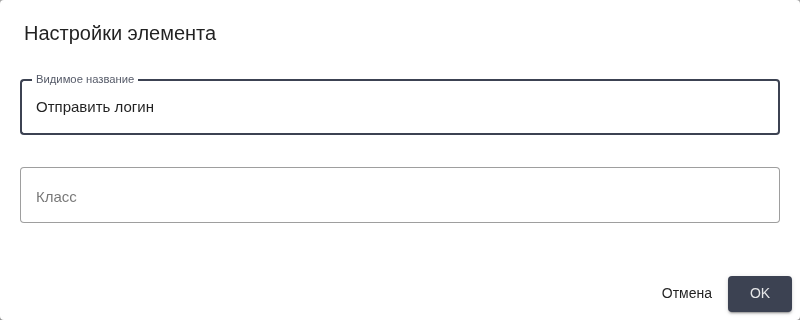
"Send login" control settings. Russian interface.
Sending the login when running an Action#
Before running the Action, choose whether to send the login.
Required controls: none.
Additional controls:
- "Send login" checkbox — when selected, sends the current user's login to the new Task. When cleared, no login is added. Cloning without sending the login preserves the source Task's
loginvalue, if present. A newly added control is cleared by default.
Example: enter "Компания Альфа" in the client field. The field is labeled "Клиент" in this example. Select the checkbox labeled "Отправить логин". Click the configured button labeled "Создать заявку".
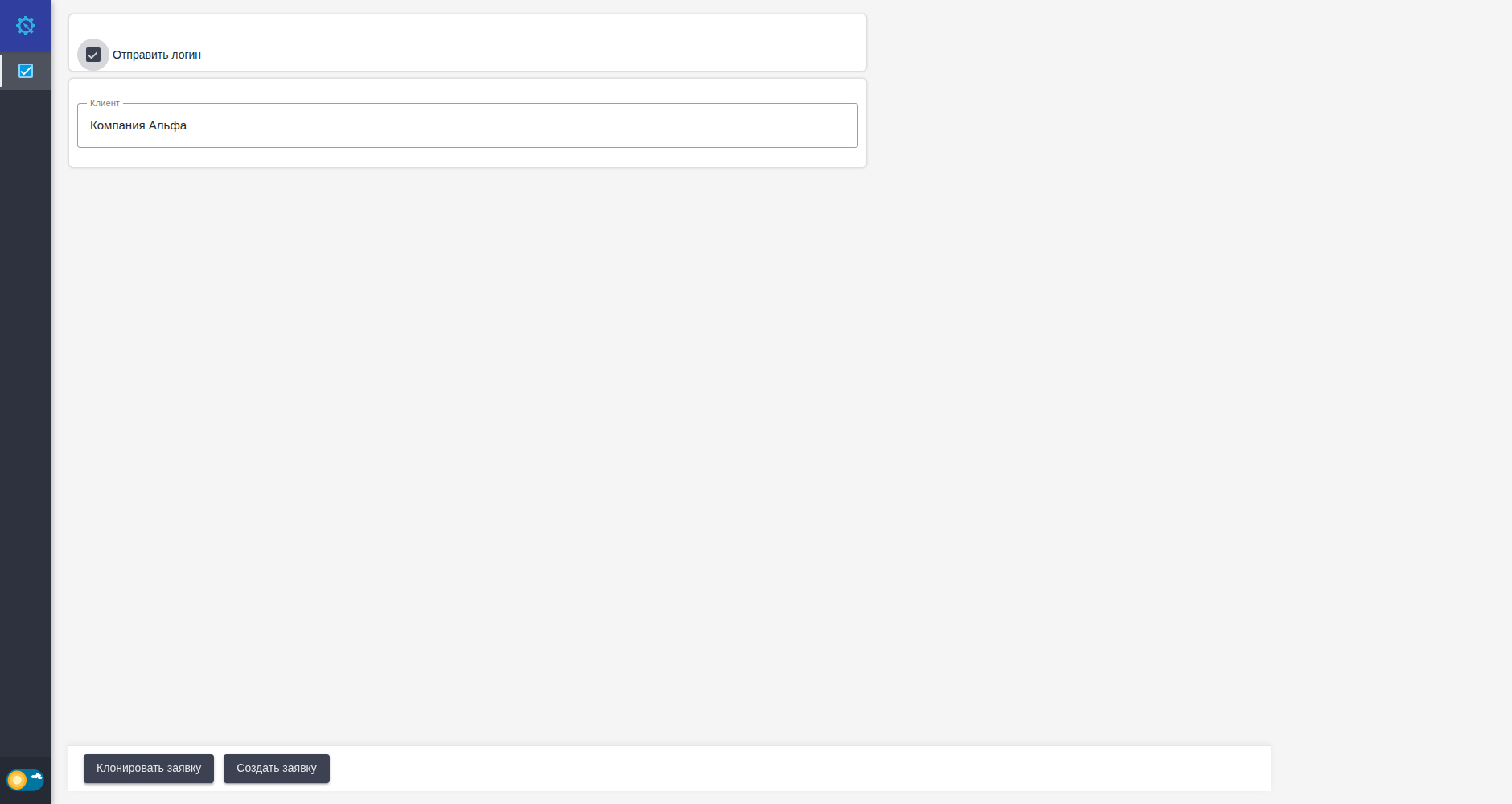
Sending the login when creating a Task. Russian interface.
The new Task's parameters contain login with the value admin, because the example uses that account. The client parameter is preserved. When cloning with "Клонировать заявку", the login is written to the copy. The control itself does not change the source Task's parameters.

Initiator login in the created Task's parameters. Russian interface.
If the new Task already has a login parameter, selecting the checkbox replaces it with the current user's login. Other parameters are preserved. Selecting another Task does not select the checkbox based on that Task's parameters.
Sending the login is not supported for "Text" or "Table" parameters. If an error occurs, clear the checkbox or prepare "Hash table" parameters, then run the Action again. An API token does not replace signing in to the web interface and cannot supply a login this way.