
HTML#
To configure the widget, you need to perform the following actions:

The HTML widget displays HTML code, allowing Users to use it both from the Widget Settings and from the Parameters of the selected Task program.
To configure the element, click on the edit icon  .
.
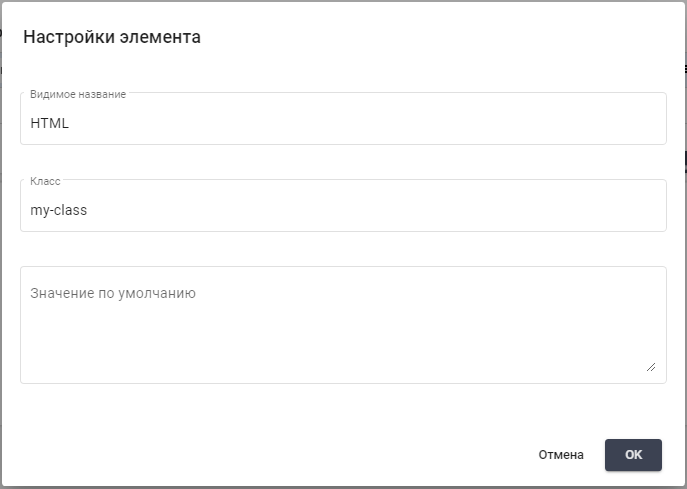
A pop-up window "Element Settings" will open:
Widget Configuration Fields#
Fill in the necessary fields to configure the widget.
"Visible Name" – a text field that is filled in manually from the keyboard. It is intended for entering a name that will be displayed to the User;
"Class" – a text field that is filled in manually from the keyboard. It allows you to specify a CSS class for the widget, enabling you to style the element with custom styles. The specified class can be used to apply certain styles, such as font, background color, etc.
"Default Value" – a text field that is filled in manually from the keyboard. It allows you to specify arbitrary HTML code that will be displayed by default in the widget.
Example of Filling#
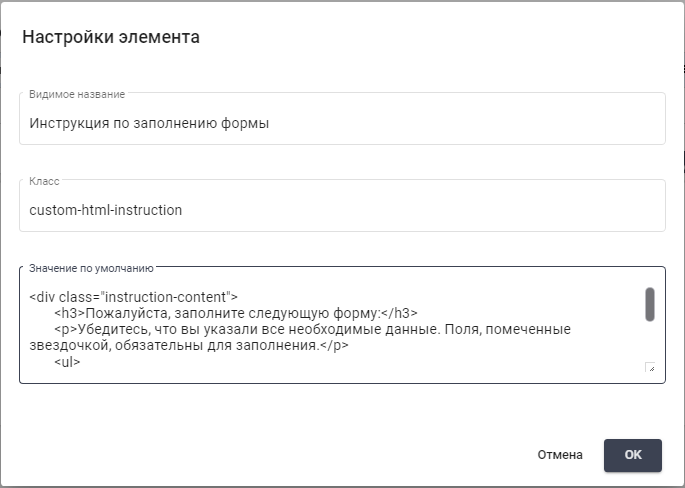
| Field Name | Value |
| Visible Name | Form Filling Instructions |
| Class | custom-html-instruction |
| Default Value |
|
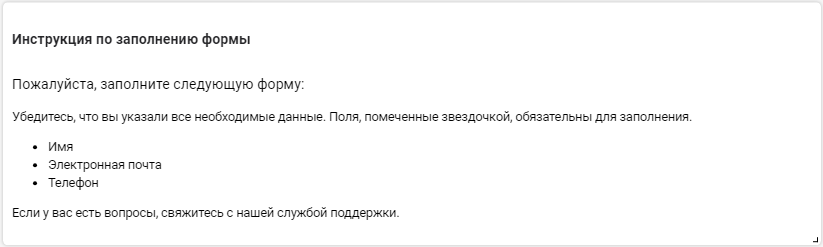
Result:
Connecting JavaScript and CSS files#
Loading resources on the My Actions screen requires permission to read My Actions and access to the selected Action. Storage read permission is not required for resources explicitly linked to the form. The files and Action must belong to the same Account.
Connecting files requires the following steps:
- JavaScript and CSS files must be uploaded to Storage by a User with the required permissions.
- In the HTML widget settings, file links must be specified in the
srcattribute ofscriptand thehrefattribute oflinkwithrel="stylesheet". The example GUIDs must be replaced with the uploaded files' identifiers. - The Action must be saved and opened on My Actions using the target Role.
- Script execution and applied styles must be checked in the selected Action's form.
<script src="/api/v1/files/11111111-2222-3333-4444-555555555555/download"></script>
<link rel="stylesheet" href="/api/v1/files/aaaaaaaa-bbbb-cccc-dddd-eeeeeeeeeeee/download">
In this example, JavaScript creates a label in the form and CSS makes it green:
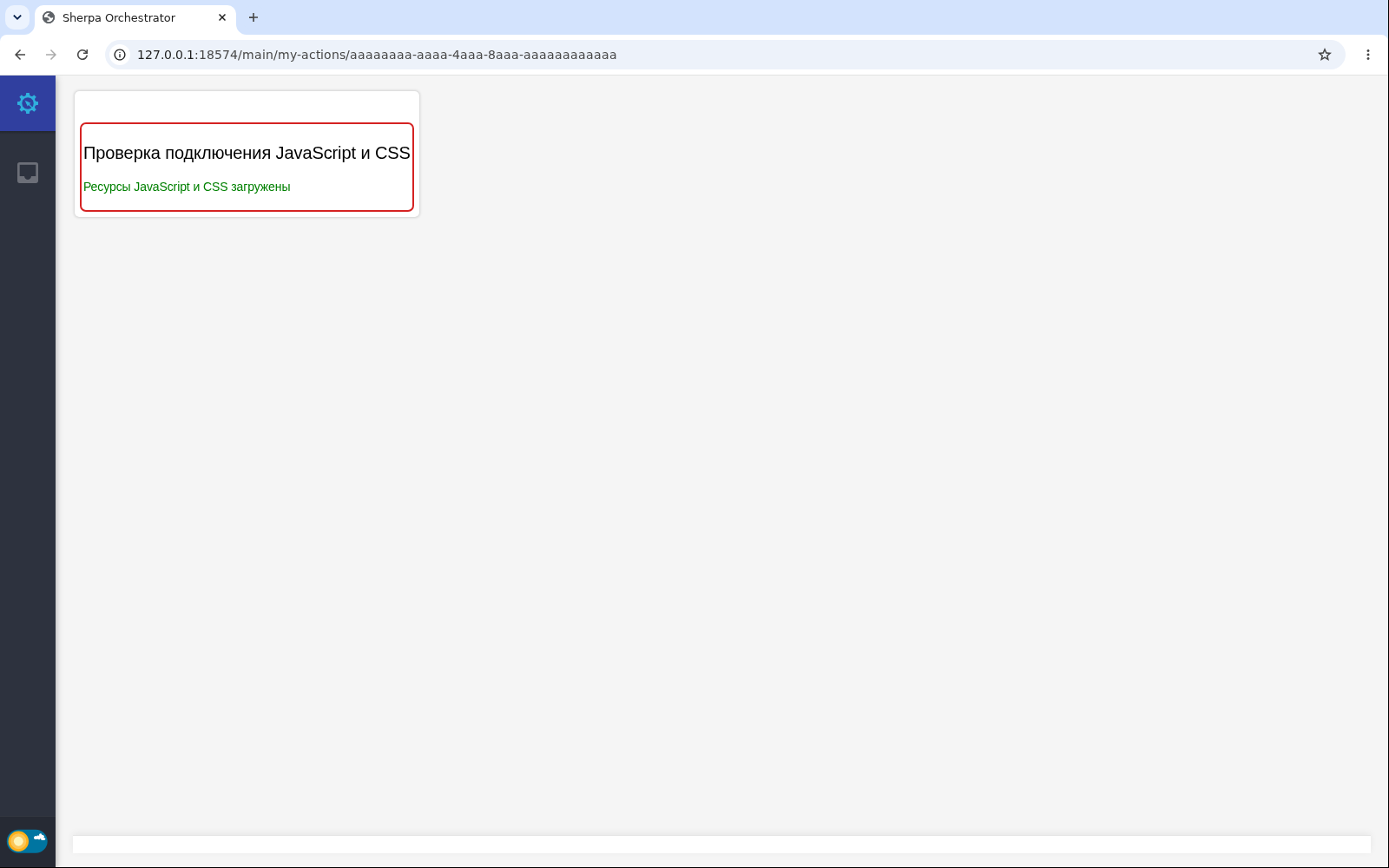
Russian interface with demonstration data.
Previously stored /api/files/download/{guid} links to the same server are processed automatically when the form is displayed. Relative links and absolute links with the same scheme, host, and port are supported. Stored HTML is not rewritten. External server links remain unchanged.
This permission applies only to files explicitly linked in the saved HTML widget. A GUID in text or Task Parameters does not grant access. Images, PDF files, and nested CSS dependencies are not automatically linked by this rule. Preview outside My Actions uses normal Storage permissions.
If a resource fails to load, the User's access to the Action, the saved link, file existence, and Account ownership must be checked. Fixing an incorrect link does not require access to all Storage.