
File upload#
The "File upload" block uploads a file to Storage and passes its GUID to a task parameter. A GUID is an identifier used to reference the file later in the workflow. An action, an associated queue with tasks, and a storage folder are required. The administrator must grant the user access to the action, the selected folder, and file uploads.
Configuring file uploads#
In the Form Designer, click "Add" and select "File upload". The block settings specify the destination folder, file name, and restrictions.
Required fields:
- "Parameter name in Task" field — specifies the parameter that receives the uploaded file GUID. Enter the name used by the task processing workflow.
- "Storage folder" field — specifies the upload destination. Select an available folder from the list.
- "Maximum file size, MB" field — limits the size of each file. The minimum is
0.01; a new block uses10.
Additional controls:
- "Required" checkbox — when selected, prevents form submission without a file GUID. When cleared, allows an empty value. Cleared in a new block.
- "Visible title" field — sets the block label in the form. A new block uses
File upload. - "Class" field — sets a CSS class for the block appearance. Leave it unchanged if no custom styling is needed.
- "Clue" field — sets explanatory text below the block. Empty in a new block.
- "File name prefix" field — adds text before the original name. An empty value keeps the beginning of the name unchanged.
- "File name postfix" field — adds text after the name, before the extension. An empty value keeps the end of the name unchanged.
- "Allowed file types" field — accepts comma-separated extensions or MIME types, such as
.txt, application/pdf, image/*. An empty value does not restrict the file type in the block. Server checks still apply.
After entering the settings, click "OK", then "Save" in the Form Designer.
Example: to accept a text report, select "Required". Enter Attachment in "Visible title", attachment_guid in "Parameter name in Task", select the Вложения folder, enter in- in "File name prefix", -checked in "File name postfix", .txt in "Allowed file types", and 1 in "Maximum file size, MB". Leave "Class" and "Clue" empty. The file report.txt will be uploaded as in-report-checked.txt.
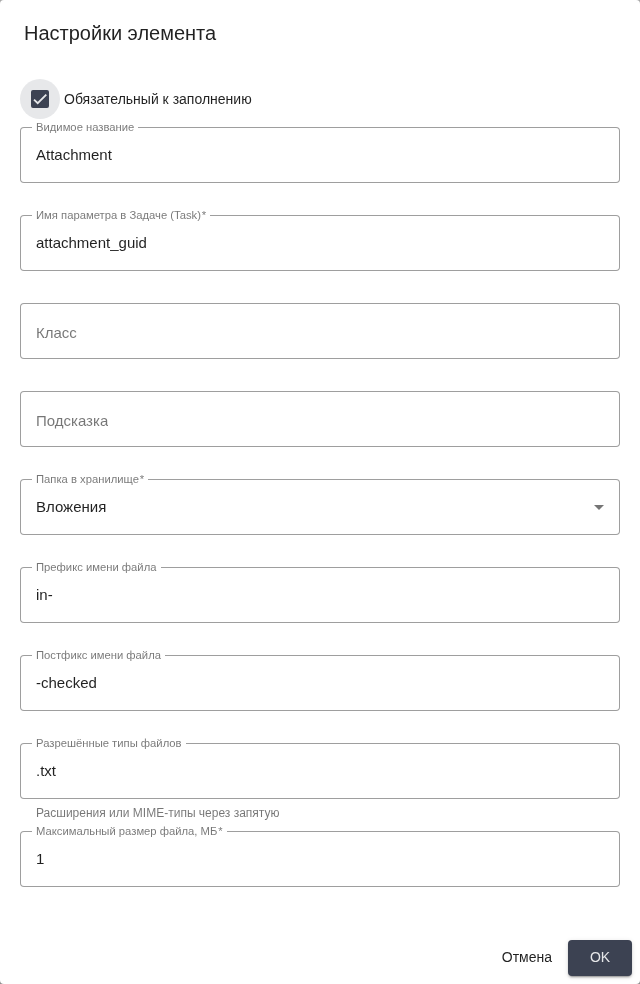
Element settings: upload folder and restrictions. Russian interface.
Uploading and replacing a file#
When running the action, click "Choose file" and select a file on the computer. During the upload, the block shows the completion percentage and prevents another selection. A successful upload displays a green state with the GUID. To write the GUID to the task parameter, click the configured action button that saves changes to the current task.
Files with a disallowed type or an excessive size are not sent to the server. A server error produces a red state and a message. Check the file, restrictions, and folder access, then select the file again.
A new selection clears the previous GUID in the form. If the replacement upload fails, a required block prevents saving the form. Previously uploaded files remain in Storage. Clearing the form resets the block state, and switching to another task cancels the current upload in the interface.
Refreshing the current task form restores its saved parameters and resets the upload state. If a new file has been uploaded but the task has not yet been saved, its GUID does not replace the saved value after refreshing the form.
If a save conflict is resolved by accepting the current parameter value with a different GUID, the block clears the status and name of the previously uploaded file. Saving again uses the accepted value.
Example: after successfully uploading report.txt, select archive.zip. With the .txt restriction, the block displays a file type error. Select a suitable text file and wait for the green state before saving the task.
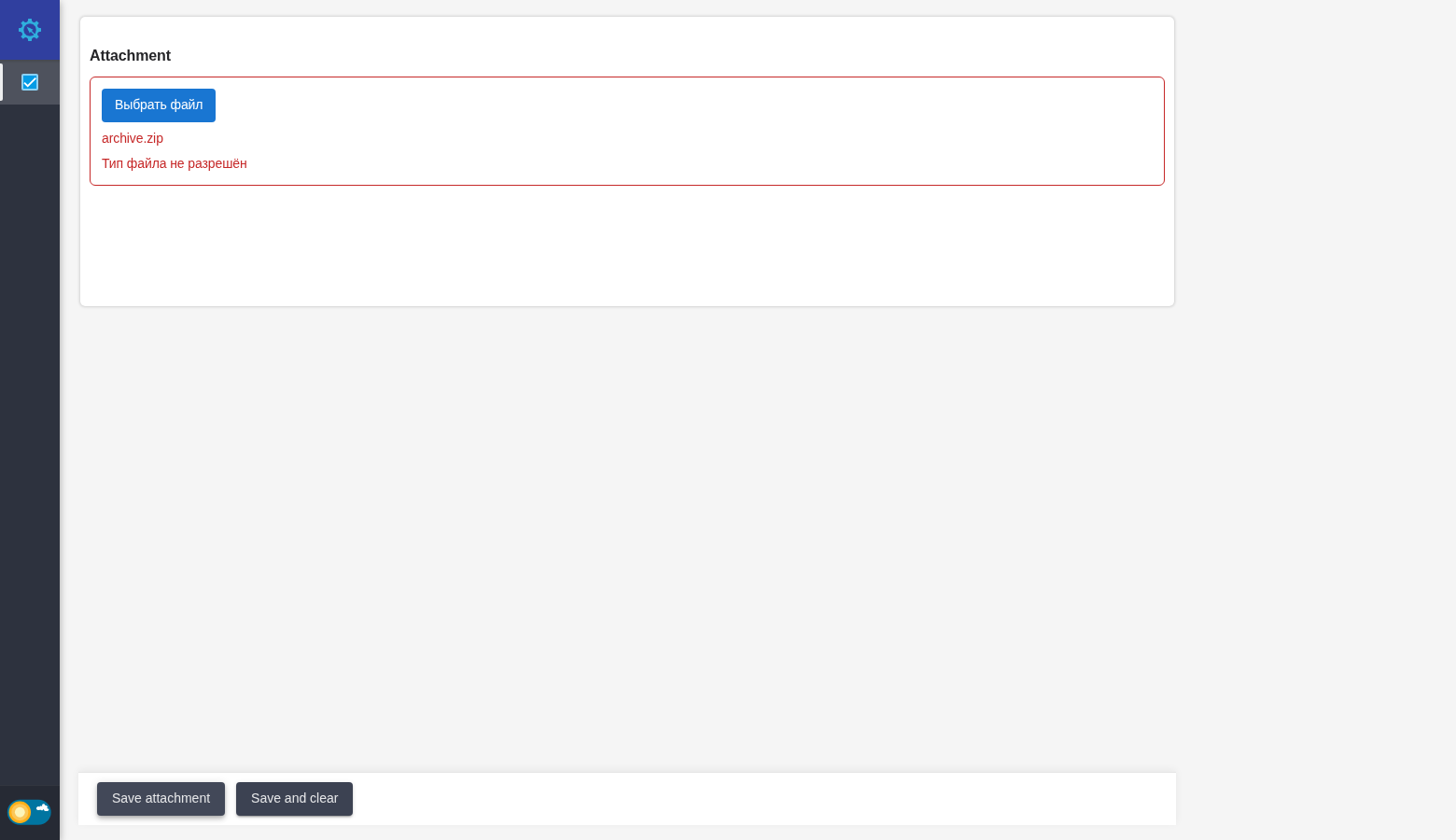
Action form: disallowed replacement file type. Russian interface.