
TIME LINE#
The Time Line widget displays time intervals on a horizontal timeline. Use it to show how long Jobs, process stages, or user actions in a form take.
.png)
For example, Time Line can show when each Job started and finished, how long each stage of a request took, or how actions were distributed over time.
Start configuring the widget#
To configure the widget, click the edit icon  .
.
.png)
The "Widget settings" dialog opens:
.png)
Fill in the fields needed to configure the widget.
General fields#
| No. | Field | Description |
| 1. | Widget name * | Name shown in the widget header. Enter it manually. |
| 2. | Mode | How the data query is configured. |
| 2.1. | Builder mode | Build a query from blocks: tables, joins, filters, widget series, grouping, sorting, and row count. |
| 2.2. | Advanced mode | Enter an SQL query manually. This is convenient for Time Line because you can set the required column names explicitly. |
Additional fields available only in Builder mode#
Joining tables#
Join tables to retrieve data from several related tables and produce a more complete result.
Use the following operators to compare columns in two tables before joining them:
| Operator | Description |
|---|---|
| = | Returns rows where the values in the specified columns of both tables are equal. |
| != | Returns rows where the values in the specified columns of both tables are different. |
| > | Returns rows where the value in the specified column of the first table is greater than the value in the second table. |
| < | Returns rows where the value in the specified column of the first table is less than the value in the second table. |
To join only two tables, fill in these fields:
- Select the first "Column" from the list;
- Select the "Operator" from the list;
- Select "Column 2" from the list.
For example:

To join more than two tables, click  , then fill in the required fields.
To remove a table join, click  .
.
Filters#
Filters define conditions for the selected data using comparison and logical operators.
To set one condition, fill in these fields:
- Select "Column" from the list;
- Select "Operator" from the list;
- Enter "Value" using the keyboard.
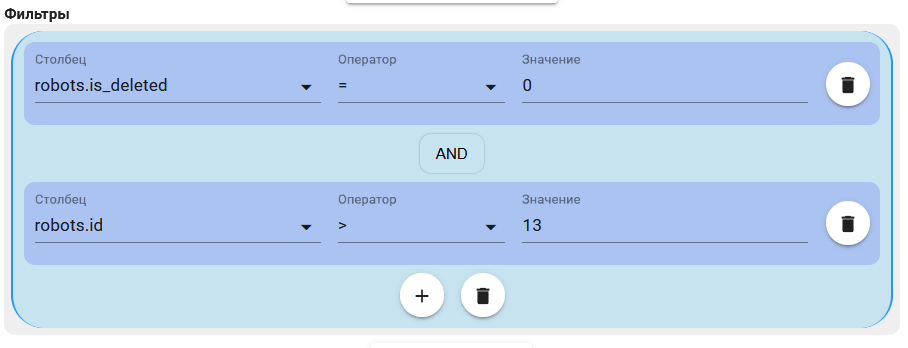
For example:

To combine several conditions, for example, ((robots.is_deleted = 0) AND (robots.id > 13)), use logical operators. Click  to change it to OR or
  to change it to AND. Then click
  and fill in the required fields:
To set a complex Filter condition with several sets of parentheses, click  , then fill in the required fields.
To remove a condition, click  .
.
Widget series#
Widget series select the database columns returned in the query results.
To configure the Widget series, fill in these fields:
- Select "Column" from the list;
- Select "Operator" from the list;
- Enter "Series name" using the keyboard.
For example:

To display additional data in the legend, click  .
.
Group by#
This field groups rows with the same values in one or more columns so aggregate operations can be applied. Select a column from the list.
Sorting#
These fields determine the order of rows in the result. Enter "ASC" in "Sort order" for ascending order or "DESC" for descending order, then select a "Column" from the list.
Row count#
Enter a value or use the counter  . This field limits the number of records returned by the query for the dashboard.
Testing#
To check that the query is configured correctly, click  . A table appears with the data used to build the Line Chart dashboard.
Click "OK" to display the dashboard on the panel.
Click "Cancel" to clear all entered data.
Data format for Time Line#
For the widget to render correctly, the query must return three columns:
| Column | Description |
| name | Label of a row on the timeline, such as a Job, stage, or form name. |
| StartTime | Date and time when the interval starts. |
| FinishTime | Date and time when the interval ends. |
If FinishTime is empty, the widget displays a short, 60-second interval starting at StartTime.
Builder mode (example)#
This example shows the latest Jobs with a start time. Each Job appears as a separate interval from start to finish.
.png)
.png)
.png)
.png)
Fill in these fields:
Tables *
jobs
process_versions
processes
Joining tables
| Column | Operator | Column 2 |
|---|---|---|
jobs.process_version_id |
= | process_versions.id |
process_versions.process_id |
= | processes.id |
Filters
| Column | Operator | Value |
|---|---|---|
jobs.is_deleted |
= | 0 |
jobs.created |
> | 2026-01-01 00:00:00 |
Widget series
| Column | Operator | Series name |
processes.name |
name |
|
jobs.created |
StartTime |
|
jobs.updated |
FinishTime |
For Time Line, the Widget series must be named exactly name, StartTime, and FinishTime. The widget code uses these names to build the timeline.
Sort by
| Field | Value |
| Column | jobs.created |
| Sort order | DESC |
Row count
10
.png)
Advanced mode (example)#
This example shows the latest Jobs with a start time. Each Job appears as a separate interval from start to finish.
Enter the following query in the SQL field:
SELECT
    COALESCE(processes.name, CONCAT('Работа ', jobs.id)) AS name,
    COALESCE(jobs.started, jobs.created) AS StartTime,
    DATE_ADD(COALESCE(jobs.started, jobs.created), INTERVAL 2 HOUR) AS FinishTime
FROM jobs
LEFT JOIN process_versions ON jobs.process_version_id = process_versions.id
LEFT JOIN processes ON process_versions.process_id = processes.id
WHERE
    jobs.is_deleted = 0
    AND COALESCE(jobs.started, jobs.created) IS NOT NULL
ORDER BY COALESCE(jobs.started, jobs.created) DESC
LIMIT 10
Click "OK" to display the widget on the panel.