
Creating and configuring Triggers in Orchestrator#
A Trigger creates Jobs for a selected Process according to a schedule, new Queue Tasks or incoming messages. A Robot executes the Process associated with the created Job.
Preparing the configuration#
Before creating a Trigger, prepare a Process version and a Robot that can execute it. Access is configured in the Role. Retain the User’s other permissions when editing the Role.
Permissions for each action:
- Viewing Triggers — "Read" for "Triggers".
- Creating Triggers — "Create" for "Triggers".
- Changing Trigger settings — "Update" for "Triggers".
- Enabling a Trigger — "Update" for "Triggers".
- Disabling a Trigger — "Update" for "Triggers".
- Deleting a Trigger — "Delete" for "Triggers".
- Creating a Job — "Create" for "Jobs".
- Selecting a Process — "Read" for "Processes".
- Selecting a Robot — "Read" for "Robots".
- Selecting a Queue — "Read" for "Queues".
- Selecting a calendar — "Read" for "Resources".
Example: To configure a Trigger, open the employee’s Role. Find "Triggers" and check "Read", "Create" and "Update". For Job creation, check "Create" for "Jobs". The screenshot shows the permission and object names.
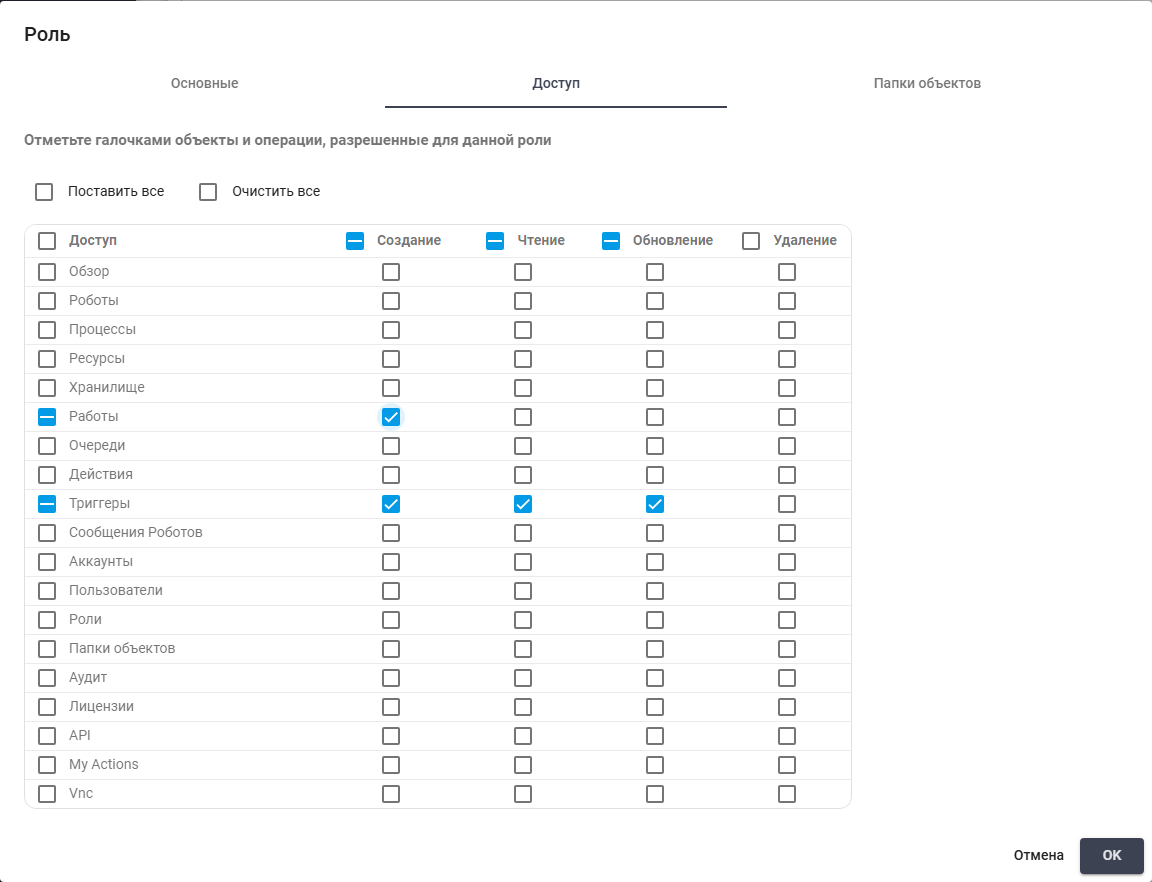
Permission and object names in the Role.
Creating a Trigger #
To create a Trigger, click "New" above the "Triggers" table. "Test Now" above the table creates a Job and may execute the Process. It is intended for testing execution rather than viewing saved settings.

"New" and "Test Now" above the "Triggers" table.
Then configure its five tabs.
- On "General", enter the name and select a Process. Leave "Trigger Enabled" off to avoid creating Jobs while configuring it.
- On "Robots", select the Job executor.
- On "Schedule", specify the days and times for creating Jobs.
- On "Queue", select the Queue and filters for new Tasks.
- On "Email", configure the mailbox and incoming-message filters.
Click "OK" to save the Trigger settings.
The "General" tab #
In the "Trigger" dialog, enter the name and Process on "General". This tab also configures record access, Job priority and execution counts.
Required fields:
- "Name*" text field — sets the Trigger name in the table. Enter a meaningful name of up to 64 characters. Required.
- "Process*" field — selects the Process the Robot will execute. Choose a Process with an execution version. Required.
Additional settings:
- "Trigger Enabled" switch — enables automatic Job creation. Leave it off to configure the Trigger without creating Jobs. It is off by default.
- "Description" text field — explains the purpose of the Trigger. Leave it empty if no additional explanation is needed.
- "Created Job's Priority" field — sets created Job priority: "Low", "Normal" or "High". When choosing the next Job, the Robot receives higher-priority Jobs first. Equal priorities are ordered by the earliest creation date. The current Job is not interrupted. The default is "Low".
- "Access Folder" field — restricts access through an Access Folder. Choose the folder for the intended Users. Empty adds no folder restriction, while Role permissions still apply.
- "Max Runs" text field — sets how many times the Trigger may create a Job.
10allows ten executions, after which no new Jobs are created.0removes the restriction. The default is1000. - "Max monthly runs" field — sets how many times the Trigger may create a Job in a month. Once reached, no new Jobs are created until the next month.
0removes this restriction without removing the overall limit. The default is0. - "If all robots are busy, create job when they are free again" checkbox — allows a missed scheduled execution to be retried if a Job could not be created while the Robot was busy. When checked, the Trigger retries after the Robot becomes available, provided the other conditions are met. When unchecked, it waits for the next scheduled time without retrying the missed execution. Limits and other conditions still apply. Checked by default.
Example: To check scheduled execution, enter Проверка каталога in "Name" and Проверка запуска Процесса по расписанию in "Description". Select Проверка каталога in "Process" and "Normal" in "Created Job's Priority" so these Jobs do not precede urgent ones. Leave "Access Folder" empty: no separate folder restriction is needed. Set "Max Runs" to 10 and "Max monthly runs" to 0 for ten executions without an additional monthly restriction. Keep "Trigger Enabled" off while checking settings. Leave "If all robots are busy, create job when they are free again" on to retry a missed scheduled execution after the Robot becomes available.
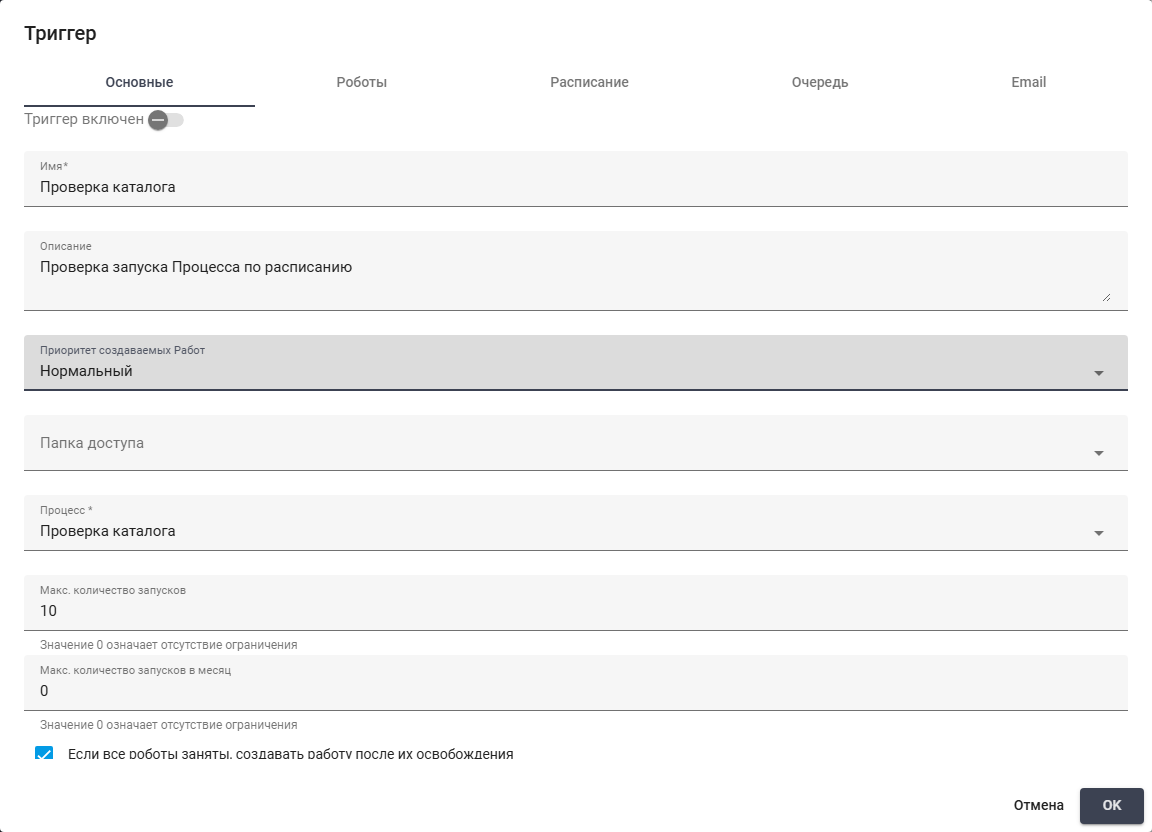
The "Проверка каталога" Trigger: name, Process, priority and execution limits.
The "Robots" tab#
On "Robots", select the executor for Jobs. To distribute them between several Robots, fill in "Robot Group". Then specify "Maximum simultaneous robots".
Required controls for the selected execution option:
- "Delegate job to specific robot" option — assigns Jobs to one Robot. Selecting it enables "Robot" and disables Robot Group settings.
- "Robot" field — selects the Robot that will execute Jobs. Required when assigning to one Robot.
- "Distribute job within group of robots" option — distributes Jobs within a Robot Group. Selecting it enables the group selector and restrictions, and disables "Robot".
- "Robot Group" field — selects the group used to find an executor. Required for group distribution.
Additional settings:
- "Maximum simultaneous robots" text field — limits the number of active Jobs from this Trigger when using a group. Once reached, no next Job is created. Jobs waiting for assignment to a Robot count towards the simultaneous-execution limit.
0removes the restriction. Unavailable for a single Robot. - "Create job without prior assigment to any robot. As soon as some robot in the group becomes free, this job will be automatically assigned to it" option — creates a Job without an assigned Robot when all group members are busy. A suitable Robot is assigned when available. Unavailable for a single Robot.
- "Create job assigned to still busy robot which has lowest amount of Pending jobs assigned to it within selected group" option — allows assignment to a busy group member. First, a Robot with no Jobs in Pending or Unknown is selected. Otherwise, a Robot without a pending Job for this Process may be used. Pending means waiting for execution. Unknown means that the Job state is unknown. The selected Robot may have more waiting Jobs than other group members. Unavailable for a single Robot.
Assigning Jobs to one Robot#
This option assigns Jobs to a specific Robot. Group settings are not used.
Example: To use one executor, select "Delegate job to specific robot" and choose "QA Web Debug Robot 2026-10-14" in "Robot". Group distribution settings are unavailable when assigning Jobs to a single Robot.
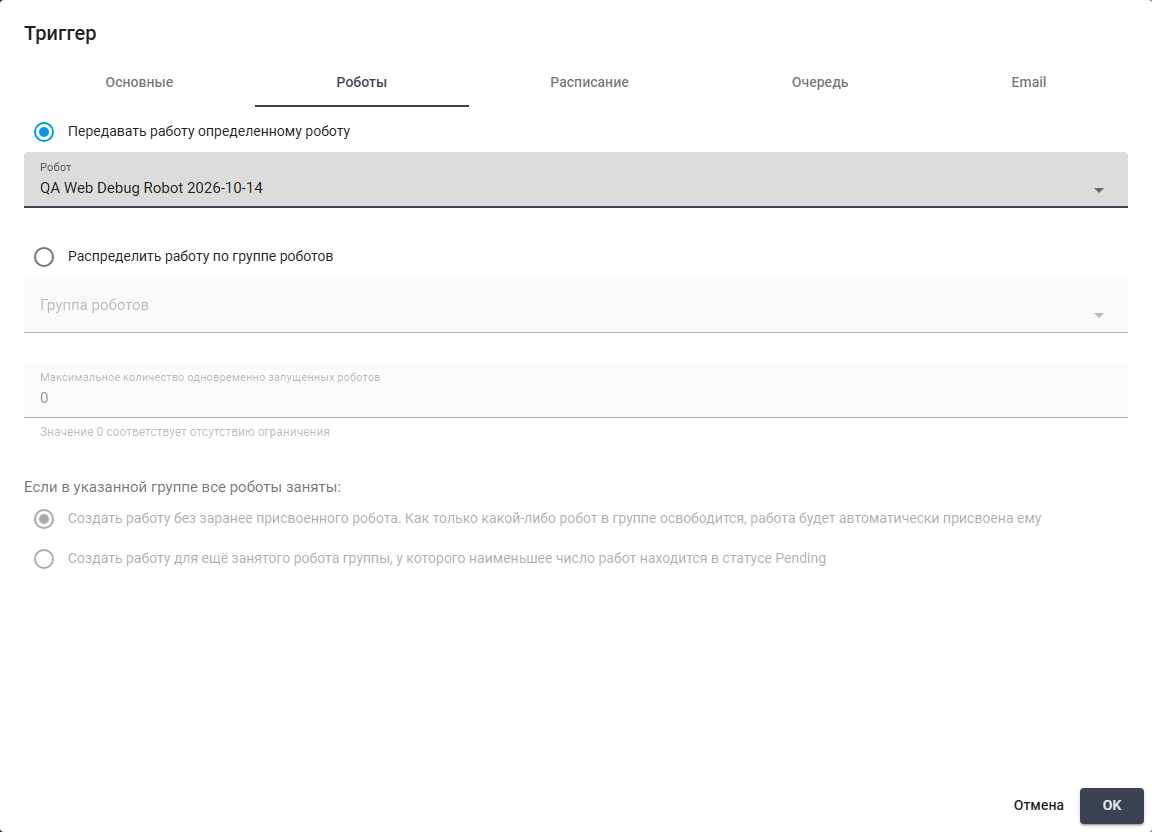
Configuration with "Delegate job to specific robot".
Distributing Jobs within a group#
This option selects an executor from a Robot Group. Choose one of the two options below for busy-group behavior.
Waiting for an available Robot#
The Job waits for a suitable Robot in the selected group to become available.
Example: Select "Distribute job within group of robots". "Delegate job to specific robot" is deselected automatically. To distribute Jobs, choose "testTriggersPriorityBots" in "Robot Group" and set "Maximum simultaneous robots" to 2. Select "Create job without prior assigment to any robot. As soon as some robot in the group becomes free, this job will be automatically assigned to it". Leave the second option unselected. The "Robot" field is unavailable because the executor is selected from the group. The Job waits for an available executor from the selected group.
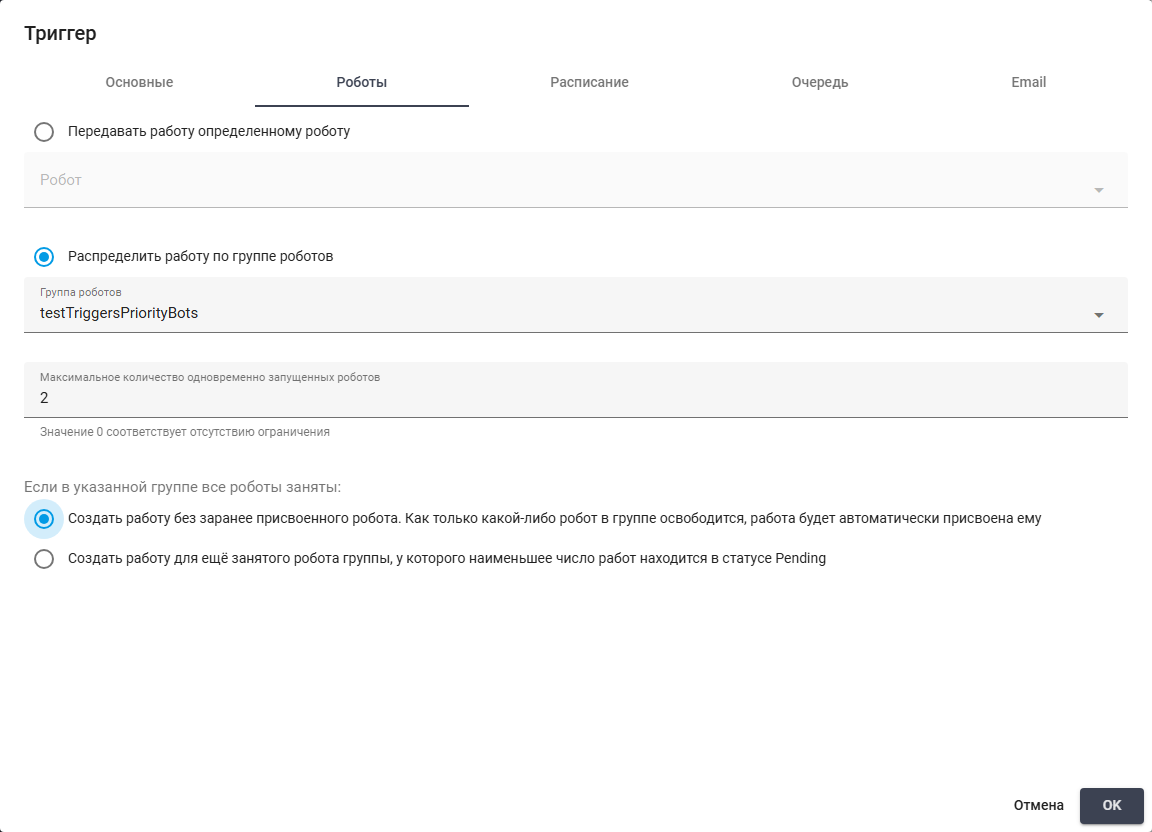
Configuration with "Distribute job within group of robots": waiting for an available Robot.
Assigning to a busy Robot#
The Job is assigned to a busy member of the selected group and waits for execution.
Example: Select "Distribute job within group of robots". "Delegate job to specific robot" is deselected automatically. To assign a Job to a busy executor, choose "testTriggersPriorityBots" in "Robot Group" and set "Maximum simultaneous robots" to 2. Select "Create job assigned to still busy robot which has lowest amount of Pending jobs assigned to it within selected group". The first is deselected automatically. The "Robot" field is unavailable because the executor is selected from the group. A busy group member is selected according to the conditions described above.
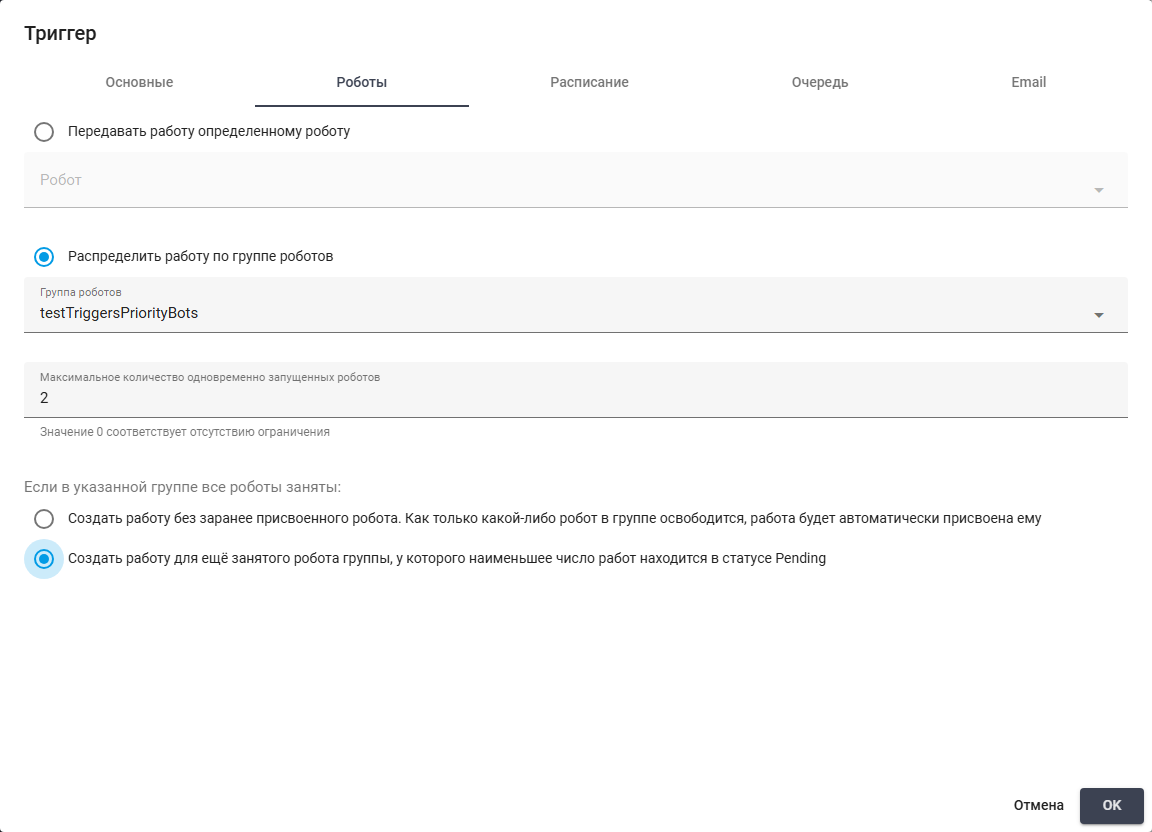
Configuration with "Distribute job within group of robots": assignment to a busy Robot.
The "Schedule" tab#
On "Schedule", specify the days and times when the Trigger creates Jobs. The execution option determines which fields must be filled in. The four options are shown below.
Required controls for the selected execution option:
- "Process Continuously" option — creates Jobs when the other conditions are met without waiting for a Cron time.
- "Process on schedule" option — sets execution times using "Every" or a Cron expression.
- "Last day of the month" option — creates Jobs on the last calendar day of the month, or the last working day with a calendar.
- "Every Nth day of the month" option — creates Jobs on a specified day of the month. The day-number field is required. A selected calendar counts working days instead of calendar days.
- "Nth day" text field — day number from 1 to 31 within the month. Required for the nth-day mode. With a calendar, it counts working days. Without one, calendar days.
- Cron expression field — accepts the five Cron parts: minutes, hours, days of month, months and weekdays. Appears and is required when "Use Cron Expression" is enabled.
* * * * *means every minute.
Additional settings:
- "Use Cron Expression" switch — enable and enter a Cron expression to supply a custom schedule. Leave off to configure periodicity with the form controls.
- "Every" dropdown list — periodicity unit: minute, hour, day, week, month or year. Choose a unit and the adjacent time values for the required frequency. When Cron is enabled, its expression is used instead.
- "Except non-working days according to the calendar:" field — optional nonworking-day calendar from Resources. Choose it to account for days off. Without a calendar, calendar days are not excluded. With a selected calendar, monthly modes use working days. Without one, they use calendar days.
- "Run within timespan from X till Y" field — daily window for creating Jobs. Enter start and end times to restrict execution hours. If the start is later than the end, the window crosses midnight. Empty boundaries do not set a daily restriction.
- "Stop Job after specified period of time since its creation" text field — duration from Job creation to a soft-stop signal, in hours:minutes. Set it and include a stop-signal check in the scenario for controlled completion. Empty does not set a duration-based stop signal.
- "Abort Job after specified period of time since its creation" text field — duration from Job creation to forced Process termination, in hours:minutes. Set it for a strict duration limit. Empty does not set duration-based interruption.
- "Start Time" field — schedule start date and time. Set a future value for a delayed start. Empty uses the current date.
- "End Time" field — schedule end date and time. Set it to stop automatic execution after that moment. Empty does not set a User-specified expiration date.
"Process Continuously" option#
Use this option to create Jobs when Queue or mail conditions are met, within the selected dates and daily window.
Example: To check conditions without waiting for a scheduled time, select "Process Continuously" and leave the other three options unselected. Leave "Except non-working days according to the calendar:" empty to include all days. Set "Run within timespan from X till Y" to 09:00–18:00, "Stop Job after specified period of time since its creation" to 00:20 and "Abort Job after specified period of time since its creation" to 00:30. Set "Start Time" to 20.10.2026 09:00 and "End Time" to 31.12.2026 18:00. Conditions are checked within this window, and a Job is forcibly ended 30 minutes after its creation. Periodicity settings are unavailable because conditions are checked continuously.

"Process Continuously" option (part 1/2)
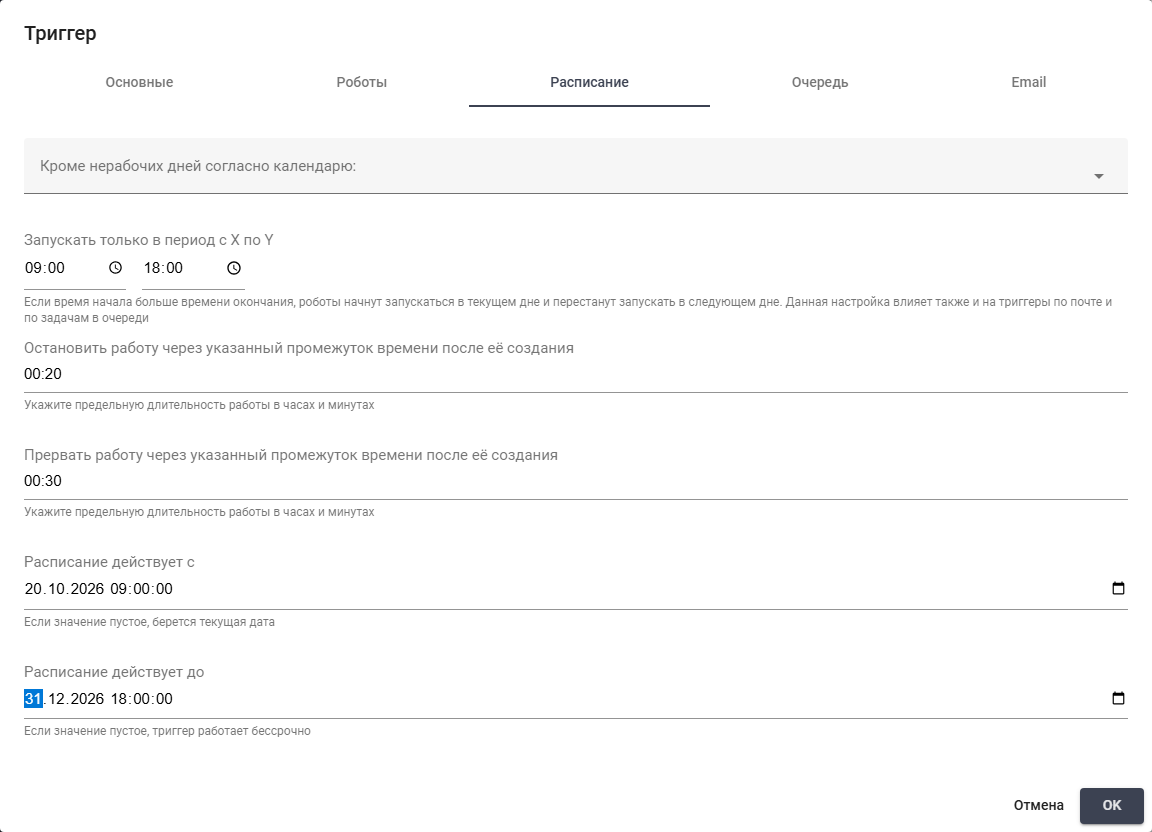
Stopping, interruption and schedule validity: 20.10.2026 09:00 to 31.12.2026 18:00.
"Process on schedule" option#
This option defines the interval for checking conditions using "Every" or a Cron expression.
Example: To check conditions every minute, select "Process on schedule". Leave the other three options and "Use Cron Expression" off. Select "minute" in "Every". Leave "Except non-working days according to the calendar:" empty to include all days. Set "Run within timespan from X till Y" to 09:00–18:00, "Stop Job after specified period of time since its creation" to 00:20, "Abort Job after specified period of time since its creation" to 00:30, "Start Time" to 21.10.2026 09:00 and "End Time" to 30.11.2026 18:00. Conditions are checked every minute during those hours.

"Process on schedule" option (part 1/2)
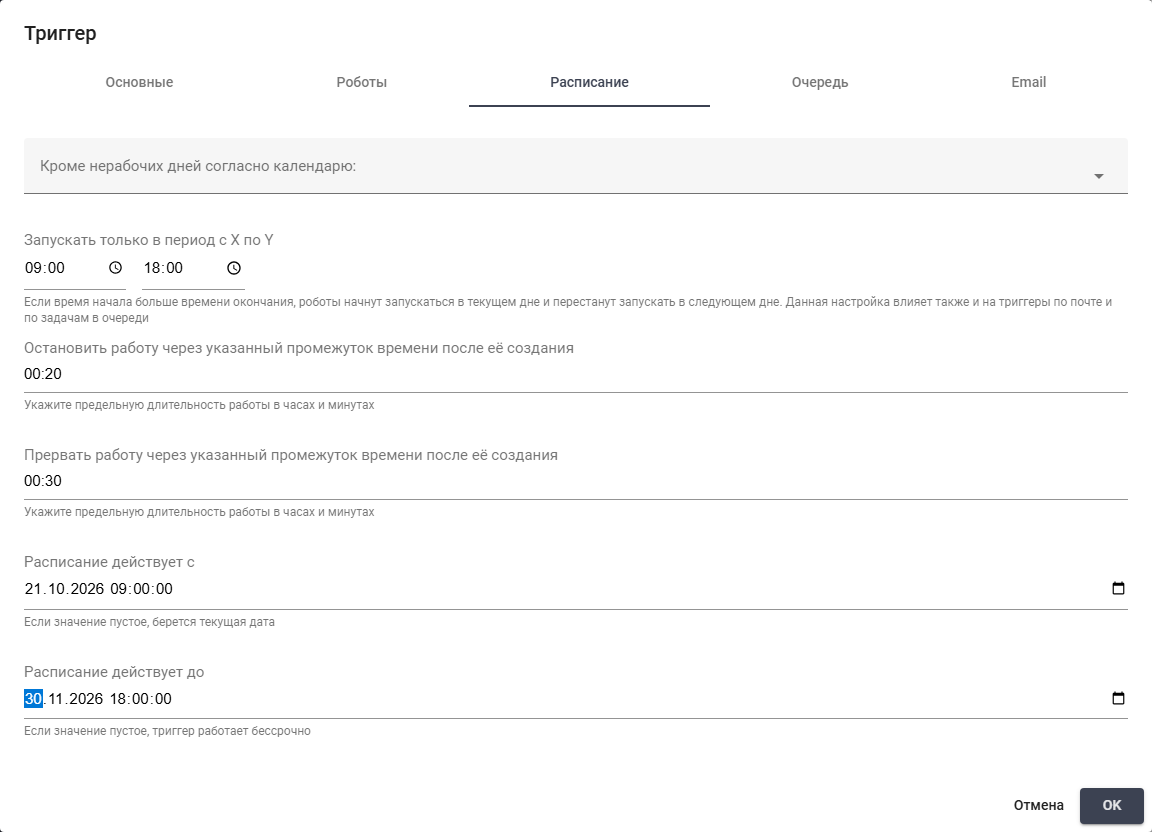
Stopping, interruption and schedule validity: 21.10.2026 09:00 to 30.11.2026 18:00.
Schedule with a Cron expression#
"Use Cron Expression" replaces periodicity selection with an expression input.
Example: For a one-minute interval using Cron, select "Process on schedule", enable "Use Cron Expression" and enter * * * * *. Periodicity controls are not used. Leave "Except non-working days according to the calendar:" empty. Set "Run within timespan from X till Y" to 09:00–18:00, "Stop Job after specified period of time since its creation" to 00:20, "Abort Job after specified period of time since its creation" to 00:30, "Start Time" to 22.10.2026 09:00 and "End Time" to 30.11.2026 18:00. Leave the other options unselected. The expression checks conditions every minute within the selected dates and hours.
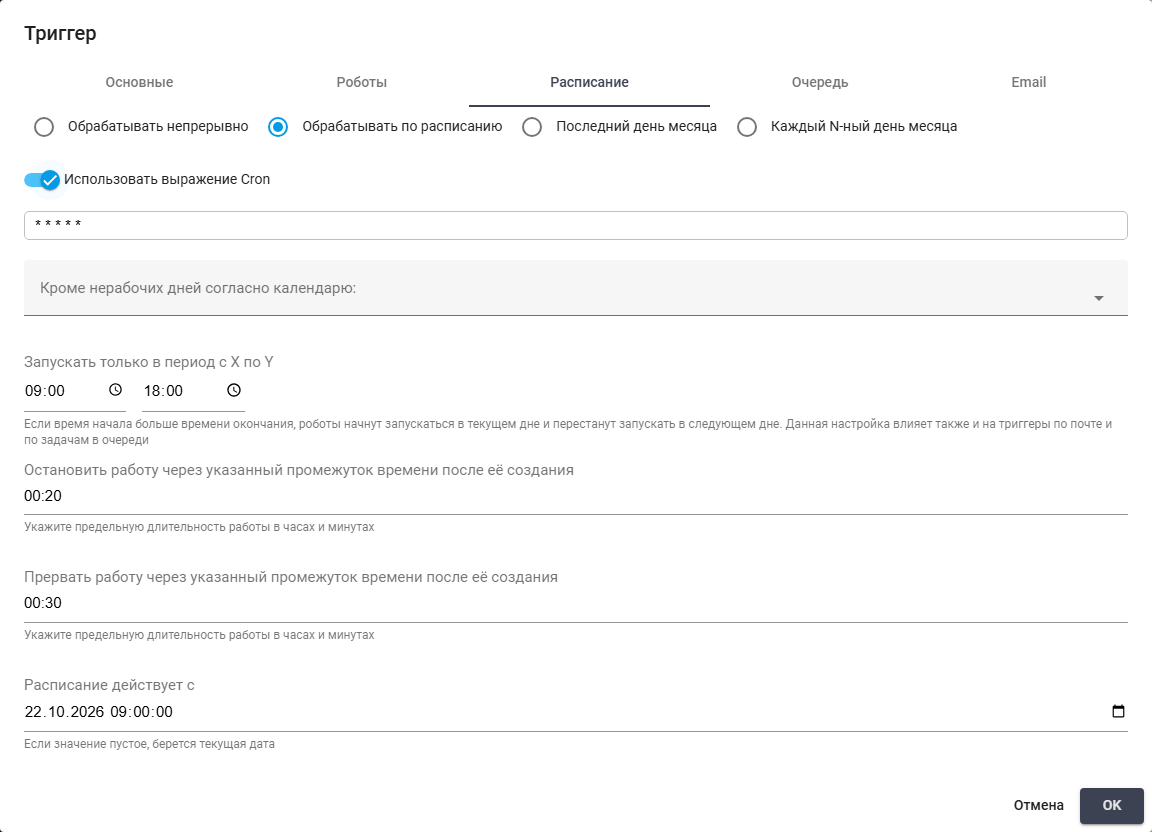
Schedule with a Cron expression (part 1/2)
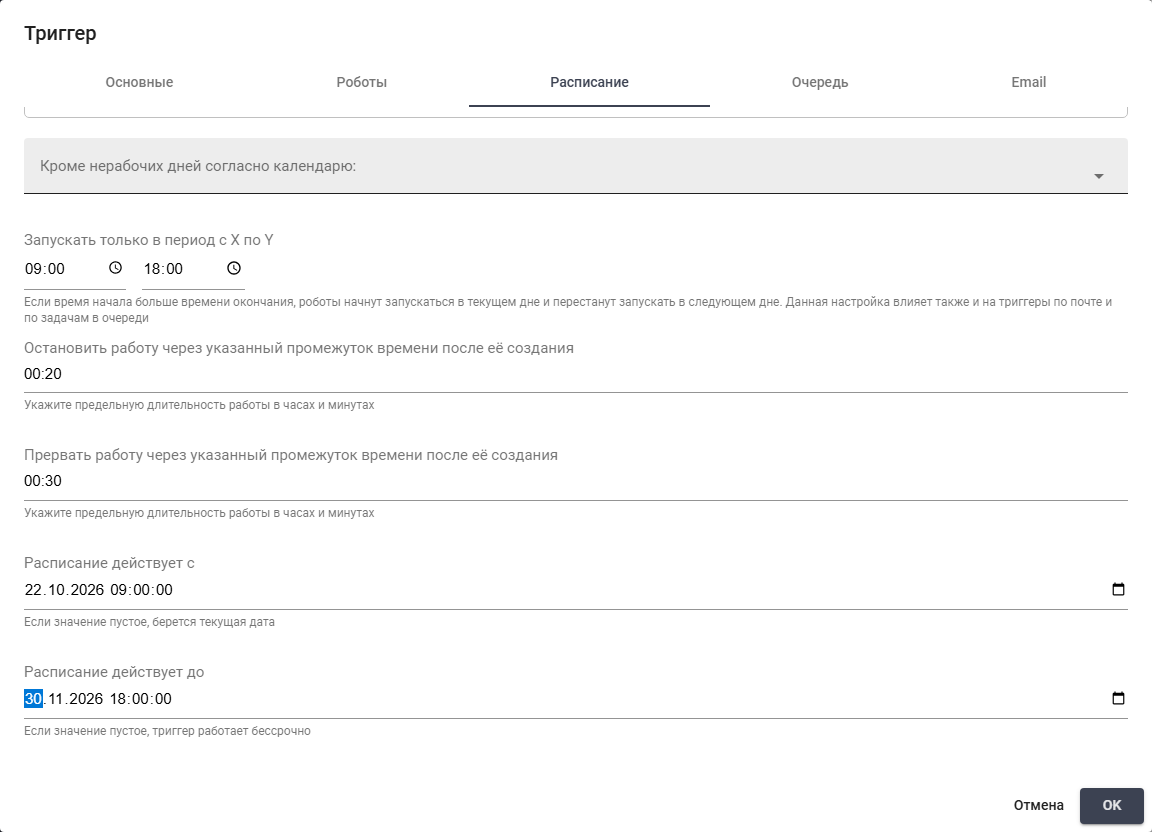
Stopping, interruption and schedule validity: 22.10.2026 09:00 to 30.11.2026 18:00.
"Last day of the month" option#
This option runs on the last day of the month. A calendar determines whether working days are counted.
Example: To create Jobs at month end, select "Last day of the month" and leave the other three options unselected. Leave "Except non-working days according to the calendar:" empty to use the last calendar day. Set "Run within timespan from X till Y" to 09:00–18:00, "Stop Job after specified period of time since its creation" to 00:20, "Abort Job after specified period of time since its creation" to 00:30, "Start Time" to 01.11.2026 09:00 and "End Time" to 31.12.2026 18:00. Jobs are created on the last day when the other conditions are met.
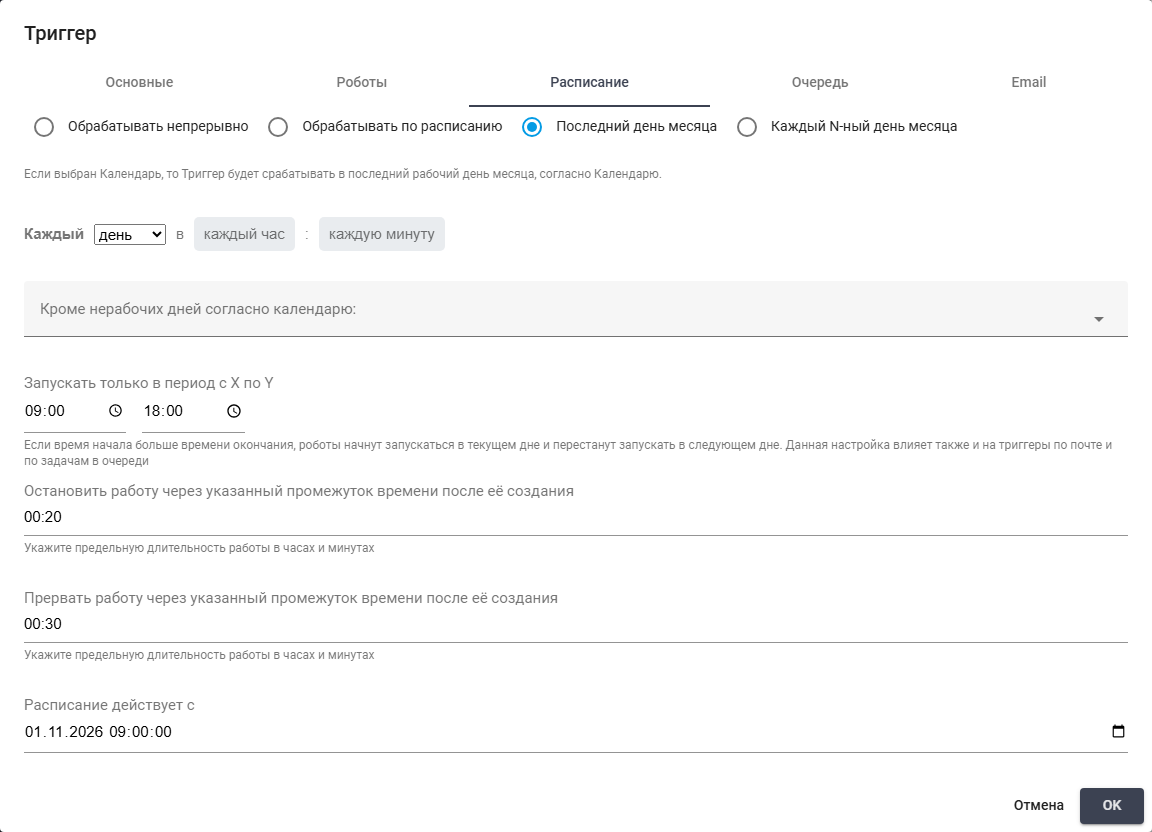
"Last day of the month" option (part 1/2)
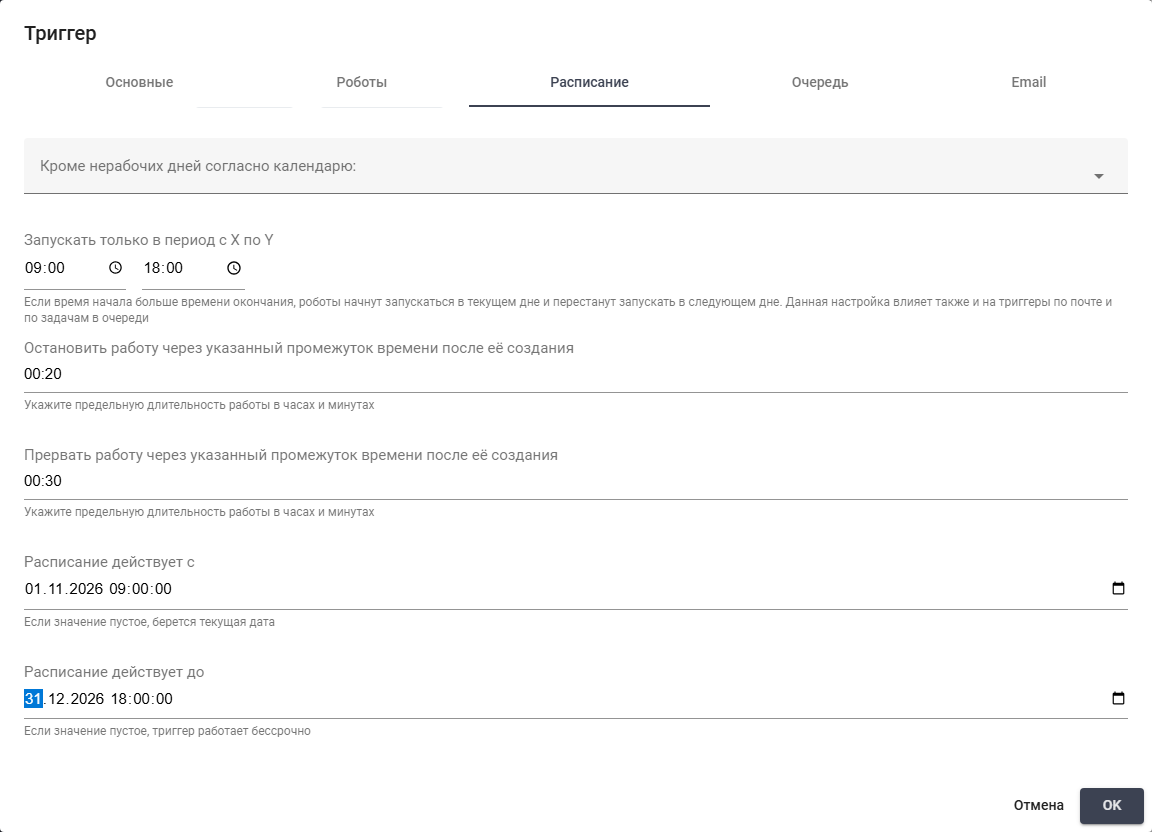
Stopping, interruption and schedule validity: 01.11.2026 09:00 to 31.12.2026 18:00.
"Every Nth day of the month" option#
This option selects a particular day of the month. "Nth day" is required.
Example: To create Jobs on the 15th, select "Every Nth day of the month" and enter 15 in "Nth day". Leave the other three options unselected and "Except non-working days according to the calendar:" empty to use calendar days. Set "Run within timespan from X till Y" to 09:00–18:00, "Stop Job after specified period of time since its creation" to 00:20, "Abort Job after specified period of time since its creation" to 00:30, "Start Time" to 01.11.2026 09:00 and "End Time" to 30.11.2026 18:00. Within these dates, Jobs can be created on the 15th when the other conditions are met.

"Every Nth day of the month" option (part 1/2)

Stopping, interruption and schedule validity: 01.11.2026 09:00 to 30.11.2026 18:00.
The "Queue" tab#
On "Queue", choose the Queue and Task selection conditions. New-Task processing uses tags, a count threshold and the retrieved Task status. To use one fixed Task, choose the other option and fill in "Task".
Required controls for the selected execution option:
- "Create jobs when new task appears in queue" option — creates Jobs for new Queue Tasks. Enables tag and count filters and the retrieved Task status. The "Task" value is not used.
- "Queue" field — selects the Queue from which Tasks are retrieved. Leave empty for email-only processing without Tasks.
- "Specify default task for jobs being created" option — links created Jobs to one selected Task. Makes "Task" required and does not use new-Task filters.
- "Task" field — selects the Task linked to created Jobs. Required when using one default Task.
Additional settings:
- "Consider only tasks marked with all of listed tags simulatanously" field — filters new Tasks by tags. Each matching Task must have all listed tags. Empty does not filter by tags. Available after selecting a Queue for new-Task processing.
- "Start when number of new tasks is greater than" text field — sets the new-Task count that must be exceeded.
5requires six matching new Tasks.0adds no count threshold, but a matching new Task is still needed. - "Set status of consumed task to" field — sets the retrieved Task status to "New" or "In Progress". "In Progress" marks it as taken for processing.
- "Finish on empty queue" checkbox — finishes the Trigger when no Tasks remain if checked. When unchecked, the Trigger keeps waiting for new Tasks.
When selecting a new Task, the Trigger first considers higher Task priority. Equal priorities are ordered by the earliest deadline, then by the earliest creation date. If all three values match, their relative order is not fixed. This controls Task selection, not the execution priority of created Jobs.
"Create jobs when new task appears in queue" option#
This option retrieves a new Task from the selected Queue for each created Job.
Example: To process orders, select the Обработка заказа Queue and "Create jobs when new task appears in queue". Leave "Consider only tasks marked with all of listed tags simulatanously" empty and set "Start when number of new tasks is greater than" to 0: any new Task qualifies. Select "In Progress" in "Set status of consumed task to" to mark the retrieved Task as being processed. Keep "Finish on empty queue" off to wait for further orders, and leave the second option unselected. "Task" is unavailable: a new Task is selected for each Job.
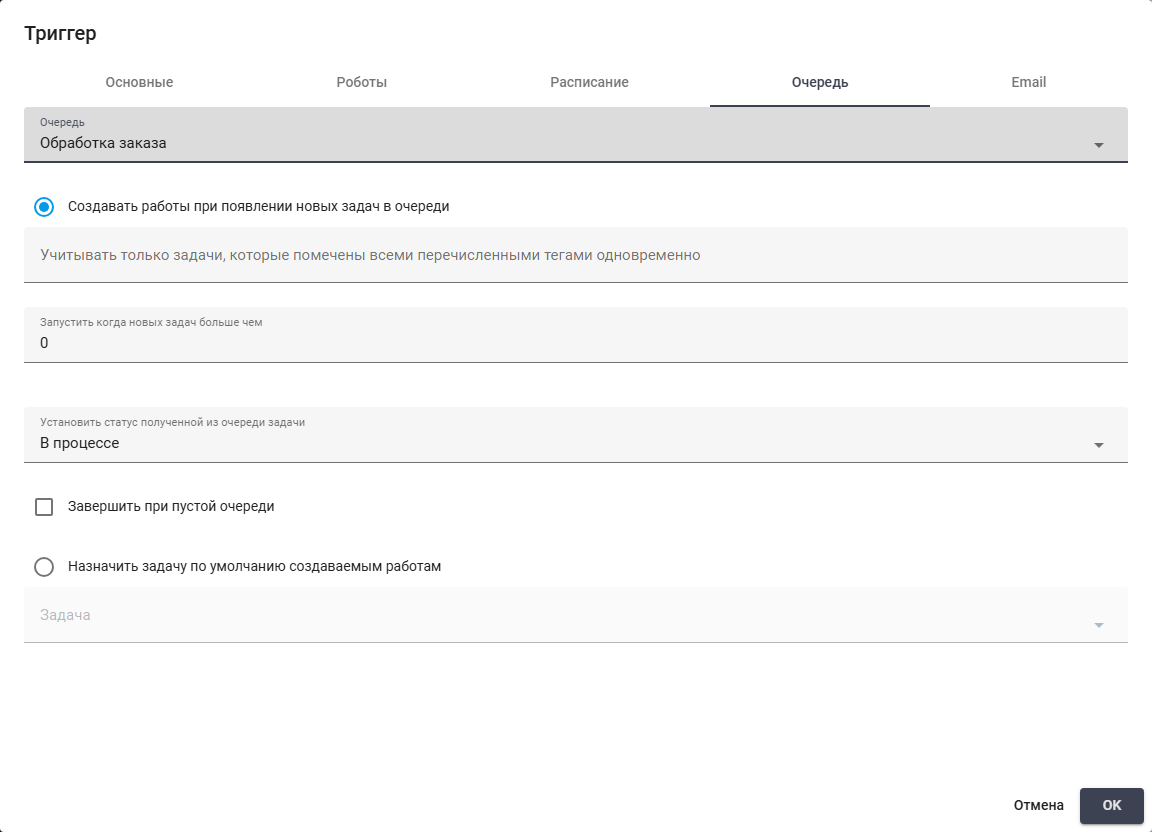
"Create jobs when new task appears in queue" option
"Specify default task for jobs being created" option#
This option links created Jobs to one specified Task.
Example: To link each Job to a specific order, choose Обработка заказа in "Queue", select "Specify default task for jobs being created" and choose Заказ 17 in "Task". Leave the first option unselected. New-Task filters are not used in this mode. Every created Job is linked to the selected Task.
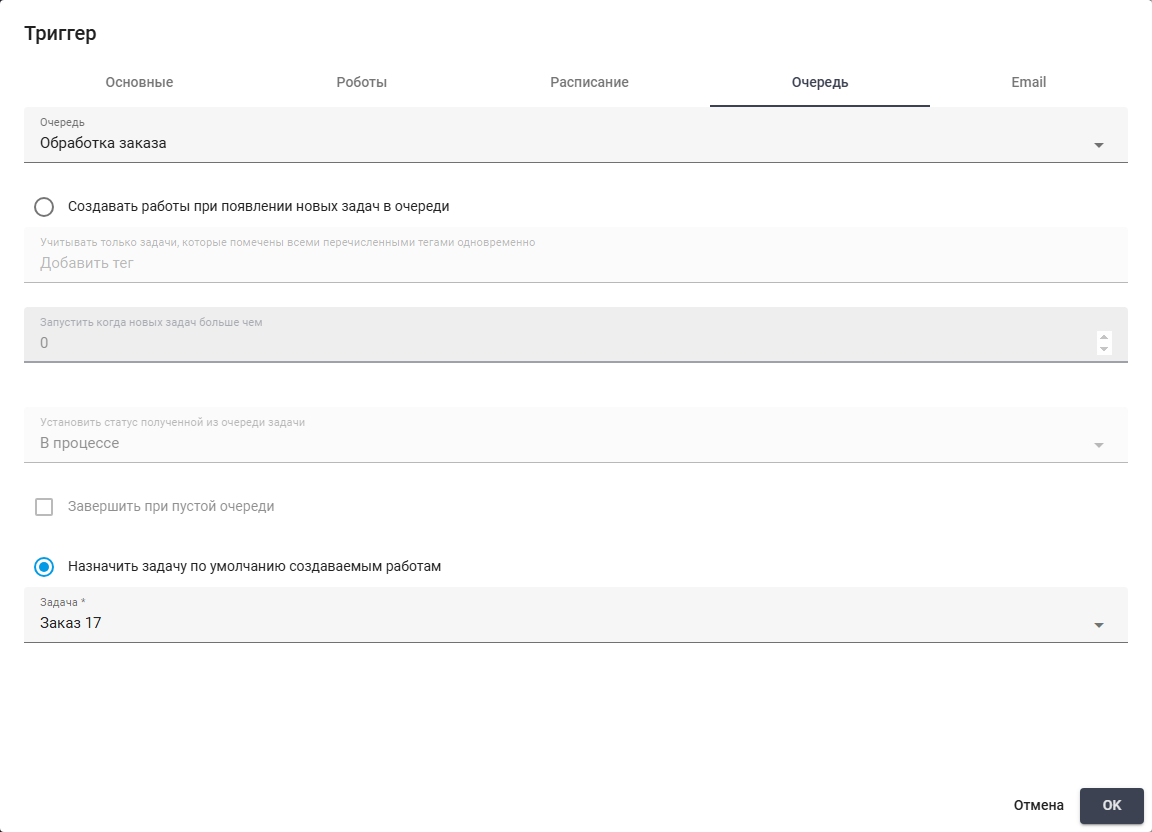
"Specify default task for jobs being created" option
The "Email" tab#
On "Email", specify the mailbox and the messages the Process must handle. Obtain the server address, port and credentials from the mail administrator.
Required controls for the selected execution option:
- "Create job when Email is received" checkbox — enable this checkbox to create Jobs when matching messages arrive. When disabled, mail is not a condition for Job creation.
- "Protocol" options — mail retrieval protocol. The current interface uses "IMAP". "POP3" cannot be selected. Use a protocol supported by the server and available in the interface.
- "Server encoding" options — connection encoding: "UTF-8" or "US-ASCII". Choose the server encoding so that messages can be read correctly.
- "Mail server" text field — mail retrieval server address. Enter the address supplied by the administrator to connect to the correct server.
- "Login" text field — account name for signing in to the mail server. Enter the login for the mailbox whose messages must be processed.
- "Password" text field — mail account password. Enter a valid password during initial configuration. When editing, an empty field preserves the password already stored on the server.
Additional settings:
- "Port" text field — connection port. Enter the server port when a nonstandard value is required. An empty field uses the default port for the selected protocol.
- "Name of shared inbox" text field — name of a shared mailbox accessible to several Users. Fill it in for a shared mailbox. Leave it empty for a personal mailbox.
- "Folder" text field — mailbox folder to check. Enter its path to use another folder. An empty value means Inbox. Nested folder separators depend on the server:
/,\,|or.. - "Use SSL" checkbox — enable SSL when the mail server requires a secure connection. A disabled checkbox does not request this connection.
- "Process unread emails only" checkbox — enable to select only unread messages. When disabled, read status does not restrict selection. Tracking of previously processed messages still applies.
- "Mark as read" checkbox — enable to mark messages as read after Jobs are created. When disabled, marking the processed message as read is not requested.
- "Create a single Job for any number of new emails / Create new Job for each new email" checkbox — message grouping for the Process. An unchecked box creates one Job for matching new messages. A checked box creates a separate Job for each new message.
- "Process if email subject contains substrings" text field — subject filter. Enter substrings separated by commas to filter subjects. Matching any substring is sufficient. An empty field disables the filter.
- "Process if email body contains substrings" text field — message body filter. Enter substrings separated by commas to filter content. Matching any substring is sufficient. An empty field disables the filter.
- "Process if email contains attachments with file names" text field — attachment name filter. Enter names or masks separated by commas.
*matches a sequence of characters and?matches one character.*.xlsxselects this file extension. Empty disables the name filter. - "Process when the count of suitable emails is greater than" field — minimum matching-message count for creating a Job. Despite "more than" in the label,
5requires five messages.0disables the separate count threshold, but at least one matching new message is still required. - field "Check email every N seconds" — mail polling interval in seconds.
60means one minute when other conditions are satisfied. Empty or0uses the interval set by the administrator, which defaults to 10 minutes. - "Test getting email" button — checks the connection and message count using saved settings. Save settings before testing. The test creates no Job and requires "Read" for Triggers.
When both a Queue and mail retrieval are enabled, Job creation requires both sets of conditions. For email-only creation, leave "Queue" empty.
Reopening does not display the saved mail password. Leave "Password" empty to retain it, or enter a new password and save with "OK" to replace it.
Example: To retrieve XLSX reports, enable "Create job when Email is received". Select "IMAP" and "UTF-8". Enter imap.example.org in "Mail server", 993 in "Port" and reports@example.org in "Login". Enter the mailbox password in "Password". Before use, replace the server, login and password with your mailbox credentials. Leave "Name of shared inbox" and "Folder" empty for a personal Inbox. Enable "Use SSL", "Process unread emails only" and "Mark as read". Leave "Create a single Job for any number of new emails / Create new Job for each new email" off to create one Job when reports appear. Set "Process if email subject contains substrings" to Отчет, leave "Process if email body contains substrings" empty and enter *.xlsx in "Process if email contains attachments with file names". Set "Process when the count of suitable emails is greater than" to 0 and "Check email every N seconds" to 60: one matching new message is enough and mail is checked once a minute. Do not click "Test getting email" before saving.
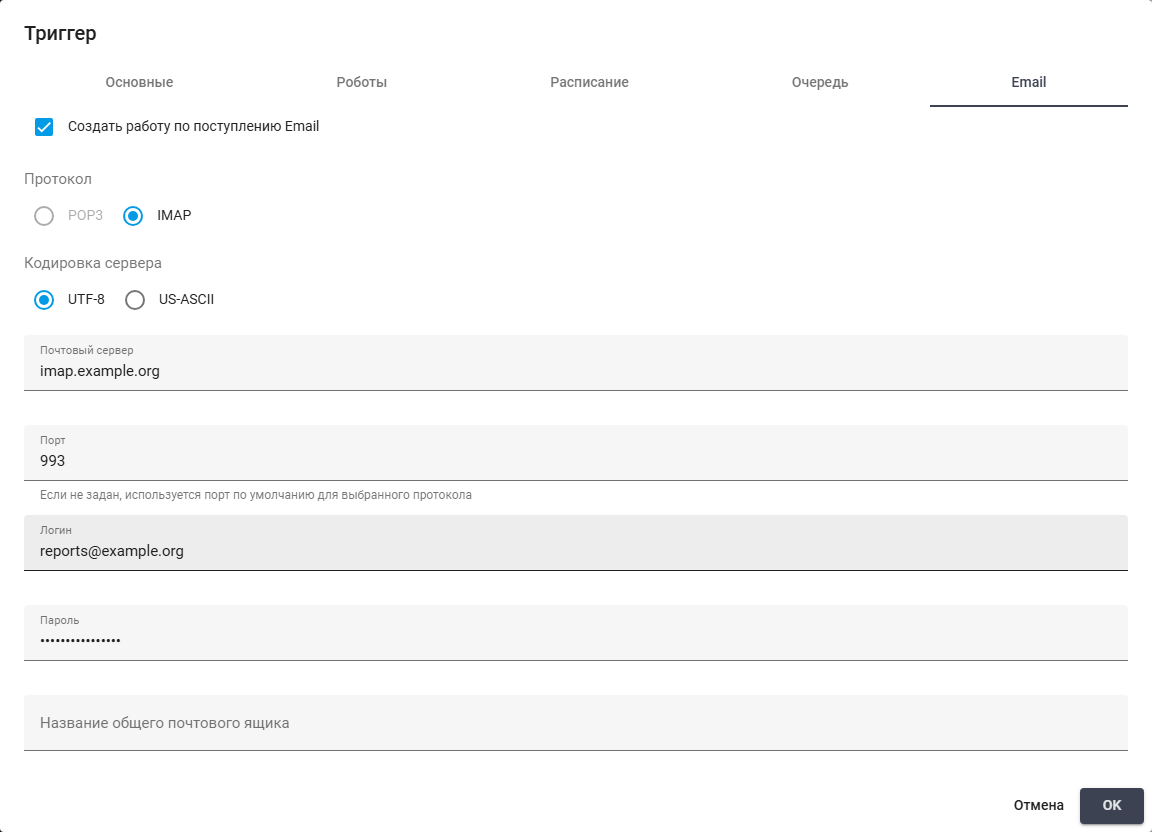
Mailbox protocol, encoding, server and account.
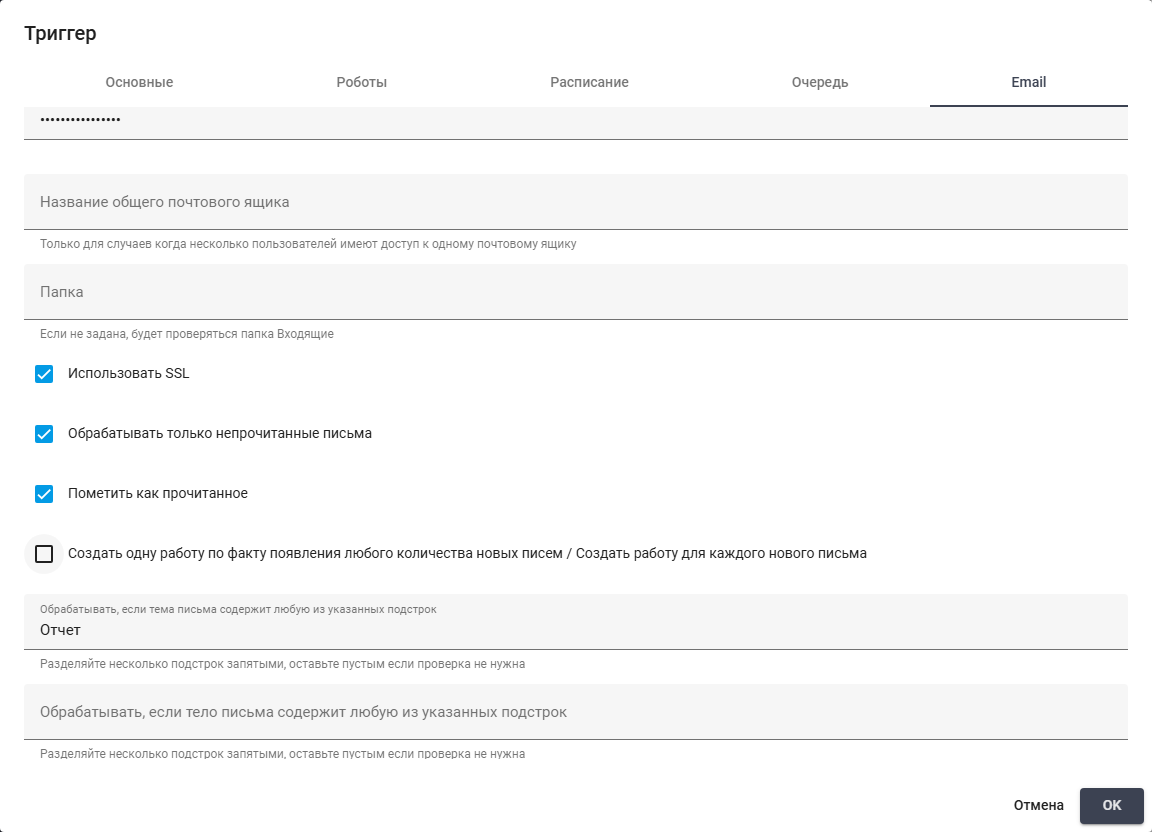
Mailbox folders, SSL and unread-message processing.
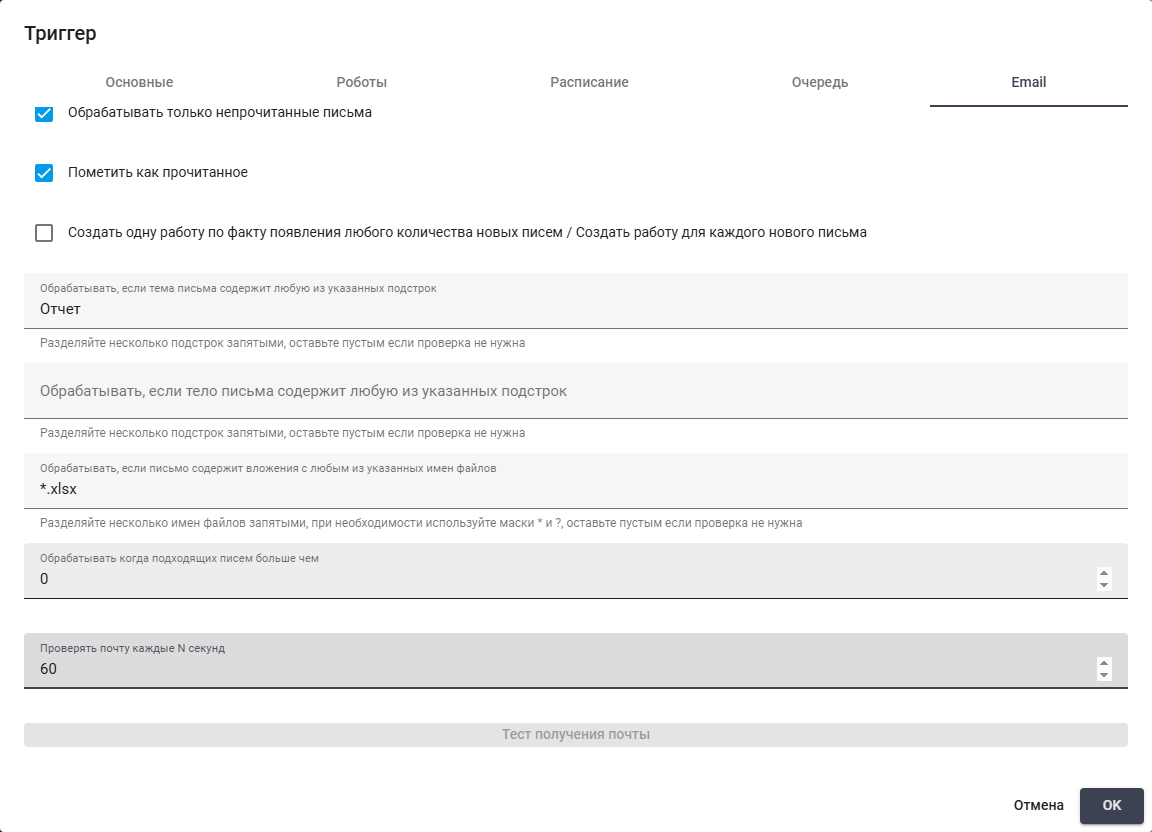
Message filters, XLSX attachments, count threshold and polling interval.
Click "OK" to save the Trigger settings. Check the saved values before enabling it.
Editing a Trigger#
To change Trigger settings, click the edit button  in its row. The "Trigger" dialog opens with the saved values.
"GUID" appears only for a saved Trigger and contains its unique identifier. It is read-only. The adjacent button copies it to address the correct record.
Example: To allow up to 500 executions of the saved "high" Trigger, change "Max Runs" to 500. Keep "Name" at "high", "Description" empty, "Created Job's Priority" at "High", "Access Folder" empty and "Process" at "testProc". Keep "Max monthly runs" at 0: no additional monthly restriction is needed. "Trigger Enabled" stays off and missed-execution checkbox stays on. "GUID" is read-only. After clicking "OK", the overall limit is 500 executions including those already performed.
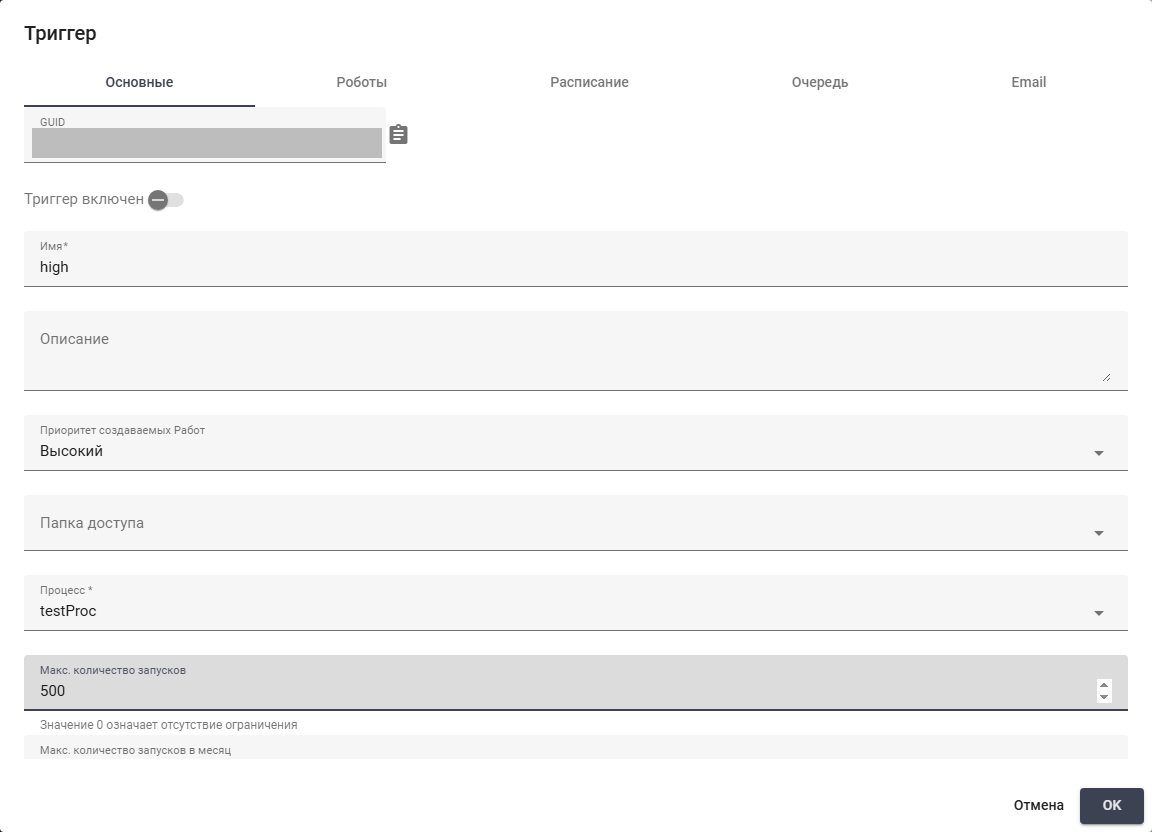
The "high" Trigger: changing the overall limit to 500 executions. (part 1/2)

The "high" Trigger: changing the overall limit to 500 executions. (part 2/2)