
Adding a Robot in the Orchestrator#
Robots are added on the Robots screen. It contains two tables: "Robot Groups" and "Robots".
If needed, create a Robot Group to contain the Robot. Click the "Create" button in the "Robot Groups" table and complete the form that opens.
.png)
Then select the checkbox next to the required Robot Group. New Robots will be added to the selected Robot Group.
To add a Robot, click the "Create" button in the "Robots" table. The Robot creation form opens.
.png)
Common fields in the Robot form#
The available fields depend on the selected Role. The following controls are available for all Roles:
- "Robot is active" switch — determines whether the Robot is enabled in the Orchestrator. If the switch is off, the Robot receives a shutdown command the next time it contacts the Orchestrator.
- "Name" field — the Robot's name, used to find it in the "Robots" table and select it for further configuration. Required.
- "Description" field — additional information about the Robot's purpose, such as the scenario it executes. Optional.
- "Access Folder" field — the folder to which the Robot belongs. It is used to restrict access to Orchestrator objects according to User Roles. See Object folders.
Creating an Attended Robot#
Select the Attended Role and enter the Robot's name. Add a description if needed.
Additional settings for this Role:
- "License" field — the license the Robot will use. Select a local license or an Attended license added to the Orchestrator.
- "Create Job when local robot is run" checkbox — automatically creates a Job in the Orchestrator when the Robot is started from Sherpa Assistant on the User's computer.
- VNC RA2 server key SHA-256 fingerprint field — the VNC server key fingerprint used to verify the server when connecting to the Robot's desktop. Copy the value from the VNC settings of SherpaRPA running under the same Windows account as ProcessAgent. This field is also available for the Unattended Role.

An Attended Robot runs locally on the User's computer. Creating a Job from the Orchestrator does not start this Robot. See how different Robot types work.
Creating an Unattended Robot#
Select the Unattended Role and complete the additional fields in the form:
- "Machine (IP address or domain name)" field — the IP address or domain name of the terminal server or virtual machine on which the Robot is installed.
- Account credential fields — the login and password of the operating system account under which the Robot must run on the specified machine. Include the domain in the login if needed. If the credentials are stored in a Resource, select it in the "Username and Password from Asset" field.
- "Remote debugging" checkbox — enables running the Robot in remote debugging mode through Sherpa Designer. This mode lets you check scenario execution on the Robot's machine from Designer. In the "IP of machine with Designer for remote debugging" field, enter the IP address and port of the Designer machine in the format
IP:port. - "Coordinator" field — the Coordinator instance that will create a user session on the Robot's machine to start it. If the user session is started manually, an Unattended Robot can receive Jobs without automatic login through a Coordinator.
- "License" field — the license the Robot will use. Select a local license or an Unattended license added to the Orchestrator.

Creating a Coordinator#
Select the Coordinator Role, enter a name, and choose an access folder. Use the "Description" field to specify the server where the Coordinator is installed and the Robots it serves. This Role does not require a license or machine account credentials.
A Coordinator is a service that creates and maintains a user session to start an Unattended Robot on a command from the Orchestrator. It establishes an RDP connection — a remote desktop connection to a terminal server or virtual machine. It logs in to that machine's operating system using the account assigned to the Robot. The login and password come from the Unattended Robot's form or the Resource selected for it.
A Coordinator is needed when the user session must open automatically, without the User manually logging in to the Robot's machine. The Unattended Robot starts in this session and receives a Job from the Orchestrator. The Coordinator itself does not execute Robot scenarios.
Creating the form entry in the Orchestrator does not install the service on the machine. Install and configure the Coordinator using the appropriate distribution package. It does not require a separate license. See installing the Coordinator on Windows.
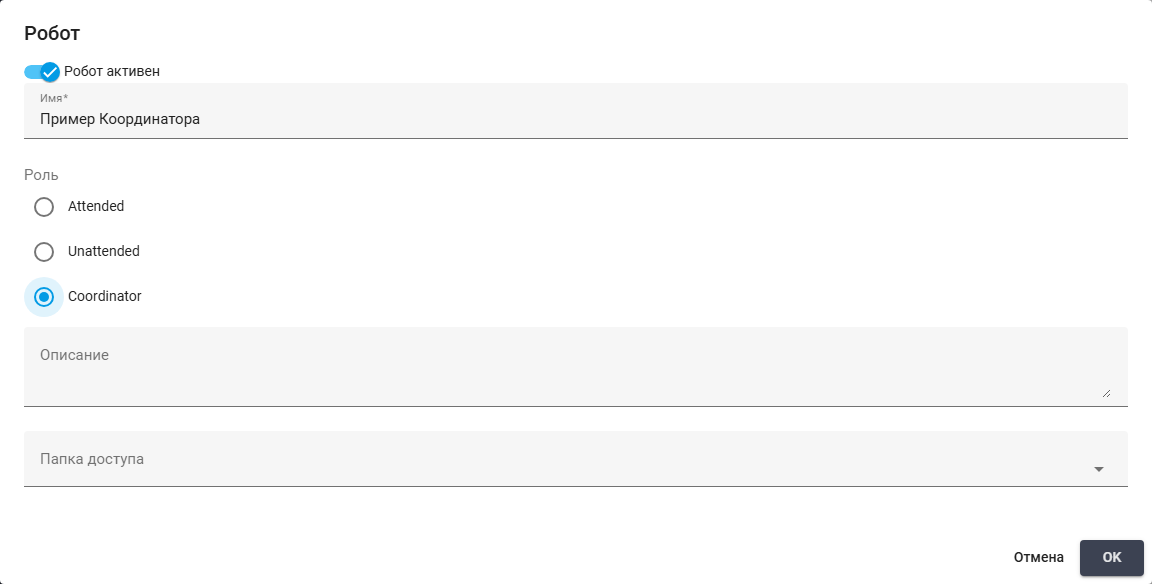
After completing the form, click the "OK" button. The data is saved, and the new Robot appears in the "Robots" table of the selected Robot Group.