
Manual Search for CSS Selectors Using Sherpa Explorer#
Sherpa Explorer lets you record a web page element, inspect its attributes, and build a CSS selector. You can test the selector and send it to a Sherpa Designer block.
Preparation#
The Sherpa RPA browser extension must be installed and enabled to work with web elements. The steps below apply to Sherpa Designer for Windows.
The instructions and screenshots use the Russian Sherpa Explorer interface. Button and area labels are retained as shown in that interface.
The examples use a training page containing the "Войти" (Sign In) button, the "Код" (Code) field, and two report links. It contains no credentials and does not submit a form to a server.
Download the training page archive and extract it to a separate folder. This folder will contain css-example.html. If Python is installed, open a terminal in that folder and start a local server:
python -m http.server 8769 --bind 127.0.0.1
Open http://127.0.0.1:8769/css-example.html in the browser. Keep the terminal open during the test. To stop the server, press Ctrl+C in the terminal.
Training page for the CSS selector examples.
Open the required browser page and wait for it to load.
Put the page into the state in which the Robot will search for the element. For example, open a dropdown list or a popup menu.
In Sherpa Designer, select the required block in the "Автоматизация браузеров" (Browser Automation) group. In the property panel, click the ellipsis button
 beside "Селектор" (Selector).
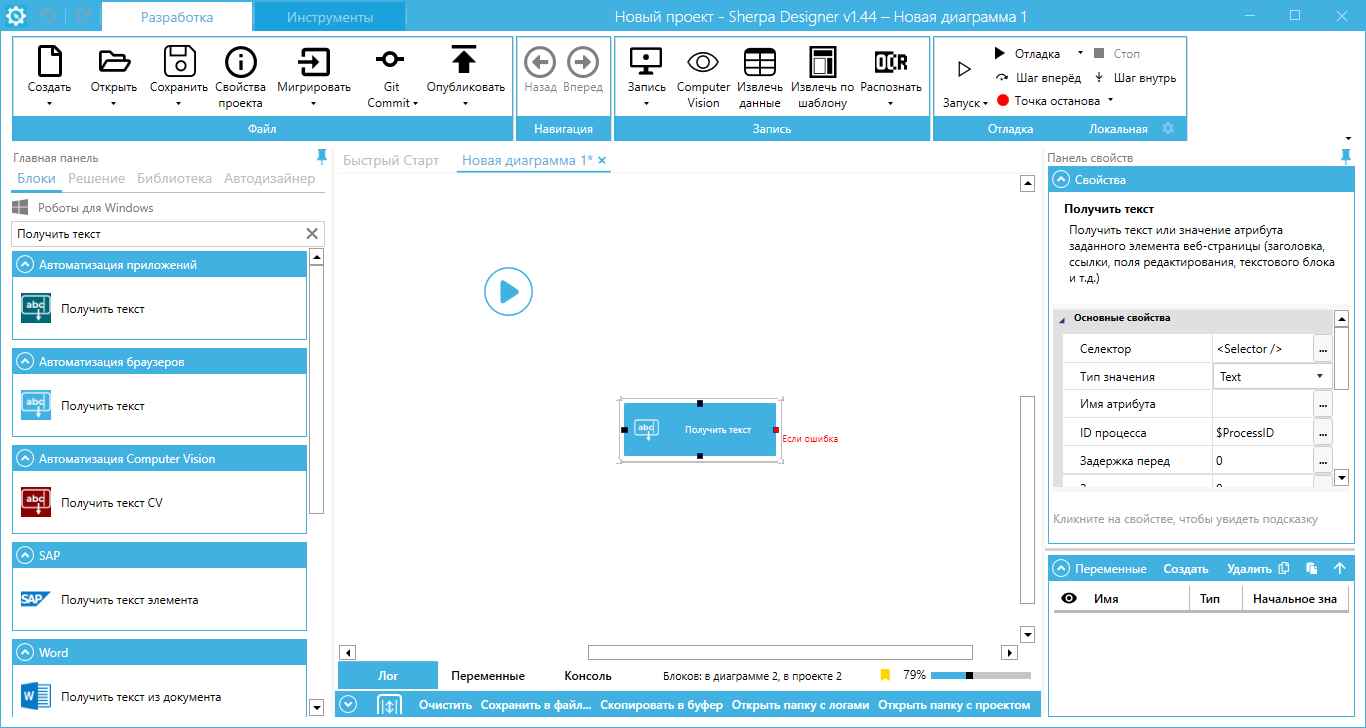
Sherpa Designer window: "Получить текст" block and "Селектор" property.
In the "Селектор - Редактировать селектор" window, click "Открыть в Sherpa Explorer" (Open in Sherpa Explorer). Keep this editor open to receive the selector.
Example: the "Селектор" editor is open for the "Получить текст" (Get Text) block. Its table is still empty. The "Открыть в Sherpa Explorer" button launches the tool used to build the selector.
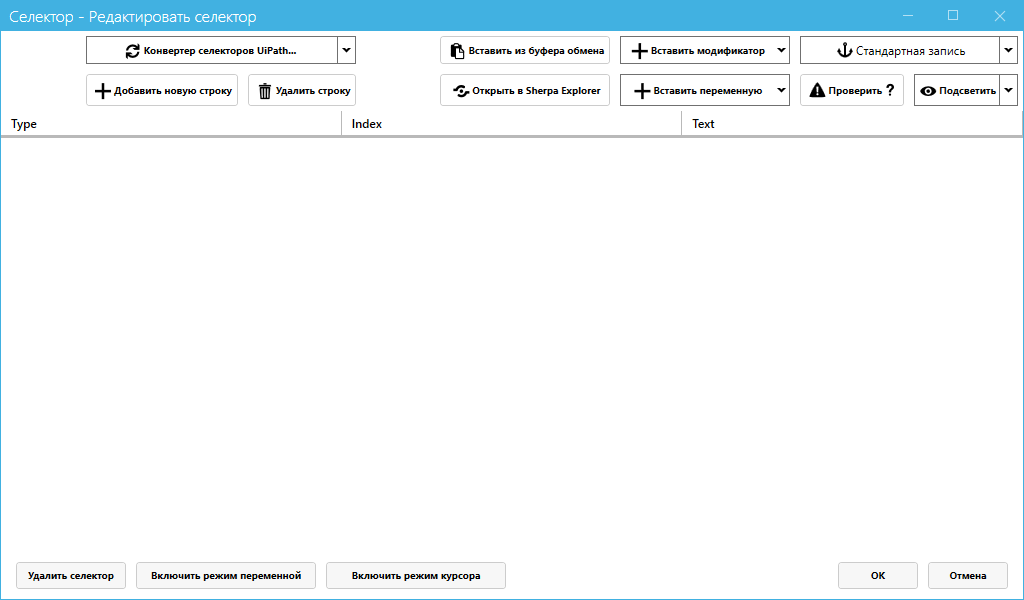
"Селектор - Редактировать селектор" window: empty table and "Открыть в Sherpa Explorer" button.
Recording an Element and Viewing Its Attributes#
Recording an element builds a page tree where the required HTML element is selected to create a selector.
- Click "Запись" in Sherpa Explorer.
- Hover over the required web page element and press Ctrl. The element tree will appear in Sherpa Explorer.
- Select the element in the tree. If a parent container was recorded, double-click to expand its child elements until you find the required element.
- In the "Атрибуты" (Attributes) area, inspect the tag name and available HTML attributes. Compare them with the attributes of neighboring elements.
- Click "Собрать данные" to build a selector for the selected element.
If you cannot find the required HTML element in the tree, inspect its markup using the browser developer tools.
Example: to record the "Войти" button on the training page, click "Запись", hover over "Войти", and press Ctrl. Select INPUT in the tree, then click "Собрать данные". The "Селектор" area will contain a Process row named chrome and a CSSElement row with INPUT[name='login'].
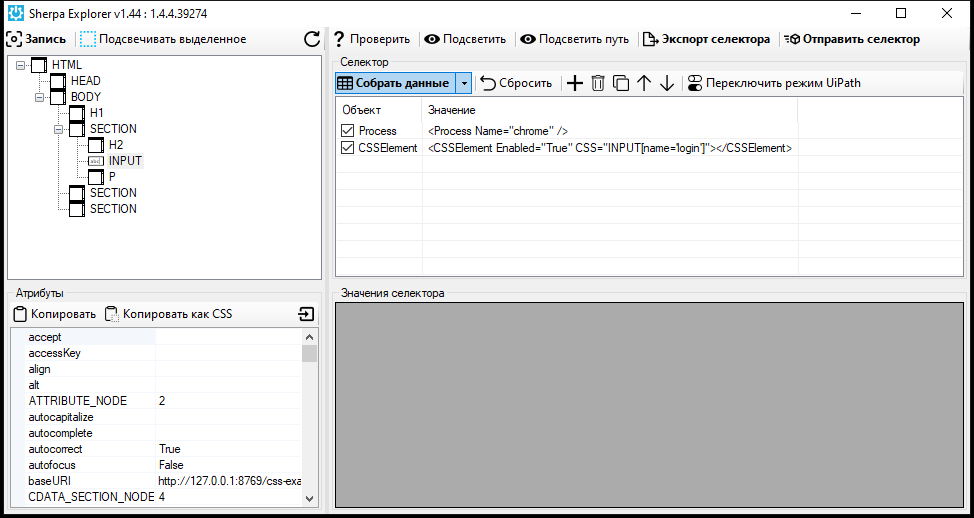
Sherpa Explorer window: recorded "Войти" button and collected selector.
Building a CSS Selector#
In the "Селектор" (Selector) area, select the CSSElement row. In the "Значения селектора" (Selector Values) area, edit the "CSS" value.
Use properties that remain consistent when the page is reopened:
- tag name — identifies the HTML element type, such as
input; idattribute — identifies an element if its value does not change;nameattribute — specifies the element name in HTML;typeattribute — distinguishes, for example, a text field from a submit button;aria-labelattribute — provides an accessible element name when specified;- class — helps locate elements with a common purpose if its name remains stable.
A long path with indexes and random class names may change after a page update. See How to Tell If a Selector Is Not Optimal? for details.
Example: to find the "Войти" button, select CSSElement. In "Значения селектора", "CSS" is enabled with INPUT[name='login']. "Index", "Text", "ParentIndent", "TableCol", and "TableRow" are cleared. The search uses the "CSS" expression without additional conditions.
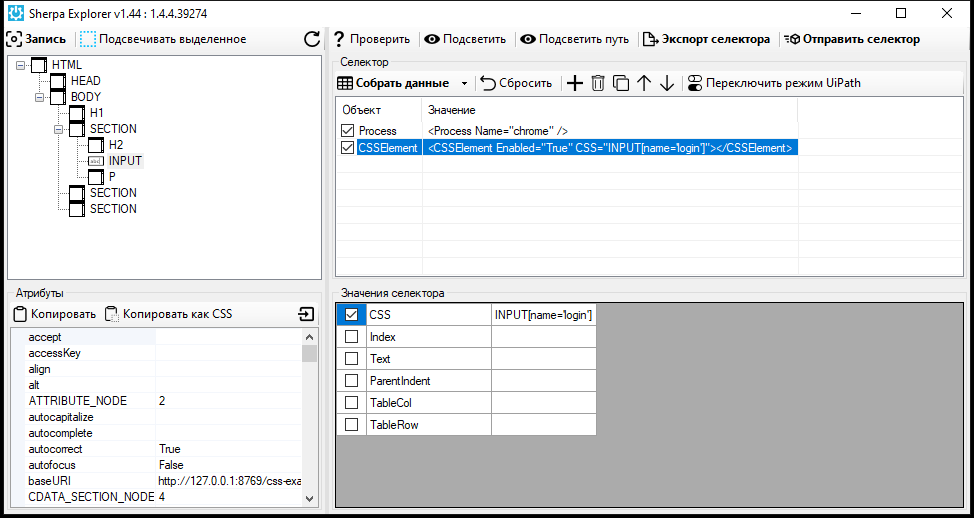
Sherpa Explorer window: CSSElement conditions for the "Войти" button.
Searching by Multiple Attributes#
To match several conditions at once, place the attributes next to each other without spaces between them:
input[name='login'][type='submit']
This selector searches for an input tag whose name is login and whose type is submit.
The "Копировать как CSS" button in the "Атрибуты" (Attributes) area copies the selected attribute as a selector fragment, such as [name='login']. Add this fragment to the tag name or to the CSS selector you have already built.
Example: to find "Войти", enter input[name='login'][type='submit'] as the "CSS" value. Leave only "CSS" enabled and clear the other conditions in CSSElement. Click "Проверить". The green background of this button confirms that the element was found.
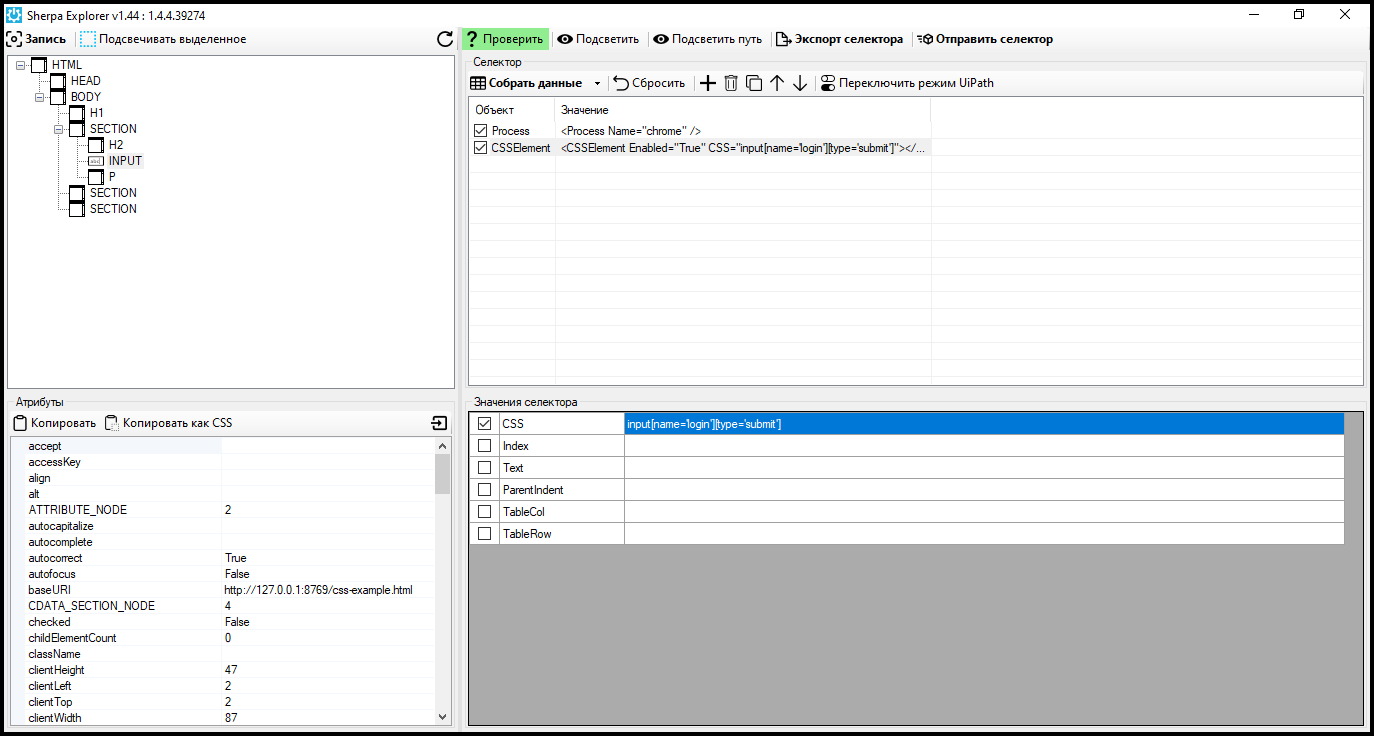
Sherpa Explorer window: finding the button by name and type.
Searching by the Fixed Part of an Attribute#
If part of an id changes, use its fixed part. For example, the following selector matches a field with the identifiers direct-proposal-secret-code-123 and direct-proposal-secret-code-456:
input[id^='direct-proposal-secret-code-']
The ^= operator means that the attribute value starts with the specified string.
| Condition | Example |
|---|---|
| Exact value | input[id='account-code'] |
| Start of the value | input[id^='direct-proposal-secret-code-'] |
| End of the value | input[id$='-code'] |
| Substring within the value | input[id*='proposal'] |
Do not replace the changing part of a value with an asterisk: in input[id='direct-proposal-secret-code-*'], the * character inside the quotes represents a literal asterisk rather than any sequence of characters. Use ^=, $=, or *= to search by part of a value.
For the CSSElement row, check the "CSS" value and the "Text" checkbox in "Значения селектора" (Selector Values). "CSS" contains the search expression. Enabling "Text" also restricts the search to the text saved during recording. Clear this checkbox to find a field regardless of its content. To find an element by a specific label, keep the condition enabled with the required text.
Also check the parent rows against the open page: they must refer to the required browser and document. Changing "CSS" does not correct an incorrectly selected page.
Only "CSS" is enabled in these examples. "Index", "Text", "ParentIndent", "TableCol", and "TableRow" are cleared, so their values do not participate in the search. Recording a link may enable "Text": clear it before repeating the example.
Example: to find the "Код" field, enter input[id^='direct-proposal-secret-code-'] as "CSS". Leave only "CSS" enabled. Click "Проверить": the field is found. The "Изменить ID" button on the training page changes the identifier suffix from 123 to 456. After this change, test the same expression again.
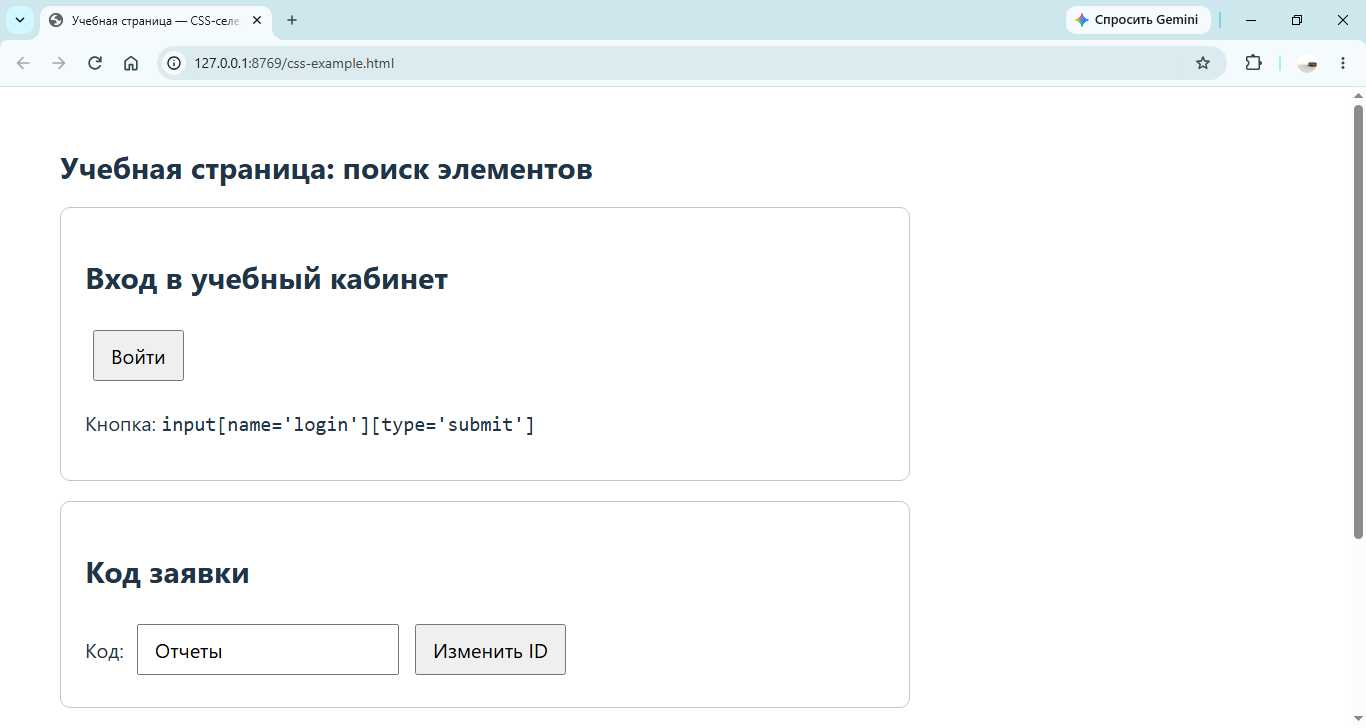
Google Chrome window: "Код" field and "Изменить ID" button on the training page.
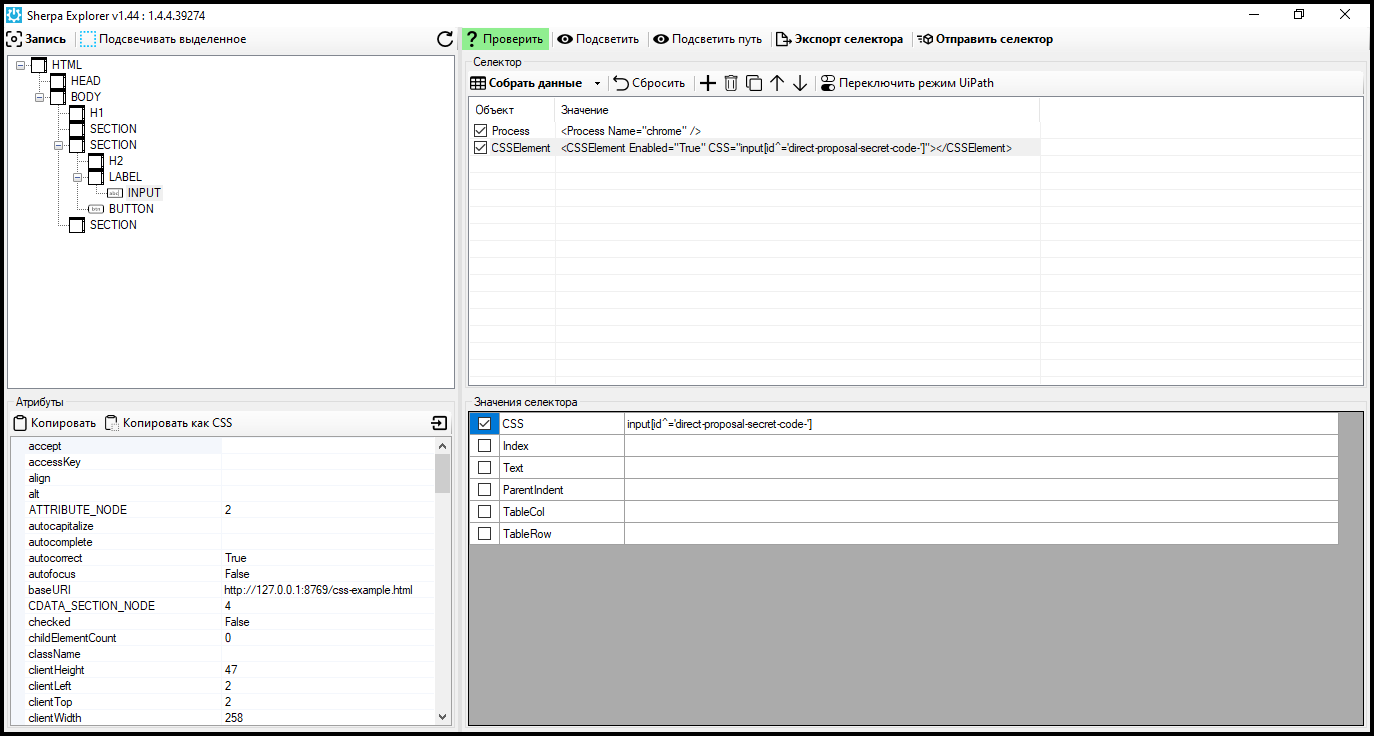
Sherpa Explorer window: finding "Код" by the fixed part of id.
Searching with a Parent Element#
If identical links or buttons appear in different containers, add the parent element's properties to the CSS selector. For example:
div.attachment:not(.d-none):not(.no-valid) a[href*='/filestore/public/']
The selector searches for links whose href contains /filestore/public/ inside a div container with the attachment class. Containers with the d-none or no-valid classes are excluded.
The class names in this example belong to a specific page markup. Other websites may use different properties to mark hidden or inactive elements. If such a property belongs to the parent container, apply the condition to that container. An element's presence in HTML does not mean it is visible on the page.
For the full list of search options, see the CSS and XPath Selector Notation Reference.
Example: to select "Отчет за октябрь", enter div.attachment:not(.d-none):not(.no-valid) a[href*='/filestore/public/'] as "CSS". Leave only "CSS" enabled and click "Проверить". The link is found. "Черновик отчета" is excluded because its container has the no-valid class.
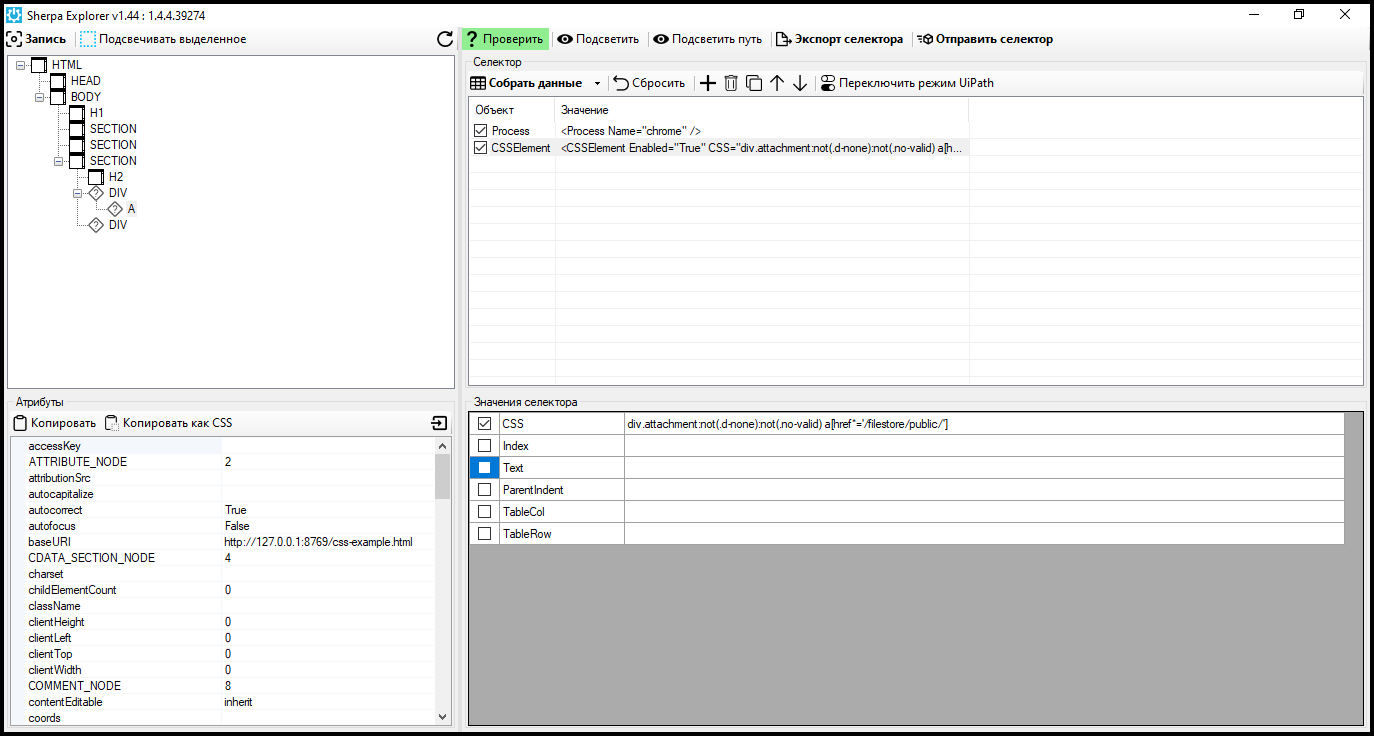
Sherpa Explorer window: finding a link using parent container classes.
Testing and Sending the Selector to a Block#
Before transferring the selector, check that it finds the required element after a page refresh. Then send it to the open "Селектор" editor for the selected block and confirm the changes.
- Click "Проверить" to check whether an element matching the specified conditions exists.
- Click "Подсветить" and make sure the required element is highlighted. If needed, use "Подсветить путь" to check the hierarchy.
- Repeat the check after refreshing the page and changing its data. If the element is not found or a different element is highlighted, refine the attributes or parent container.
- In Sherpa Designer, select the required block and open its "Селектор" editor using the ellipsis button . If the editor is still open from preparation, return to it. In Sherpa Explorer, click "Отправить селектор". The data will appear in the open editor. Check the received rows and click "OK" to save the selector in the block property.
- Run the block in debug mode and check the action's result.
To transfer through the clipboard instead, click "Экспорт селектора" in Sherpa Explorer. In the required block's editor, click "Вставить из буфера обмена", check the rows, and confirm with "OK".
A successful check confirms that an element matches the selector in the current page state. It does not replace testing the block's action and searching again after the page changes.
Example: to transfer the selector for "Войти", click "Отправить селектор" in Sherpa Explorer. The selected block's editor receives a Process row named chrome and a CSSElement row containing input[name='login'][type='submit']. "Text" is not specified. Check the rows and click "OK".
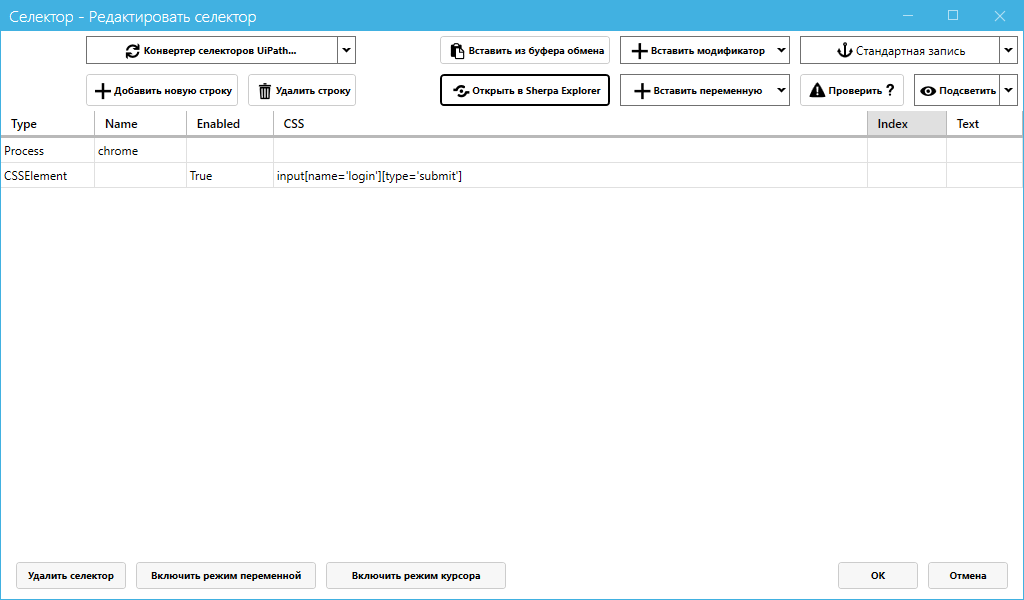
"Селектор - Редактировать селектор" window: CSS selector for "Войти" received from Sherpa Explorer.
If the Element Is Not Found#
If the search does not produce the required result, first check web element recording and the extension connection. Then check the selector conditions and the page state.
- If recording or highlighting selects the entire browser window, check whether the Sherpa RPA extension is installed and enabled. Then record the required web element again.
- If the selector only works until the data changes, check the dynamic parts of the
id, random class names, and the "Text" condition. - If extra elements are found, add a stable attribute or limit the search to a parent container. Check for hidden copies of the element in the HTML.
- If the element appears after another action, perform that action first. In the workflow, use the "Ожидать появление" (Wait for Appearance) block before accessing the element.
- If Sherpa Explorer does not open, check the log in
%APPDATA%\Sherpa RPA Data\!SherpaExplorer\. When contacting technical support, provide the Sherpa Designer and browser versions, a description of the error, and the relevant log.
For a description of all areas and buttons, see Sherpa Explorer.
Example: "CSS" is set to input[id='missing-code']. The training page has no element with that identifier, so "Проверить" turns red when clicked. To find "Код", replace the expression with input[id^='direct-proposal-secret-code-'] and test again.
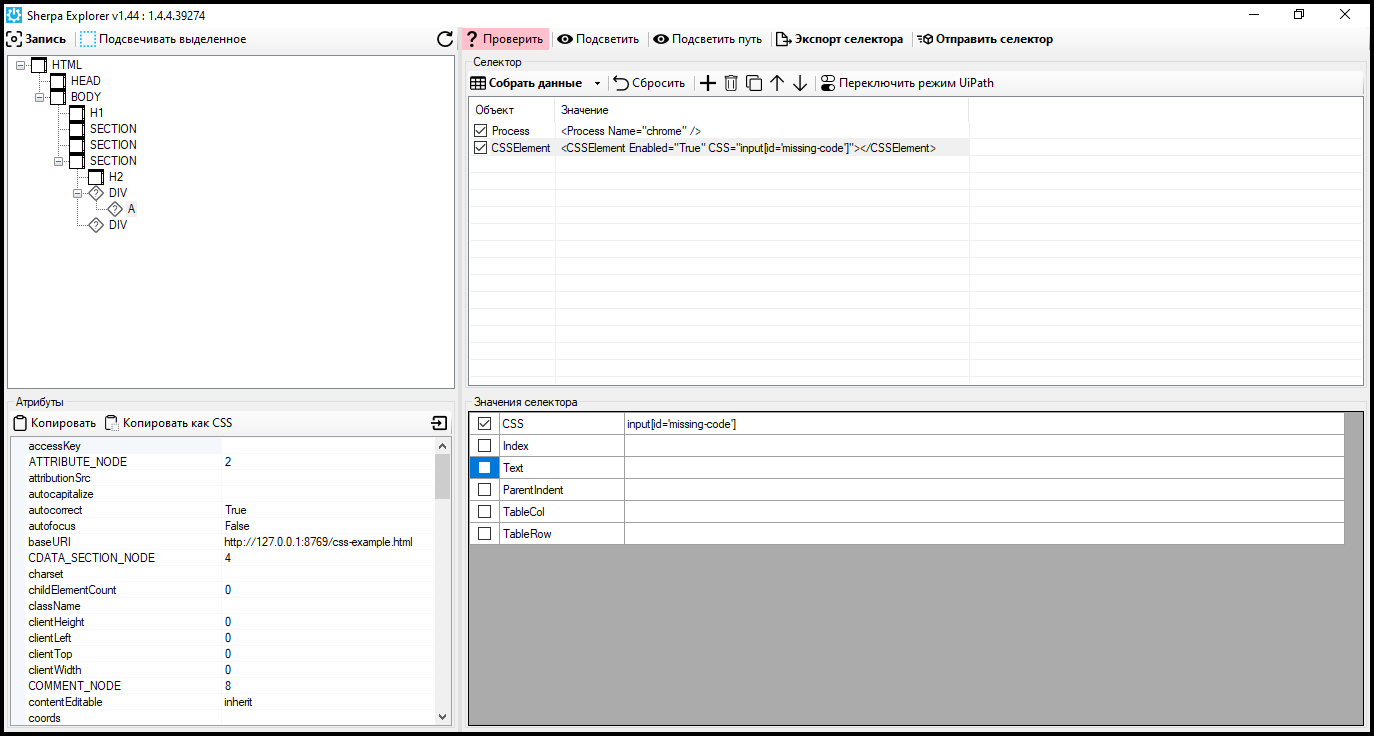
Sherpa Explorer window: failed search for a nonexistent id.