
Smart Assistant#
The Smart Assistant is an intelligent tool designed to automatically provide the User with necessary functions in the field of programming and/or regular expressions based on a text description.
There are several types of smart assistants:
- in the expression editor,
- in the regular expression generator,
- for code generation in code editors.
Smart Assistant in the Expression Editor#
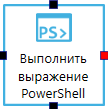
Open the project in Sherpa Designer, add the “Execute PowerShell Expression” block to the diagram:
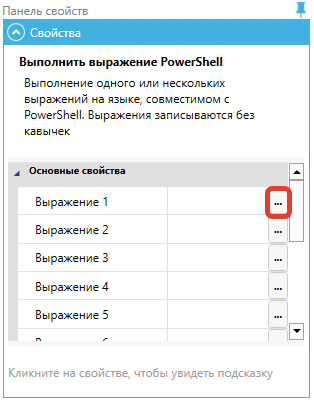
Click the button  to the right of any “Expression …” field on the “Properties Panel”:
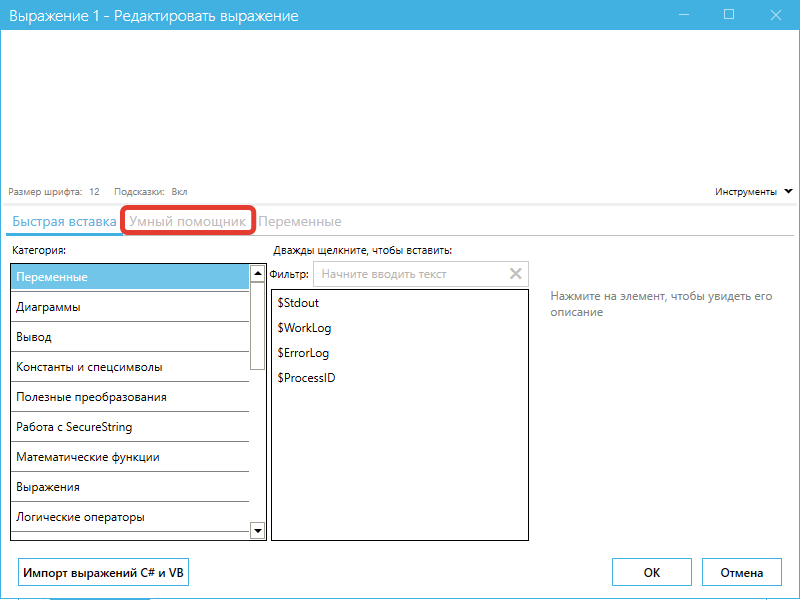
In the popup window “... Edit Expression”, click on the “Smart Assistant” tab:
Enter the text description of the expression in the “Your Request” field:
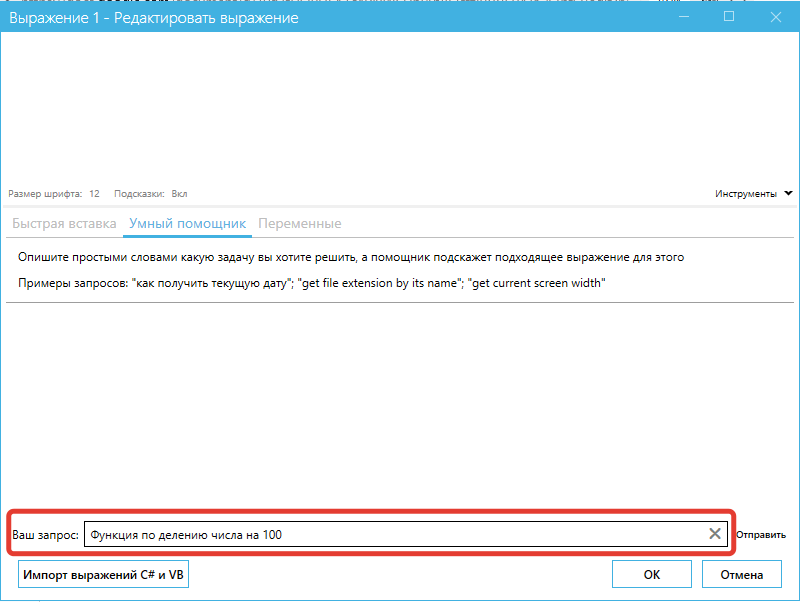
Click the “Submit” button and the smart assistant will suggest the necessary expression:

Next, copy the expression and enter it into the appropriate field in the “Main Properties”.
Smart Assistant in Sherpa Regex#
Open the project in Sherpa Designer, find the “Open Sherpa Regex” icon in the “Advanced” menu:  , and double-click on it with the left mouse button.
In the popup window “Testing Regex …”, enter the text description of the expression in the “REQUEST” field:
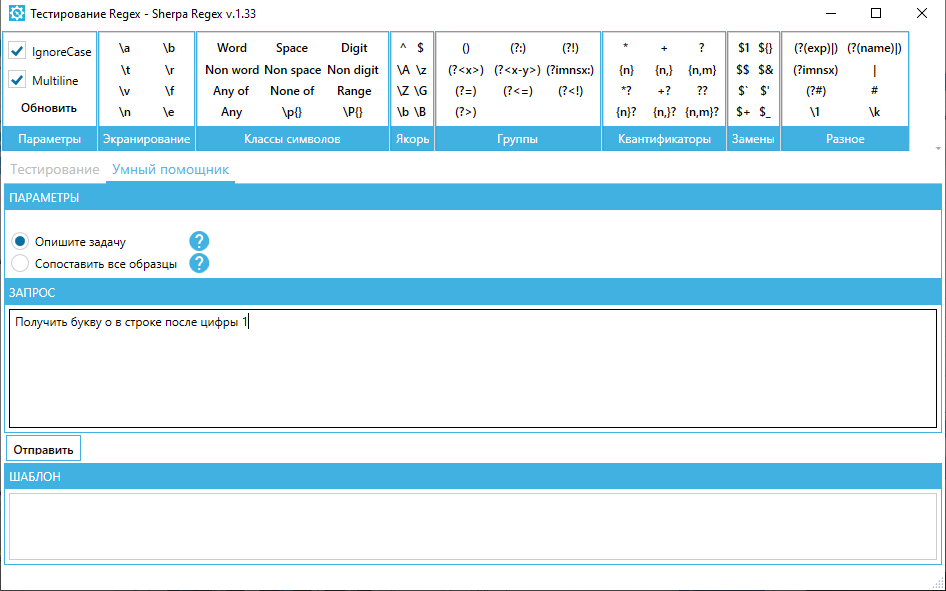
Next, click the “Submit” button. The necessary expression will appear in the “TEMPLATE” field:
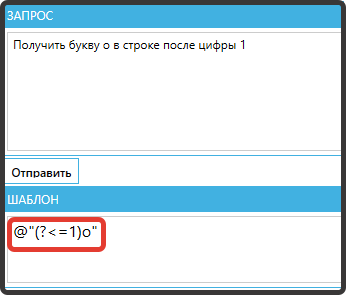
Copy the expression and enter it into the appropriate field in the “Testing” tab.
Smart Assistant for Code Generation in Code Editors#
Open the project in Sherpa Designer, add one of the following blocks to the diagram:
- “Execute C# Code”:
- “Execute Python Code”:
- “Execute Java Code”:
- “Execute VB Code”:
Click the button  inside the block. In the “Editor … Code” window, click the button
  .
.
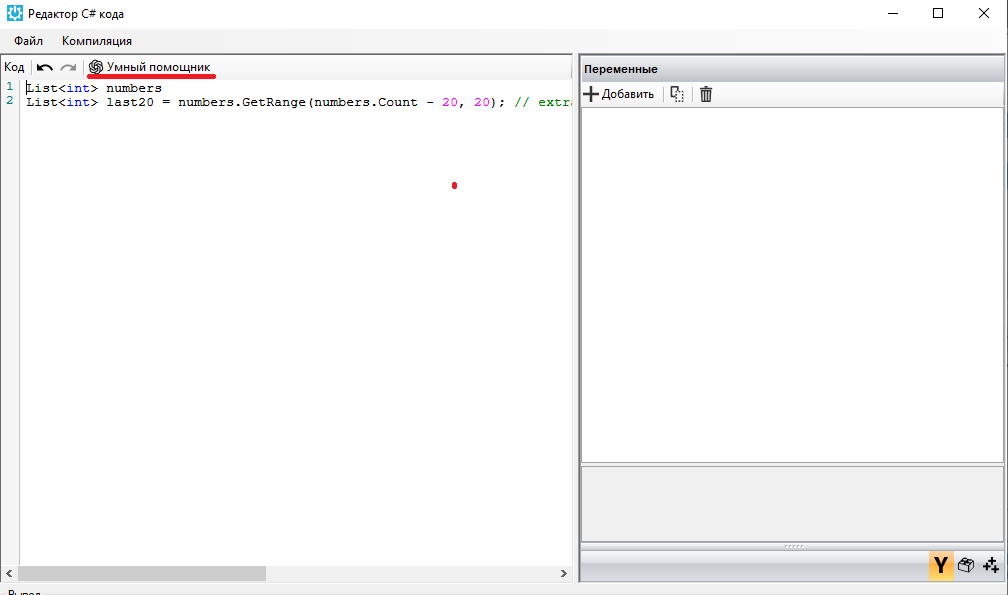
In the popup window “Smart Assistant”, enter the text description of the code in the “Current Request” field:
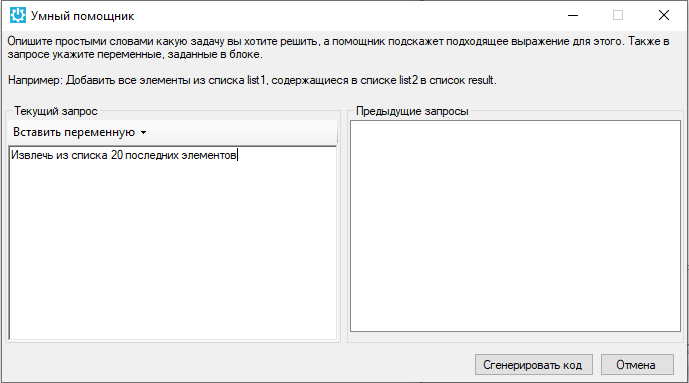
Click the “Generate Code” button. The code in the required programming language will appear in the “Editor … Code” window.