
Version 2.6.0#
A new Sherpa AI Server release is available: Version 2.6.0.
Release date: 18 November 2026.
1. Before upgrading#
Before upgrading, read the notes for every intermediate version and meet their requirements. If the current version is below 2.5.0, agree on the upgrade path with support.
To use Skills, upgrade the code interpreter service's Docker image together with the server. Custom builds require an up-to-date base containing packaging==24.0. This library checks Python package requirements. An older base without it cannot be used to build the new service.
Data-processing components update dependencies to address vulnerabilities. The fixes are provided in the corresponding Docker images, which must be applied during the upgrade.
2. Skills catalog and assistant assignments#
The navigation menu now includes Skills. You can create a skill or import a ZIP with SKILL.md, Python scripts, templates and other resources. Uploading a resource directory preserves relative subfolder paths. Search, column-menu filters, sorting and pagination help you find and reuse a package.
A skill can now be assigned to several assistants. Updating its instructions and files in the catalog makes the changes available to its assigned assistants. "All agents" applies to current and future assistants in the account and is configured when signed in as the account.
The assistant editing dialog's "Skills" tab now offers "Connect skill" with a search of available packages. Connected skills appear as compact cards with availability switches. Account-wide assignments are marked separately. Users with read permission can view instructions and download resources. Editing and connecting require permission to update assistants. This makes reusable instructions available while preserving object-folder access restrictions.
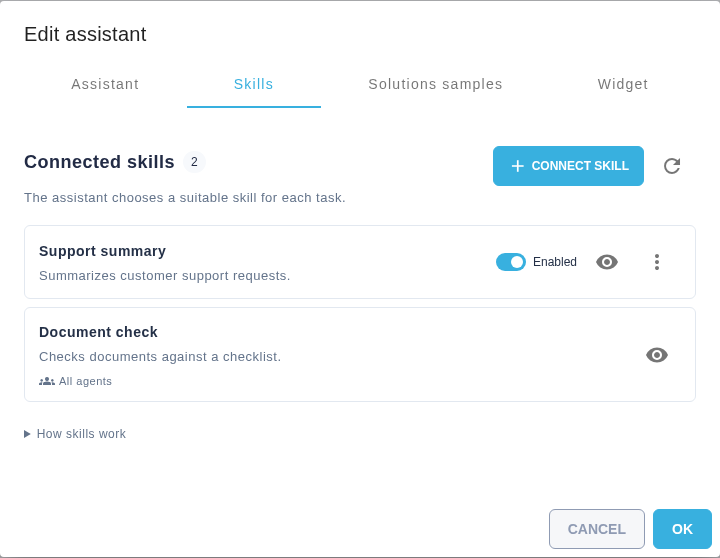
Edit assistant dialog, Skills tab
No additional environment-variable setting is required to enable the feature. Package preparation and permissions are described in the assistant skills guide.
3. Skills in Chat#
Chats with an assistant now support automatic skill selection based on the task in "Agent" and "Code interpreter" modes. For ordinary use, send a request. To select a skill manually, open the tools menu at the bottom left of the input, choose "Skills", then click a package title in the separate dialog. A compact label shows the selected skill. Clearing it restores automatic selection and preserves the draft. A separate field no longer takes space above the input, and the chat mode stays unchanged.

Chat input, Agent mode, Monthly report selected
Full instructions are sent to the model. If the catalog and instructions exceed the context available, the server reports the limit. Shorten the descriptions or instructions, or choose a model with a suitable context size. Python package requirements are checked before execution. Invalid package names and version requirements are rejected before a skill is saved. A missing package produces a warning. If the check is unavailable, the status is "Compatibility not checked". Skills do not install packages automatically. Packages installed from local wheels or direct URLs are recognized by their actual name and version.
On the first successful use, the run retains a version of the instructions and resources. Skill files are read-only for Python. Editing a package does not replace material already loaded by the current run. Access to the assistant and skill is checked again, including after an object-folder change or assignment being disabled. After completion or cancellation, temporary copies are removed in the background while preserving active runs' resources and documents generated in Chat.
4. Model capabilities and default assignments#
The Models screen now provides independent capabilities for document OCR, image analysis, video and other operations. In a model card, administrators can test capabilities using a saved active instance and select the operations for which the model is the default. Document OCR and image processing can therefore be configured separately.
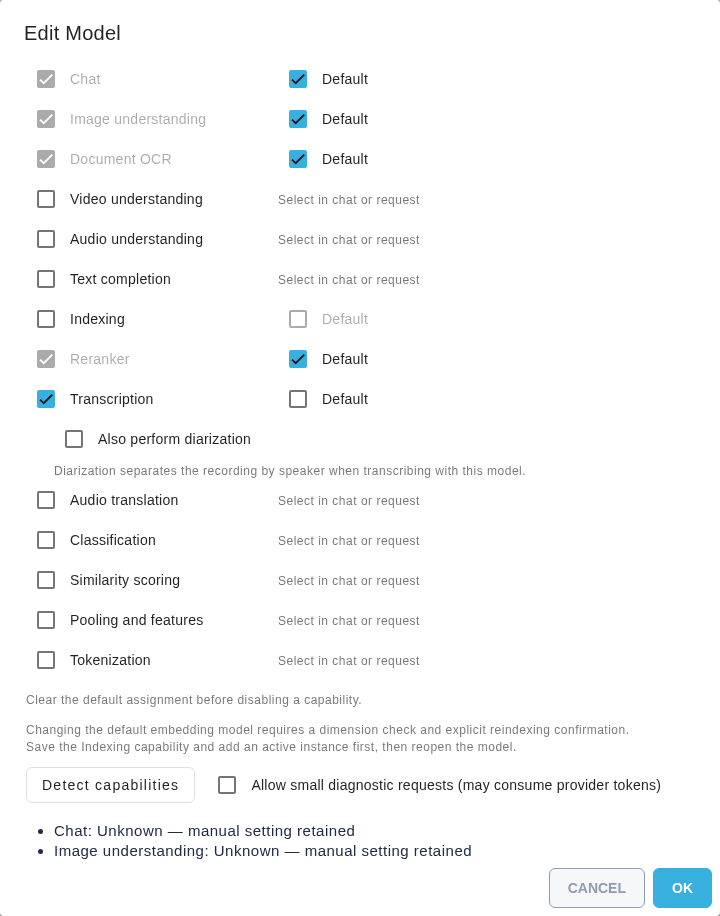
"Edit Model" dialog, independent capabilities and default assignments
Capability checks are consistent across Chat, Chat Completions and Responses, including streamed answers. Requests use models from the current account. If a default is missing or an unavailable instance is specified, the server returns a clear error instead of silently selecting an environment-based connection.
In a new chat without an assistant, users can now select a model before the first message. This lets them start the conversation with the intended model.
5. Migrating environment-based indexing to Models#
When upgrading an account with a legacy environment-based indexing connection, the server now transfers that connection to a default indexing model. Existing vectors and unfinished transitions are retained. This migration needs no reindexing. Review the assignment in Documents settings. Server secrets are not copied into model cards.
The administrator script scripts/import-account-models-from-env.php now imports other environment-based connections into one explicitly selected account. By default, it shows a plan without modifying data. Use --apply with the required --account-guid to apply it. Administrators can inspect the proposed migration before settings are written.
Changing the indexing model remains a separate operation requiring confirmation, as described in the indexing guide. Removing the default assignment retains existing vectors but stops new indexing operations until another model is selected. This distinguishes migration of an existing connection from switching to a different model.
6. Separating speakers in recordings#
The transcription model card's "Also perform diarization" setting now controls speaker separation when a model is explicitly selected as well. The setting appears below enabled transcription and is saved for each instance independently of its default assignment.
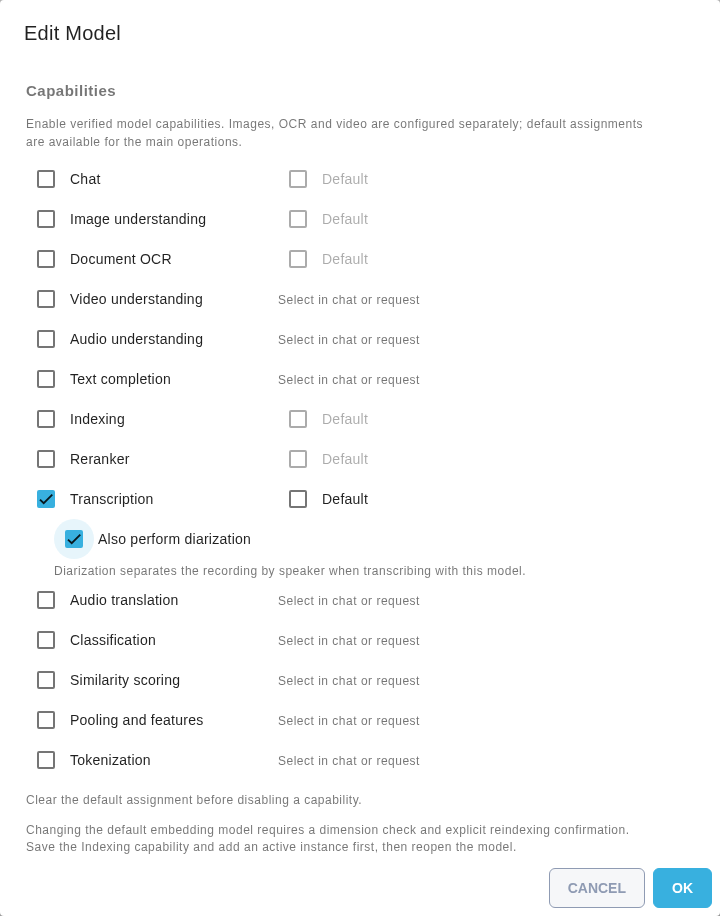
"Edit Model" dialog, diarization enabled
Recordings with multiple speakers are processed by WhisperX even if Whisper is selected for ordinary transcription. If diarization is unavailable, the server reports an error instead of silently returning text without speaker labels. Users receive the expected transcript or learn which setting needs checking.
7. Uploading folders and ZIP archives to Documents#
The Documents screen now offers folder upload and ZIP folder import. Both preserve nested folders. Files at the root of a ZIP are placed directly in the selected folder. Import checks paths and extraction limits. Users can bring an existing document structure into the system without creating each folder manually.
To retain a ZIP as a single file without extracting it, use ordinary file upload.
8. Additional Document columns#
The Documents table now supports "Text", "Number" and "List" columns. Values entered in a file card appear beside the document in the table and search results. For example, store each contract's number and department to see that information when selecting a file.
9. File, folder and tag presentation#
File and folder lists now leave more space between each file or folder icon and its name. The active name field has a light background when editing a tag. This helps users distinguish adjacent names and identify the field being edited.
10. Exporting Audit events to SIEM#
A separate optional Syslog exporter now sends Audit events to SIEM. Administrators can enable the siem profile and configure a recipient to collect Sherpa AI Server events alongside audit events from other systems. Read progress is stored separately. Repeated checks include records from transactions that completed late.
Connection steps, database permissions and TLS settings are in the export guide. Account for the chosen protocol's delivery limits: TCP/TLS sending does not confirm storage in SIEM, and UDP does not confirm delivery.
11. Preserving drafts and recovering skill execution#
The skill editor now handles concurrent editing correctly. If the stored version changes, the local draft remains in the dialog and overwriting is blocked. To continue, save any text you need separately, use "Reopen skill" to load the current version, and reapply the changes. Refreshing the list and performing file operations no longer remove that protection.
When a ZIP import is confirmed to have failed, files created for that import are removed. File counts for ZIP archives containing nested directories are also corrected.
Reloading after an interpreter failure restores the current run's resources. Resuming an agent rechecks assignments and permissions. Disabled or detached skills are removed from the current instructions. Work can continue without outdated instructions or resources from another run.
Retrying after a queue submission error now restores the original draft without repeating the selected skill command. A delayed error no longer replaces text in another chat, mode or run.
12. Model capability diagnostics#
The Models screen now shows capability detection failures correctly. The reason and HTTP code can be copied directly from the "Edit Model" dialog. The capability list is more compact, and long buttons wrap on narrow screens. Administrators can read the test result and continue configuration without searching for a notification that disappeared.
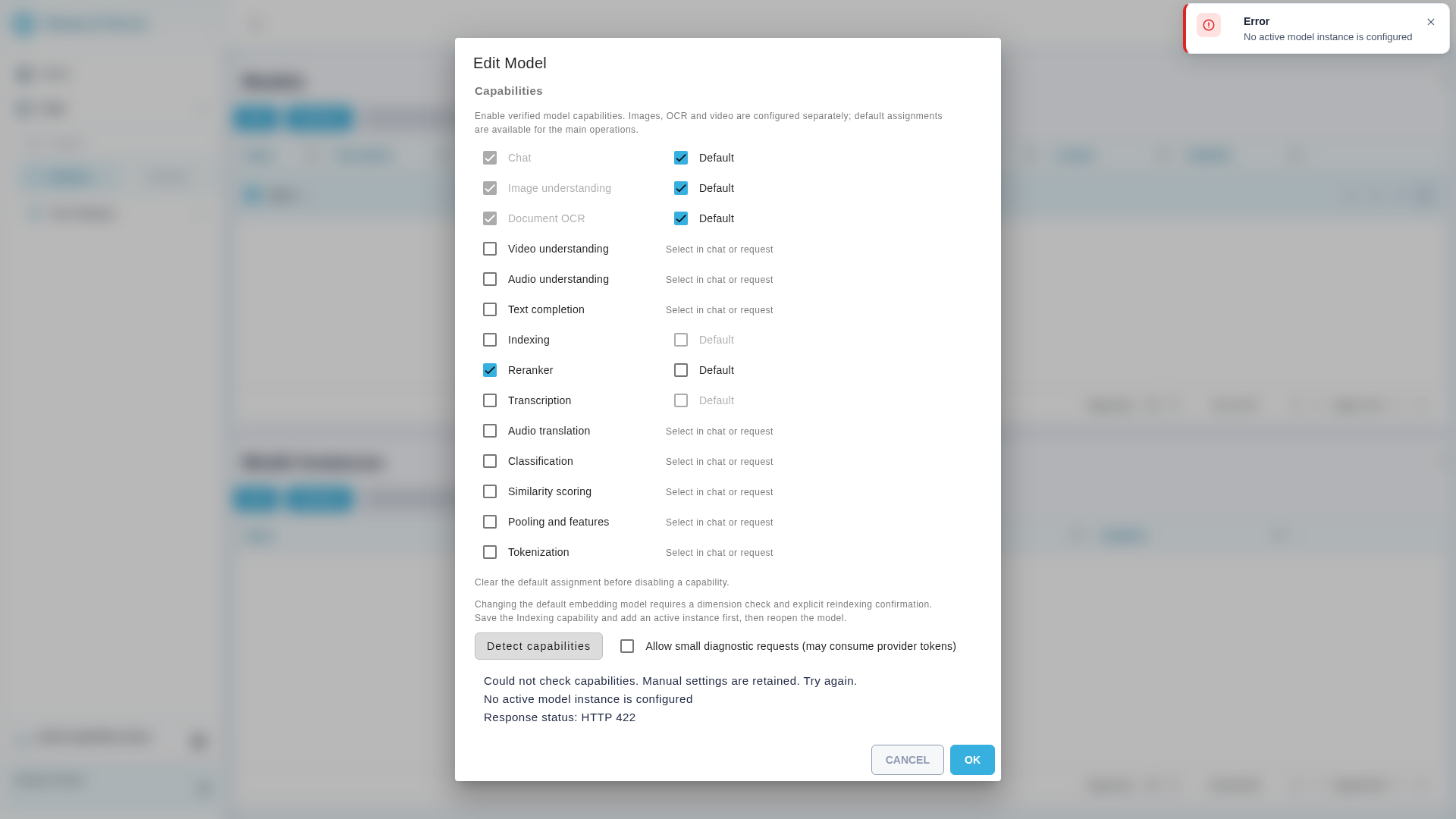
"Edit Model" dialog, error details and HTTP status
After an indexing model is confirmed, closing its card refreshes the Models list, including Cancel and Escape. The current default assignment is visible without a separate page reload.
13. Saving and displaying additional columns#
Documents now refreshes additional columns after the server response and displays saved values in search results correctly. A value can be submitted again after a save error. Changing "List" to "Text" or "Number" is no longer blocked by a hidden empty option.
Closing the column deletion dialog cancels the action. An error releases the pending state. Users can continue working with the table and retry the intended action.
14. Attachment downloads and agent tools#
Downloading XLSX files and other Chat attachments now removes unwanted trailing spaces from file names. Leading characters are preserved. Files download with the expected names without artificially extending their length.
If one file cannot be retrieved from the interpreter's results, other available files are still saved in Chat. One failure no longer interrupts saving every result.
In "Agent" mode, built-in tools now receive the selected API token and use the correct request-body format. Calls use that token so requests run with the configured permissions.
15. Chat API authorization and API pages#
Chat Completions and Responses now classify requests without authorization data correctly. Instead of a JSON structure error, they return 403 access_denied with guidance about Bearer authentication or a session. An integration must provide a valid API key in Authorization: Bearer … or use a valid session. This helps fix authentication without changing a correct request body. Key authenticity and operation permissions are still checked.
The API token page, Swagger and ReDoc now open correctly in installations where their frontend files were incorrectly handled as API requests. Selecting the corresponding menu entry opens the page again.