
Version 2.5.2#
The new Sherpa AI Server release is out: Version 2.5.2.
Release date: 09.10.2026.
1. Before updating#
Before updating, the notes for all intermediate versions must be reviewed and their requirements completed. When upgrading from 2.5.0 through 2.5.1, search indexes must be prepared before updating. The procedure is in the index preparation guide. If the current version is earlier than 2.5.0, the upgrade path must be agreed with support. This helps prepare the installation for an update and avoid starting with unprepared search indexes.
2. Document search and indexing#
The Documents screen has a new "Indexing" view with a flat list of files from accessible folders. The status bar and its tooltip help assess processing. Filters are in column menus. Files with "Error" status can be found, their folder opened and indexing retried with permission to update Documents. This makes it possible to find failed files across folders and retry their processing from one list.
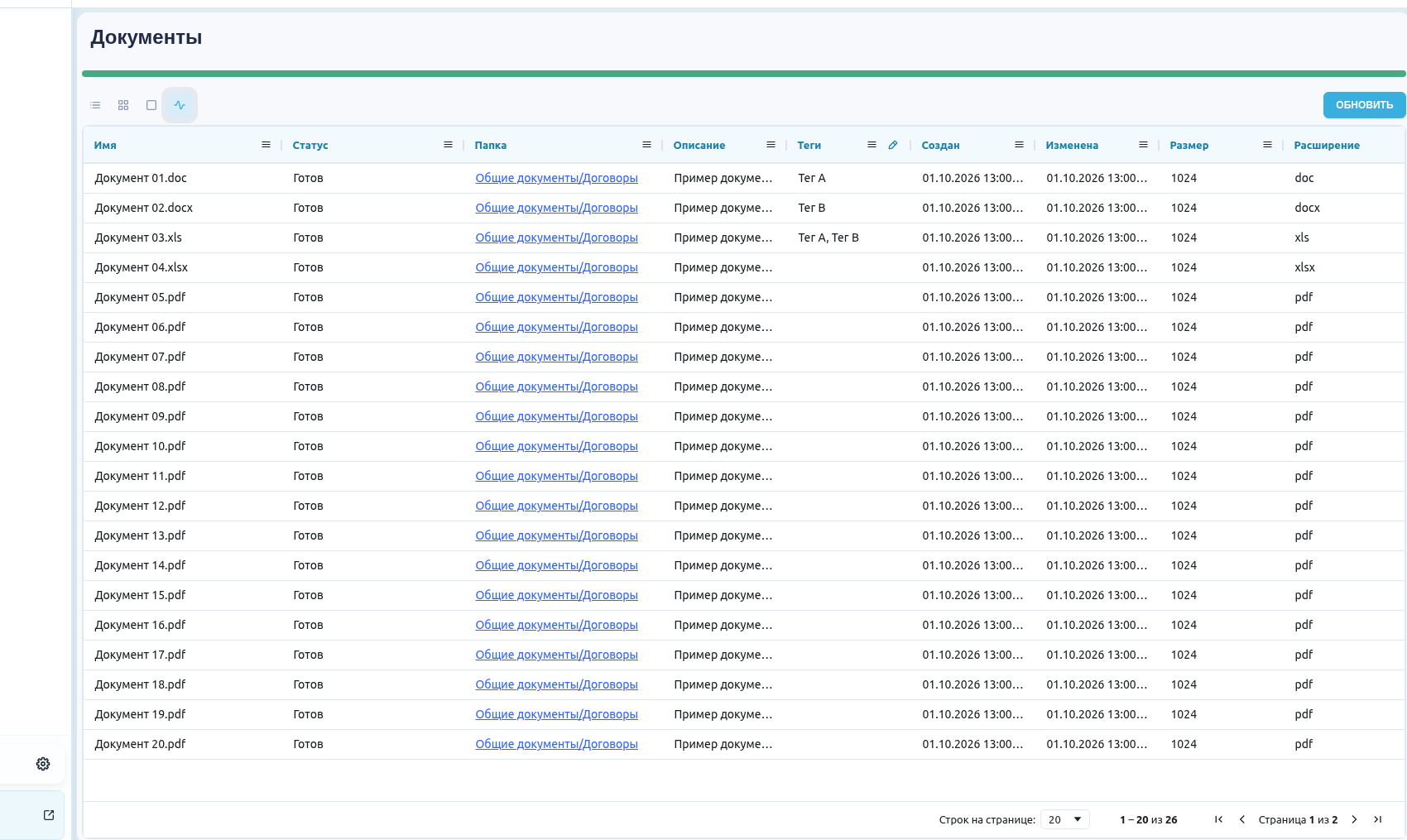
The Indexing view with synthetic documents. Interface shown in Russian.
The "Extension" column filter offers format groups such as Word and Excel. Mark and metadata columns depend on interface appearance settings. Selected conditions remain applied when switching views. This helps select the required file types and continue with the same conditions in another view.
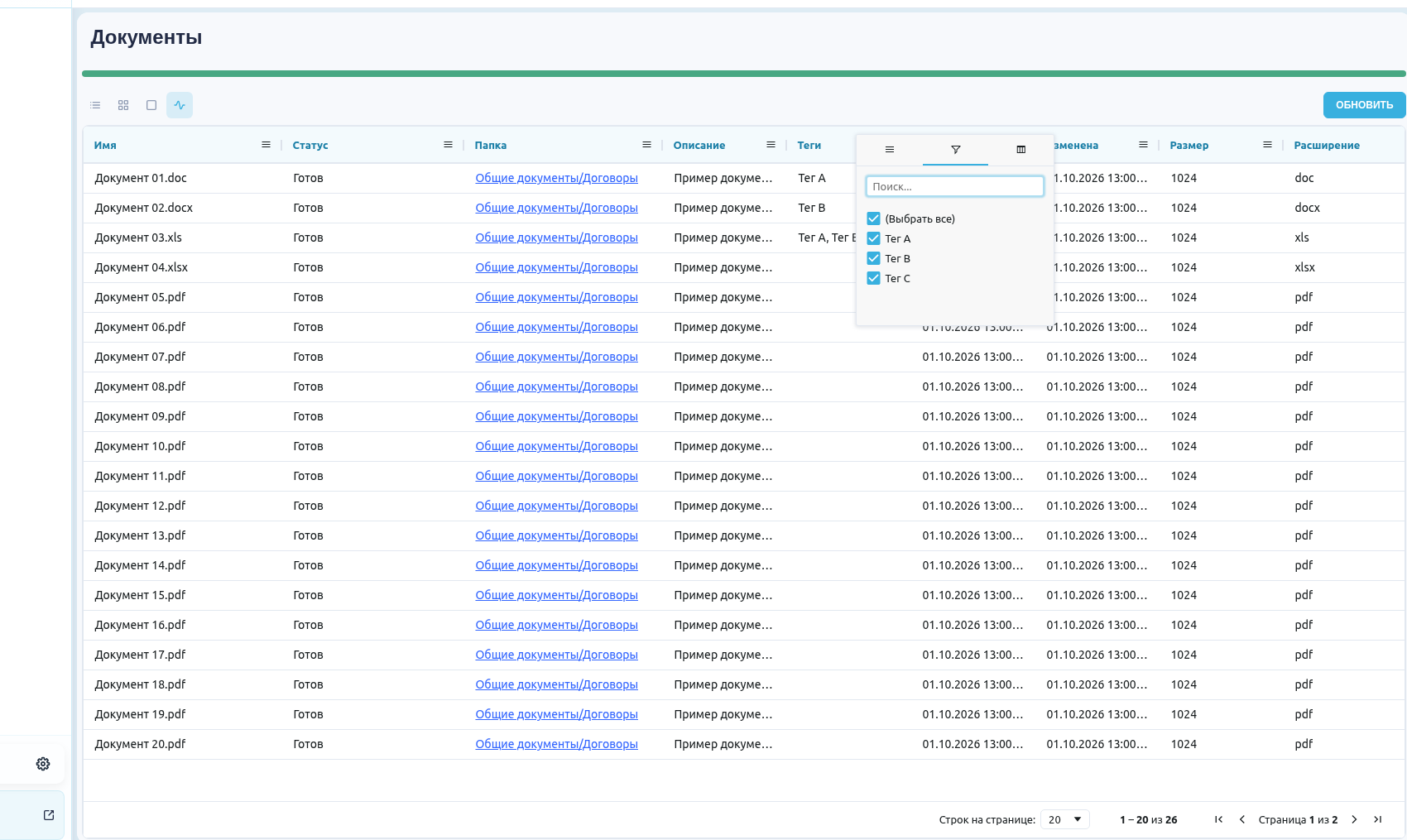
Value filter in the Tags column menu. Interface shown in Russian.
Full-text search across multiple folders and result selection in large knowledge-base scopes have been corrected. Search respects the selected folders and accessible documents. Response time depends on the amount and composition of data in each installation. This makes it possible to search all selected folders while retaining the configured access scope.
3. Document tags#
An existing tag can be added to multiple selected files with "Add tag to selected" or the right-click menu. Previous tags and marks are retained. If some files fail to update, the message lists their names and offers to retry those files. This makes it possible to classify several files in one action and retry only failed assignments.
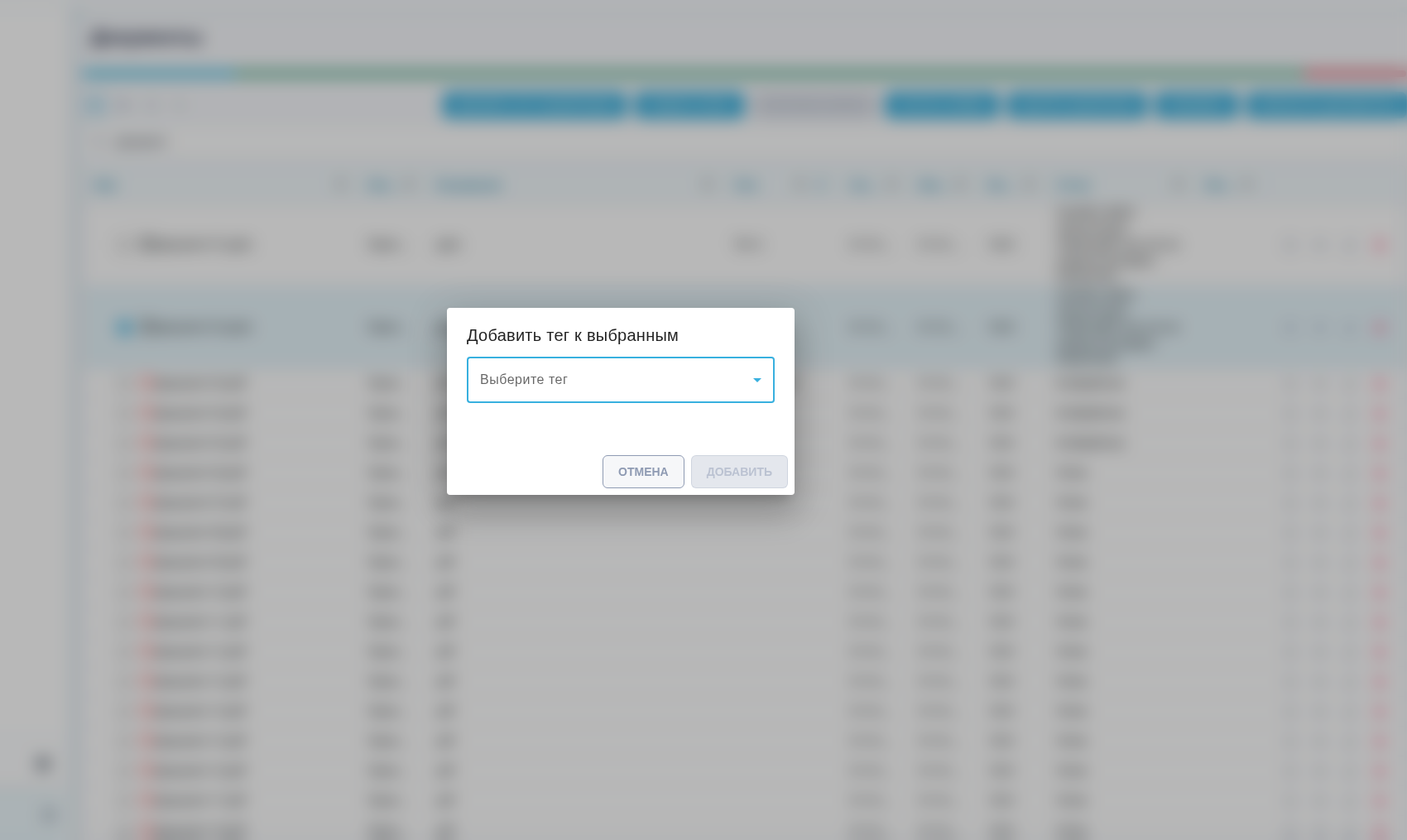
Popup for adding a tag to selected files. Interface shown in Russian.
The "Tags" column menu offers "Any selected tag" and "All selected tags". The first is the default. To remove the condition, reset the filter or select all its values. Deselecting every value produces an empty list. This helps select documents with any required tag or a required combination of tags.
The pencil button beside the filter opens the "Manage tags" popup. Tags can be added, renamed or deleted from the Account catalog. Role permissions control each action. Deleting a tag removes it from files without deleting the files themselves. This makes it possible to maintain a shared tag catalog and correct names without deleting documents.
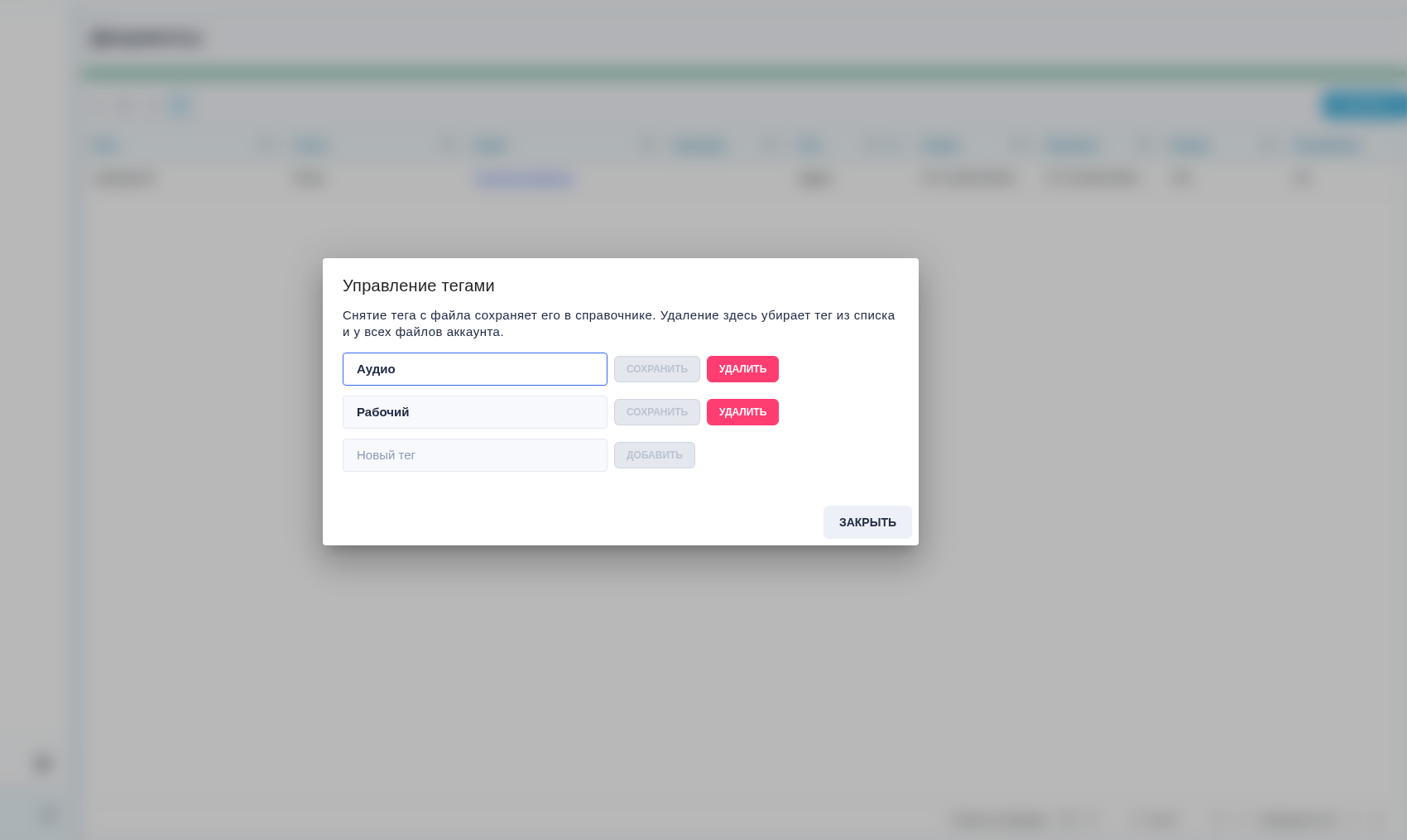
The Manage tags popup. Interface shown in Russian.
4. Changing the indexing Model#
When the Model or vector dimension changes, new vectors are calculated from saved text chunks. Files without saved text must be read again. Saved chunks of files with manual or disabled indexing also receive new vectors without changing their processing mode. This makes it possible to change the search Model using already recognized text while preserving file processing modes.
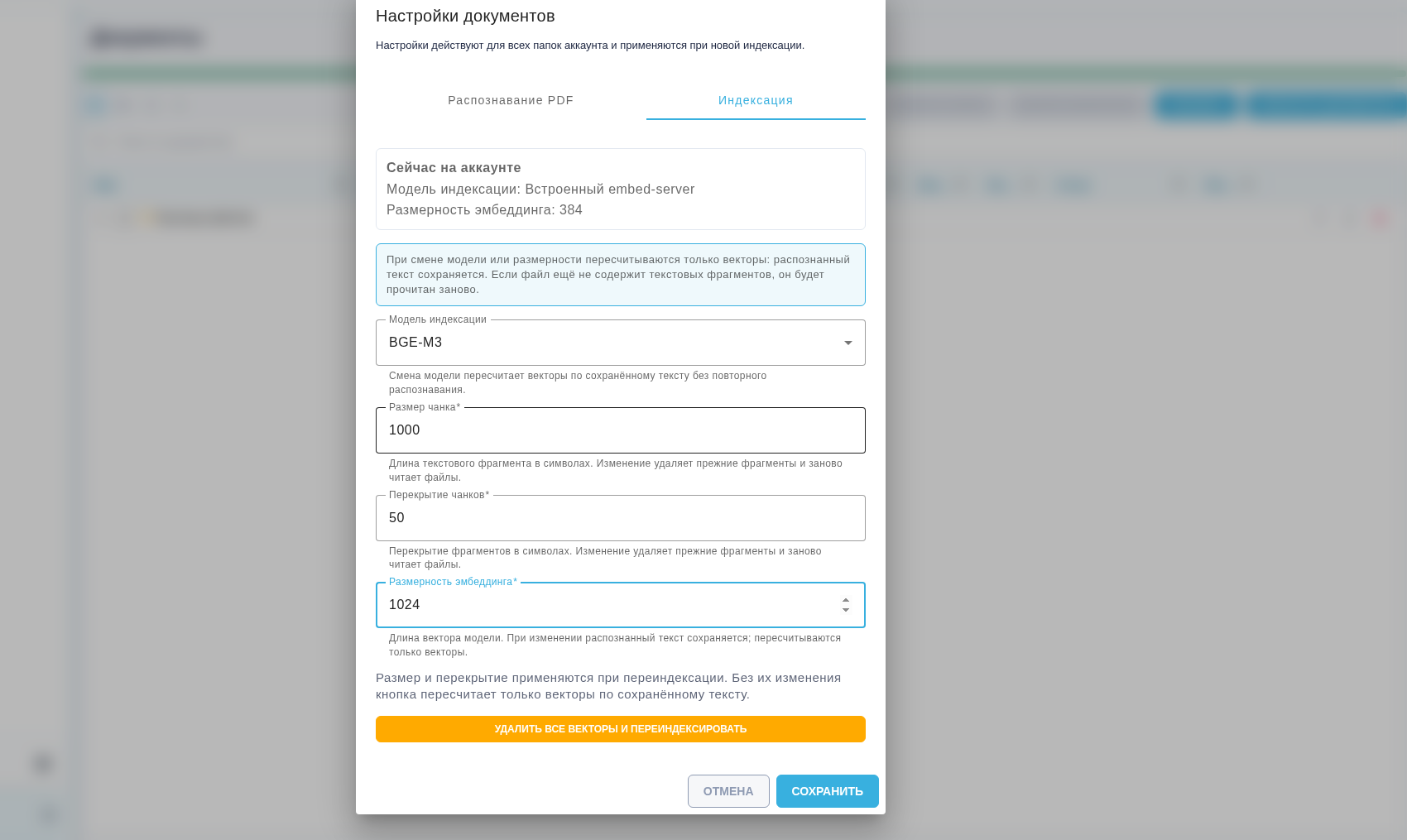
Current dimension 384 and selected dimension 1024 in indexing settings. Interface shown in Russian.
Changing "Chunk size" or "Chunk overlap" reads files again. A warning beside the field explains that repeated OCR of scans can take a long time. Zero overlap and inherited chunking settings are retained when an unfinished transition is retried. This helps anticipate when changing text splitting will require recognition to be repeated.
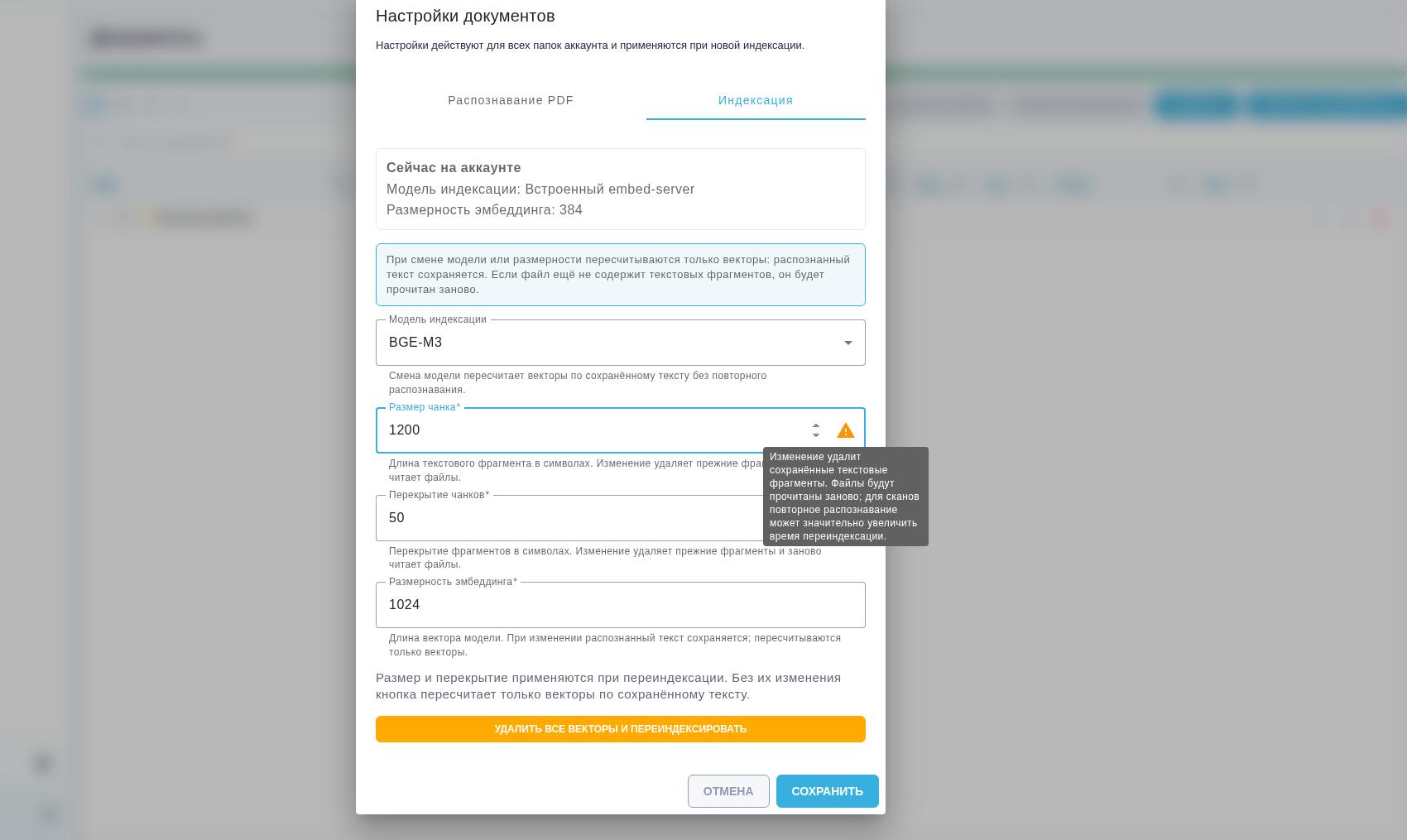
Warning about repeated OCR when chunk size changes. Interface shown in Russian.
Permissions, conditions and steps are in the indexing Model change guide.
5. PDF processing errors#
Scans whose image extends slightly beyond the PDF page boundary have their visible area recognized. Known errors show a specific cause in the "Status" column: missing text, an OCR page limit, an invalid mode or an unavailable recognition Model. Indexing can be retried after resolving the cause. This makes it possible to process these scans and identify what must be corrected before retrying indexing.
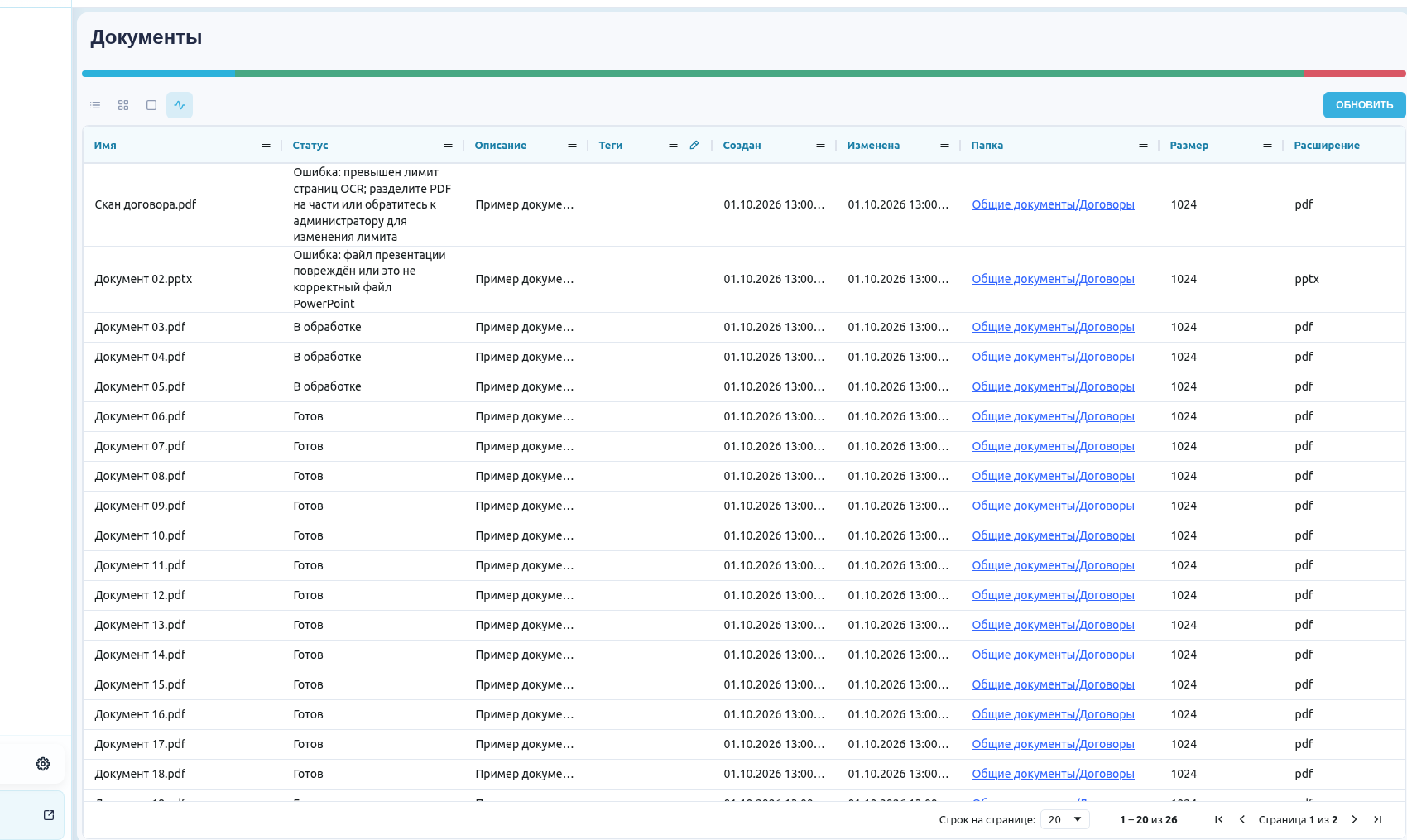
The error cause in the Status column. Interface shown in Russian.
Scanned PDFs require image recognition to be enabled. PDF and supported Office uploads are checked against their actual format. Transcription and recognized-text filenames fit the storage limit even when the source filename is long. This helps detect an invalid format during upload and save processing results for files with long names.
6. Chat and message history#
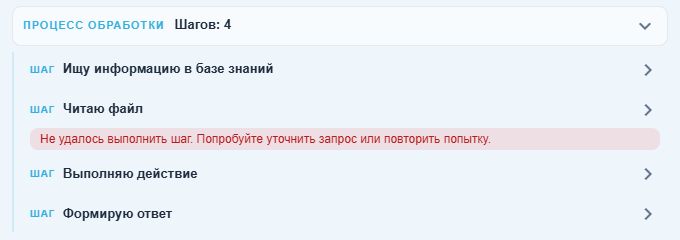
The "Processing" block has clear Assistant step labels, such as "Searching the knowledge base" and "Reading a file". A tool error is explained under its step. Technical parameters and results remain available separately in the expanded step. This helps the User understand which step the Assistant is performing and where an error occurred.
On the Chat audit log screen, the "Chat GUID" column filter supports searching by a complete identifier or a fragment with the "Contains" condition. The condition applies to the entire log and CSV/XLSX exports. Reading the log requires the corresponding permission. This makes it possible to find the required Chat messages across the entire log and export matching records.

Searching messages by Chat GUID. Interface shown in Russian.
7. Speech recognition and Assistants#
Local WhisperX setup, application of server parameters and result verification have been clarified. Turns receive speaker labels and timestamps. Configuration checks and successful recognition are distinguished in the WhisperX guide. This makes it possible to link turns to speaker labels and recording times when checking the transcript.
An Assistant example resolves speaker names in an existing meeting transcript. Its system message reads the complete file in pages, preserves the original wording and timestamps and leaves unproven speakers unnamed. It is necessary to compare the result with the original transcript: a Model can violate the instruction. This helps associate turns with meeting participants while retaining the original text for verification.
False MCP "Tool not found" errors during parallel synchronization have been corrected. A copied hidden-Python marker is not submitted as a program. The default limit for real Python errors is increased to 10. This helps the Assistant continue without these false failures and provides more attempts to correct an actual Python error.
8. API and Model settings#
File, folder and Object Folder deletion methods accept requests without a body or Content-Type. Existing JSON requests remain supported. Swagger provides an empty-JSON example for asynchronous execution. Authorization, Role permissions and Account ownership of objects remain required. This lets integrations send ordinary deletion requests without an artificial JSON body and check the execution format in Swagger.
Saving the env_model Model permits underscores in its name. Interface and API name validation are aligned. This makes it possible to use Model names with underscores consistently in the form and API.