# Регистрация лицензии

Чтобы зарегистрировать лицензию робота, нужно предварительно завершить работу **Sherpa Designer** (если он был запущен). Затем запустите **Sherpa Assistant** с помощью ярлыка на рабочем столе.

![](https://sherparpa.ru/wp-content/uploads/2023/10/sh-assistent.png)

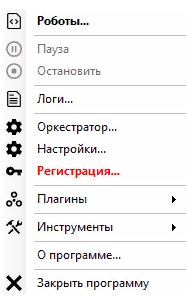
После этого в системном трее найдите значок Sherpa Assistant ![](https://sherparpa.ru/wp-content/uploads/2024/03/shas-v-tree.png), нажмите на него правой кнопкой мыши, откроется контекстное меню, в нем выберите пункт «Регистрация…».
![](https://sherparpa.ru/wp-content/uploads/2023/12/2023-12-28_08-39-14.png)

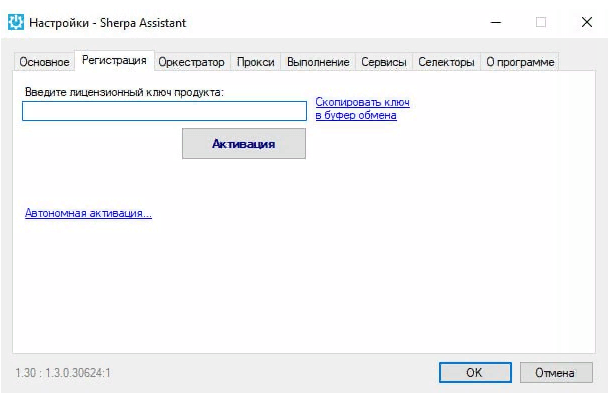
В открывшемся окне на вкладке «Регистрация» и введите номер лицензионного ключа.
![](https://sherparpa.ru/wp-content/uploads/2023/12/2023-12-28_08-41-20.png)

Нажмите на кнопку «Активация» и затем «OK». На этом регистрация лицензии завершена.

Если после этого вы собираетесь работать с **Sherpa Designer,** рекомендуем завершить работу **Sherpa Assistant** с помощью соответствующего пункта контекстного меню.


---

# Agent Instructions: Querying This Documentation

If you need additional information that is not directly available in this page, you can query the documentation dynamically by asking a question.

Perform an HTTP GET request on the current page URL with the `ask` query parameter:

```
GET https://docs.sherparpa.ru/sherpa-rpa/nachalo-raboty/registraciya-licenzii.md?ask=<question>
```

The question should be specific, self-contained, and written in natural language.
The response will contain a direct answer to the question and relevant excerpts and sources from the documentation.

Use this mechanism when the answer is not explicitly present in the current page, you need clarification or additional context, or you want to retrieve related documentation sections.