
The bind modifier in ParentIndent#
The definition of a selector and the structure of its rows are explained in Selector configuration.
The bind: modifier helps locate a control after preceding text or a container. A control's label is the text next to it. For example, the format list in Notepad's save dialog has the label "Тип файла:" (File type).
Each selector row continues the search from the control found by the previous row. The "ParentIndent" column moves the search up the UI tree to a parent. The bind: prefix then continues the search after the branch from which it started.
The diagram labels the common parent with its class name, PreviewBackground. The starting point is the text "Тип файла:". The ↑ 1 arrow leads to the common parent, and the next arrow leads to the list after the label.

UI tree diagram of the "Сохранение" dialog: one level up from the "Тип файла:" label and a search for the following list.
The number specifies how many levels to move up:
1— move up one level without binding. The search starts with the first matching child.bind:1— move up one level and continue after the starting control.bind:2— move up two levels and continue after the starting control's parent branch.bind:n, wherenis a positive integer, — move up the specified number of levels. Withbind:3, the search continues after the branch at the third ancestor's level. Choose the number using the actual UI tree.
An empty cell in the "ParentIndent" column does not move the search up. The screenshot highlights the column header and the empty cell in the selector's first row.
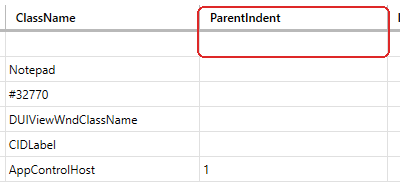
Sherpa Designer, selector table: an empty cell in the "ParentIndent" column.
Binding to a following branch requires a positive number after bind:. The values bind:, bind:0, and bind:-1 do not specify a positive number of levels. Use lowercase Latin letters with no spaces before the number.
Opening Notepad's save dialog#
To test the selectors, prepare the standard Notepad save dialog. Create the project and document on your computer. No file downloads are required.
The instructions use classic Windows 10 Notepad with the Russian interface. Keep the following in mind:
- Other Notepad versions may have a different UI tree. Record the selector again and check the number of levels.
- A different interface language changes control names. Replace those names in the selector rows.
- The test requires a single open Notepad window. If several windows are open, the selector may choose another one.
Run Sherpa Designer and Notepad as the same user with standard permissions.
Prepare the document as follows:
Open the Windows Start menu, enter
Блокнот, and launch the application. In the new document, enterЗаявка 1042. Ответственный: Анна Смирнова..
Notepad: text entered in a new document.
In the "Файл" (File) menu, select "Сохранить как..." (Save as) to open the dialog for choosing the document name and format.
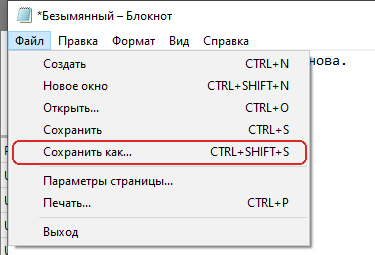
Notepad, "Файл" menu: the "Сохранить как..." command.
Enter
Заявка 1042.txtin "Имя файла" (File name). Leave "Текстовые документы (*.txt)" selected in "Тип файла" andUTF-8in "Кодировка" (Encoding). The destination folder is not part of the selector.
Example: the "Сохранение" dialog is ready for the document "Заявка 1042.txt", with TXT format and UTF-8 encoding. The screenshot uses the "Отчеты" folder. Leave the dialog open while testing selectors. Do not click "Сохранить" (Save): the diagram only reads control text.
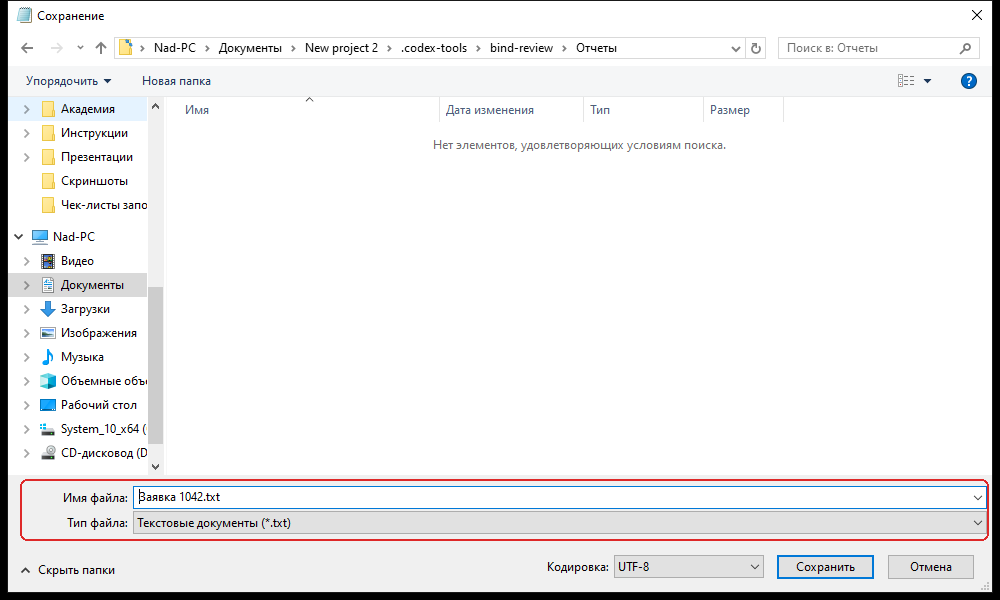
Notepad, "Сохранение" dialog: document name and selected file type.
Creating a project in Sherpa Designer#
To test the search, create an empty project for a diagram that reads text.
On the "Разработка" (Development) tab, in the "Файл" group, expand the list below "Создать" (Create) and select "Новый проект" (New project).
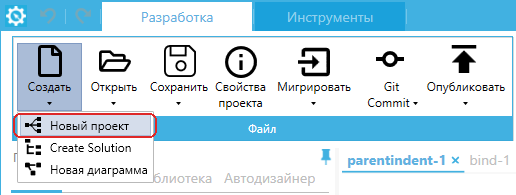
Sherpa Designer, "Разработка" tab: "Новый проект" in the "Создать" list.
Example: in "Создать новый проект" (Create a new project), enter "Селекторы Блокнота" in "Имя проекта" (Project name). In "Расположение" (Location), choose a folder for the learning project on your computer. Keep "Создать каталог с названием проекта" selected and choose the "Пустого проекта" radio control. Click "Создать".
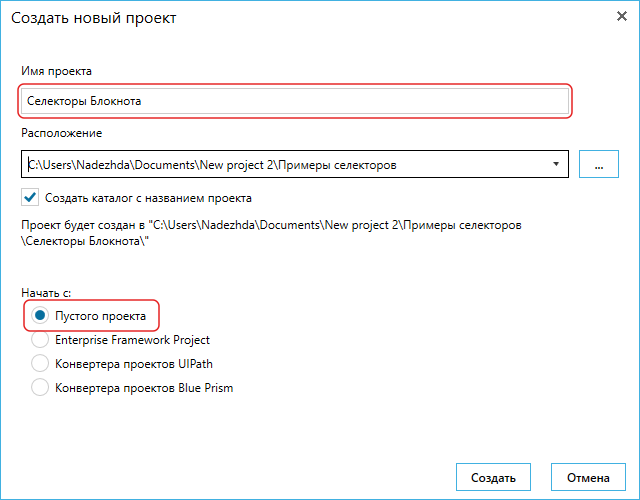
Sherpa Designer, "Создать новый проект" dialog: the name and empty-project selection.
The "Главная" (Main) diagram opens with a "Старт" (Start) block. The created project is saved in the selected folder as Селекторы Блокнота.sherpa.
Setting up the text-reading diagram#
To display the found value in the log panel, add blocks that read the text and log the result.
On the "Блоки" (Blocks) tab, enter "Получить текст" in the search field. Drag the matching block from "Автоматизация приложений" (Application automation) onto the diagram below "Старт". The block with the same name in "Автоматизация браузеров" (Browser automation) is not used for Notepad.
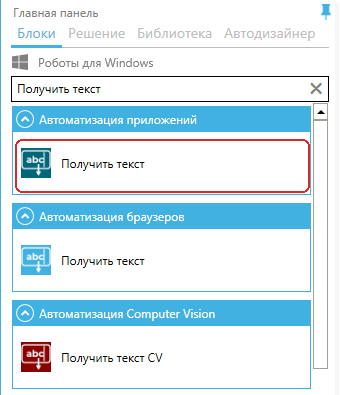
Sherpa Designer, "Блоки" tab: "Получить текст" in the "Автоматизация приложений" group.
Use the block search to add "Лог" (Log) and "Конец" (End) from "Основные блоки" (Main blocks). Connect the blocks in this order: "Старт" → "Получить текст" → "Лог" → "Конец". To connect two blocks, drag the lower output of one to the upper input of the next.
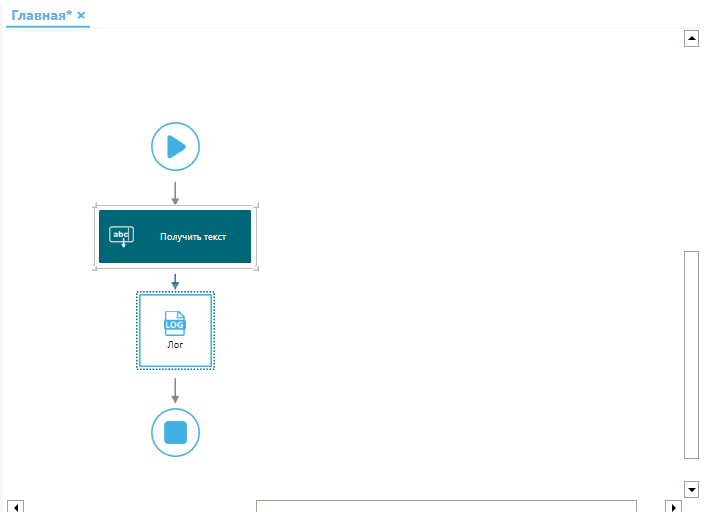
Sherpa Designer, "Главная" diagram: blocks for reading and displaying the result.
Use the following properties of "Получить текст":
- "Селектор" (Selector) — the path to the Notepad control. Its configuration is explained in Finding the file-type list without binding.
- "Тип значения" (Value type) —
Textto read the file name and document type. The button example usesNameto read the button name. - "Результат" (Result) in "Выход" (Output) — the
$Resultvariable that receives the text.
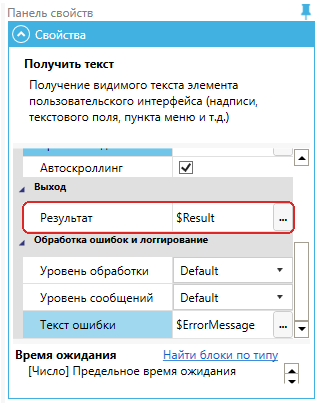
Sherpa Designer, properties of "Получить текст": the variable in "Результат".
Leave the other block properties at their defaults. In particular, do not assign $ProcessID in "ID процесса" before running: the selector identifies the application. Other parameters are described in the Get text block reference.
Example: select "Лог" and enter $Result in "Значение" (Value). The block will display the text read by the preceding action. Sending data to Orchestrator and taking screenshots are not used for this check.
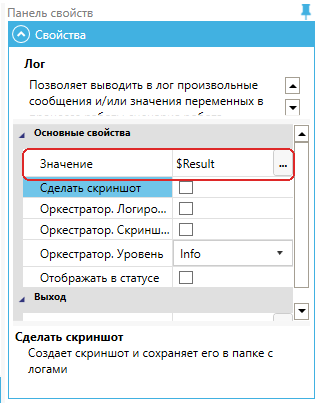
Sherpa Designer, properties of "Лог": displaying the $Result variable.
Finding the file-type list without binding#
To determine the document format, the selector must find "Тип файла". The "Имя файла" field specifies the document name and does not provide its format. Both controls have the AppControlHost class, so the class name alone is insufficient.
To open the editor, select "Получить текст" and click the button  in "Селектор" on the properties panel.
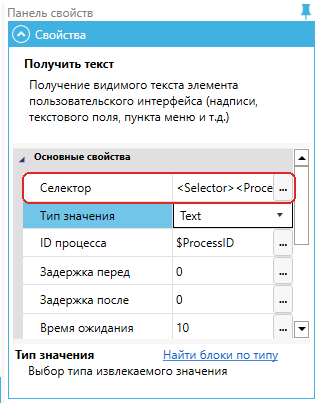
Sherpa Designer, properties of "Получить текст": the button that opens the selector.
To populate the rows without entering each cell manually, copy this entire XML and click "Вставить из буфера обмена" (Paste from clipboard) in "Селектор - Редактировать селектор":
<Selector>
  <Process Name="notepad" Descendant="0" />
  <UIElement Name="*Блокнот" ClassName="Notepad" />
  <UIElement Name="Сохранение" ClassName="#32770" />
  <UIElement ClassName="DUIViewWndClassName" />
  <UIElement Name="Тип файла:" ClassName="CIDLabel" />
  <UIElement ClassName="AppControlHost" ParentIndent="1" />
</Selector>
The selector searches row by row:
The
Processrow finds thenotepadapplication.0in "Descendant" limits the search to the specified levels.
Sherpa Designer, selector table: the notepad application and Descendant value.
The next row finds the Notepad window by the
Notepadclass and*Блокнотname.*allows any document name before the application name.
Sherpa Designer, selector table: the Notepad window.
The row with the name "Сохранение" and class
#32770finds the open save dialog.
Sherpa Designer, selector table: the "Сохранение" dialog.
The
DUIViewWndClassNamerow finds the dialog content containing the file name and type.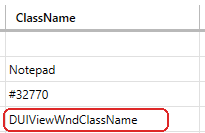
Sherpa Designer, selector table: the save-dialog content area.
The row named "Тип файла:" with class
CIDLabelfinds the text beside the format list.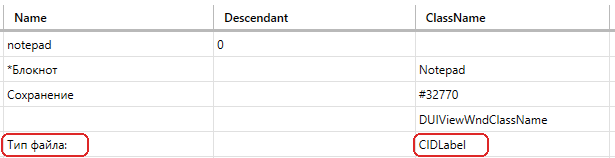
Sherpa Designer, selector table: the "Тип файла:" label.
The final row, with
ParentIndent = 1, moves to the common parent. The search forAppControlHoststarts with the first matching control and finds "Имя файла", which precedes the format list.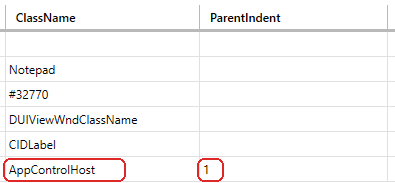
Sherpa Designer, selector table: an AppControlHost search without binding.
Leave "Index" empty. Keep the other unfilled cells empty as well.
Example: click "Проверить" (Verify). A green mark confirms that a control was found, not that it meets the task. Here, the selector finds "Имя файла" instead of "Тип файла".
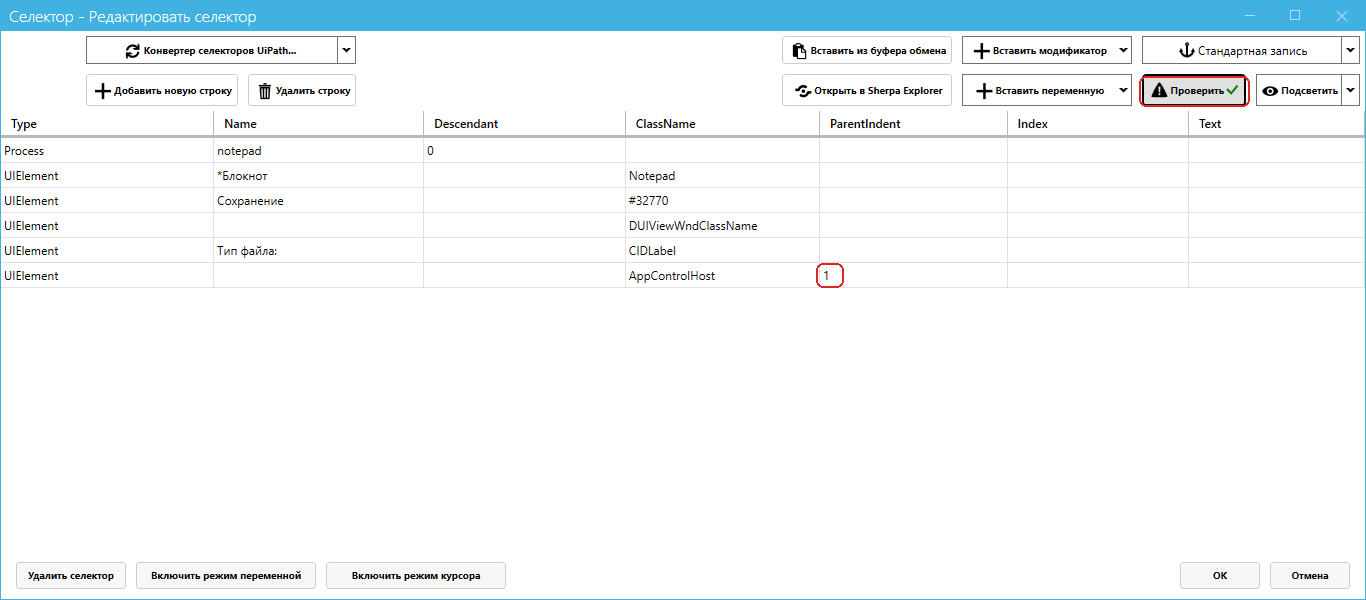
Sherpa Designer, "Селектор - Редактировать селектор" dialog: verifying ParentIndent = 1.
To check the text read, click "OK", then "Сохранить" in the "Файл" group, and press F5. The "Главная" diagram runs from Sherpa Designer. The "Лог" panel displays "Заявка 1042.txt": the document name instead of its format.
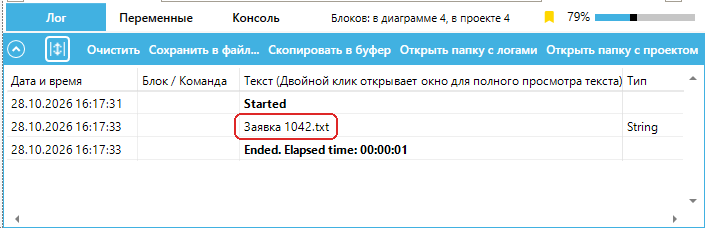
Sherpa Designer, "Лог" panel: the file name with ParentIndent = 1.
Finding the file-type list with bind:1#
To read the document format, continue searching after "Тип файла:", skipping the preceding file-name field.
In the selector editor, change only the final row: replace 1 with bind:1 in "ParentIndent". Keep the other rows unchanged and leave "Index" empty.
The bound search works as follows:
The starting control is "Тип файла:", found by the
CIDLabelrow.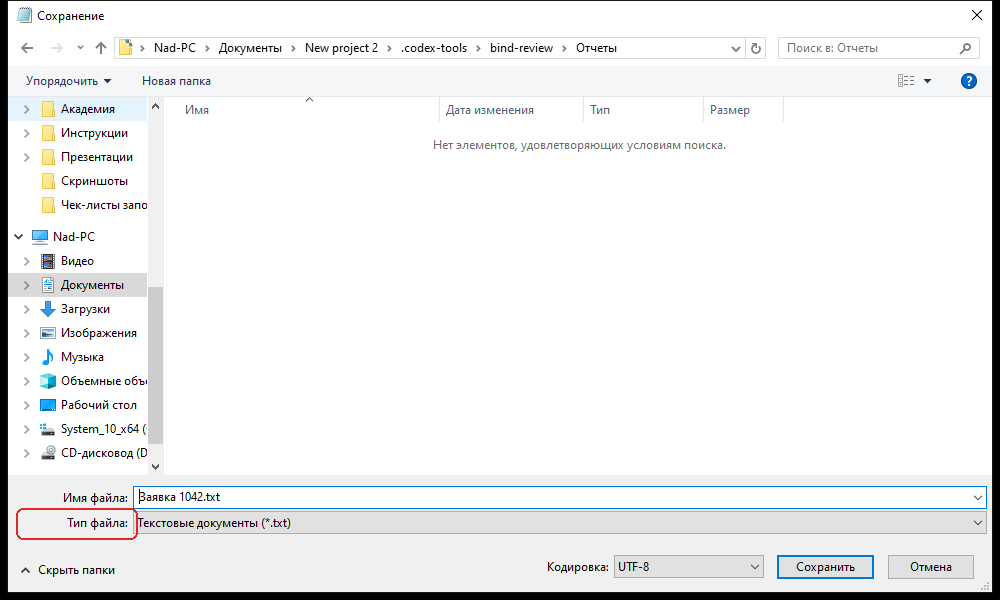
Notepad, "Сохранение" dialog: the "Тип файла:" text before the format list.
bind:1moves up one level to the common parent of the text and list. Binding retains the position of the starting text and continues after it.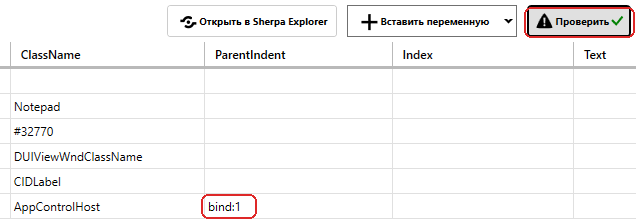
Sherpa Designer, selector-editor detail: bind:1 in the final row.
After the text, the search finds the "Тип файла" list with class
AppControlHost. This list replaces the file-name field as the search result.
Notepad, "Сохранение" dialog: the found "Тип файла" list.
Example: click "Проверить", then "Подсветить" (Highlight), and make sure the format list is highlighted. To read its value, click "OK", save the diagram, and press F5. With value type Text, the "Лог" panel displays "Текстовые документы (*.txt)".
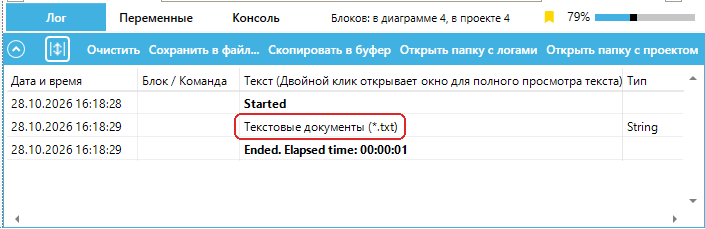
Sherpa Designer, "Лог" panel: the file type with bind:1.
Without bind:, the same conditions return the document name, as shown in Finding the file-type list without binding.
Finding the Save button with bind:2#
To check the control that completes document saving, find "Сохранить". The starting point is a text control inside "Кодировка". Two tree levels separate this text from the button's common parent.
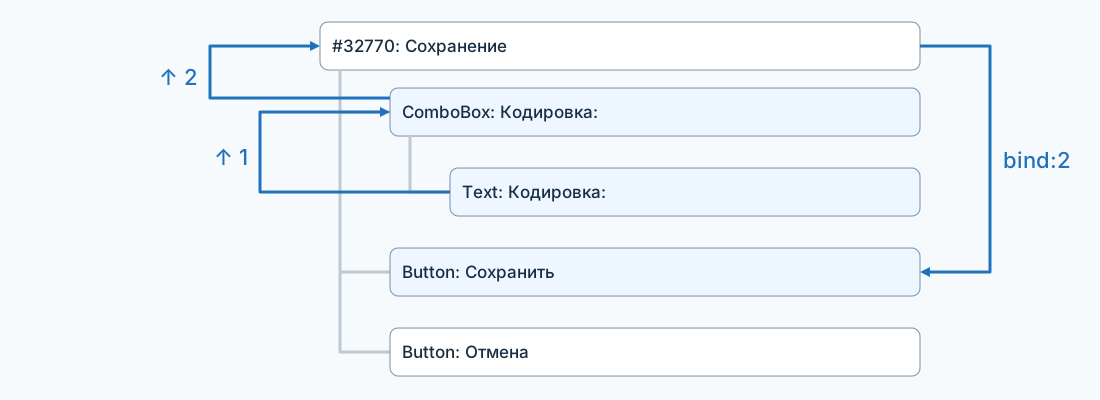
UI tree diagram of the "Сохранение" dialog: two levels up from text inside "Кодировка" to "Сохранить".
Keep the first three selector rows: the application, Notepad window, and "Сохранение" dialog. Replace the three rows starting with DUIViewWndClassName with rows that find the encoding list, its nested text, and the button.
The ComboBox row finds the encoding list directly in the save dialog. The Text row specifies the nested starting control, and the last row moves the search outside the list to the button. Keeping the old rows would continue searching for "Тип файла", not the Save button.
The complete modified selector is:
<Selector>
  <Process Name="notepad" Descendant="0" />
  <UIElement Name="*Блокнот" ClassName="Notepad" />
  <UIElement Name="Сохранение" ClassName="#32770" />
  <UIElement Name="Кодировка:" ClassName="ComboBox" />
  <UIElement ControlType="Text" />
  <UIElement ClassName="Button" ParentIndent="bind:2" />
</Selector>
Paste the entire XML using "Вставить из буфера обмена" and click "Проверить". Leave unfilled cells, including "Index", empty. The selector with bind:2 successfully finds the button.
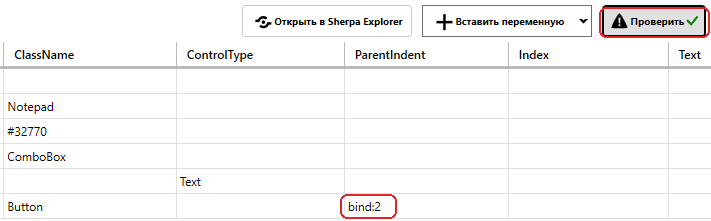
Sherpa Designer, selector-editor detail: successful button verification with bind:2.
Open the found control's tree using "Открыть в Sherpa Explorer" in the selector editor. To view the children, double-click the second "Кодировка:" node under "Сохранение". This node has class ComboBox. The search follows these steps:
The row with class
ComboBoxand name "Кодировка:" finds the encoding list.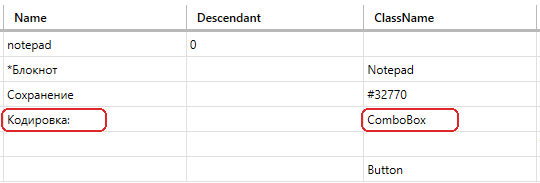
Sherpa Designer, selector table: the "Кодировка" list.
The
ControlType = Textrow finds a child text control named "Кодировка:" in the list's tree. The upward movement starts here. The selectedUTF-8value is not this node's name.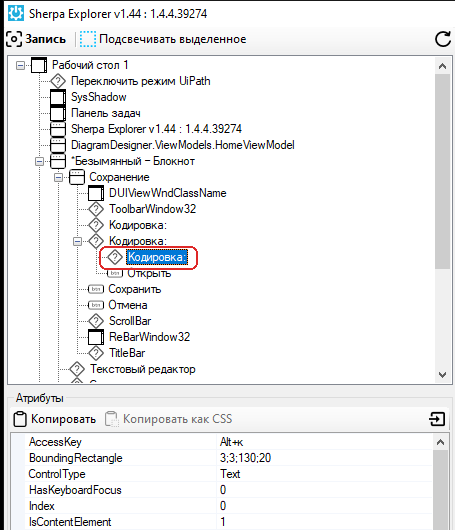
Sherpa Explorer, save-dialog tree fragment: the child text control "Кодировка:".
The first upward step leads from the nested text to "Кодировка". The "Сохранить" button is not at this level.
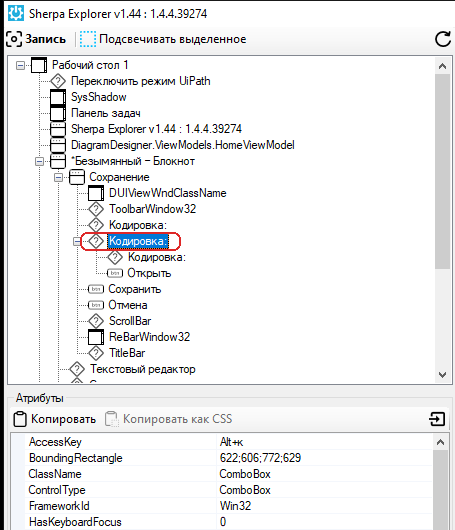
Sherpa Explorer, save-dialog tree fragment: "Кодировка:" after moving up one level.
The second upward step leads to "Сохранение", the common parent of the list and button. Binding continues the search after the encoding-list branch.
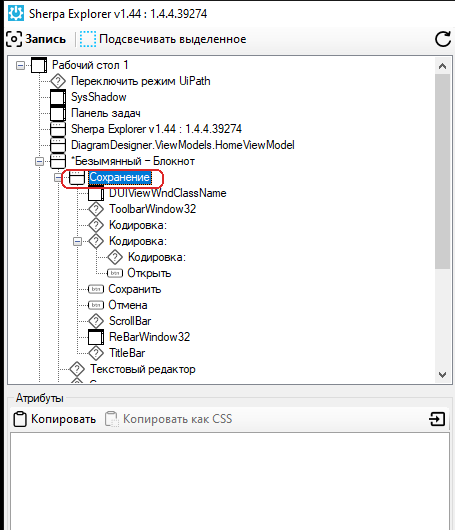
Sherpa Explorer, tree fragment: "Сохранение" after moving up two levels.
The
Buttonrow finds "Сохранить", which follows the list.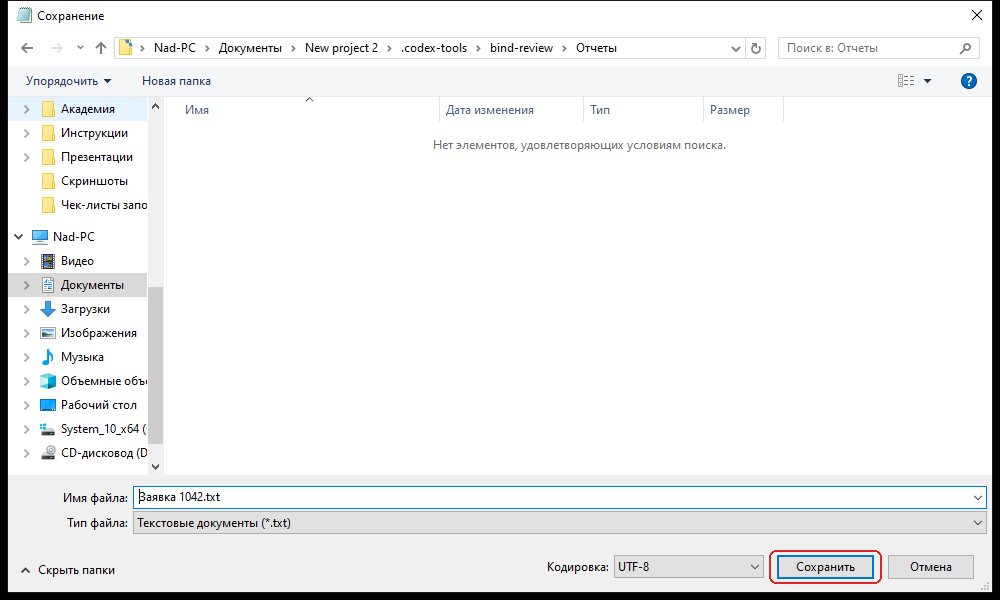
Notepad, "Сохранение" dialog: the found "Сохранить" button.
After viewing the tree, close Sherpa Explorer with Alt+F4 and return to the selector editor. Replacing bind:2 with bind:1 keeps the search inside "Кодировка". Verification cannot find a button with class Button, so one level is insufficient.
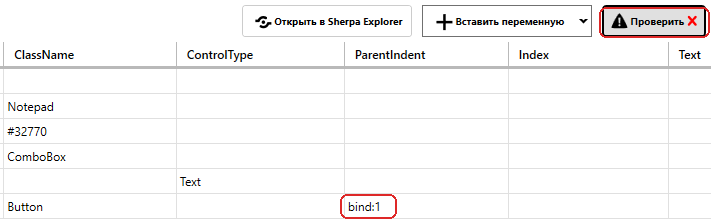
Sherpa Designer, selector-editor detail: failed button verification with bind:1.
To read the button name, restore bind:2 and click "Проверить", "Подсветить", and "OK". In the properties of "Получить текст", select Name in "Тип значения". The Text setting used for the document fields does not return this button's name.
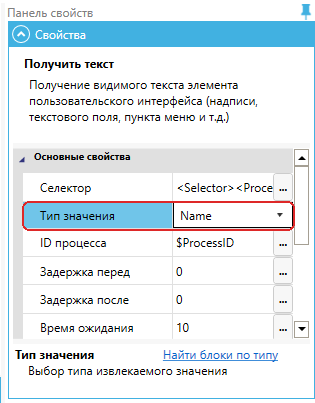
Sherpa Designer, properties of "Получить текст": Name selected for the button name.
Example: save the diagram and press F5. The "Лог" panel displays "Сохранить". The button is found but not clicked. The document remains in the open save dialog.
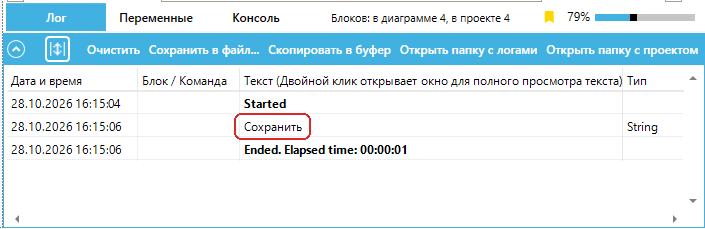
Sherpa Designer, "Лог" panel: the button name with bind:2.
Binding does not guarantee correct searches after every UI change. If control order or the number of nested containers changes, check the selector again with "Проверить" and "Подсветить". Choose the number of levels using the UI tree, not the distance between fields on the screen.