
Attended Floating restrictions#
Attended Floating restrictions let an administrator prevent scripts from running in Sherpa Designer and local Robot files from running in Sherpa Assistant. Code execution restrictions and a mandatory block logging level can also be configured.
These settings belong to the License assigned to the Robot through Sherpa Orchestrator. Each restriction has a separate checkbox, so several restrictions can be enabled for the same License. Assignment is described in License management through Sherpa Orchestrator.
User permissions are configured separately on the Roles screen. Creating a script does not automatically give its author permission to change other Users' access. Contact an administrator to change permissions. Sherpa Assistant loads Processes that have been made available through Assistant in Orchestrator. User permissions apply when signing in with that User's credentials.
In Sherpa Orchestrator 5.9.5, opening and editing the License form requires "Read" and "Update" permissions for Licenses, as well as "Read" permission for Robots. The form also loads Robots and their groups. Read permission for Robots does not allow changing their settings.
All settings in the screenshots below are on a different screen: Licenses in Sherpa Orchestrator. To change an existing License, open its edit form. After selecting restrictions, save the settings with "OK". The screenshots show the form before saving, in the Russian interface.
Preventing execution from Sherpa Designer#
The "Deny run from Sherpa Designer" checkbox prevents script execution from Sherpa Designer, including debugging. This restriction is available for Attended Floating. It controls Robot execution and does not prevent opening or editing a diagram.
If scripts need to run or be debugged in Sherpa Designer, clear the checkbox. This License restriction then does not apply. The other License restrictions remain in effect.
Example: on a workstation intended only to run prepared scripts through Assistant, the License form has "Deny run from Sherpa Designer" selected. The other restrictions are disabled in this example.
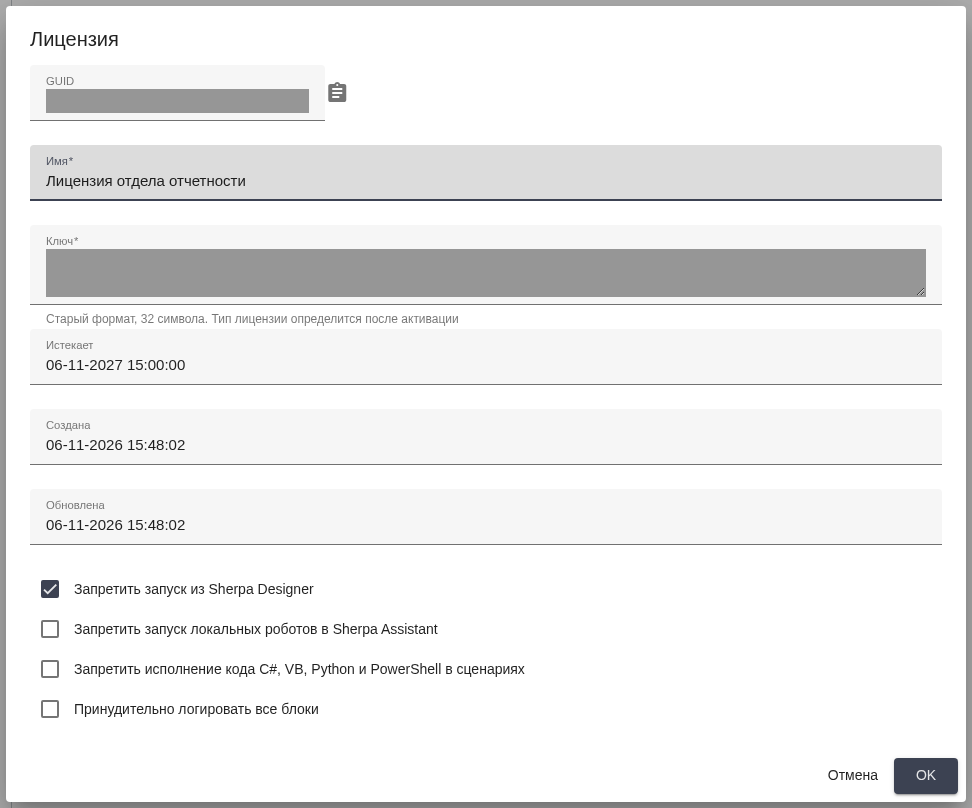
License dialog: preventing execution from Sherpa Designer.
Preventing local Robot execution in Sherpa Assistant#
The "Deny run of local robots from Sherpa Assistent" checkbox restricts execution of locally stored Robot files. This restriction is available for Attended Floating. Scripts published in Orchestrator and made available through Assistant are handled separately from local files.
To work with local Robot files, clear the checkbox. When it is cleared, this License setting does not prohibit running those files in Sherpa Assistant. The other License restrictions remain in effect.
Example: on a workstation that receives centrally provided scripts, "Deny run of local robots from Sherpa Assistent" is selected. The Sherpa Designer execution restriction, code restriction, and forced logging are not enabled in this form.
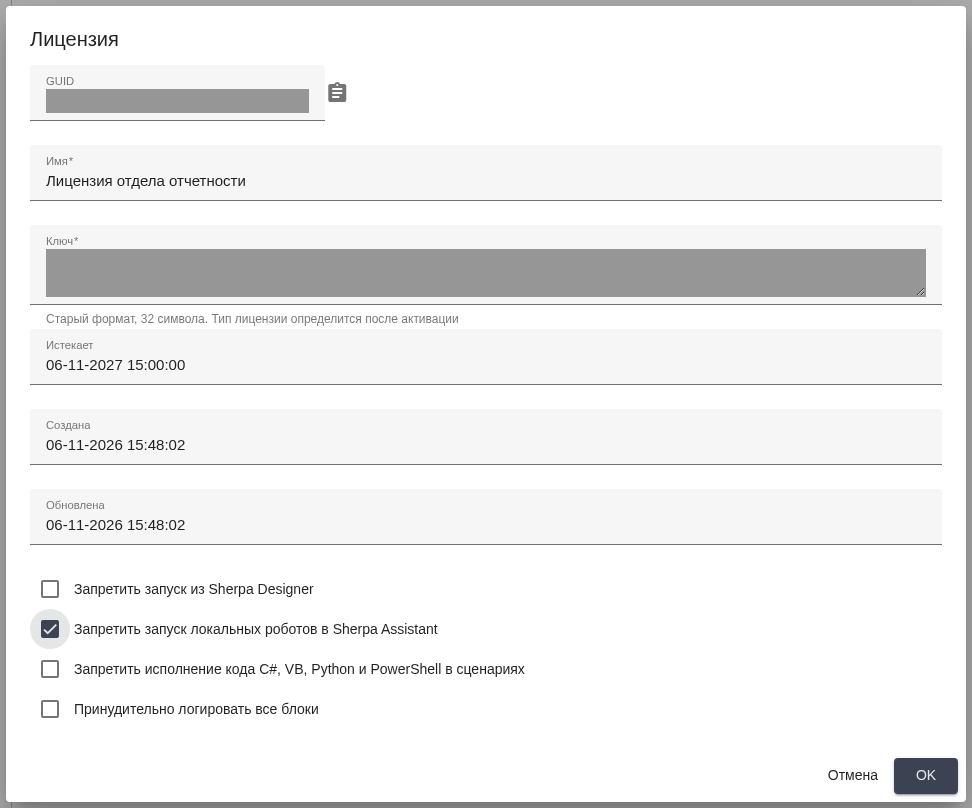
License dialog: preventing local Robot execution in Sherpa Assistant.
Preventing code execution in scripts#
The "Deny C#, VB, Python and PowerShell code execution within process" checkbox sets a restriction on user code in these languages. Before enabling it, check whether production scripts use blocks that execute such code. The code restriction applies to Attended Floating and Unattended.
In the installed version 1.44, this check is also implemented in Invoke Java Code, although Java is not listed in the checkbox label.
If scripts need to execute user code, clear the checkbox. The code execution prohibition from this License setting then does not apply. Clearing the checkbox does not change the other License restrictions.
Example: for scripts without user code execution blocks, "Deny C#, VB, Python and PowerShell code execution within process" is selected. The other restrictions in the form are disabled.
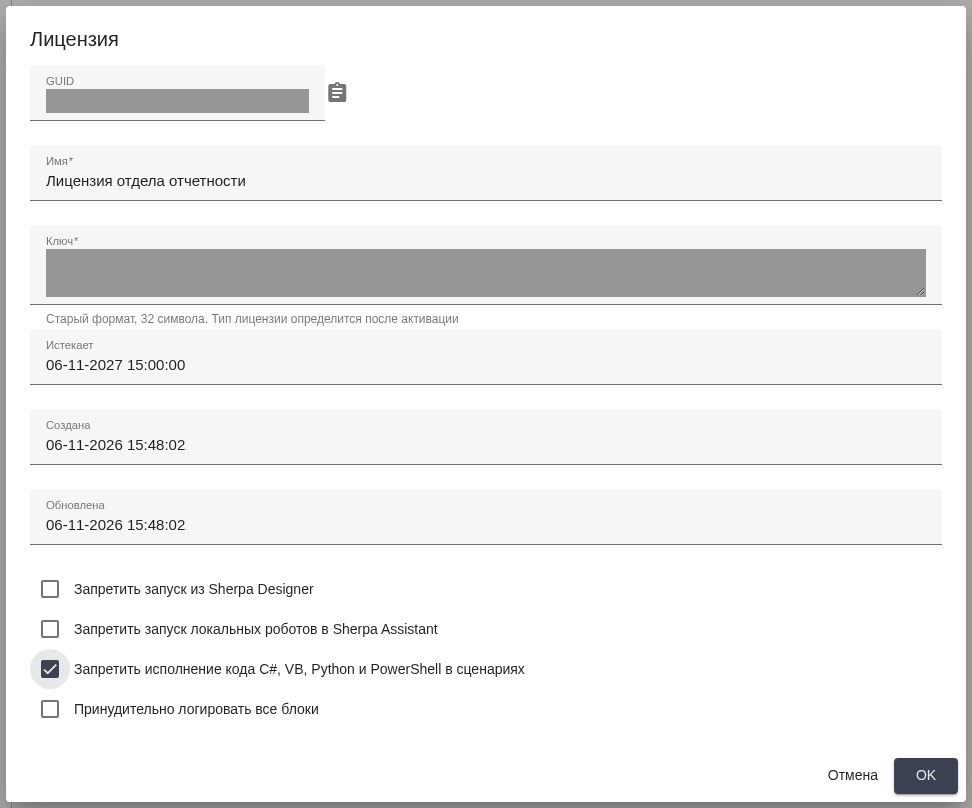
License dialog: preventing C#, VB, Python, and PowerShell code execution.
Forced block logging#
The "Force logging in all blocks" checkbox sets a common logging level instead of the level specified in each script block. Forced logging supports Attended Floating and Unattended. After selecting the checkbox, select one logging level.
Required controls:
- "Release" radio button — log without detailed block messages;
- "Debug" radio button — log with basic debugging messages;
- "Detailed" radio button — detailed log of entering and leaving blocks. Variable values are recorded if the block sends them to the log;
- "Output" radio button — log with block output values.
Additional controls:
There are no additional controls in the logging-level group.
The entries depend on the selected level, the blocks executed, and the run result. Selecting the checkbox does not mean that every level records all input and output values. Variables may contain business information. Use training data when preparing a log to share with others.
If different blocks need their own logging levels, clear the checkbox. The level configured in each script block is then used. The level selected in the License form does not override it.
Example: to examine the execution sequence, "Force logging in all blocks" is selected with the "Detailed" radio button. The other restrictions in the form are disabled.
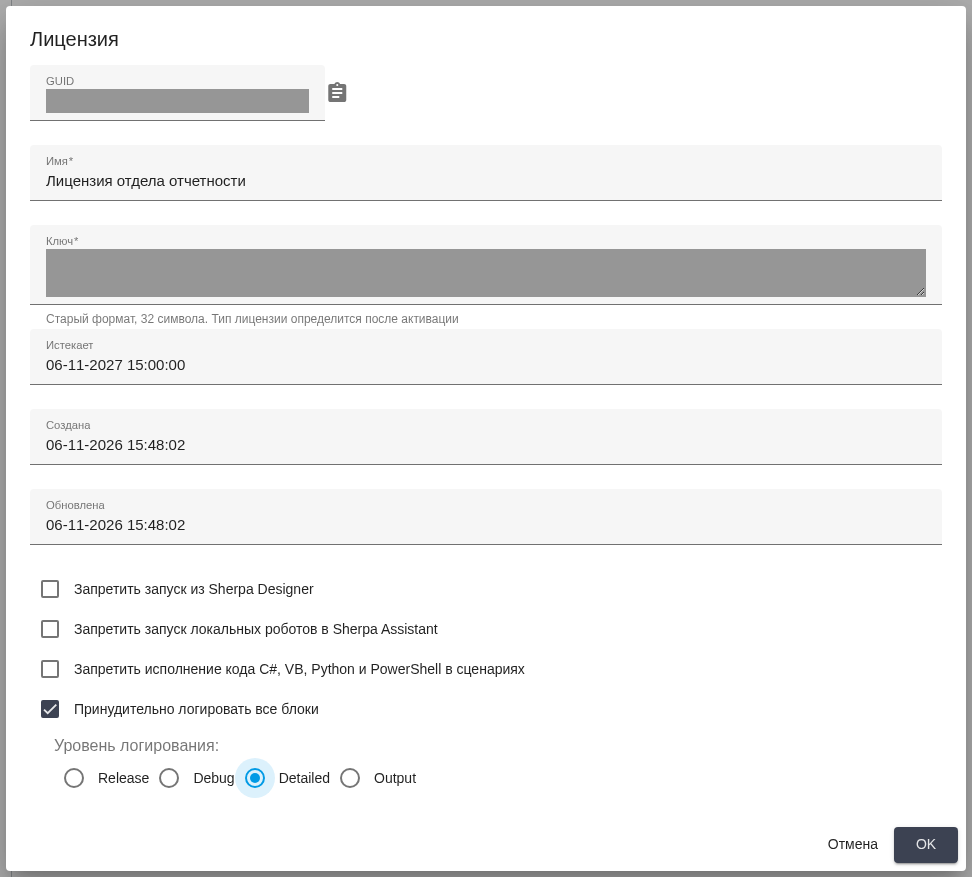
License dialog: forced logging at the "Detailed" level.
The execution log is opened using Logs… in Sherpa Assistant. Entries in Sherpa Designer are described in Working with the Robot log.